 Recall
How to transcribe a meeting: built-in transcripts in Zoom, Teams and Meet, what’s free, and choosing an app
How you transcribe a meeting depends on whether it is in person or online, and whether the host’s side can start a transcript. Who can start built-in transcripts in Zoom, Teams and Google Meet and where they are kept, how captions differ, bot services, transcribing on your own computer, in-person meetings, and what you can do for free.
The short answer: use the meeting tool if the host’s side can start it, otherwise transcribe on your side
There are four main ways to transcribe a meeting. In an online meeting where the host or someone in the host’s organization can start a transcript, the built-in transcript in Zoom, Teams or Google Meet is the quickest. Everyone sees that the meeting is being transcribed, and what was said is kept with the speaker’s name.
When the built-in transcript isn’t available, you can invite a service’s bot that joins the meeting as a participant, or use an app that transcribes the sound your own computer hears. For an in-person meeting in a meeting room, put a phone or computer on the table, record, and transcribe.
A common mistake is to take the meeting’s captions for a transcript. Captions in Zoom, Teams and Meet are for reading during the meeting and are not kept as text afterward. If you want to keep the words, choose a transcript, not captions.
This guide is written by KOROMO K.K., which makes Recall, a transcription app for Mac. We include our own product among the options, so please read with that in mind. Details from Zoom, Microsoft, Google and Notta were checked against their official help and pricing pages on November 25, 2026. We haven’t compared accuracy on the same audio, so we don’t rank accuracy.
Ways to transcribe a meeting compared
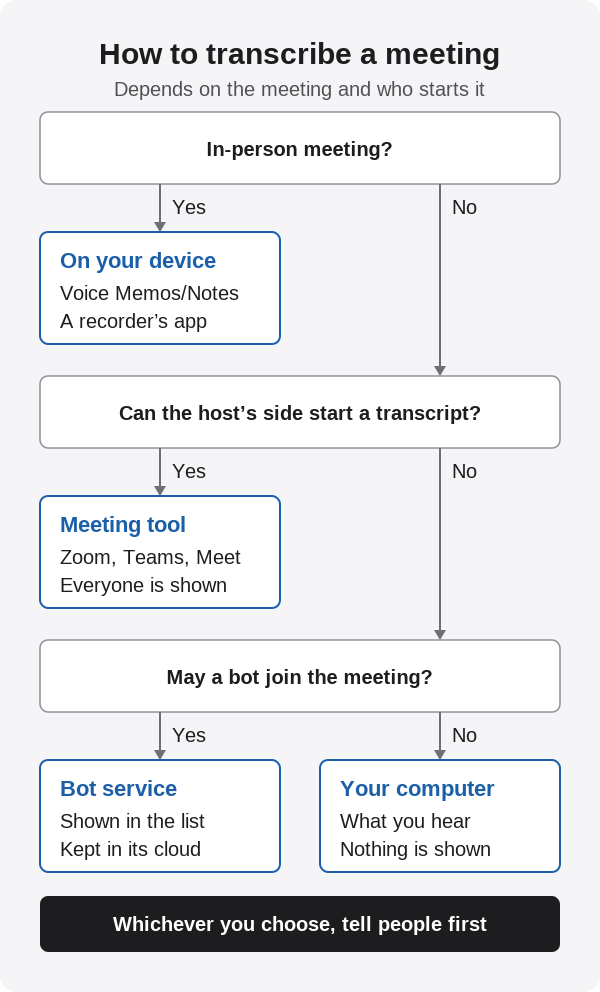
Here are the four ways side by side: who starts it, whether others can see it, and where the text is kept. Settle these three before accuracy or price, and the choice narrows quickly.
| Who starts it | What others see | Where the text is kept | |
|---|---|---|---|
| The meeting tool’s feature | The host or people in the same organization, depending on the plan and admin settings | Everyone is shown it | On the host’s side (OneDrive, Google Drive, the Zoom account and so on) |
| A bot service | You invite the bot, and the host admits it if there is a waiting room | The bot’s name appears in the participant list | The service’s cloud |
| Transcribing on your own computer | You | Nothing | Your computer (depends on the app) |
| Recording an in-person meeting on your device | You | Nothing (the device on the table is visible) | Your phone or computer, or a recorder’s app |
The meeting tool’s feature tells everyone, and the record stays under the host organization’s management. For internal meetings, that is usually enough. In a meeting a client hosts, though, you can’t start it from your side, and the record stays with their organization. That is when the other three ways are worth considering, if you want your own copy.
Captions and transcripts are different
Meeting tools have two similarly named features: captions and transcripts. Both turn speech into text, but only one is kept.
- Captions (live captions): show what is being said at the bottom of the screen during the meeting. They are for reading and are not kept as text afterward
- Transcripts: record what was said with the speaker’s name and time. You can read them again or save them after the meeting
Zoom separated captions and transcripts between May 24 and 26, 2026. Zoom’s notice says captions can be scrolled back three minutes during a meeting but can’t be kept or downloaded afterward; to keep the text, you turn on Meeting transcript. Teams likewise says captions aren’t saved, so turn on transcription if you want a record. If you heard free Zoom could transcribe but found nothing saved, you were most likely reading captions.
The meeting tool’s transcript: Zoom, Teams and Google Meet
A meeting tool’s transcript needs no extra app and keeps everyone’s words with their names. Whether you can use it, though, depends on the host’s plan and the organization’s settings. Here are the conditions for the three tools.
| Conditions | Who can start it | Where the text is kept | |
|---|---|---|---|
| Zoom (Meeting transcript) | Pro, Business or Enterprise accounts. Off by default | Used in meetings where the host or an admin turned it on | Saved from the panel. The host chooses who can save |
| Teams (transcription) | Teams in a work or school organization, with the admin’s permission | The organizer chooses (organizer, co-organizers, presenters and so on) | The organizer’s OneDrive. Read from the meeting chat |
| Google Meet (transcripts) | Eligible Google Workspace editions such as Business Standard and up | People in the host’s domain (a setting can limit it to hosts and co-hosts) | The “Google Meet” folder in the host’s Google Drive |
Zoom: turn on Meeting transcript on a paid account
Zoom’s help on Meeting transcript settings says it needs a Pro, Business or Enterprise account and is off by default; a host or admin must turn it on explicitly. Who can save the transcript to their computer can be set to the host only, the host and co-hosts, non-guest participants, everyone, and so on.
A free Basic account gets captions, which aren’t kept after the meeting. Steps, and how it differs from recording transcripts and summaries, are in How to transcribe Zoom meetings.
Teams: people from other organizations can’t start it
Microsoft Support says everyone in the meeting is notified when transcription starts, and the transcript is stored in the organizer’s OneDrive for Business. After the meeting you can read it in the meeting chat or the Recap tab, and by default the organizer and co-organizers can download it as a .docx or .vtt file.
Watch out if you join from another organization. The same page says users from another tenant can view the live transcript but can’t start or stop it, view it after the meeting or download it. Anonymous participants can do none of these. If a client invites you to their Teams, you’ll need to ask the organizer. What to check when the button is missing is in How to transcribe Teams meetings.
Google Meet: not on free personal accounts
Google Meet Help on transcripts lists Business Standard, Business Plus, Enterprise Starter, Enterprise Standard, Enterprise Plus, Teaching and Learning Upgrade, Education Plus and Workspace Individual. Transcripts work on computers and Android devices, and are saved in the “Google Meet” folder in the host’s Google Drive, with a subfolder for each meeting.
Who can start one depends on host management: with it off, anyone in the host’s domain; with it on, only hosts and co-hosts. Free personal Google accounts aren’t on the list. The differences by plan are in How to transcribe Google Meet. For Webex meetings, see How to transcribe Webex meetings.
Services that put a bot in the meeting
For meetings without a built-in transcript, people often use transcription services such as Notta, tl;dv and Otter. Many of them send the service’s bot into the meeting as a participant, which receives the audio and transcribes it. They keep records the same way in any meeting tool and are easy to share with a team.
- Others can see it: the bot appears by name in the participant list. In a client’s meeting, it can surprise people unless you ask first. In meetings with a waiting room, it can’t join unless the host admits it
- Audio goes to the service’s cloud: the meeting’s audio and text are processed and stored on the company’s servers. Check first whether the meeting may leave your company. What to check is in Meeting AI security
- Free tiers are often small: for example, Notta’s pricing page says the Free plan transcribes 120 minutes a month, up to 3 minutes per conversation. Keeping every meeting in full means a paid plan
Other services’ free tiers are compared in 8 free AI note takers. To remove a bot that joined someone else’s meeting, see How to remove AI bots from meetings.
Transcribe what you hear on your own computer
When you can’t use the host’s feature and don’t want a bot, transcribe the meeting sound your own computer is playing. Nothing is added to the meeting tool, so it works the same way in Zoom, Teams or Meet, even in meetings a client hosts.
- Mac: there are apps that transcribe the other side’s voice played on your Mac and your own voice from the microphone. Recall is one, introduced below. How it compares with other apps that run on your Mac is in Meetily, Hyprnote, screenpipe and Recall compared
- Just to read along: Live Captions on Mac and Windows caption the sound your computer plays. Their help pages give no way to save the captions, so they are for reading in the moment (Real-time transcription)
- Record, then transcribe: you can also record your computer’s sound and transcribe it later. How to record your Mac’s sound is in How to record internal audio on a Mac
With this approach, nothing shows on other people’s screens. That is exactly why you should tell them in your own words (how to tell them).
In-person meetings: record on your device and transcribe
For a meeting-room discussion or an interview, put a phone or computer in the middle of the table and record. To start at no extra cost, use Voice Memos and Notes on iPhone and Mac.
- Voice Memos: shows a transcript while recording or afterward. iPhone needs an iPhone 12 or later on iOS 18 or later; Mac needs a Mac with Apple silicon on macOS 15 or later (How to transcribe with Voice Memos)
- Notes: records inside a note and can add the transcript to the note. Good when you want to type key points while recording (How to record and transcribe in Notes)
- Recorders: for meetings with many seats, or when you want to record with your computer closed, there are recorders whose apps transcribe the audio (PLAUD NOTE alternatives)
Voices far from the device produce more errors. Placement, separating speakers, and meetings that mix in online participants are covered in How to transcribe in-person meetings on a Mac.
If you already have a recording: transcribe the file
If you already have a recording of the meeting, transcribe it with a tool that accepts files. The most important question is whether the audio may go to an outside service.
- It must not leave your company: use an app that transcribes on your computer, such as MacWhisper
- You use Microsoft 365: you can upload an audio file to Transcribe in Word on the web (How to transcribe in Word)
- A short recording, quickly: you can also give the file to Gemini or ChatGPT. The audio is sent to their servers
Formats, length limits and the plans you need are compared in How to transcribe audio files, and how to record a meeting you haven’t recorded yet is in How to record a meeting.
How much you can do for free
If you want to transcribe meetings for free, here is what works and what doesn’t.
- Free and kept: Voice Memos and Notes on iPhone and Mac transcribe at no extra cost on supported models. Use them for in-person meetings and audio you record yourself
- Free but not kept: captions on a Zoom Basic account and Live Captions on Mac and Windows are for reading in the moment and aren’t kept as text after the meeting
- Small free allowances: free plans of bot services, such as Notta’s 120 minutes a month at up to 3 minutes per conversation, are often not enough to keep long meetings in full
- Paid plans needed: Zoom’s Meeting transcript needs Pro or above, and Google Meet transcripts are a feature of eligible Google Workspace editions
If your workplace’s Teams or Google Workspace is already on an eligible plan, you may be able to use the built-in transcript at no extra cost. Before subscribing to a new service, check whether the host’s side can use it.
Tell people before you transcribe
A transcript keeps exactly what others said. The following is general information, not a judgment on whether you may keep a record in a particular situation. If in doubt, ask your workplace or a professional such as a lawyer.
- Say it at the start: add a line such as “I’m transcribing this to write the minutes. It won’t leave our company,” giving the purpose and how it will be handled. Stop if someone objects
- Don’t rely on notices alone: the meeting tool’s transcript shows a notice to participants, but nothing appears when you transcribe on your own computer or device. Whatever you use, saying it yourself is the sure way
- Follow your workplace’s and the other side’s rules: don’t use transcription or bots in meetings that forbid them. In a client’s meeting, their company’s rules apply too
How to turn a transcript into minutes is in How to write minutes from a transcript.
Transcribe meetings on your Mac: Recall
If you hold most meetings on a Mac and want text on your side whatever the host’s settings, transcribing what your Mac hears is the simple way. Recall is a Mac app that sits in the menu bar and transcribes your microphone and the sound your Mac plays. The other side of a Zoom, Teams or Google Meet call is transcribed as sound your Mac plays, and your voice from the microphone. No bot joins the meeting.
- Language: choose Japanese or English in settings. It doesn’t switch automatically partway through
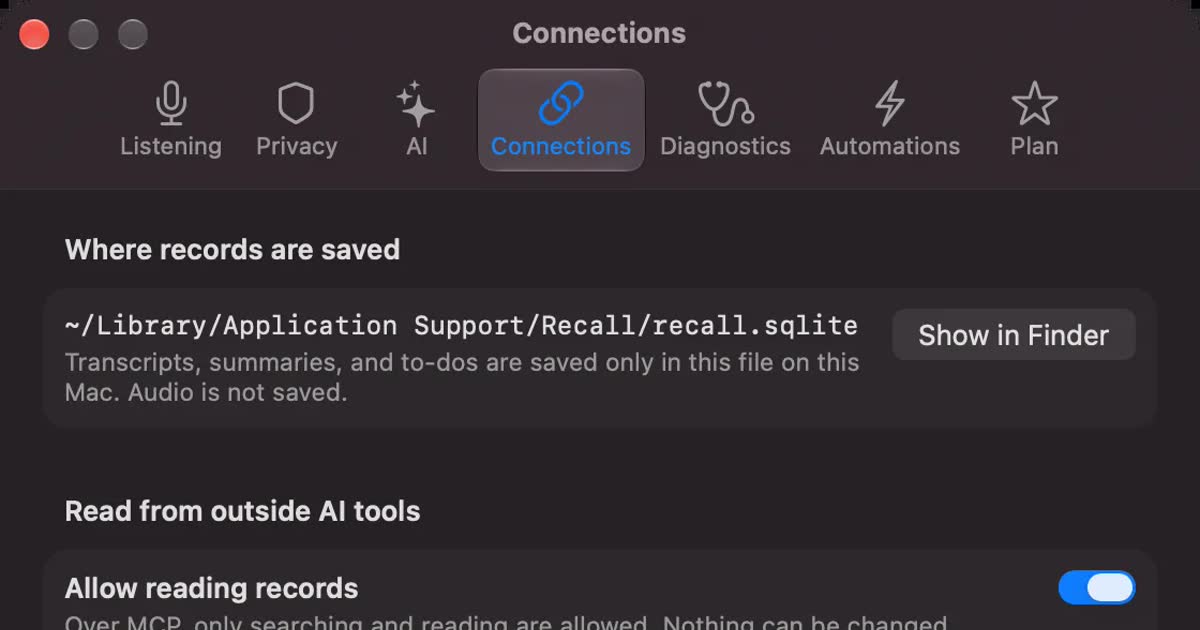
- What is kept: text only. Audio is discarded once transcribed, so you can’t listen again in Recall
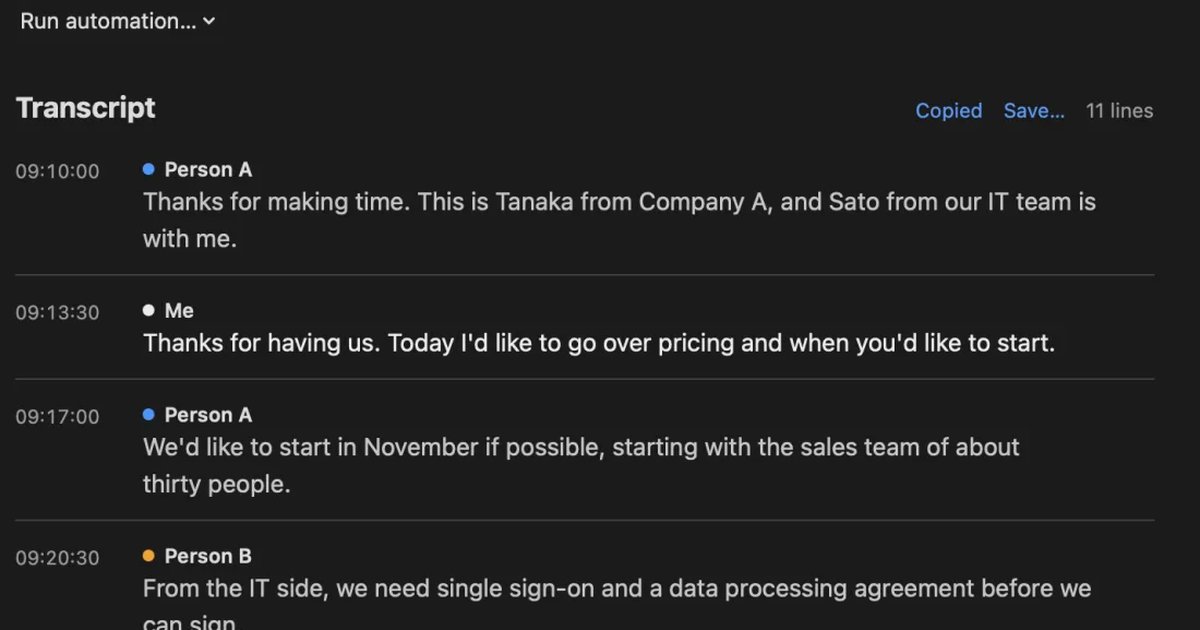
- After the conversation: this Mac’s AI writes a summary and your to-dos (when Apple Intelligence is on). You can also copy the transcript or save it as a text file
- Where records are kept: on this Mac. We don’t send them to our servers. They leave your Mac only when you use a Pro feature you turned on, or when you copy or save and share them yourself (When records leave your Mac)
- Price: Free has no transcription limit for now, and shows and searches the last 14 days. Pro is ¥980 a month or ¥9,800 a year, tax included
- What you need: a Mac with Apple silicon on macOS 26 or later, a microphone, and permission for screen and system audio recording
The app is also introduced on the Recall, a Mac meeting transcription app page.
Recall fits you if
- You want text on your side even in meetings a client hosts, whatever the host’s settings
- You don’t want a bot in the meeting
- You want meeting records on your own Mac rather than with an outside service
Recall is not for you if
- You want to share a transcript with everyone’s names across a team (the meeting tool’s transcript or a bot service fits)
- You want to keep audio to listen again, or transcribe a recording you already have (recording features or tools that accept files fit)
- You want meetings that mix Japanese and English transcribed with automatic switching
- You use an Intel Mac or a Windows PC
With Recall too, tell the other people that you are transcribing. Examples are in the FAQ.
Free to use · No account needed · macOS 26 or later · Mac with Apple silicon · By downloading, you agree to the Terms of Service
FAQ
Can I transcribe a meeting for free?
For in-person meetings, Voice Memos and Notes on iPhone and Mac transcribe at no extra cost. In online meetings, Zoom Basic captions and Live Captions on Mac and Windows are free but aren’t kept as text after the meeting. To keep it, Zoom needs Meeting transcript on Pro or above, and Google Meet needs transcripts on an eligible Google Workspace edition.
Can I transcribe a meeting if I’m not the host?
The meeting tool’s transcript depends on the host’s settings. In Teams, people from another organization can’t start a transcript or read it after the meeting. Ask the host, or use a bot service or transcribe on your own computer. Whatever you use, tell people first.
Can I save Zoom captions?
No. Zoom’s notice says captions and transcripts were separated in May 2026: captions can be scrolled back three minutes during a meeting but can’t be kept afterward. To keep the text, turn on Meeting transcript on a Pro or higher account.
Where are meeting tool transcripts saved?
Teams stores them in the organizer’s OneDrive for Business, readable from the meeting chat. Google Meet saves them in the “Google Meet” folder in the host’s Google Drive. Zoom’s Meeting transcript can be saved to your computer from the panel during the meeting; the host chooses who can save.
Can I transcribe a meeting without a bot?
Yes. Use the meeting tool’s transcript on the host’s side, or an app that transcribes the sound your own computer hears. When you transcribe on your own computer, nothing shows on other people’s screens, so tell them you are transcribing.
How should I transcribe an in-person meeting?
Put a phone or computer in the middle of the table and record. Voice Memos and Notes on iPhone and Mac can show a transcript while recording. For meetings with many seats, a recorder is another option.
Does Recall work on Windows?
No. Recall is an app for Macs with Apple silicon on macOS 26 or later. On Windows, use the meeting tool’s transcript or a bot service, or Live Captions if you only need to read along.
Checked on November 25, 2026. Zoom details come from Zoom Support’s notice on the captions and transcripts change and its Meeting transcript settings page; Teams from Microsoft Support’s “Start, stop, and download live transcripts in Microsoft Teams meetings”; Google Meet from Google Meet Help on transcripts; Notta from Notta’s pricing page. Conditions and prices can change, so check each company’s latest pages before you use them.
Get the product overview (PDF) by email →
Related guides
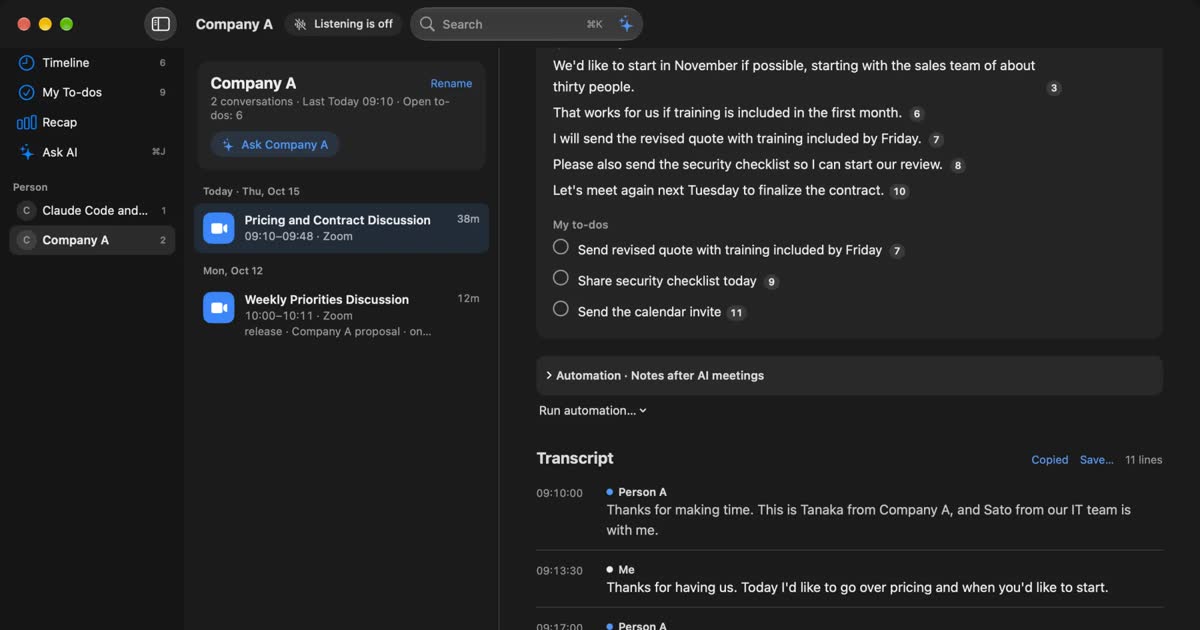
How to transcribe Zoom meetings: built-in, cloud services, or on your Mac
Three ways to transcribe a Zoom meeting: built-in features, cloud services and apps on your Mac. Covers the plans each needs, the May 2026 captions change, and how to choose.
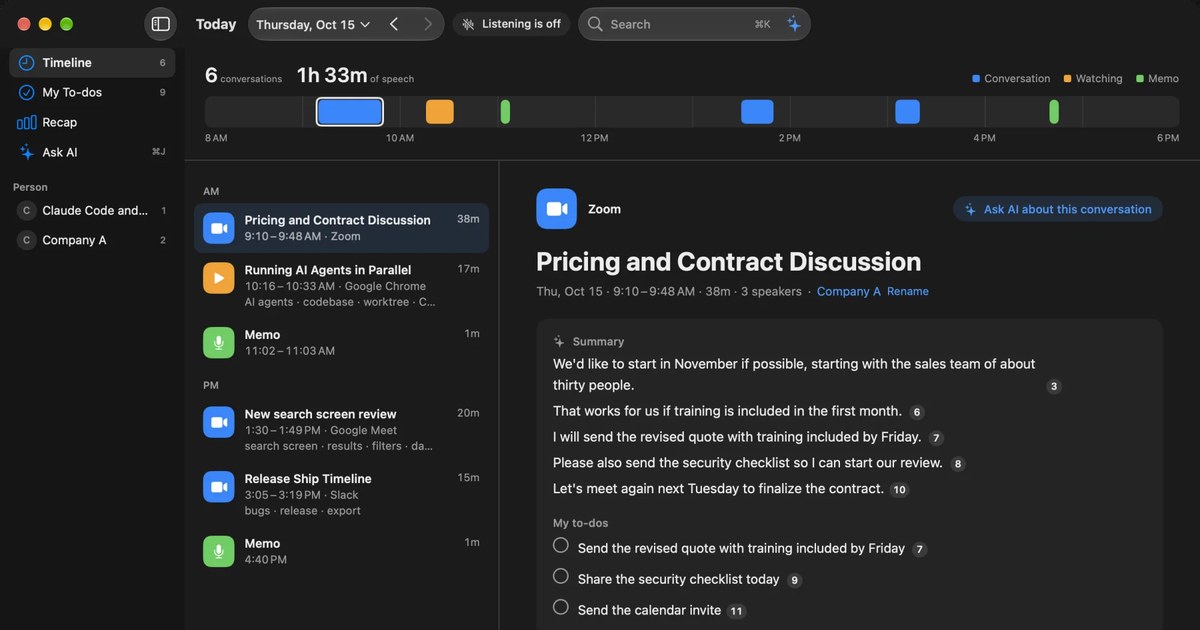
How to transcribe Microsoft Teams meetings: who can start it, where it saves, and Mac options
Three ways to transcribe a Teams meeting: the built-in feature, cloud services and apps on your Mac. Covers who can start it, why the button is missing, where transcripts are saved, and how to choose.
How to transcribe Google Meet: built-in, extensions, or your Mac
Whether Google Meet's transcript works depends on the organizer's plan. Compare the built-in feature and plans, extensions and bots, and on-device Mac apps.
Free AI note takers compared: 8 tools, what the free plans really cover
Free AI note takers stop in one of four places: monthly minutes, counts, how long you can see notes, or features. We checked the free plans of Notta, Otter, AiNote, tl;dv, Fireflies, Fathom, Granola, and Recall on their official pages on November 13, 2026, and worked out which can handle five meetings a week.