 Recall
How to transcribe Webex meetings: built-in, cloud services, or on your Mac
Three ways to transcribe a Webex meeting: built-in features, cloud services and apps on your Mac. Covers captions, AI Assistant, plan and language limits, where text is saved, and how to choose.
The short answer: your plan and spoken language decide what works
There are three ways to transcribe a Webex meeting: Webex's built-in features, a cloud service such as Notta, and an app that transcribes on your Mac. Check your plan first. On Webex's plan comparison, only Enterprise shows captions and post-meeting transcripts with no language note. Meet and Suite say captions are English, French, German and Spanish only, and post-meeting transcripts are English only.
The Webex help pages say something different: 16 spoken languages are available without a translation license. This article does not decide which is right. It shows both. If your meetings are not in English, try a short meeting before you rely on it.
This article is written by KOROMO K.K., the developer of Recall. What it says about Webex, Notta, Rimo and MacWhisper comes only from their official pages. It also says when Recall is not the right choice. It does not say which method is most accurate, because we have not measured them under the same conditions.
| Your situation | What fits, and where to read next |
|---|---|
| You only need to read along | Webex captions. See showing captions |
| You want text without recording | Saving from the captions panel. See saving without recording |
| You want Webex to write the summary too | AI Assistant. See AI Assistant |
| The language is wrong, or an option is missing | See where people get stuck |
| You cannot change Webex settings | A cloud service or an app on your Mac. See how to choose |
How the three ways differ
The three differ in who starts them and where the text ends up. Webex adds a third question: the spoken language. The built-in features need a plan check for languages other than English. Cloud services and Mac apps transcribe outside Webex's plans.
| Who runs it | Where the text stays | |
|---|---|---|
| Webex built-in | Host and admin settings decide. Participants can turn on captions | The host's Webex account, and your computer if you save |
| Cloud service | You invite a bot. If the lobby is on, the host admits it | Each service's cloud |
| On your Mac | You run it on your own Mac | Your Mac |
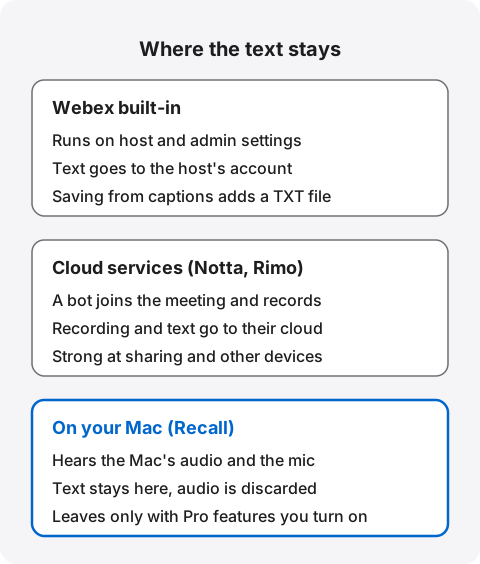
What matters is not which method is safest, but which fits your meetings. Webex's built-in features can be managed across an organization by its admins. Cloud services are strong at sharing. An app on your Mac does not depend on Webex settings, but looking after the Mac and deleting records is your job. If its encryption or password is weak, that becomes the weak point. For what to check, see What to check if you worry about leaks from AI meeting notes.
The other question is what other people can see. Webex notifies everyone when a caption transcript starts, and a bot shows in the participant list. An app on your Mac does not join the meeting, so nothing appears on their screens. That is why you should tell people yourself. See how to tell the other people.
Transcribing with Webex's built-in features
Webex transcription is not one feature. It is six, and each leaves something different. Mixing them up is how you end up with captions but no saved text, or a recording with no transcript in your language.
| Conditions | What is kept | |
|---|---|---|
| Captions | The spoken language must match the meeting | Captions are for reading during the meeting |
| Save without recording | Webex Suite meeting platform, and your admin allows it | Text from when captions came on, as a text file |
| AI Assistant | Webex Suite meeting platform. Off by default | Summary and transcript in the host's account |
| Recording summaries | Same platform, and the host records to the cloud | Recording, summary, action items, transcript, chapters |
| Recording transcript | MP4 recording, with the setting on | English only |
| Computer recording | Your site admin allows it | An MP4 file, with no transcript |
The Webex Suite meeting platform is the system your meetings run on. It is not the same thing as the plan called Webex Suite. To check it, see when an option is missing. Names here follow the Webex help pages and may differ on your screen.
Captions: for reading during the meeting
Captions show what is being said as text on screen. According to Webex's help, you turn them on like this.
- On a computer, select Show closed captions in the meeting.
- On a phone, open closed captions from the more options menu and turn them on.
- The host sets the spoken language to match the meeting.
Do not skip the third item. The default spoken language is English, out of 16 to choose from. Automatic detection exists, but your organization's admin has to turn it on. It takes about 5 to 10 seconds and handles one spoken language at a time. Changing the spoken language by hand cancels it.
Spoken language and caption language are different things. The spoken language is what people actually say in the meeting. The caption language is what each reader chooses to see. Translating captions into another language with real-time translation is a paid add-on. You do not need it to read a meeting in the language it is spoken in.
Saving text without recording
If you only want the text, saving from the captions panel is the lightest option. The meeting must run on the Webex Suite meeting platform, and your admin must allow in-meeting transcript downloads.
- As a host or cohost, start AI Assistant. As a participant, turn on captions.
- Click download at the top of the captions panel. If the panel is hidden, open it from More at the bottom right.
- Choose where to save. It is saved as a text file.
Three cautions. You get only what was said between turning on captions and saving, and someone who joined late gets it from when they joined. You must save before the meeting ends. And once one person turns on captions, any participant can save, so review your admin settings before meetings with people from outside. Webex also says this text is generated automatically, may contain errors, and should not be used as a legal record.
AI Assistant: a summary and transcript in the host's account
AI Assistant writes a meeting summary and transcript and saves them to the host's Webex App account. You do not need to record.
- Where it works: Only on the Webex Suite meeting platform. If you cannot see it, ask your admin.
- Default: Summaries are off. Hosts can have them start with recording, or automatically for scheduled meetings.
- Who starts it: The host and cohosts by default. The host can let anyone start it in the meeting options.
- What is saved: Summary and transcript by default. You can also save the summary only, or neither.
- Meetings with outside people: The admin help says post-meeting summaries and transcripts are available only for meetings within your organization. Check this before you use it with outside guests.
The help pages disagree on summary languages. The supported languages page (dated February 2026) says in-meeting summaries support 29 languages, and post-meeting summaries use the meeting's spoken language. The admin page (dated October 2026) says summaries are currently supported in English only. If your meetings are not in English, test it in your own organization.
Recording transcripts: two different things
Recordings can come with two kinds of transcript. Webex's help says the transcript embedded in the recording is English only. The other appears on the site page after the meeting. It is made while recording is on and either captions or Webex Assistant are also on, and it covers all spoken languages. So for a meeting in another language, turn on captions as well as recording. You reach the site page by signing in to your Webex account and going to Calendar, then Review.
The recording transcript covers meetings recorded as MP4, and you turn it on under Recording in your settings. If the option is missing, your admin has either made it automatic or disallowed it. It usually appears within twice the meeting's length, and rarely takes up to 24 hours. Poor audio can stop it and show an error instead. You can read it beside the video and search it, and hosts can correct it with the pencil icon.
With a cloud recording and AI Assistant enabled, you also get recording summaries. After the meeting, Webex makes a summary, action items, a transcript and chapters, and emails the host. On a computer, the host can download the recording, summary, action items and transcript. The summary uses the meeting's spoken language, or the language spoken longest if automatic detection is on. It may not tell apart several speakers in one room.
Computer recording: no transcript
Computer recordings are saved as MP4, to your home folder on a Mac. Your site admin must allow them, and to include sound your meeting audio must be set to computer audio. The file has no transcript. To get text, transcribe it with another app. On the plan comparison, this is the only recording on Free, so for Free it is the most realistic route.
Which built-in feature to use
Choose by what you want to keep. For text on your own computer, save from the captions panel. That is enough for an internal meeting that needs no recording. For a summary as well, use AI Assistant. For training where you want the video too, combine cloud recording with captions. What you can use varies by organization, so read the next section as well.
Turning a transcript into meeting notes
The text is not meeting notes yet. It records what was said, not what was decided. Without AI Assistant, pull out three things first: decisions, next steps with owners, and deadlines. If you ask another AI to do this, what you paste goes to that AI's provider. Check your workplace rules before pasting a transcript that includes what outside people said.
Where Webex transcription trips people up
People get stuck in four places: the wrong language, a missing option, not being the host, and forgetting to save. Most of it comes down to plans and settings.
When the transcript is in the wrong language
If a meeting comes out garbled, check the spoken language first. The default is English, and a mismatch breaks the text. If that does not fix it, check your plan.
| Captions | Post-meeting transcript | |
|---|---|---|
| Free | No mark | No mark |
| Meet | English, French, German, Spanish only | English only |
| Suite | English, French, German, Spanish only | English only |
| Enterprise | Marked, no language note | Marked, no language note |
That is the US plan comparison on November 3, 2026. Plan names differ by country. The help pages read differently. They give free accounts five spoken languages (English, French, German, Spanish, Italian), while the comparison shows no mark for Free. For paid customers they give 16 languages regardless of the translation license, while the comparison limits Meet and Suite. Ask your sales contact or admin, and try a short meeting.
If you can only find an English transcript on a recording, you may be looking at the one embedded in the recording, which is English only.
When an option is missing
If you cannot find saving or AI Assistant, check whether the meeting runs on the Webex Suite meeting platform. Here is how.
- In a meeting, open Meeting Info, then Security.
- Outside a meeting, sign in to your Webex site and open Downloads, then Version information.
- If it says Meeting platform: Commercial (Webex Suite), you are on it.
If that line is not there, your meetings are not on this platform yet. If it is there and the option is still missing, your admin has turned it off. Admins can turn off captions, or the captions panel, as well as saving. With the panel off, captions still show but nobody can save. In an organization's Webex you cannot change this yourself, so ask your admin and say why.
Watch out for Webex Assistant in older guides. Webex's help describes it as a voice-command helper for notes, and says it only accurately transcribes English. Where AI Assistant is available, Webex Assistant is not. The names are close but they are different features, so check which one a guide means.
When you are not the host
Participants can do less. You can turn on captions, and save text if your admin allows it. AI Assistant is started by the host or a cohost by default, unless the host lets anyone start it. Recording summaries are made when the host records to the cloud.
When you ask, give a reason: "I would like to keep an accurate record. Is it OK to transcribe this?" If it feels awkward in an outside meeting, still do not quietly keep a record another way. Some organizers do not allow recording or note-taking. Confirm that first, before you choose a method.
If you forgot to save
Saving from the captions panel has to happen before the meeting ends. We found no way in the help pages to get text afterwards from a meeting where captions were only displayed. If a host-started meeting is linked to a space, the transcript is shared in the space afterwards. AI Assistant saves by default, so a host of a regular meeting can set it to start automatically. With an always-on app such as Recall, there is no save step unless you have paused it.
When the text comes out badly
With any method, bad audio makes bad text. Webex's help on recording transcripts lists background noise, poor acoustics, non-English words and strong accents as reasons one may not be created. Be careful with mixed languages too. Automatic detection handles one language at a time, and speech in an unsupported language may not come out accurately. Decide the spoken language before the meeting, and check numbers and names at the end.
Using a cloud service
A cloud service sends a bot into the Webex meeting to record it, and you read the text on the service's site. For people whose Webex plan does not cover their language, this is a practical option. Language support depends on the service, and Notta's help lists no Webex plan condition. In return, recordings and text sit in the service's cloud, and the host must admit the bot if the lobby is on.
| In Webex | What to check | |
|---|---|---|
| Notta | Paste the invite URL and Notta Bot joins. Saved to your workspace | Only links with a passcode. Webinars are not supported |
| Rimo | The minutes bot covers Webex | Limited on the personal transcription plan, available on the Pro plan |
Notta's help says it can only transcribe meetings the host has started. You set the spoken language to match the meeting. If the lobby is on and the host does not admit the bot within five minutes, it leaves. Recording stops when no other participants remain, or at the five-hour limit. It also notes that company policies may block other meetings. Check first that your organization's Webex does not block outside bots.
Rimo's guide to its personal plans lists Webex for its minutes bot, as a Pro plan feature. Business plans differ, so check before you sign up. Rimo's bot also has to be let in when it joins. Both offer sharing and editing, and a team reading the same record is hard to do with an app on one Mac. For more on Notta, see our Notta comparison.
Check how storage and training work. How long does a record stay if you do nothing? Are audio or text used to train AI? Can share links go outside your company? Can you take your text with you when you leave? In an organization's Webex, also check your workplace rules on giving meeting content to an outside service.
Transcribing on your Mac
An app on the Mac transcribes the other people's voices from your Mac's audio and your own from the microphone, on that Mac. Your Webex plan and the host's settings do not matter, so even a participant on Webex Free can keep text on their own Mac, in the language spoken. You still need to confirm that recording notes is allowed.
There are limits. If you are not using that Mac for the meeting, nothing is kept. Meetings joined on an iPhone, a room device or a phone are not covered. Sharing means handing over a file yourself, and you cannot read it on other devices. Here are two apps that take different approaches.
Recall: runs in the background and keeps only text on your Mac
Recall sits in the menu bar and transcribes the conversations it hears, with no record button. It does not join the Webex meeting as a participant, so there are no host settings or bot approvals. There is nothing specific to Webex in it. It listens to the sound from apps shown in the Dock, so it does not depend on the meeting app.
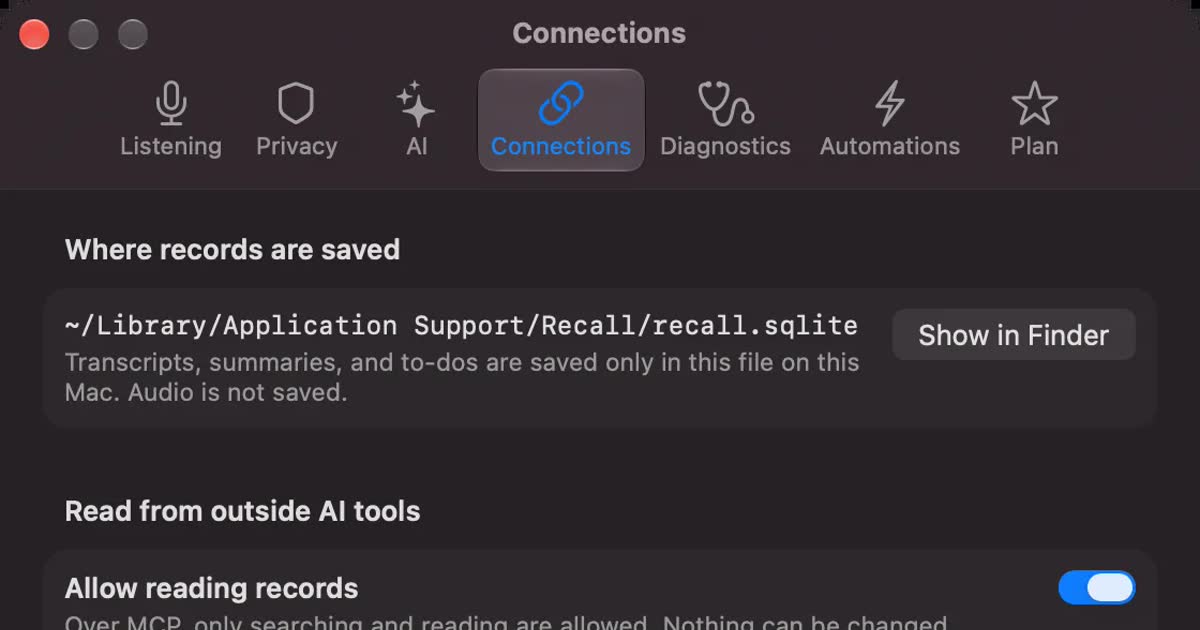
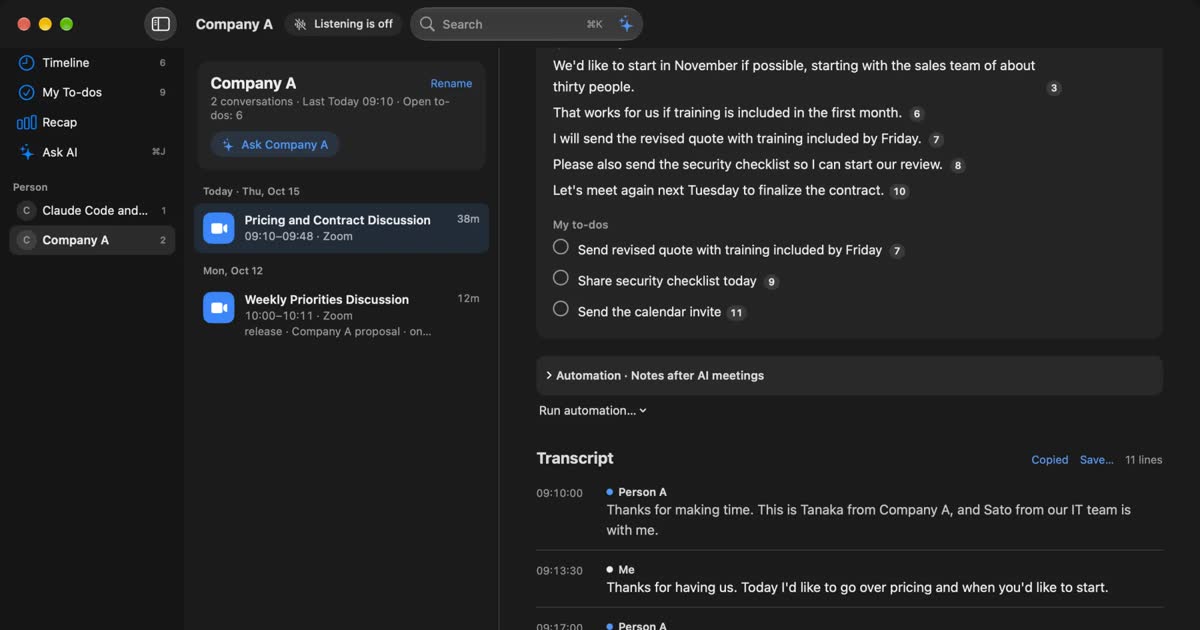
- No audio is kept. It is discarded as soon as it becomes text. Transcripts and summaries stay on this Mac.
- Other people appear as Person A, Person B. Click a speaker's name to change it across the conversation.
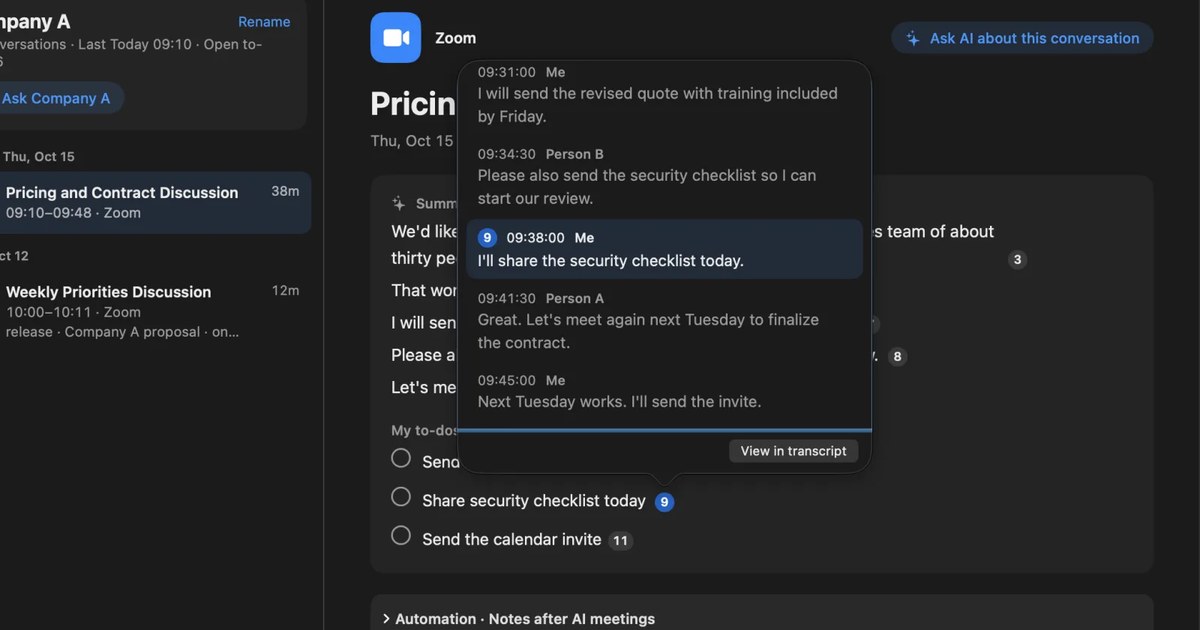
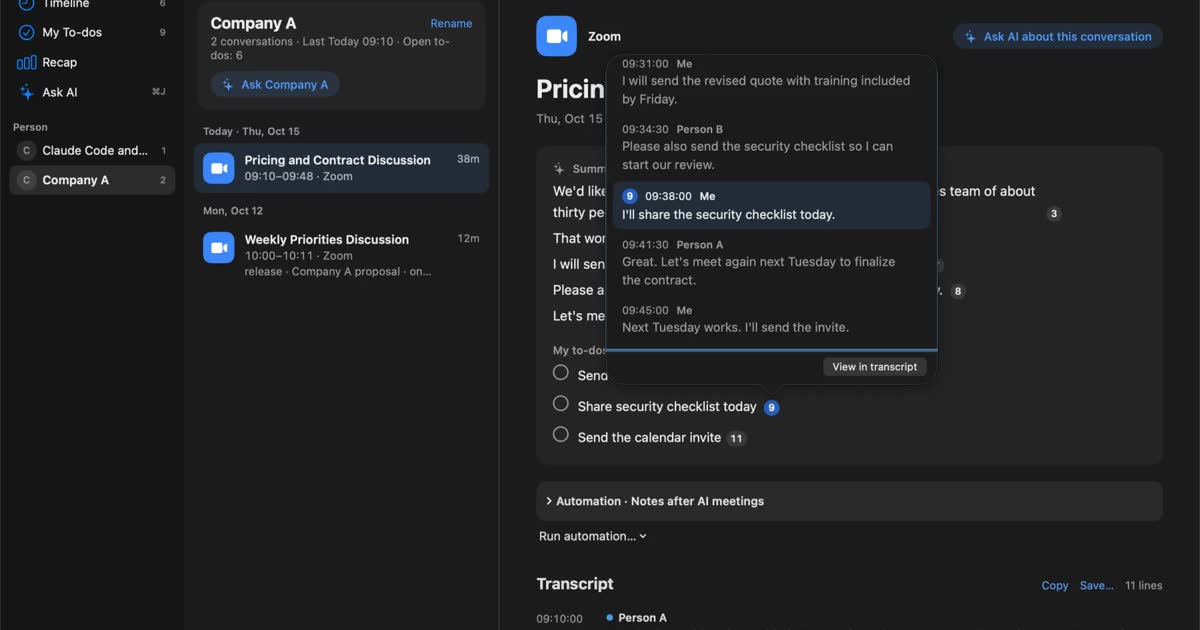
- The on-device AI writes summaries and to-dos. Sentences carry numbers that link to the remarks behind them.
- You can search past conversations. Use ⌘K with conditions such as "yesterday", or ask the AI.
- Text can be saved as TXT. Copy one conversation with times and speakers, or save it as a file.
The conditions, up front. It runs only on Macs with Apple silicon on macOS 26 or later. Summaries and to-dos are made when Apple Intelligence is on, whatever the memory (except when you choose an outside AI for organizing meetings on Pro). Answers to questions need Apple Intelligence on only on Macs with less than 16 GB of memory. Free has no transcription limit, but viewing and search cover the last 14 days. Records are kept 90 days by default on Free and indefinitely on Pro. Pro is ¥980 a month or ¥9,800 a year (tax included), and Pro features stop if the license cannot be checked for 14 days.
It is also not true that nothing ever leaves the Mac. Part of your records leaves only when you use Pro features you turned on, such as answers from your own Claude or ChatGPT, or outside AI tools reading your records. It also connects to get the model, check the license and check for updates. The full list is in Privacy and data.
In meetings, it helps to know how audio is handled. Recall tries not to record the other person's voice from your speakers as your own, but earphones are the most reliable. If your voice and theirs mix in one remark, it may be kept as yours. If the talk turns to something you do not want kept, pause for 15 minutes or an hour with one click, or delete the last 15 minutes afterwards. You can also exclude apps such as banking apps.
Because no audio is kept, you cannot listen again to check. For content where a misheard word matters, use another method where recording is allowed. You also need to grant microphone and screen recording permission first. On a Mac managed by your employer, installing apps may be restricted, or company rules may not allow it. If you use Webex at work, check before you install.
MacWhisper: transcribes audio files on your Mac
MacWhisper transcribes audio and video files with models on your Mac. Webex computer recordings are MP4, so it suits people who already have recordings. It differs from Recall in keeping the recording, which is an advantage if you want to listen again. See MacWhisper compared with Recall.
How to choose the right method
If you are unsure, answer these four questions in order. The first one that fits is the method with the least effort.
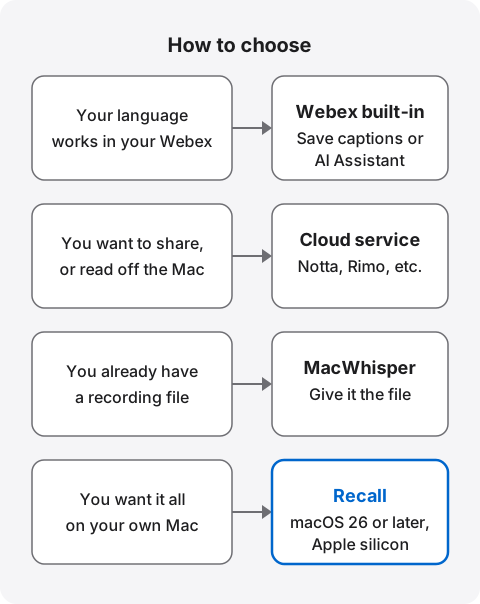
For example, if you host an internal meeting in your organization's Webex and a short test kept the text in your language, there is little reason to add anything. If your team reads the same record, a cloud service is the more natural fit. If you are often invited to other companies' Webex meetings, you cannot run AI Assistant or recording yourself, so an app on your Mac becomes a candidate, once you have asked them.
Examples by situation
| What fits | Why | |
|---|---|---|
| Text from an internal meeting | Save from the captions panel | No recording, and a text file on your computer |
| A summary for colleagues | AI Assistant | Summary and transcript stay in the host's account |
| Training you want to rewatch | Cloud recording with captions | Keeps the video and the text together |
| Sales calls the team reviews | Cloud service | Built around sharing and editing |
| Another company's meeting | Ask the organizer, then an app on your Mac | You cannot run AI Assistant or recording yourself |
| Watching a Webex webinar | An app on your Mac, unless the event forbids it | Notta's bot does not support webinars, and your Mac can hear the sound |
| A past meeting with a recording | An app that takes files | Recall cannot import past recordings |
For webinars, see How to transcribe webinars and videos so you can find them later. You do not have to use one method for everything, but do not record the same meeting twice. With two records, one gets left behind when you delete, and explaining it to people gets harder.
Who Recall suits
- People who cannot change their Webex plan or settings and still want text in their language, and can tell the other people
- People often invited to other companies' Webex meetings, who cannot rely on host settings
- People who want only text on their own Mac, with no audio kept
- People who want to search Webex together with other meetings and videos later
- People on a Mac with Apple silicon running macOS 26 or later
Free to use · No account needed · macOS 26 or later · Mac with Apple silicon · By downloading, you agree to the Terms of Service
Who Recall does not suit
- People who join Webex from Windows, an iPhone or a room device
- People who want the audio or video itself. Recall does not keep audio
- Teams that want to share records. Recall has no sharing, so you hand over text as a file
- People who want to transcribe recordings or audio files they already have
- People whose workplace rules do not allow installing apps
- People for whom their organization's Webex features are enough
How to tell the other people
Whichever method you use, tell people it is being transcribed. Webex's help says everyone participating needs to give their consent before a meeting can be recorded, summarized or transcribed. With a caption transcript, a blue dot appears the first time, everyone gets a notice, and people on the phone hear an announcement.
Admins can go further. With explicit consent on, people get a prompt when recording, AI Assistant or transcript saving starts. Anyone who declines can listen, but their audio, video, sharing and chat are off. This setting is off by default, and it does not apply to people joining by phone, room device or older clients.
An app on the Mac has nothing like Webex's notice. Nobody can see it, so telling them is on you. The Recall site suggests wording like this.
I'm transcribing this on my Mac so I can check the details later. No audio is saved, but the transcript stays on my Mac. Let me know if you'd rather I stop.
With a bot or cloud service, say "I'm using a transcription service, and the record is stored in [service name]." If you send meetings to outside AI, tell them that too. Do not use any of these where recording or note-taking is prohibited, or where your workplace rules do not allow it. Whether rules cover transcription differs by company, so ask if unsure. Some places require everyone's consent. This article is not legal advice.
For use at work, decide three things before you start: which meetings to transcribe, where the text lives and who can read it, and when it is deleted. In Recall you can choose a retention period from 7 days to indefinite, and delete conversations one by one.
Frequently asked questions
Is Webex transcription free?
Not clearly. The plan comparison shows no mark for captions or post-meeting transcripts on Free, while the help pages give free accounts five spoken languages. Try it on your account. Free recording is to your computer, so you can also transcribe that file with another app, or use an app on your Mac.
Why is my transcript in the wrong language?
Check the host's spoken language setting first. The default is English. The transcript embedded in a recording is English only, and other languages appear in the site page transcript. If it still fails, ask your admin or sales contact about your plan's language limits.
Where are Webex transcripts saved?
Saving from the captions panel writes a text file to the place you choose. AI Assistant summaries and transcripts go to the host's Webex App account. Recording transcripts open from Calendar, then Review, after you sign in.
Can I transcribe without recording?
Yes. On the Webex Suite meeting platform, if your admin allows it, turn on captions and save a text file from the captions panel before the meeting ends. You get what was said after captions came on. AI Assistant also works without recording.
Can someone other than the host transcribe?
Participants can turn on captions, and save if the admin allows it. AI Assistant is started by the host or a cohost by default. Apps on the Mac run regardless of host settings, but ask the organizer whether recording notes is allowed first.
Can other people tell it is being transcribed?
It depends. Webex notifies everyone of a caption transcript, and bots are visible as participants. An app on the Mac shows nothing on their screens. Whichever you use, tell people it is being transcribed.
Which method is the most accurate?
We have not measured them under the same conditions, so this article does not compare them. Webex's help says noise and poor acoustics get in the way. Trying each on a short part of your own meeting is the surest way.
Does Recall need any settings in Webex?
No. Grant your Mac's microphone and screen recording permissions and it hears the sound from apps shown in the Dock. Recall guides you through this on first run. It runs only on Macs with Apple silicon on macOS 26 or later. On a work-managed Mac, check that you may install it first.
Checked on November 3, 2026. Details of Webex come from the text of its official help on captions and translation, saving without recording and AI Assistant, and plan differences come from the plan comparison. Webex's features and screen names change, and plan pages differ by country, so check the official pages before you rely on them.
Free to use · No account needed · macOS 26 or later · Mac with Apple silicon · By downloading, you agree to the Terms of Service
Get the product overview (PDF) by email →
Related articles
How to transcribe Google Meet: built-in, extensions, or your Mac
Whether Google Meet's transcript works depends on the organizer's plan. Compare the built-in feature and plans, extensions and bots, and on-device Mac apps.
How to transcribe Zoom meetings: built-in, cloud services, or on your Mac
Three ways to transcribe a Zoom meeting: built-in features, cloud services and apps on your Mac. Covers the plans each needs, the May 2026 captions change, and how to choose.
How to transcribe locally on a Mac: keeping meetings inside your company
How to transcribe on a Mac without sending audio to the cloud. Compare Notes, MacWhisper, Aiko, whisper.cpp, Recall and more, and check the four places records can still leave.