 Recall
How to transcribe webinars and videos so you can find them later
Ways to turn webinars and videos into searchable text, comparing source transcripts, Notta, MacWhisper and Recall, plus what to check on copyright and terms.
The short answer: check the source first, then pick a tool
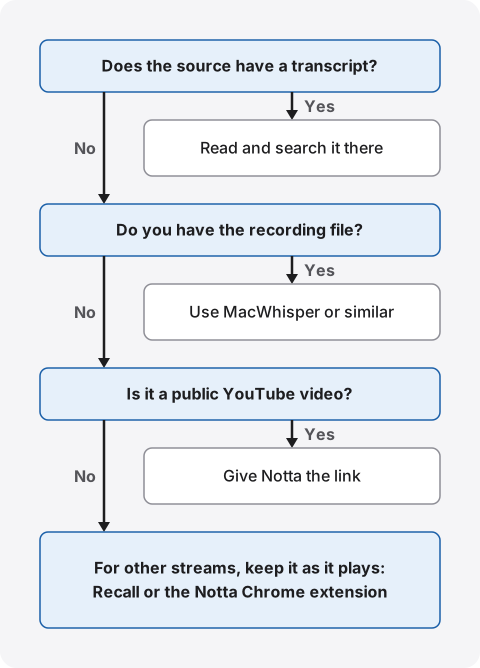
To make webinars and videos searchable later, start by checking whether the source already has a transcript. YouTube can show one from the video description, and a Zoom webinar host can create one from a cloud recording. Reach for an app only when that is missing or not enough. If you have the recording file, look at MacWhisper. To transcribe a public YouTube video from its link, look at Notta. To keep what you watch automatically and search it by word later, look at Recall.
Whichever you use, check separately whether you may keep the text. Videos and talks are protected by copyright, and streaming services and organizers have their own rules. Even for your own notes, don’t assume “it’s private use, so it’s fine.” Read the notice and the terms. If it’s for work or you’ll pass it on, ask the organizer or your employer.
This article is written by KOROMO K.K., the developer of Recall, a transcription app for Mac. Our own product is among the options, so please read with that in mind. Details of other products were checked on their official pages on November 2, 2026. We have not compared accuracy on the same audio, so we don’t rank accuracy. The copyright section is a general explanation, not a judgment on whether any particular use is allowed.
Six ways to turn webinars and videos into text
They fall into three groups: features of the source, apps you hand a file or link to, and apps that transcribe the sound as it plays. What differs is which streams each can handle and where the effort goes.
| Good for | Watch out for | |
|---|---|---|
| YouTube transcript | Reading and searching a captioned video on the spot | Not shown without captions. Automatic caption quality varies |
| Zoom recording transcript | Webinars where the host provides the recording | Depends on the host’s plan and settings. Attendees can’t create one |
| Notta | Pasting a public YouTube link, or importing a file | Processed in the cloud. Links can’t cover unlisted videos or live streams |
| MacWhisper | Transcribing a recording file on this Mac | You hand it a file or link. What you watch isn’t kept automatically |
| macOS Live Captions | Reading what’s playing now, with no extra app | Official help doesn’t mention saving. Keeping and searching needs another way |
| Recall | Transcribing automatically as you watch, then searching by word | Only what plays becomes text. It can’t take files or links. No audio is kept |
What matters most is whether you have the video itself. With a file or link, you can transcribe later in one go. If a live webinar gives out no recording, the only option left is to transcribe while you watch. Even then, first check that recording and note-taking aren’t prohibited. How to check is in the section on copyright and terms.
Check the source’s transcript first
If the source has captions or a transcript, reading those is the easiest route. There’s no new app to install, no audio going to another service, and you stay within features the service provides.
YouTube: open the transcript from the description
On YouTube, “Show transcript” in the video description shows the full text of a captioned video. Clicking a line jumps to that part of the video. To find “where was that bit” in a long video, this is often enough. For what to check when the transcript is missing, and what works for videos without captions, see how to transcribe a YouTube video.
It has two limits. It doesn’t work on videos without captions, and official help says automatic captions are made by machine learning, so quality may vary. Also, because you open videos one at a time, it isn’t built for searching across everything you’ve watched.
Zoom webinars: ask the host about the recording and transcript
Zoom’s audio transcription transcribes meetings and webinars recorded to the cloud. It is available to hosts on Pro, Business, Education and Enterprise accounts with cloud recording and audio transcription turned on. Transcripts are saved in VTT format, and when sharing a recording the host chooses whether viewers can see the transcript.
Attendees can’t use this themselves. Zoom’s table of webinar roles gives recording permissions to hosts, co-hosts and panelists, not attendees. What an attendee can do is ask whether the recording or transcript will be shared.
Zoom’s pages don’t agree on languages. The usage page lists Japanese among others, while the settings page says English only. Hosts should check with their own settings and a real recording.
A transcript the host hands out also makes it easy to ask how you may keep it. If the notice says “we’ll send the slides and a transcript,” there is little reason to run an app yourself.
Choosing an app when the source has nothing
Choose by whether you have a recording file, a link, or only the stream as you watch it. Here are four tools that go in different directions. Prices and features are as of the check date.
Notta: hand over a YouTube link or a file
On the web, Notta can transcribe from a YouTube link. It’s on all plans, up to 5 hours. It covers public videos and Shorts, not live streams or private or unlisted videos. Records made from YouTube links have no speaker identification or custom vocabulary, and the audio can’t be played or downloaded.
For streams you can’t link, its Chrome extension transcribes a tab’s audio (help page in Japanese). It works while you play online classes or live streams, and the help says it can handle unlisted and private YouTube videos too. But what is technically possible and what the distributor allows are different things.
Its Japanese pricing page shows the free plan at 120 minutes a month with a 3-minute limit per session, and Premium at ¥1,980 a month (tax included) for 1,800 minutes. Processing is in the cloud, so check whether you may send confidential seminars. For team sharing, Notta is the better fit. There’s more in our Notta comparison.
MacWhisper: transcribe your own files on this Mac
If the organizer gave you a recording, or you made the video yourself, MacWhisper is a good fit. You drag a file in, and its site says local models can do the work. Not having to wait through playback is the big difference from apps that transcribe as it plays.
It can also transcribe from a YouTube link, though age-restricted videos and some live or country-specific videos won’t work. We couldn’t tell from the official pages whether this is free or Pro, so check in the app. See MacWhisper vs Recall for the differences.
macOS Live Captions: read what’s playing now
Live Captions, built into the Mac, processes audio on the device and shows captions. It needs a Mac with Apple silicon, and the supported languages include English and Japanese. It’s handy for following a stream that’s hard to hear.
Apple’s help doesn’t describe saving the text to search later, and it warns that accuracy may vary. It’s best thought of as a way to read in the moment.
Recall: keep it as you watch, find it later
Recall is an app that stays running and transcribes what you hear on your Mac. Nothing is needed per video, so you can search even when you don’t remember which stream it was: “some video last week.” On the other hand, videos you didn’t watch don’t become text, and a 60-minute video needs 60 minutes of playback at normal speed. Because it sits alongside your meeting records, you can search what you heard in webinars and what was said in meetings at once. See the Recall section for how it works.
Keeping it as it plays: Notta’s extension or Recall
Both transcribe the sound as it plays, but they differ in how they start and what they cover. Notta suits transcribing a particular stream in the browser and sharing it. Recall suits keeping what you hear on your Mac and searching it yourself.
| Notta extension | Recall | |
|---|---|---|
| How it starts | Start recording per tab | Runs and listens automatically |
| What it hears | A Chrome tab’s audio | Microphone and Mac audio |
| Where text is made | Notta’s cloud | On this Mac |
| Audio | Recorded | Discarded after transcription |
| Devices | Computers that run Chrome | Mac with Apple silicon, macOS 26 or later |
Thinking by situation
The same “video transcript” has different people to check with depending on the stream.
Industry webinars: read the sign-up notice and wait to see whether a recording or slides are shared. If not, and you want it for work, ask the organizer. A free stream doesn’t necessarily allow records.
Paid online courses: read the course terms. Watching may be allowed while copying or sharing is restricted. If the course has its own notes feature, use that first.
Internal training videos: ask the person in charge. Internal videos can include outside speakers or materials. Check too whether your company allows sending them to a cloud app.
University lectures: check with the instructor and the school’s rules. Recording rules can differ by class.
Learning from YouTube: if there are captions, the transcript view is enough. Think about a tool for keeping things only when you want to search across several videos.
Comparing costs
If the source’s features are enough, there’s no cost. For apps, it depends on how much you transcribe each month and what you want to keep. Amounts are as shown on the check date, in the currency shown.
| Cost | What to look at | |
|---|---|---|
| YouTube transcript | Free | Whether it has captions |
| Zoom recording transcript | Comes with the host’s paid account | Host’s settings and whether it’s shared |
| Notta | Free: 120 min a month. Premium: ¥1,980 a month (tax included) | Hours transcribed a month |
| MacWhisper | Free version available. Pro: €64 one-time | Whether your feature is in the Pro column |
| Live Captions | Part of macOS | Mac with Apple silicon |
| Recall | Free. Pro: ¥980 a month or ¥9,800 a year (tax included) | Whether you search beyond 14 days |
Keeping it in a form you can find later
Whether you can find something depends on the clues you leave, not the amount of text. Keep the full text, add a title and date, and fix the proper nouns that matter, and you’ll find it months later. These seven points apply to any tool.
- Don’t keep only the summary: words that didn’t make the summary can’t be searched. Keep the full text and use the summary as a way in.
- Put the organizer, topic and date in the title: “webinar notes” won’t tell ten webinars apart.
- Fix only names, products and numbers: proofreading everything won’t last. Stick to words you’ll search for. Misrecognition also comes from pronunciation and noise.
- Search with different spellings: speech recognition may spell a product name in a way you don’t expect. If nothing comes up, try another spelling.
- Be able to get back to the source: a YouTube transcript line jumps back to the video. In text made as it plays, the time is when you watched, not the position in the video. Note the video’s title or URL too.
- Check against the source before telling others: transcripts contain errors. If a number or name goes into a document, check it in the original stream or handout.
- Decide when to delete: keeping more makes searching easier, but you don’t need to hold on to streams you no longer need. If the organizer set a period, follow it.
Slides are easy to forget too. Methods based on audio don’t keep numbers or charts that only appeared on screen. If you’ll need them, ask whether handouts are available.
Streams that transcribe poorly
With any tool, bad sound makes bad text. YouTube’s help lists poor audio, long silences and several people talking at once among the reasons automatic captions struggle. In webinars, watch for speakers far from the microphone, overlapping voices in Q&A, and background music. On jargon-heavy streams, seeing the mistakes once tells you how to spell your searches. For an important session, look at the text early on and check that it’s readable.
The order for keeping a live webinar
Live streams happen once, so checking beforehand matters. This order helps you avoid trouble later.
- Check the sign-up notice for rules on recording and notes, and whether a recording or slides are shared
- If they are, use those. Use a transcription app only if they aren’t and the notice doesn’t prohibit it
- If you’re watching for work, check that your employer’s rules allow that app
- Before it starts, play some other audio and see that it becomes text
- Afterwards, add a title and fix proper nouns you’re likely to search for
- Delete it after the organizer’s period, or when you no longer need it
Recordings and on-demand streams
If you were given a recording file, apps that take files are faster. For on-demand streams you can only watch on a page, first read the viewing period and the rules on downloading and notes. This article doesn’t recommend forcing a save of a stream that can’t be downloaded.
Webinars you host yourself
If you’re the host, the straightforward way is the streaming tool’s own feature, such as Zoom’s cloud recording transcript. Even so, what was said also belongs to the speakers. Get their agreement before turning a transcript into an article or sending it to attendees, and do the same for attendees’ names and remarks in Q&A. Stating how recordings and transcripts are handled in the sign-up notice lets attendees decide too.
What to check on copyright and the distributor’s terms
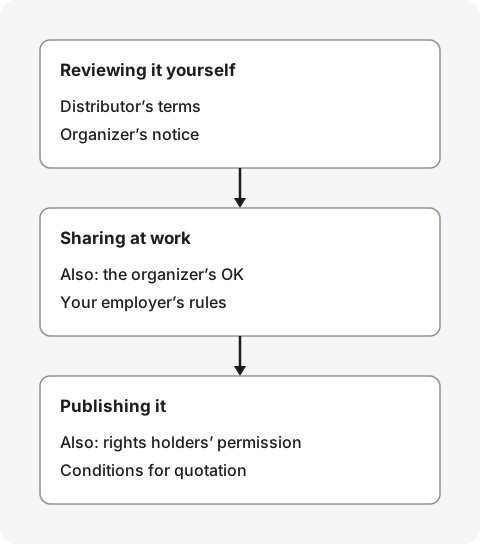
Whether you may keep it is a question of two things: copyright law and the distributor’s rules. Even if one seems fine, the other may prohibit it. The wider the use, the more people you need to check with.
Private use: check rather than assume
Rules differ by country, and this article looks at Japan, where Recall is made. Elsewhere, ask what your own country’s law says. Japan’s Copyright Act (in Japanese) lists lectures as an example of literary works (Article 10) and defines reproduction as making a fixed copy by printing, sound recording, video recording and other means (Article 2). It’s safest to act as though writing a talk down and saving it may count.
One exception is reproduction for private use in Article 30: the person using a work may copy it for personal use or use within a limited circle such as the home. But a training document from Japan’s Agency for Cultural Affairs (in Japanese) marks “use for work” as not meeting that condition. Copying by bypassing copy protection and knowingly downloading from infringing streams are also outside it.
Beyond this, this article draws no line. The same notes can look different depending on whether they’re for your job or purely for your own learning. What counts as private depends on the content, purpose and use, so no single answer fits. If in doubt, ask the organizer. For work use, ask your legal team, and for hard cases a lawyer or similar professional.
Even a transcript made for yourself may be treated as a reproduction if you later hand it out or publish it for another purpose (Article 49). To introduce part of it in a blog or internal document, check the conditions for quotation in Article 32. The Agency’s document lists points such as your own text being primary, keeping the amount to the minimum needed, and showing the source.
Read the distributor’s terms separately from the law
A service’s terms are a separate agreement from exceptions in copyright law. YouTube’s Terms of Service (effective June 1, 2023, checked on the Japanese page), for example, prohibit copying or downloading content unless the service expressly authorizes it or YouTube and the rights holder give prior written permission. They also describe viewing as personal, non-commercial use. Notta’s help likewise says audio and video downloads are disabled in accordance with YouTube’s policy.
The terms don’t say how they treat transcribing sound played on your own Mac, and we can’t judge that either. The same goes for Recall and other apps. The simplest route under the terms is to read YouTube’s own transcript feature on screen. If you watch for work, note that the terms assume personal viewing.
For webinars, the organizer’s notice is the most specific source. Notices may restrict copying by downloading, capturing or recording. If a notice prohibits recording or notes, stop transcription apps too. Don’t reason that “no audio is saved, so it isn’t recording.” The content stays as text, so it’s safest to treat apps that keep no audio the same way.
When it’s for work
For webinars watched at work, check your employer’s rules and how the information may be handled, as well as copyright. Industry study groups and client briefings aren’t the same as public videos. Attendee-only content or content under confidentiality can be a problem even if you only keep it yourself. With cloud transcription, audio or text goes to an outside service, so check that your rules allow it. Our guide on meeting AI and data safety covers where processing happens and what’s stored.
You may not need the full text
A full transcript isn’t always needed. If you want to find product names or numbers later, writing key points in your own words as you listen may be enough. For streams where you can’t ask the organizer, or the rules are unclear, this is a reasonable option. Notes in your own words are still confidential if the content is.
A checklist before you keep it
Sort out what you can answer yourself before asking the organizer. If you can’t answer one of these, find out before keeping it.
- Does the notice or terms prohibit recording or notes?
- Is this for your own learning or for work?
- Will anyone else see the transcript?
- Will audio or text go to an outside service?
- Is the content attendee-only or under confidentiality?
- Have you decided when to delete it?
What to ask the organizer
If you can ask, these four questions speed things up. If a recording or slides will be shared, you may not need to transcribe at all.
- May I use a transcription app for my own review?
- May I share the transcript or a summary with my team?
- May I put it into an AI service?
- How long may I keep it, and will a recording or slides be shared?
In Q&A or small study groups, it’s clear who is speaking. Tell the organizer and the others that it’s being transcribed. This is the same with any product, and we don’t recommend keeping a record without people knowing. There’s an example in Recall’s FAQ. Do not use it where recording or note-taking is prohibited, or where your workplace rules do not allow it.
Keeping and finding webinars and videos with Recall
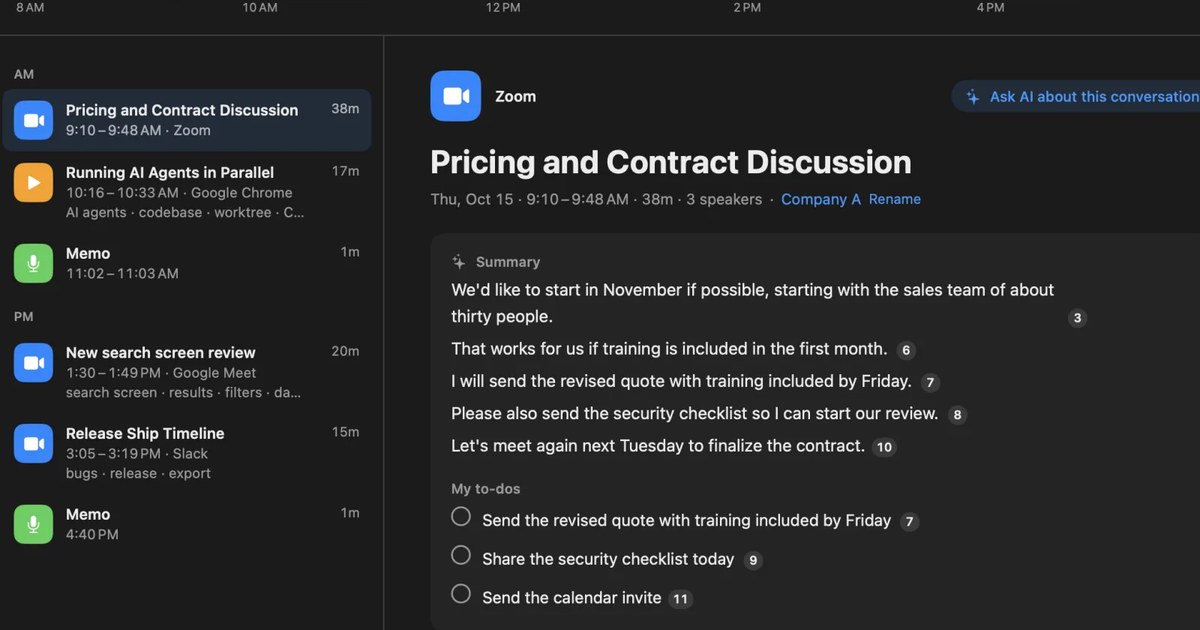
Recall stays in the menu bar and transcribes the microphone and Mac audio. There’s no record button. Webinars and videos where you didn’t speak appear on the Timeline in the “Watching” color. Hearing Mac audio needs the screen and system audio recording permission. It’s for hearing the sound and for noting which app a conversation came from. The screen itself isn’t recorded, but the title of the front window is saved on this Mac with each line.
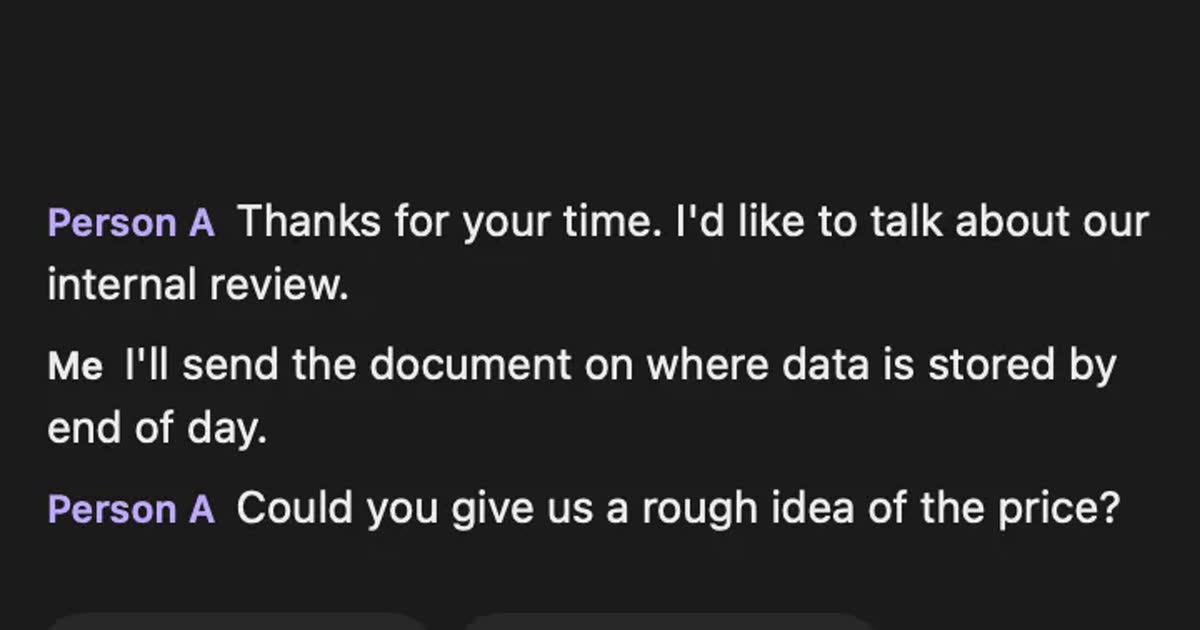
Because it stays running, it uses some CPU and battery. Load goes up while audio is being transcribed, and so does battery use. If that bothers you, you can pause it. Setting up the models the first time needs an internet connection, but after that, transcription and search run on the Mac. If you speak while watching, your microphone lines are kept as “Me” and the Timeline color becomes “Conversation.”
What stays and what doesn’t
The transcript stays, along with the summary and topics made by on-device AI. Audio is discarded right after transcription, so you can’t listen again. Slides and other screen content aren’t kept either. Speakers are split into labels such as Person A and Person B, and you can rename them.
Even on Free, you can copy a transcript or save it as a text file, with the time and speaker on each line. The summary is not included. A saved file is outside Recall, so deleting the conversation in Recall doesn’t delete the file.
Search from what you remember
| How to find it | |
|---|---|
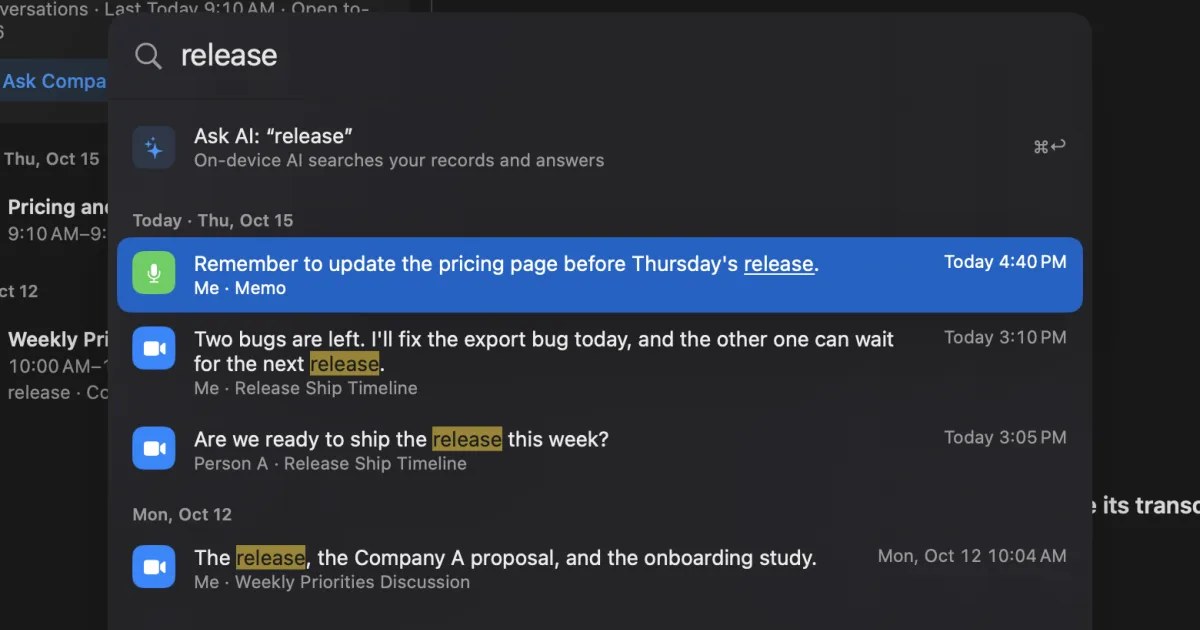
| A word or product name | Type it in ⌘K. Lines appear by date, and choosing one goes to that line |
| “Last week,” “on YouTube” | Use words like last week or YouTube as filters in ⌘K. The YouTube filter works only on lines heard while the video’s window was in front |
| The day you watched | Open a day with records from the Timeline calendar |
| Only the content | Ask AI: “What was the tool in last week’s video?” |
⌘K search doesn’t use AI, so it works even while the AI is getting ready. When you ask AI, it searches the records first and numbers the lines it relies on. It won’t answer what isn’t in the records. By default, on-device AI answers, and neither the question nor the records leave your Mac. On a Mac with less than 16 GB of memory, Apple Intelligence must be turned on.
Free searches the last 14 days
Please check this one for webinars in particular. Free has no limit on transcription, but viewing and search cover the last 14 days. Older records are stored for the retention period and can be seen on Pro. Retention defaults to 90 days on Free and unlimited on Pro, and you can choose from 7 days to unlimited. Records past that period are deleted.
To search webinars from months ago, you need Pro at ¥980 a month or ¥9,800 a year (tax included). On Free, you can save the sessions you want as text files. When a Pro subscription ends, or the license can’t be confirmed for 14 days in a row, Pro features stop and records older than 14 days are hidden again (When Pro ends).
When records leave your Mac
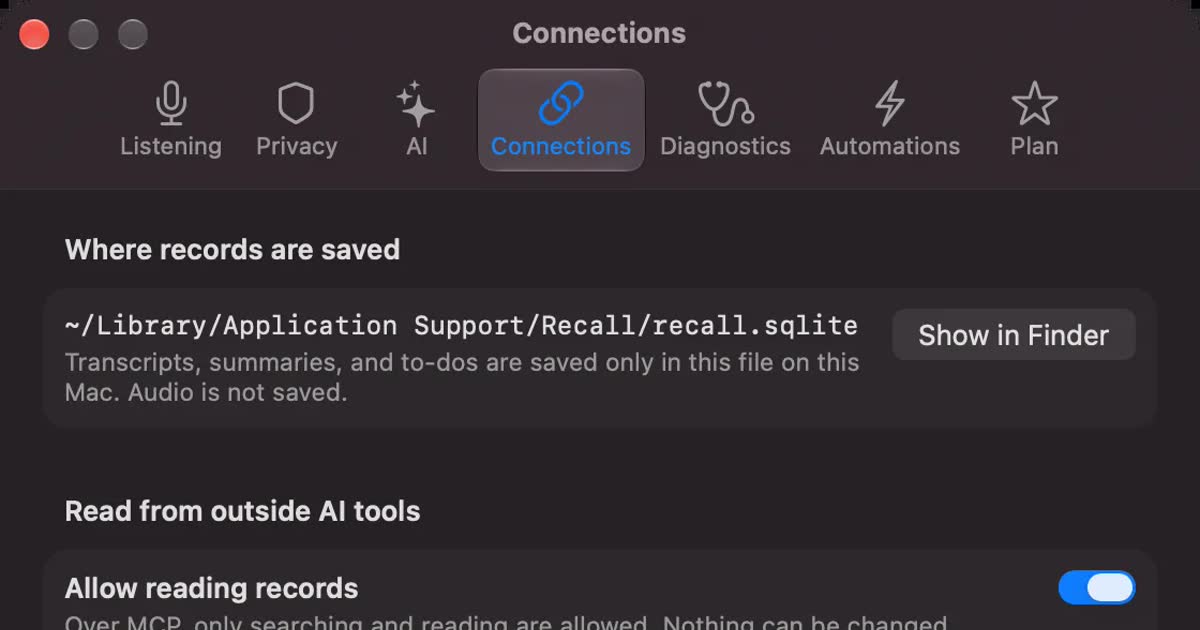
Records are kept on this Mac, and we don’t send them to our servers. Records leave only when you use Pro features you turned on, or when you copy or save and pass them on yourself. Pro features include answering with your own Claude, ChatGPT or Gemini, letting outside AI tools read records, and passing records to commands through workflows. The full list is in When records leave the Mac.
There’s one caution when an outside AI tool reads video records. The risk that words in a video get read like instructions to the tool can’t be fully removed. Use the tool’s own permission prompts too. And check whether sending a webinar’s content to an outside AI fits the organizer’s notice in the first place.
How to stop for streams you shouldn’t record
Always-on apps have a weakness: if you do nothing, whatever you hear becomes text. For streams that prohibit recording or notes, stop it before watching. There are three ways.
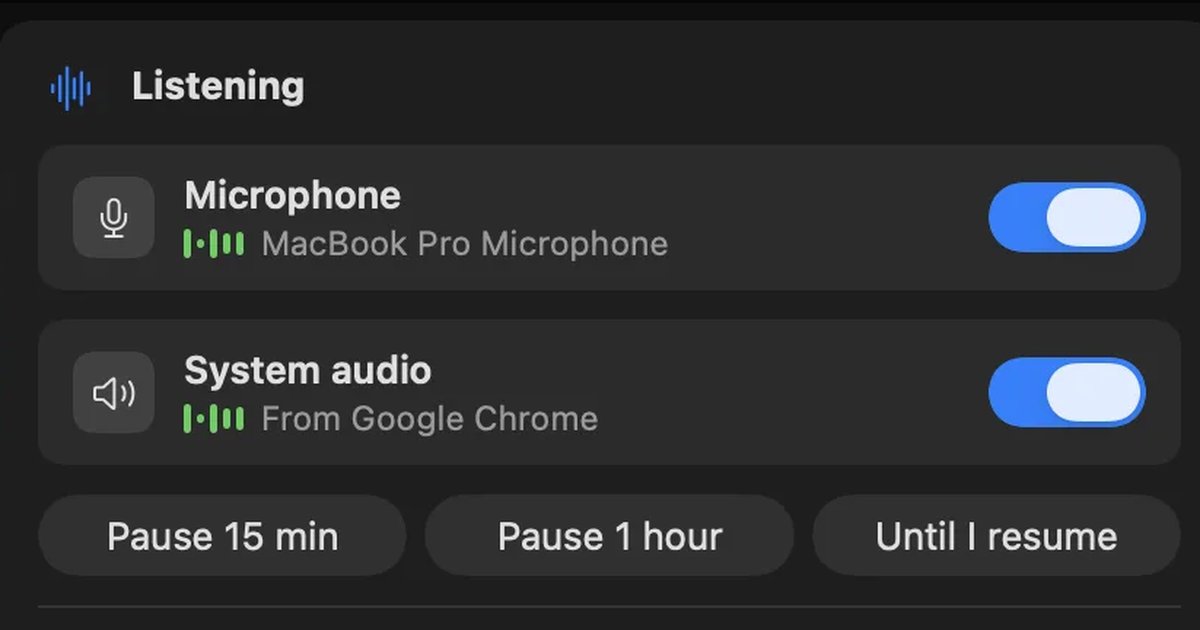
- Pause from the menu bar for 15 minutes, 1 hour, or until you resume
- If you notice afterwards, use “Delete the last 15 minutes…”. Earlier records are deleted per conversation
- Add the streaming app you use to Excluded apps. Browsers are excluded as a whole app, not by tab or site
Who Recall fits, and who it doesn’t
Recall fits people who watch several streams a week and can’t remember which one said what. If you want one recording transcribed properly, another tool will suit you better.
Recall fits you if
- You want to look up names or numbers from webinars and videos by word
- You want to stop starting a recording each time you watch
- You want to keep no audio and leave transcripts on your own Mac
- You want to search meeting records in the same place
- You use a Mac with Apple silicon on macOS 26 or later
Free to use · No account needed · macOS 26 or later · Mac with Apple silicon · By downloading, you agree to the Terms of Service
Recall doesn’t fit you if
- You want to transcribe recording files or video links (Recall can’t take them)
- You want subtitle files, or to listen again
- You want to transcribe past videos in bulk without waiting for playback
- You want it on Windows or a phone, or want a team to share the same records
- The organizer’s transcripts are enough for you
For choosing transcription on the Mac in general, see how to choose local transcription for Mac.
Frequently asked questions
Is transcribing a webinar illegal?
There’s no single answer. It depends on the purpose, content, how widely it’s used, the organizer’s notice, and your country’s law. Terms or notices may prohibit it even for yourself. If in doubt, ask the organizer or your employer.
Can I use a transcription app in a webinar that bans recording?
Please don’t. Even if no audio is kept, the content stays as text. Ask the organizer whether transcription alone is allowed, and if not, stop the app before the stream. Recall can pause for 15 minutes, 1 hour, or until you resume.
Can I paste a YouTube link into Recall?
No. Recall transcribes the sound coming from your Mac, so the video has to play. It can’t open files either. For links, consider Notta or MacWhisper, and check the terms the same way.
Does it work at double speed?
We haven’t measured Recall’s accuracy at higher speeds. Recall transcribes the sound as it plays, so watch important streams at normal speed, or play a little and check the text before carrying on.
Is the text on slides kept?
Not in Recall. It turns sound into text and doesn’t record video of the screen, so only what the presenter says is kept. If you need the slides, ask the organizer about handouts.
Does it work with earphones?
Yes. Recall hears the sound coming from your Mac, so earphones work. It tries not to mistake speaker sound picked up by the microphone for your own voice, but earphones are the surest option.
Does it handle English webinars?
Recall supports Japanese and English, and you choose one under Listening language in Settings. It does not switch automatically within a meeting. It has no translation feature. Accuracy changes with sound quality and how people speak, so try it before an important stream.
May I have AI summarize a transcript?
If it goes to an outside service, check the organizer’s notice and your employer’s rules. Recall’s summaries are made by on-device AI by default. If you choose outside AI on Pro, lines are sent to the company you chose.
How far back can Recall search for free?
Free has no limit on transcription, and viewing and search cover the last 14 days. Older records are stored for the retention period (90 days by default) and can be seen on Pro. You can save sessions you want as text files.
Checked on November 2, 2026. Details of other products come from their official pages and help: YouTube’s terms and help, Zoom’s support pages, Notta’s help and pricing page, MacWhisper’s site and help, and Apple’s support and feature availability pages. Japan’s Copyright Act was read on e-Gov, and the conditions for quotation in the Agency for Cultural Affairs’ training document for fiscal 2024. Terms and features change, so check each company’s latest pages before use. This article is a general explanation, not legal advice.
The differences between Free and Pro are in Plans and license.
Free to use · No account needed · macOS 26 or later · Mac with Apple silicon · By downloading, you agree to the Terms of Service
Get the product overview (PDF) by email →
Related articles
How to transcribe Google Meet: built-in, extensions, or your Mac
Whether Google Meet's transcript works depends on the organizer's plan. Compare the built-in feature and plans, extensions and bots, and on-device Mac apps.
How to transcribe a podcast: when Spotify or Apple Podcasts shows no transcript
To transcribe a podcast, first check your podcast app. Conditions for Spotify and Apple Podcasts, what to do when no transcript appears, tools that take audio files, and transcribing as it plays on a Mac.
How to transcribe a YouTube video: built-in, AI, and videos with no captions
YouTube’s own transcript is enough if a video has captions. How to open and copy it, why it may be missing, and what works for no-caption or unlisted videos, comparing NotebookLM, Notta and Recall.
How to transcribe lectures and classes on a Mac: online vs. in the classroom, and finding things before exams
How to transcribe university lectures, online classes and seminars on a Mac. We explain how sound reaches the Mac differently online and in a classroom, how to get permission, how to keep and search records across a term, and which tools suit which situations.