 Recall
An assistant that listens to your meetings with you,
and moves first.
Recall remembers the conversations you hear on your Mac. A little after a meeting ends, it tells you the new commitments; on mornings with commitments, the day’s ones. It drafts a reminder for people who are late to reply, and asks you when something looks done. You decide and you send. It all runs on this Mac, and it is free.
Download for macOSSee the features →
Unless you turn on a connection, your conversations stay entirely on this Mac.
macOS 26 or later · Mac with Apple silicon · Summaries and to-dos are made when Apple Intelligence is on (on Macs with less than 16 GB of memory, so is Ask AI) · By downloading, you agree to the Terms of Service
- Sales calls and regular meetings
- 1:1s and interviews
- Webinars and video lessons
- Customer interviews and reporting
- Ideas you talk through alone
Assistant
Recall keeps track of your commitments.
It keeps every “I’ll do it by …” from your meetings, tells you about new commitments a little after a meeting ends, and each morning tells you about the ones due that day, overdue, or waiting on others. Yours, and the other side’s too.
I’ll get back to you on the approval by Friday.
Then I’ll send the quote tomorrow.
On days with commitments, Recall tells you each morning
Every morning at 9:00
Overdue 1Due today 2Waiting on them 2OverdueSend the revised quoteCompany A weeklyDue todayShare the hiring requirements1:1The day’s commitments at 9 in the morning
Counts and items for overdue, due today and waiting on others.
When someone is late
OverdueGet back on the approval (Tanaka)Hi Tanaka, how is the approval we talked about the other day going?CopyOpen in MailA reminder, drafted for people who are late
Copy it into your email as it is. You do the sending.
In a later conversation
“Send the quote” looks done in the Company B meeting (November 18)
Mark DoneWaitingIf it looks done, it asks you
When a later conversation suggests it is done, it asks. It never removes anything on its own.
Screens are mock-ups with fictional data.
Notices arrive once you turn on “Notify me from the assistant” in the assistant. A notice shows counts and a short line per commitment (up to three, then “N more”). Never the transcript.
Does this sound familiar?
The meeting ends, but the work after it remains.
Checking commitments, chasing replies, looking back on last time: it all depends on your own memory and notes.
- 01
Commitments slip your mind
What you took on, and what the other side said they would send: you can’t remember which meeting it came from.
Example: you can’t tell which meeting it was where you heard “we want to start using it in November”.
- 02
Taking notes means not listening
Busy writing, you can’t follow what the other person says or how they look. Even if you record, there’s no time to listen again.
Example: after a sales call, you wrote down the amount and the deadline, but missed the talk about conditions.
- 03
You can’t find what you heard
There is no way to look up a name or number you heard in a webinar or video.
Example: you can’t remember the name of the tool introduced in last week’s video.
Recall gets the work after a meeting ready first.
While you listen, it prepares what you will need later, and speaks up when you need it.
| Task | Until now | With Recall |
|---|---|---|
| Keeping commitments | Copy them to sticky notes or a task app | Your and the other side’s commitments collect with due dates, and a notice arrives in the morning |
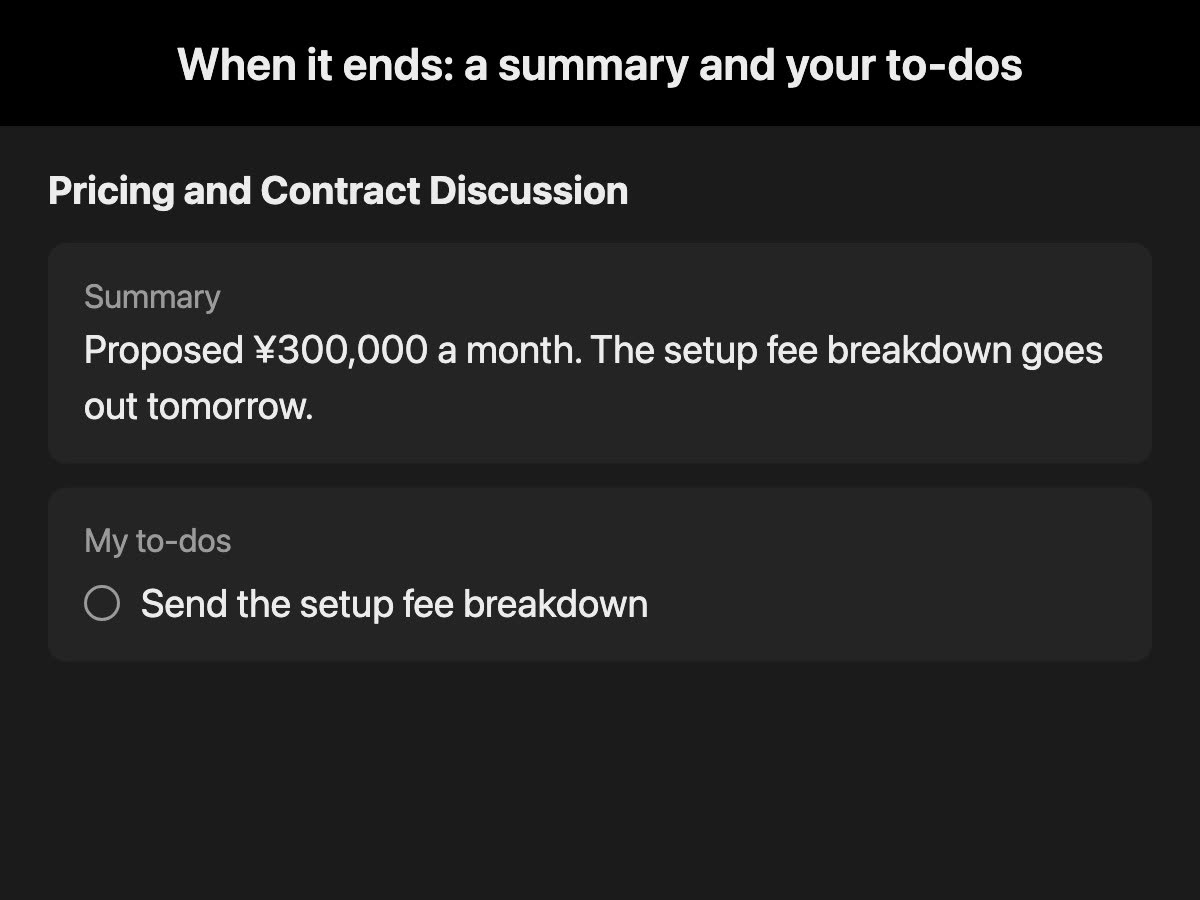
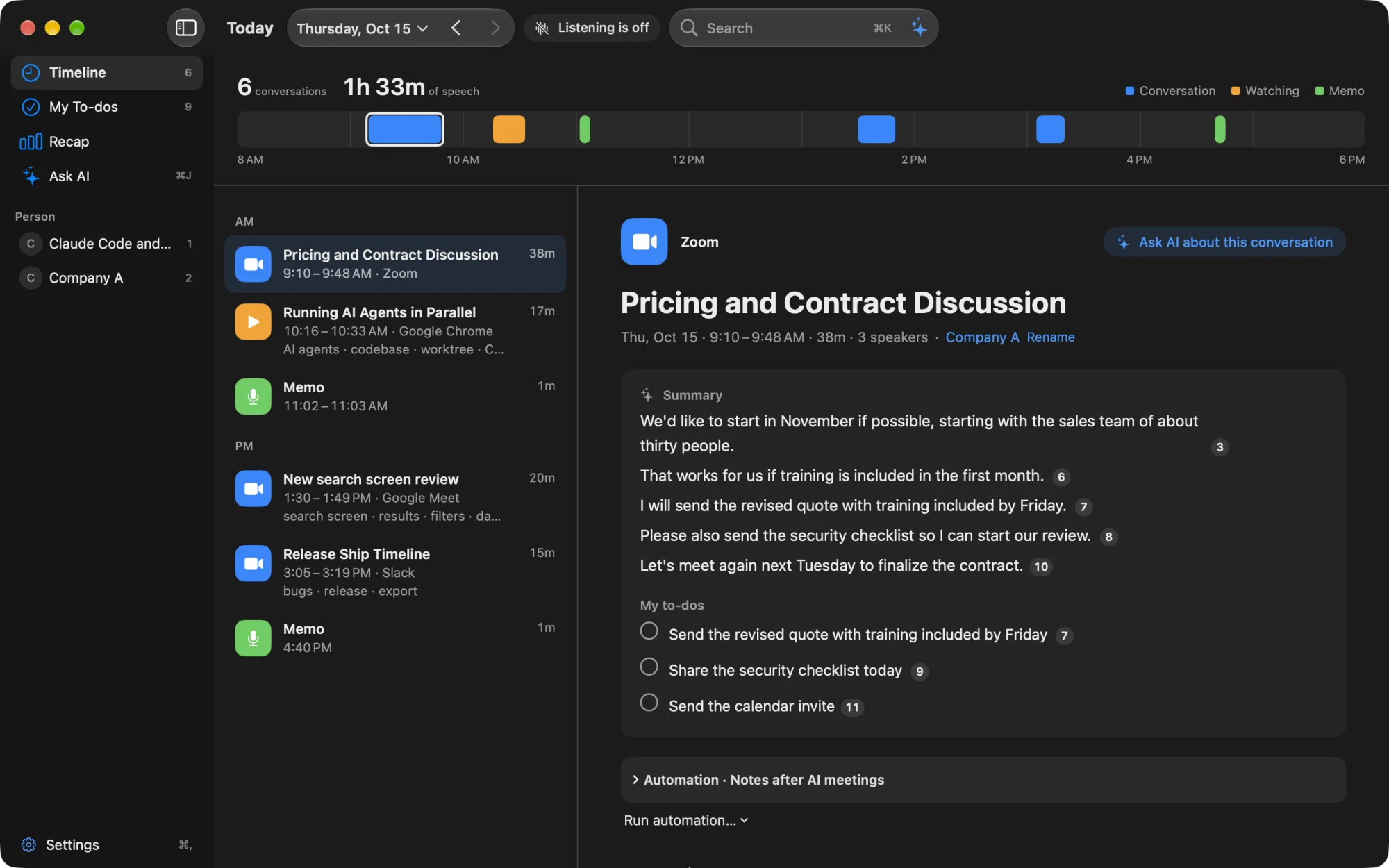
| Meeting notes | Write by hand. Record and listen again | Transcribed automatically, with a summary and “my to-dos” |
| Checking last time | Dig through minutes and chats | Search with ⌘K by words, or by “last week” or “Zoom” |
| Checking during a meeting | Watch the recording afterward | “Summarize so far” in the Live Panel |
| Responding during a meeting | Think on the spot | When a competitor’s name comes up, the AI suggestion you set up appears in a live AI card during the conversation |
| Meeting materials | Hunt through folders to open them | Files dropped during the meeting become that conversation’s materials |
| Weekly roundups | Gather and write them by hand every week | Ask a workflow, and the on-device AI sums things up at a set time |
| History with each person | Trace your memory and email | Conversations and commitments listed for each person |
| Looking back on the week | Flip through your planner and calendar | Time, commitments and decisions counted by week |
Just install it. The rest is automatic.
- 1. ListenIt stays in the menu bar and automatically listens to your microphone and your Mac’s audio. There is no button to press.
- 2. KeepIt splits the audio into conversations, summarizes each, and picks up your and the other side’s commitments with due dates.
- 3. Tell youIt tells you about new commitments after a meeting, the day’s commitments in the morning, and ones that may be done as it finds them.
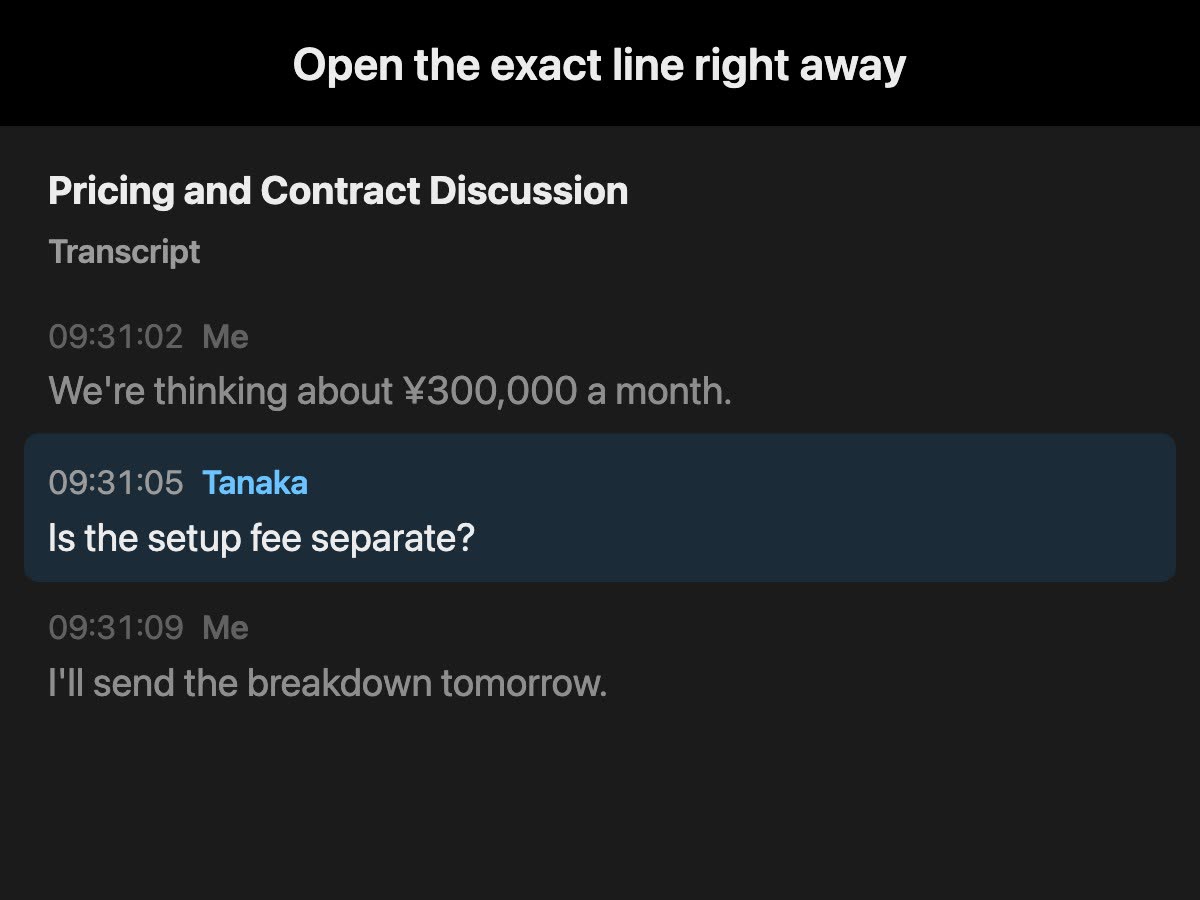
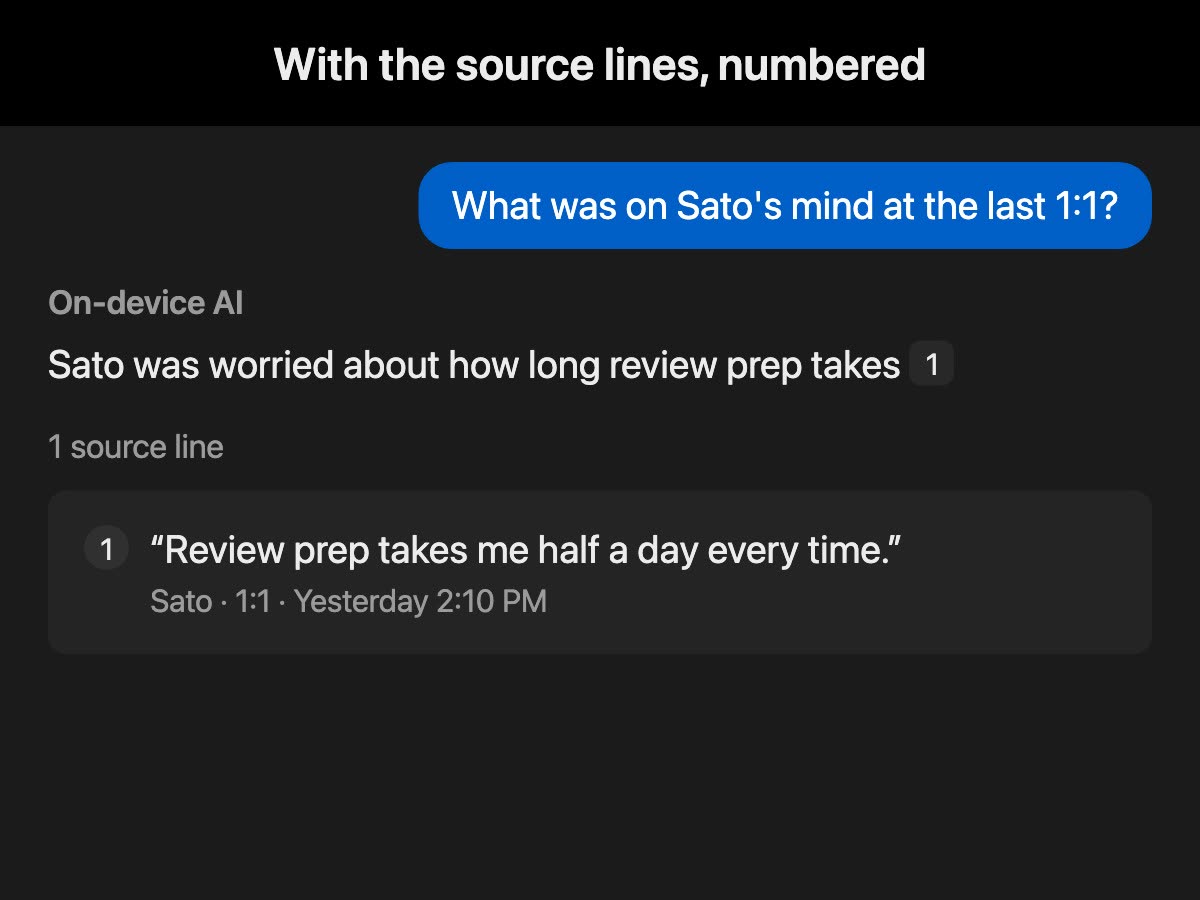
- 4. Find and askGo to the original lines with ⌘K. Ask the assistant, and it answers from your records and notes with sources.
There’s more
Weekly chores and your files, done automatically too.
Both run with the on-device AI, and both are free.
- TriggerEvery Friday at 17:00
- Find commitmentsThis week’s, not yet done
- Write with AIA bulleted list for each person
- OutputAssistant · Mac notification
Workflows
Write what you want done, and you get a draft of the steps. Try it, then publish. Run it every two hours and so on, and choose the notice’s words and style. With Pro, results can also go to Slack or Discord.
Notes
Just put them in. Every night, the clear ones are moved into folders and it asks about the rest. You can undo it. When one is close to a conversation, it asks whether to link them.
Screens are mock-ups with fictional data.
Your conversations are yours.
Your records are stored only on this Mac, and you can search them offline. We cannot read them. Unless you turn something on, they go nowhere.
On this Mac
- ListeningMicrophone and Mac audio
- TranscriptionAudio discarded right away
- Summaries and to-dosOn-device AI
- Storage and searchThis Mac’s disk
- Nothing is sent to our servers
- Only when you turn it on (Pro): your own AI answers with an API key · Claude Code or Codex on this Mac answers · choose an AI per feature to have your own AI organize meetings and write recap summaries · outside AI tools read your records · workflows pass them to commands you register · live AI cards in a conversation go to the AI and tools you chose · workflow results go to your own Slack or Discord
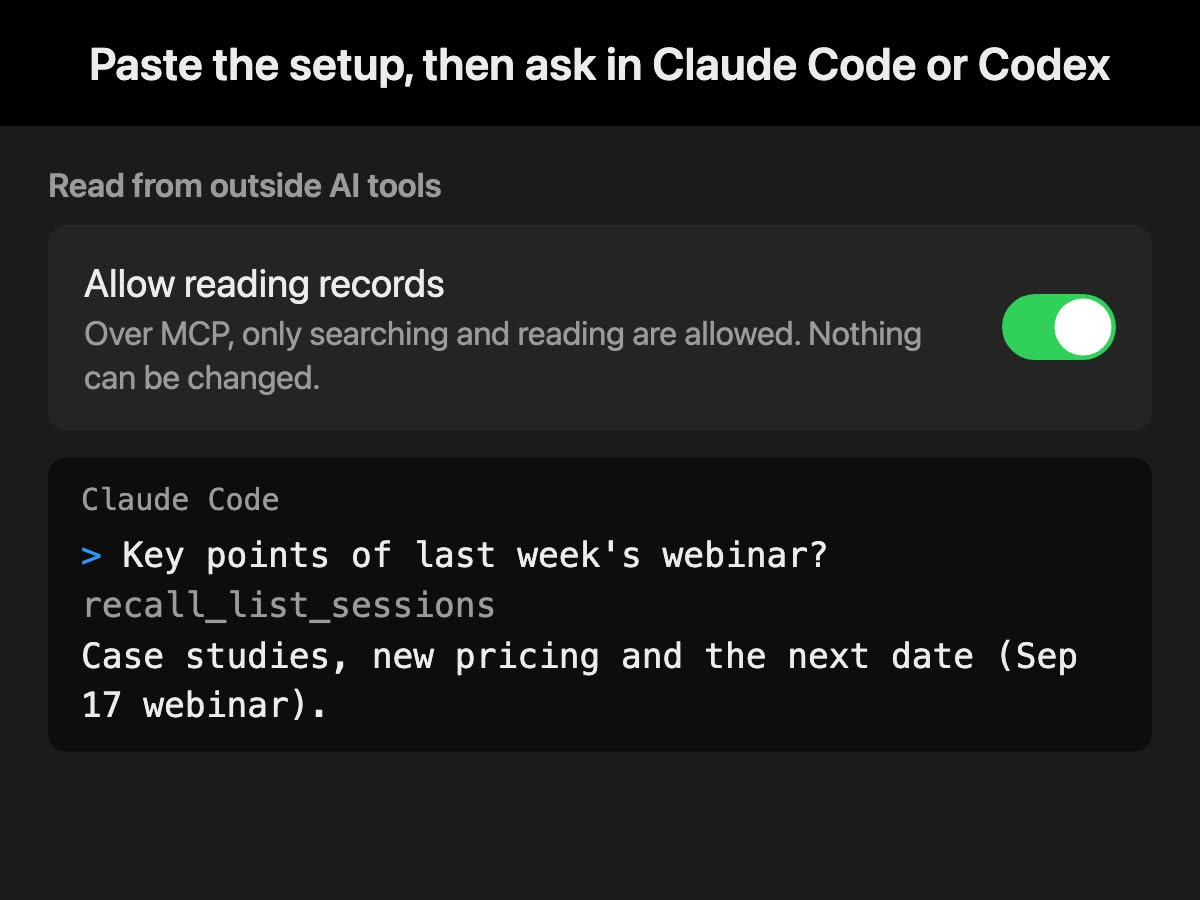
- Stop it whenever you wantPause with one click, and while you use the apps you specify, nothing is transcribed, including the microphone. Please tell the people in your meeting that you are recording.
- Notarized by AppleThe app we distribute is signed with KOROMO K.K.’s Developer ID and notarized by Apple. Here is how to check.
What people say
Whatever meeting tool we use, the record just stays there. It really helps.
Customer Success, IT company
When I ask Claude or GPT later, I can look back with the evidence in front of me. No more “what was that again?”
Product Manager, IT company
I connected it to Obsidian, so my decisions and meeting overviews build up automatically.
Engineer, IT company
Having Claude or GPT read your records is a Pro feature. Saving to Obsidian is not built in; you set it up yourself, for example with a Pro workflow command.
Features that run on this Mac are free.
The assistant, workflows and notes are all on Free when they run with the on-device AI.
Free
¥0
- Transcription: unlimited · Viewing and search: last 14 days
- Questions and summaries with On-device AI, the Live Panel, live AI cards, the assistant (commitments and due dates), workflows, notes, weekly recap
Pro
¥980 a month or ¥9,800 a year (tax included)
- View and search records older than 14 days, monthly and yearly recaps
- Answers from your own Claude, ChatGPT or Gemini (an API key, or a Claude Code or Codex plan), meeting organizing and recap summaries with your own AI too, outside AI tools that read your records, workflows that pass records to a command, cloud AI and your registered tools in live AI cards, workflow results sent to Slack or Discord
Prices are in Japanese yen. Your card issuer converts the amount. Buy from Settings › Plan in the app. For details, see Plans and licenses.
Common questions
Is the audio kept?
No. Audio is discarded once it becomes text. What stays is text, such as transcripts and summaries, saved on this Mac. If you register your own voice or turn on remembering other people’s voices, voice characteristics (not recordings) are saved in your Mac’s Keychain.
What leaves my Mac?
Records leave only through Pro features you turn on, or when you copy or save them yourself. See When records leave the Mac. Apart from records, the app connects for the first model download (Hugging Face), the Pro license check and the update check, and communication information such as your IP address reaches those services. Details are in the Privacy Policy.
Can I check where the app came from?
The app we distribute is signed with a Developer ID and notarized by Apple. Run spctl --assess --type execute -vv /Applications/Recall.app in Terminal on the app you downloaded, and the result shows source=Notarized Developer ID and origin=Developer ID Application: KOROMO K.K. (L3WUXW6GNW).
How much CPU and battery does it use?
Because it always runs, it uses some CPU and battery. While people talk, transcription runs, so the load rises and the battery drains faster. It varies by Mac and how you use it, and you can pause with one click if it bothers you.
What happens to my records if the service stops?
Your records are on this Mac, so they stay if the service stops. However, records past your retention period (by default, 90 days on Free and forever on Pro) are deleted automatically; you can choose Forever in Settings › Privacy. Pro falls back to Free when the paid period ends or the license cannot be checked for 14 days, and records older than 14 days can no longer be opened in the app. Copy or save the transcripts you want to keep while you have Pro. Updates would also stop.
How should I tell the other people in a meeting?
Please tell them it is being transcribed. For example: “I’m transcribing this on my Mac so I can check the details later. No audio is saved, but the transcript stays on my Mac. Let me know if you’d rather I stop.” If you send meetings to outside AI or remember other people’s voices, tell them that too. Some places require everyone’s consent. Do not use it where recording or note-taking is prohibited, or where your workplace rules do not allow it.