 Recall
Ask AI
In the field “Ask Recall (new question)” at the bottom of “Assistant” in the sidebar (⌘J), you can ask questions about your records.
How to ask, and the answers
Ask things like “Did I talk about pricing with Company A last week?” or “List everything I said I would do.” The AI searches your records a few times before it answers, and numbers the source lines. Click a number and the original line opens to the side.
It searches more than lines. It also searches notes, conversation notes and the contents of files attached to notes (the text that could be read), and when it quotes one, it shows that note as a source (Notes).
It does not answer what is not in your records. When it finds nothing, it shows what it searched for and over which period. Dates such as “last week” or “next Wednesday” are worked out by the app, and counts and order are taken from the database.
You can also ask from “Ask AI about this conversation” in a conversation’s details, from ⌘K search and from a person’s page. Wherever you ask from, a new question thread is made in the assistant. Threads are saved on this Mac and stay after you quit the app. Reply in a thread to keep asking with the earlier question and answer in mind (Assistant).
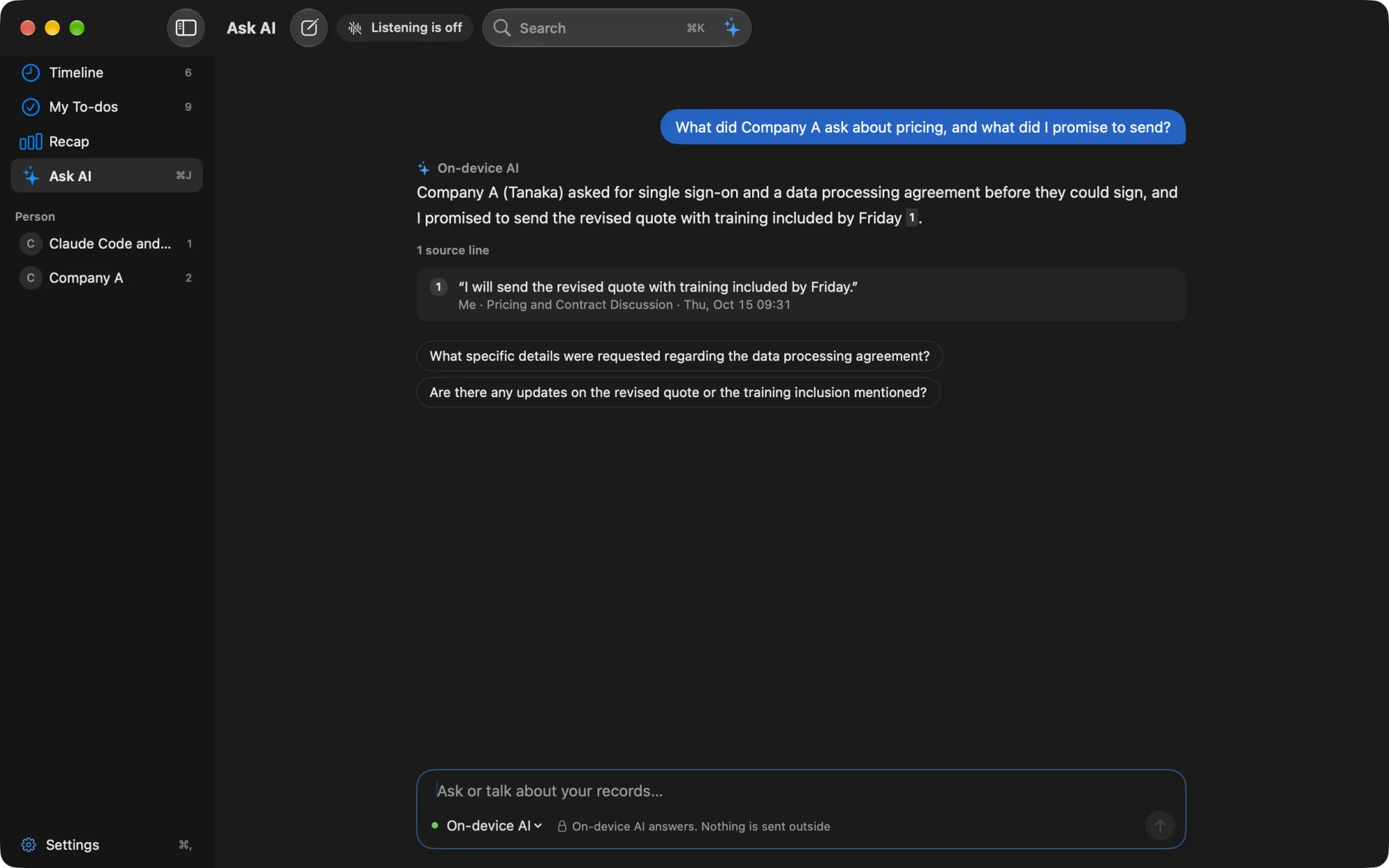
On-device AI
By default, answers come from an AI that runs inside this Mac. Neither your questions nor your records leave the Mac. The first time, it downloads the model from the internet automatically and sets it up (search still works while it says “Preparing the on-device AI”).
On a Mac with less than 16 GB of memory, the on-device AI that answers questions cannot be used while Apple Intelligence is off. Turn Apple Intelligence on and it becomes available. Summaries and to-dos are made when Apple Intelligence is on, whatever the memory (except when you choose an outside AI for organizing meetings on Pro).
Answer with your own Claude, ChatGPT or Gemini (Pro)
On Pro, connect Claude, ChatGPT or Gemini in Settings › AI and you can choose them from the model chip in the input field. To have them answer with an API key, enter your own Anthropic, OpenAI or Google API key. The key is saved in the Mac’s keychain. Claude and ChatGPT can also answer through Claude Code or Codex on this Mac instead of an API key (Answer with Claude Code or Codex on this Mac).
In Settings › AI, you can choose each company’s model and how deeply it thinks (Light, Standard, Think deeply). Claude Code and Codex use the same model when they answer. The more deeply it thinks, the longer an answer takes.
The AI you choose with the chip stays with that thread, and it answers replies with the same AI even after you reopen the app. New threads and the Live Panel start with the AI chosen for “Ask AI and Live Panel” under “AI per feature” in Settings › AI (the on-device AI by default). When the chosen AI cannot be used right now (while on Free, no key, Claude Code or Codex not found or not logged in), they start with the on-device AI. The check before each send stays the same. When Pro ends, threads that had Claude, ChatGPT or Gemini chosen also go back to the on-device AI.
Answer with Claude Code or Codex on this Mac (Pro)
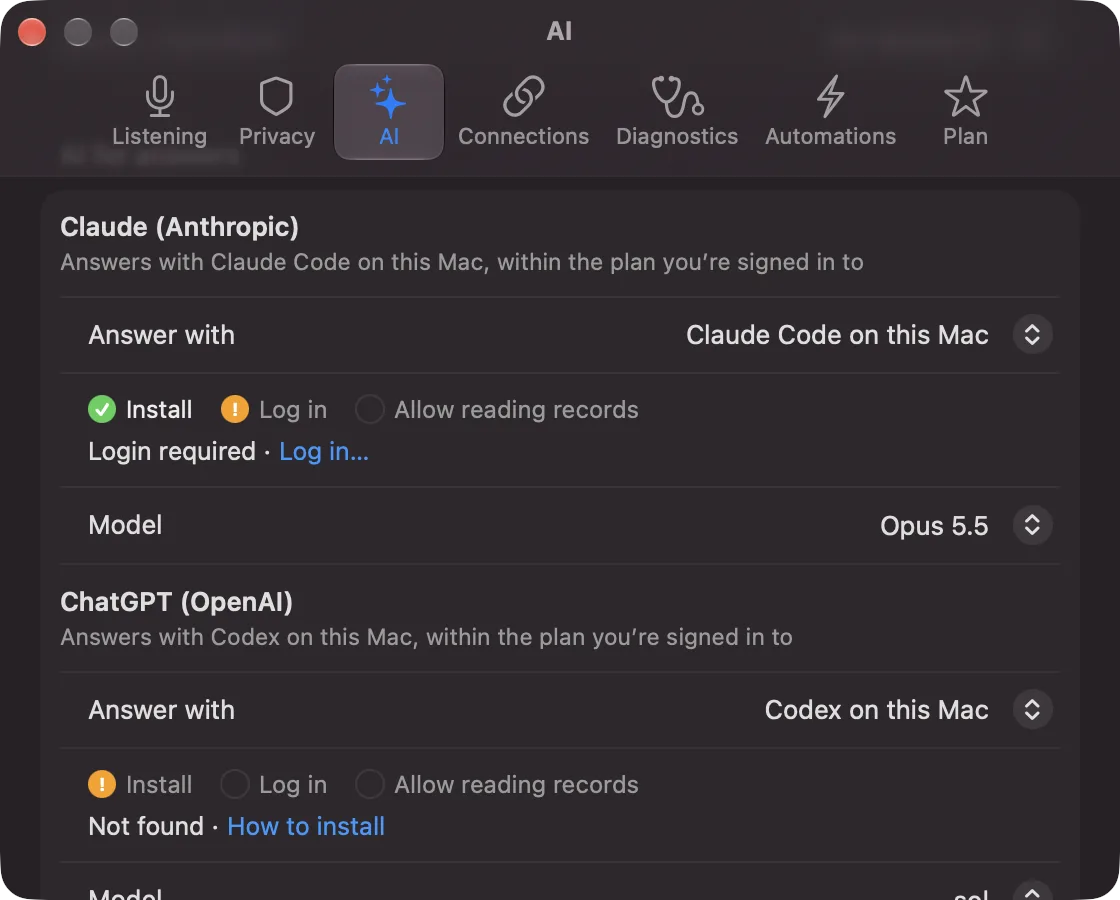
This is one way for Claude and ChatGPT to answer (it is not a separate AI, so the chip still says Claude or ChatGPT). Choose “Claude Code on this Mac” or “Codex on this Mac” under “Answer with” in Settings › AI, and instead of an API key, the Claude Code or Codex installed on this Mac answers using the plan of your own account. Using it takes the following three steps. Any step not yet done shows in Settings › AI.
- Install: install Claude Code or Codex on this Mac (“See how to install” in Settings › AI).
- Log in: log in with your own account (“Log in…” in Settings › AI opens Terminal).
- Allow reading your records: Claude Code and Codex read your records with the same reading tools as outside AI tools. Turn on reading your records with “Allow…” in Settings › AI. Once allowed, other AI tools you have connected can also read your records (Reading from outside AI tools).
Model used to answer: both Claude Code and Codex answer with the model chosen in Settings › AI (the chip and the answer show something like “ChatGPT sol · via Codex”). Codex 0.160.0 or later is required. With an older Codex, it shows “Couldn’t use this model. Update Codex or change the model · See how to install”.
For questions narrowed to a conversation or a person, and for questions in the Live Panel, Recall passes only the lines it picks to Claude Code or Codex and does not let them use tools (for a conversation, up to 16,000 characters, newest first; for a person, up to 16,000 characters of lines found by searching for the question; for the Live Panel, up to 6,000 characters from the last 15 minutes). In these cases, permission to read your records is not needed (it works once installed and logged in).
Nothing is left in Claude Code’s or Codex’s conversation history. Use them in line with each company’s terms of service (depending on how you use them, your account may be affected).
AI per feature (Pro)
Under “AI per feature” in Settings › AI, you can choose the AI used for the following features. All of them default to the on-device AI. You can choose the on-device AI, an API key for Claude, ChatGPT or Gemini, or Claude Code or Codex on this Mac (ones that cannot be used are dimmed, with the reason).
- Organize meetings (the summary, to-dos, events, title and speaker names made after a conversation ends): when you choose an outside AI, Recall shows what will be sent and asks you to confirm. It switches only when you click “Allow sending”. From then on, each time a conversation ends, its lines (including speaker names, up to 60,000 characters) are sent once. When the outside AI could not make them, the on-device AI makes them, and the reason shows in the conversation’s details. Switching back to the on-device AI also removes the permission.
- Recap summary: when you click “Write a summary”, that week’s summaries and decisions are sent. Recall asks you to confirm the first time. When it could not make one, it does not switch automatically; you can choose “Write with the on-device AI”.
- Ask AI and Live Panel: the AI that new question threads and the Live Panel start with (above). Something is sent only when you send a question.
When something is sent to an outside AI, the date and time, feature, destination and number of characters are kept, without the content, in ~/Library/Application Support/Recall/ai-access/.
What is sent
When your own Claude, ChatGPT or Gemini answers with an API key, what is sent is the question and what the search found for the answer: conversation titles, summaries and events, excerpts of lines with their times, the names of the speakers and people, app names, and excerpts from notes and attached files. These may come from several conversations. Audio and whole conversations are not sent. There is a limit to how much one question sends.
When Claude Code or Codex on this Mac answers, the question is passed to it, and Claude Code or Codex reads the records it needs with the same reading tools as outside AI tools. The records it reads are sent to Anthropic or OpenAI together with the question. It may read a conversation all the way through.
For each company and way of answering, Recall shows what will be sent and asks you to confirm before the first send. With a free-tier Gemini key, what you send may be used to improve Google’s services. The other people in the conversation have not agreed to this. Below the input field, where your question goes is always shown (for example “The on-device AI answers. Nothing is sent outside.”).