 Recall
Getting started
The steps from installing Recall to starting to listen.
Requirements
- macOS 26 or later
- A Mac with Apple silicon
You need an internet connection when Recall first prepares the transcription and On-device AI models (it downloads them automatically), and to buy, check your license, and check for updates. Once the models are ready, listening, transcription and the On-device AI work without a connection.
Install
- Open the zip you downloaded.
- Move Recall into your Applications folder.
- Open Recall. The Recall icon appears in the menu bar and the “Welcome to Recall” guide opens.
The first-run guide
The guide has 7 steps. Before macOS asks for a permission, it explains what the permission is for. If you close it partway through, it continues where you left off the next time you open it.
- Welcome
- Your records are saved on this Mac
- Microphone permission
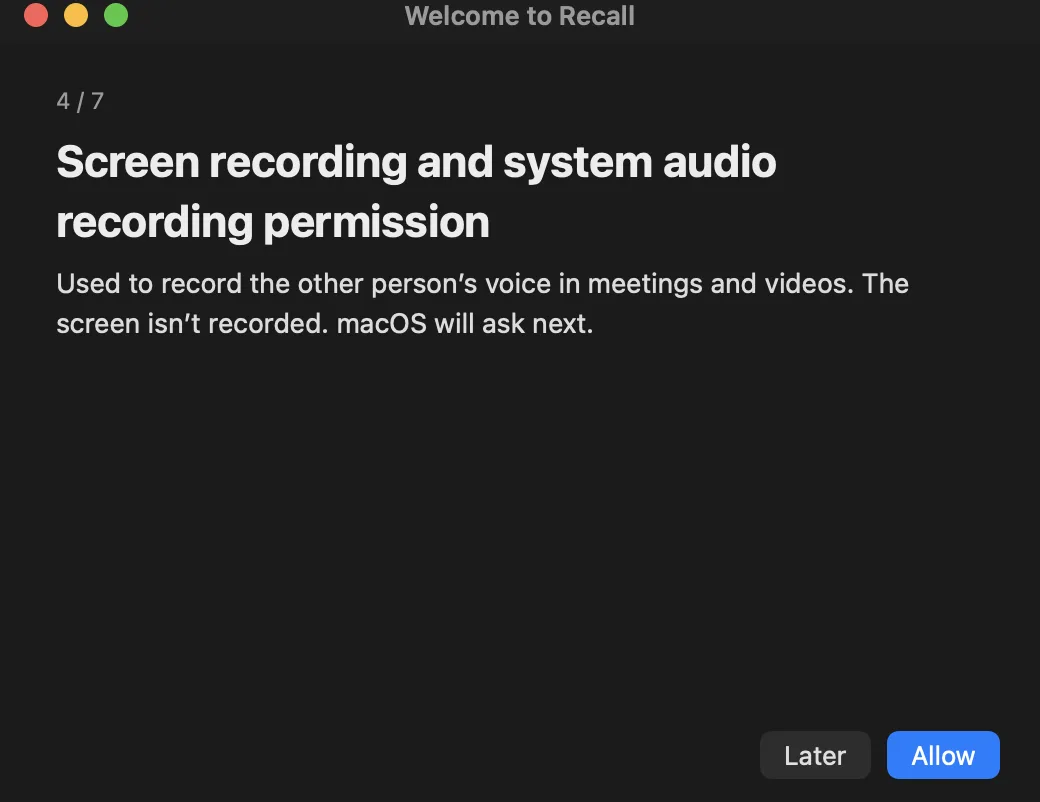
- Screen recording and system audio recording permission
- Try talking (checks that Recall can hear you)
- Setup (prepares the transcription model and the On-device AI automatically)
- Open when you log in to your Mac
After the guide, open Timeline, Assistant, Workflows, Notes and Recap from the sidebar of the main window (⌘0). When a conversation ends, its commitments are listed in the assistant.
Microphone and screen recording permissions
- Microphone: used to record your own voice as “Me”.
- Screen recording and system audio recording: used to hear the other people’s voices in meetings and videos (the sound that comes out of your Mac) and to note which app a conversation came from. The screen itself is not recorded, but the title of the front window is saved on this Mac with each line.
Screen recording starts working after you reopen Recall once you have allowed it. If “Try talking” in the guide says “Reopen Recall to be heard”, quit Recall and open it again.
Notifications are not requested in the first-run guide. macOS asks when you turn on “Notify me of the morning summary” in the assistant, or when you publish a workflow that sends a Mac notification.
You can also change the permissions later under “Privacy & Security” in System Settings (notifications under “Notifications”).
Open at login
If you turn this on at the end of the first-run guide, Recall opens when you log in to your Mac, stays in the menu bar and starts listening (no window opens). You can change it later with “Launch” in Settings › Listening.