 Recall
How to transcribe locally on a Mac: keeping meetings inside your company
How to transcribe on a Mac without sending audio to the cloud. Compare Notes, MacWhisper, Aiko, whisper.cpp, Recall and more, and check the four places records can still leave.
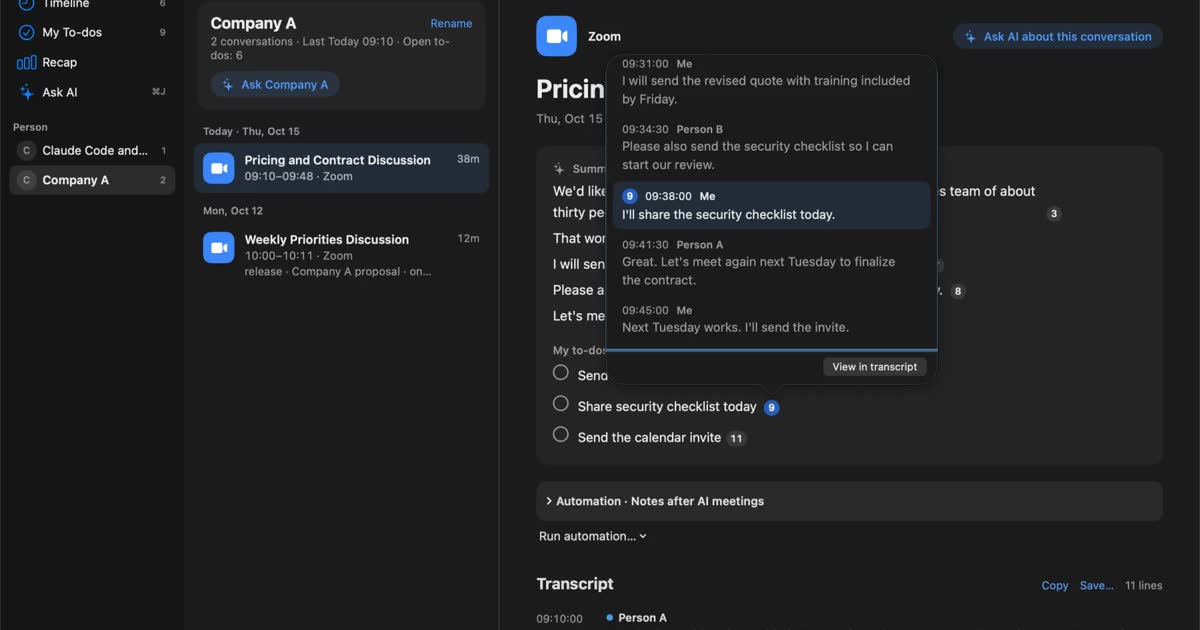
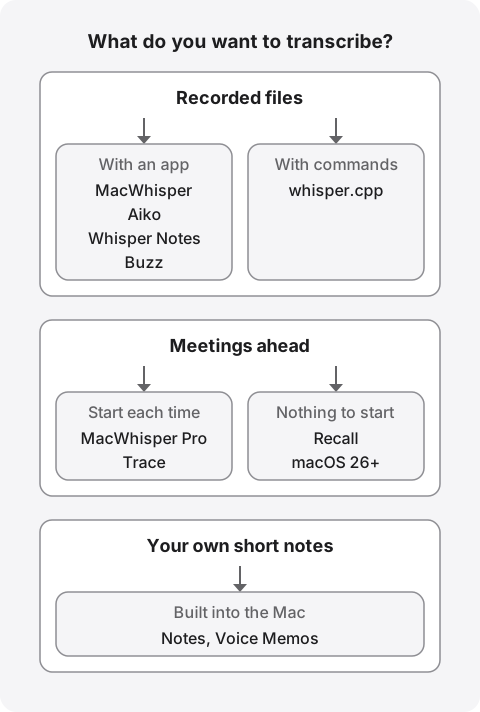
The short answer: what you want to transcribe points to one of four methods
To transcribe locally on a Mac, use an app whose speech recognition runs on the Mac itself. For recorded files, look at MacWhisper or Aiko. For short notes, use the built-in Notes app. For daily meetings, look at Recall or Trace. If you are happy to build it yourself, whisper.cpp is free.
Transcribing on the Mac does not, on its own, keep content inside your company. It leaves the Mac when you summarize with outside AI, sync through iCloud, or hand over an exported document. If a meeting must stay inside, check the four places records can leave the Mac for each product.
This article is written by KOROMO K.K., the company that develops Recall. Details of other products are limited to what we could confirm on their official pages, and we also cover when Recall is the wrong choice. We do not say which product transcribes most accurately, because we have not measured them on the same audio.
| Your situation | What fits, and where to read next |
|---|---|
| You want to try short clips for free | Notes or Voice Memos. See built-in apps |
| You have recorded audio or video | MacWhisper, Aiko and others. See apps for files |
| You want it free and can use Terminal | whisper.cpp. See building it yourself |
| You want daily meetings kept without pressing record | Recall or Trace. See apps for meetings |
| You want to check that nothing leaves | See how to check |
| You will use it for work meetings | See what to decide first |
What local transcription is, and how it differs from the cloud
Local transcription turns speech into text with speech recognition on the Mac, without sending the audio to an outside server. It suits confidential meetings, but speed and usable model size depend on the Mac.
Cloud transcription sends the audio to a provider’s servers. Neither is better in general. The difference is what you give up.
| Local | Cloud | |
|---|---|---|
| Where audio goes | Stays on the Mac | The provider’s servers |
| Offline use | Works once the model is ready | Often does not work |
| Load on the Mac | Rises during processing | Small |
| Sharing with others | You hand it over yourself | Easy, often by link |
| First setup | Often a model download | Often an account |
| Pricing shape | Free, one-time or subscription | Often a subscription or minutes |
The cloud is the better fit in some cases: a team reading the same notes by link, reading on a phone, or not wanting to depend on your Mac’s performance. If your workplace has already approved a cloud product, you have no need to move away from it.
The reason to choose local is that the audio does not sit on a third party’s server. That reduces the worry about a leak at the provider. The worries about a lost Mac or a file sent to the wrong person remain.
The kinds of speech recognition that run on a Mac
Most local apps do not build their own speech recognition. They use published models or a macOS feature, so looking at what runs underneath explains more than the app name does.
- Whisper: a model published by OpenAI. MacWhisper, Aiko, Buzz and whisper.cpp use it, and so does Recall on Macs with 16GB of memory or more. It covers about 100 languages and comes in several sizes.
- Parakeet, SenseVoice and others: models other than Whisper. Whisper Notes says you can choose among them by language and speed.
- Apple’s speech recognition: Speech Analyzer, available on macOS 26. Notta’s help says it covers 11 languages on macOS 26 or later, including Japanese. Recall runs Whisper large-v3-turbo on the Mac when it has 16GB of memory or more, and uses macOS speech recognition on Macs with less.
The kind of model affects accuracy, speed and file size. It does not decide whether anything leaves the Mac. The same Whisper model can run locally or behind a cloud API.
Four places records can leave a “local” app
Whether records leave the Mac is decided separately in four places: transcription, summaries and questions, storage, and sharing. The words “local app” sometimes describe only the first.
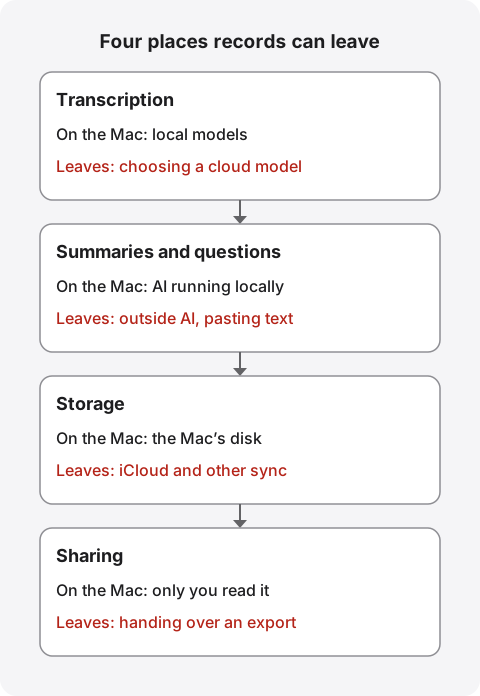
Transcription: some apps offer cloud models
Even local apps may let you pick cloud transcription in settings. Check which model is selected.
- MacWhisper: alongside local models it offers cloud options such as Deepgram and ElevenLabs. Cloud transcription in the App Store version’s Assistant sends media to the developer’s servers, and the official help says not to use it with sensitive data.
- Notta: local processing is the desktop app’s Privacy Mode (help in Japanese). The official page says ordinary bot-free recording is transcribed and summarized by its standard online processing. The help says bot-free recording of web meetings also works inside Privacy Mode, so the destination depends on whether the mode is on. “No bot” and “local” do not mean the same thing.
- macOS Dictation: Apple explains that the Dictation section of Keyboard settings shows whether requests are processed on the device.
Summaries and questions: where many products use outside AI
Even when transcription stays on the Mac, using outside AI for summaries or questions sends the transcript text out. This is more likely to leave than the audio.
- MacWhisper: the official help lists OpenAI, Anthropic, Google Gemini and others as online providers used with your own API key. Apple’s on-device models, Ollama and LM Studio run locally.
- Trace: summaries use an on-device model. Its privacy policy names one exception: a custom endpoint you set up yourself.
- Whisper Notes: its site says the Mac version from the website can summarize with a local model when AI features are on. You can also choose cloud AI.
- Recall: summaries and to-dos come from on-device AI by default. Part of the records leaves only when you turn on outside AI in Pro, depending on the feature.
Pasting by hand is easy to overlook. Copy a transcript into ChatGPT and it leaves, whatever the app’s settings say. Aiko’s own tips use ChatGPT for dividing text into paragraphs. It is handy, but do not do it with content you want to keep inside.
Storage: whether audio stays, and where it syncs
Things kept on the Mac can still leave through sync. Start by checking whether audio is kept. The more that stays, the more you have to protect.
- Audio is kept: Notes, Voice Memos, MacWhisper recordings, Aiko recordings and Trace recordings. Aiko does not delete recordings after transcribing, but has a setting to remove those older than 7 days. Trace keeps audio and Markdown files on the Mac.
- Audio is not kept: Recall. It discards the audio once it is transcribed and keeps transcripts and summaries on the Mac. In exchange, you cannot check a misheard word against the original audio.
With Apple’s built-in apps, watch iCloud. Voice Memos can make recordings available on devices signed in to the same Apple Account. Apple explains that Notes and Voice Memos have their encryption keys held by Apple under standard data protection, and become end-to-end encrypted with Advanced Data Protection. If you use the built-in apps for confidential content, first check whether those recordings go to iCloud.
Backups work the same way. Notta’s help warns that files in the save folder can be affected by backup software, file sharing tools and organization policies. That applies to every product. Put an export in a synced folder and it travels with that folder.
Sharing: a document you hand over is in someone else’s care
Send an exported transcript by email or chat, and from then on it is no longer a local matter. Before sending, reread it for names, amounts and anything that must not go outside. Trace can automatically redact names and contact details before export. In Recall, you can export one conversation’s transcript as .txt or copy it. A transcript includes what other people said, so check that the recipient may read it.
Other network traffic: not always zero
Local apps may still connect for reasons other than records. What matters is what they send, more than whether they connect. The official descriptions are as follows.
| Product | Described network use |
|---|---|
| Aiko | The official site says “No data collected” |
| MacWhisper | May send anonymous analytics about license status |
| Trace | The direct version sends a license key and a one-way fingerprint of the Mac. Not audio or transcripts |
| Notta Privacy Mode | Connects for sign-in, plan checks, model downloads and more. License checks run about monthly |
| Recall | Connects for the first model download, Pro license checks and update checks, and an IP address and similar details arrive. Records are not sent |
MacWhisper’s privacy policy was last updated in February 2024 and says no data leaves the device. The current app also offers outside AI and cloud models, so judge by the settings you actually use, not only by that sentence.
Methods and products for local transcription on a Mac
The methods fall into four groups: built-in apps, apps for files, tools you set up yourself, and apps for meetings. Prices and conditions were checked on official pages on November 2, 2026.
| Product | Best use | Price and conditions |
|---|---|---|
| Notes, Voice Memos | Short talks and spoken notes | Built in. Notes needs M1 or later. Voice Memos needs macOS 15 or later on Apple silicon |
| MacWhisper | Files, subtitles, recording, dictation | Free €0, Pro €64 one-time |
| Aiko | Quick transcription of recordings and files | $24 one-time, 14-day trial. macOS, iOS, visionOS |
| Whisper Notes | Quick transcription of files and meetings | On Mac, free up to 5,000 words a week, then $14 one-time. Apple silicon |
| Buzz | Files, microphone, subtitles | Free and open source. Needs Apple silicon on Mac |
| whisper.cpp | Automating with commands | Free and open source. Used in Terminal |
| Trace | Recording and transcribing meetings | Direct: £29 for 1 Mac, £39 for 2, one-time. macOS 14.4 or later on Apple silicon |
| Notta Privacy Mode | Confidential recordings on a paid Notta plan | Premium is ¥14,220 a year, paid annually, tax included. Not on the free plan |
| Recall | Always-on capture and search | Free ¥0, Pro ¥980 a month or ¥9,800 a year, tax included. macOS 26 or later on Apple silicon |
Notes and Voice Memos: try them first, for free
To try this with nothing but a Mac, the built-in apps are the easiest. Apple says transcription in Notes works on Macs with M1 or later when the device language is English, Japanese or another listed language. Voice Memos works on Apple silicon Macs with macOS 15 or later, though not in every country or region. Both let you search and copy transcripts.
There are limits. The input Voice Memos lists is a microphone, and neither guide describes capturing the other side’s voice in Zoom. We also could not find a description of where processing happens. Summaries in Notes need Apple Intelligence. If you plan to use them for confidential content, check this along with your iCloud settings.
For short pieces of text, macOS Dictation also works. It enters your own voice as text, so it does not suit meeting records, and it stops after 30 seconds without speech. Apple’s list includes English and Japanese for on-device dictation, which needs a speech model download.
Transcribing files: MacWhisper, Aiko, Whisper Notes, Buzz
If you already have recorded audio or video, choose from these four. Recall cannot import audio files, so it does not fit this job.
- MacWhisper: the widest feature set. It reads mp3, wav, m4a, mov, mp4 and more, and even Free exports .srt and .vtt subtitles. Speaker recognition and batch processing are Pro. See MacWhisper vs Recall for detail. The developer warns about scam sites posing as the official one.
- Aiko: its strength is having little to set up. On macOS, the Whisper large v2 model runs on the device. It does not support ogg. The developer says audio mixing several languages is not handled reliably, so test it if your meetings mix languages.
- Whisper Notes: offers several models, including Parakeet, SenseVoice and Whisper. It says it can detect Zoom, Teams and Google Meet and record meetings. You can try it within the free allowance.
- Buzz: free, with a graphical interface. It handles files and microphone input, identifies speakers, and exports TXT, SRT and VTT. The last version for Intel Macs is 1.4.5.
whisper.cpp: free if you set it up yourself
whisper.cpp is an open source tool that runs OpenAI’s Whisper models locally, under the MIT license. It suits places where you cannot install apps, and people who need to process many files the same way.
In return, the setup is yours to do. The project’s guide asks for 16-bit WAV input, and speaker separation, summaries and a screen to work in are not as complete as in an app. If you are not at home in Terminal, an app such as Buzz will be quicker. Larger models use more disk and memory. The project’s table gives these figures.
| Model | Disk | Memory |
|---|---|---|
| small | 466 MiB | About 852 MB |
| medium | 1.5 GiB | About 2.1 GB |
| large | 2.9 GiB | About 3.9 GB |
Keeping meetings: Trace, Notta Privacy Mode, Recall
For meetings, the deciding point is whether the app can capture the Mac’s audio, where the other side’s voice plays. All three can record without a bot, but they differ in how you start and what stays. Capturing Mac audio needs macOS permission in every product.
- Trace: offers to record when a meeting app starts using the microphone. It is a one-time purchase, keeps both audio and transcript, and makes summaries on the device. It suits people who want to listen back.
- Notta Privacy Mode: for existing paid Notta users who want to switch for confidential meetings. It applies to the whole desktop app, not to single recordings, and must be on before recording. While it is on, AI summaries that need cloud processing, sync and team collaboration are paused or limited. See Notta alternatives compared.
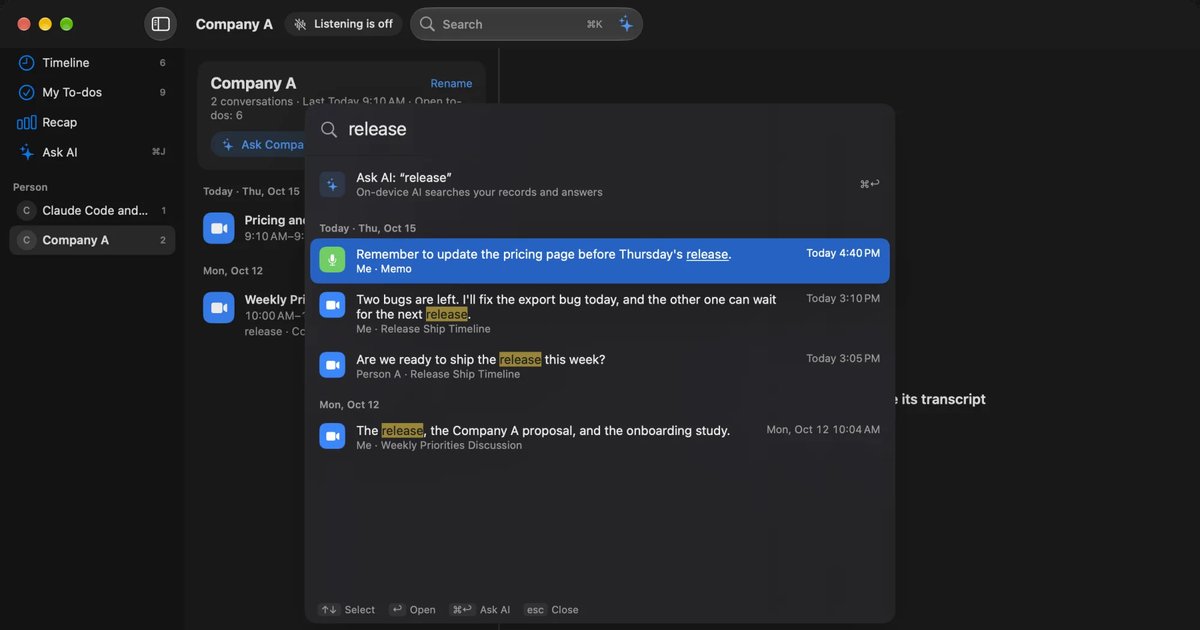
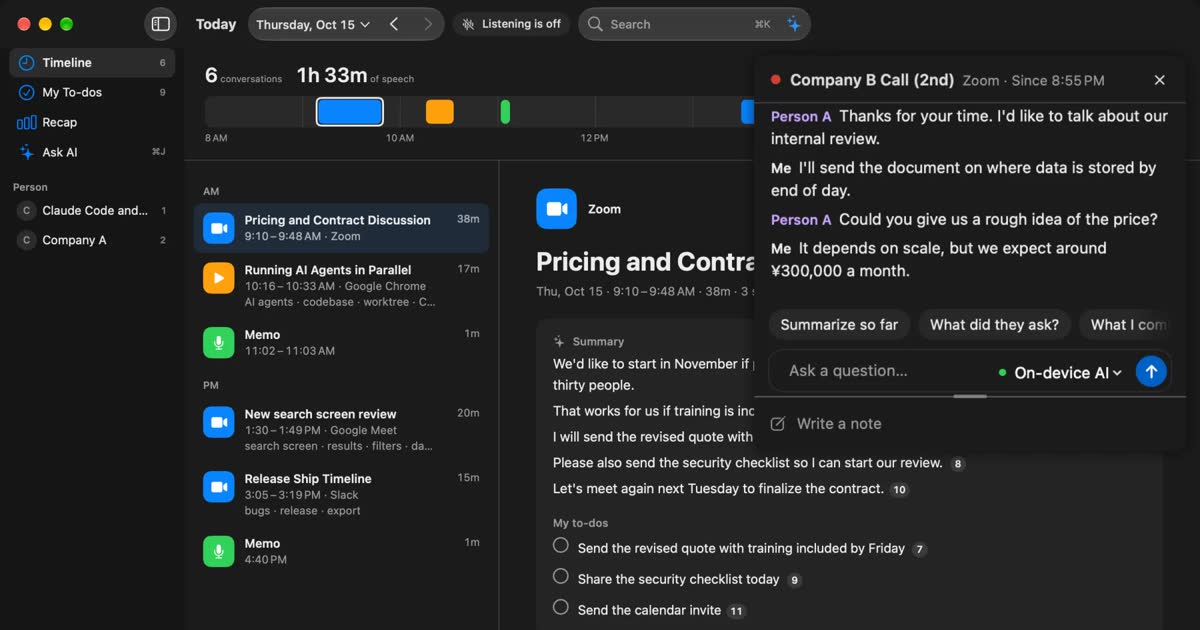
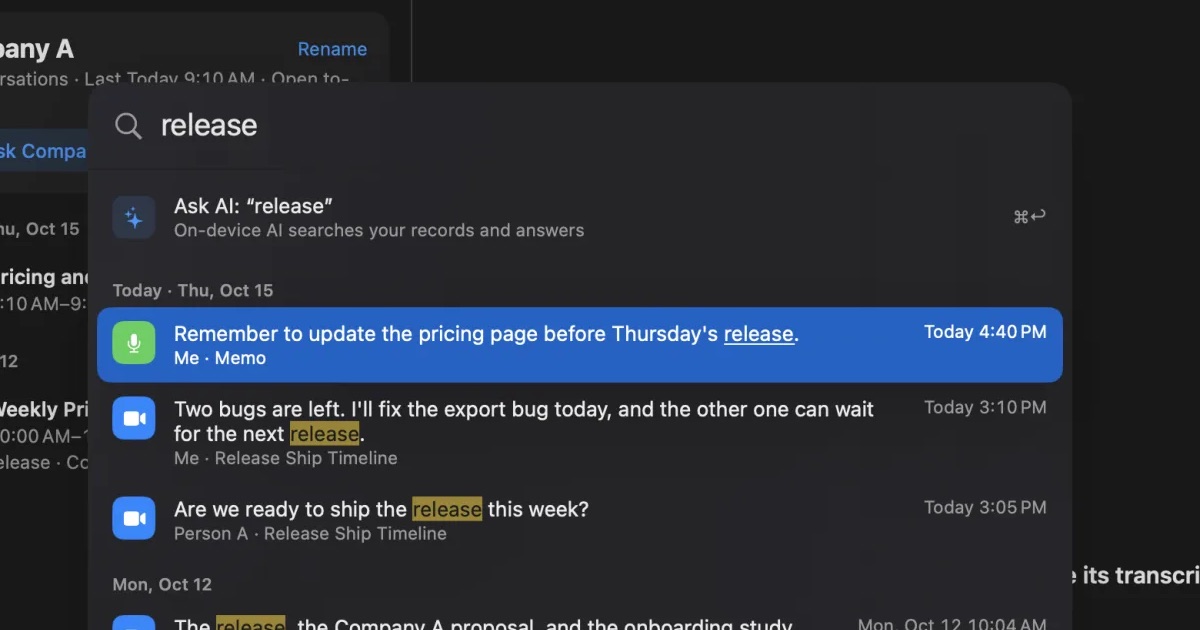
- Recall: has no record button. Leave it installed and it transcribes the conversations you hear. It does not save audio. Summaries, your to-dos, ⌘K search and answers with source remarks all work with on-device AI. The conditions are under who Recall suits.
Which Macs can run this
If you are choosing a product today, assume an Apple silicon Mac. Trace, Whisper Notes and Recall need it, and so does the current version of Buzz.
On an Intel Mac, the candidates are MacWhisper and whisper.cpp. MacWhisper’s official help says Intel Macs lack dedicated machine learning hardware, so on-device transcription is much slower. The same page suggests cloud models as the remedy, which does not serve the goal of keeping content inside. On an older Mac, time a short file before you decide.
Check memory too. MacWhisper’s official FAQ recommends more than 8GB for the Medium and Large models. Recall runs on 8GB Macs. Summaries and to-dos are made when Apple Intelligence is on, whatever the memory (except when you choose an outside AI for organizing meetings on Pro). Answers to questions need Apple Intelligence on only on Macs with less than 16 GB of memory. You also need disk space, and apps that keep audio use more with every recording.
What a year costs
Costs are easier to compare by one-time versus yearly payment. We have not converted currencies. Exchange rates move, so check the amount when you buy.
| Product | First year | Each later year |
|---|---|---|
| Notes, Voice Memos | ¥0 | ¥0 |
| Buzz, whisper.cpp | ¥0 | ¥0 |
| Whisper Notes | $14 (free up to 5,000 words a week) | Nothing more |
| Aiko | $24 | Nothing more |
| Trace | £29 (1 Mac) | Nothing more |
| MacWhisper Pro | €64 | Nothing more (updates included) |
| Notta Premium | ¥14,220 (annual) | ¥14,220 a year |
| Recall Pro | ¥9,800 (annual) | ¥9,800 a year |
Price alone does not decide it. One-time apps have the advantage of no monthly bill, and over time Recall Pro costs more than they do. Recall Free has no transcription limit and includes summaries, speaker separation and the Live Panel, but viewing and search cover the last 14 days. Pro pays for searching further back and for connecting outside AI and tools. If your aim is only to keep content inside, you do not need to connect outside AI, so the question is whether you need to search past 14 days.
Choosing by situation
The right method changes with the situation, even for one person.
| Situation | What fits | Why |
|---|---|---|
| Turning a recorded interview into a draft | MacWhisper, Aiko | Reads files, and you can check against the audio |
| Adding subtitles to a video | MacWhisper, Buzz | Exports .srt and .vtt |
| Keeping daily meetings and sales calls | Recall, Trace | Recall has nothing to start. Trace also keeps audio |
| An interview where tone matters | Trace, MacWhisper | Audio is kept |
| Processing many files the same way | whisper.cpp, MacWhisper Pro | Commands and batch processing |
| A team reading the notes together | Cloud products | Sharing by link takes less effort than local |
Which is most accurate for Japanese or English
This article does not say which product is most accurate, because we have no measurement on the same audio. We also leave out speed and accuracy figures from product sites, since they cannot be compared across different audio and Macs.
Accuracy varies a lot with the speaker, the microphone and the subject. Check these on your usual meeting audio.
- Are company, product and personal names right?
- Are amounts, dates and numbers right?
- Are words from another language right?
- Have sentences that nobody said been added?
The last point is a quirk of Whisper models. Aiko’s site explains that a sentence not in the audio is sometimes added at the end. Recall uses Whisper on Macs with 16GB of memory or more, so this can happen there too. Whether local or not, confirm important numbers and names against the audio or with the person.
How to transcribe locally on a Mac
Here are short steps for each of the four methods. Whichever you use, try it on a public talk or your own voice before giving it confidential audio.
In the built-in Notes app
- Open Notes, click the attachments button in the toolbar and choose Record Audio.
- Start recording and click the transcription button for live text. If the button is missing, the Mac’s requirements or language do not match.
- Click Done when finished. Double-click the recording to read, search or copy the transcript.
- Check whether that note syncs to iCloud.
Transcribing a file in an app
MacWhisper is the example here. Aiko and Buzz follow the same outline.
- Install from the official site. MacWhisper’s is www.macwhisper.com, and purchases go through Gumroad or the App Store.
- Download a local model. This step needs a connection.
- Make sure no cloud model is selected.
- Drag an audio or video file into the window.
- Correct names and numbers, then export in the format you need.
- Decide where the original audio and the export will live.
With whisper.cpp
This is the official procedure with a language option added. You need a C++ compiler, cmake and ffmpeg.
- Get the code:
git clone https://github.com/ggml-org/whisper.cpp.git - Enter the folder:
cd whisper.cpp - Get a model:
sh ./models/download-ggml-model.sh medium - Build it:
cmake -B build, thencmake --build build -j --config Release - Convert the audio:
ffmpeg -i input.mp3 -ar 16000 -ac 1 -c:a pcm_s16le output.wav - Transcribe, here in Japanese:
./build/bin/whisper-cli -m models/ggml-medium.bin -l ja -otxt -f output.wav
This creates output.wav.txt in the same folder. Change ja to your language. Once the model is downloaded, this works with the network off.
Keeping meetings with Recall
- Install and open it as described in Getting started.
- Allow the microphone, and screen and system audio recording. The screen itself is not recorded, but the title of the front window is saved on this Mac with each line.
- Wait while the transcription model and on-device AI get ready. This step needs a connection.
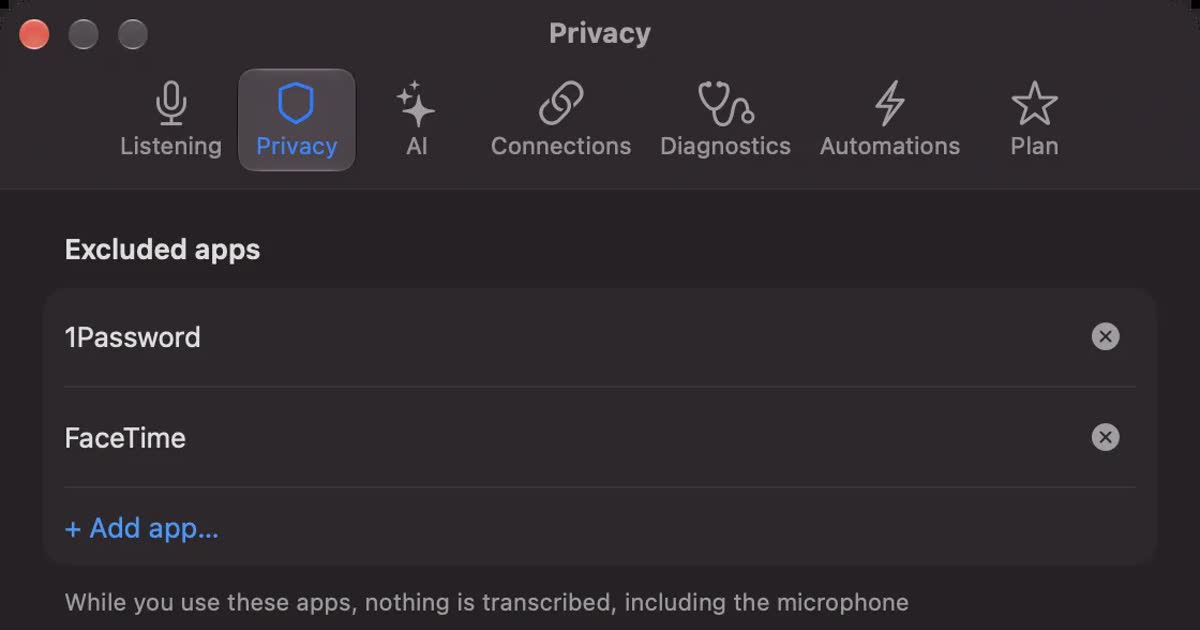
- Add banking and password apps to excluded apps.
- Choose a retention period.
- Pause for conversations you do not want kept. After the fact, you can delete the last 15 minutes.
When it does not work
- No transcription button: in Notes, the Mac’s requirements or device language may not match. Review the conditions in Apple’s guide.
- The other side’s voice is missing: check permissions in Privacy & Security in System Settings. In Recall, screen recording takes effect after you reopen the app.
- The same sentence repeats: Aiko’s site says this Whisper quirk usually comes from audio that is not clean. Try a setting that skips silence, or improve the microphone.
- Processing is slow: close other apps or switch to a smaller model. Notta’s help also says offline processing depends on the computer. MacWhisper says it can move to a compatibility mode after a crash.
How to check that nothing leaves
You can check this on your own Mac as well as reading the descriptions. These four checks need no special tools. They do not replace a company review, but they give you something to judge by.
- Read the settings: open the transcription model, AI and integration settings and look for outside companies. Also confirm that no API key is entered.
- Try with the network off: once the model is ready, turn off Wi-Fi and repeat the task. If it works, that task does not need the network.
- Watch the data sent: in Activity Monitor, open Network and watch the data sent. Close other apps and see whether it jumps while a long recording is transcribed. The figures cover the whole Mac.
- See where things sync: check where recordings and exports are stored. If that is iCloud or a shared folder, they leave from there.
These checks have limits. Working offline does not prove that nothing is sent when you are online. If you need a strict answer, ask your IT team to inspect the traffic. With Buzz and whisper.cpp, the source is public, so engineers can read what they do.
What to decide before using it for work
A local app is not automatically allowed by your workplace rules. Running on the Mac and being allowed to record a meeting are separate questions. Decide these first.
- Rules: may you install a new app, and may you record meetings?
- Permissions: on managed Macs, microphone or screen recording permission may not be available. MacWhisper says it supports deployment by MDM.
- Protecting the Mac: prepare for a lost Mac. Recall leaves encryption to macOS FileVault, so turn FileVault on. It protects what other apps store too.
- Retention: how long will records stay, and when will they go? With apps that keep audio, also decide how audio is deleted.
- Outside AI: if you will not use it, do not enter API keys. If you will, check the provider’s terms and your company’s rules.
- Handing over: who gets transcripts, and how?
Whichever product you use, tell people it is being transcribed. No bot joining is not the same as their consent. For example: “I’m transcribing this on my Mac so I can check the details later. No audio is saved, but the transcript stays on my Mac. Let me know if you’d rather I stop.” If you send meetings to outside AI or remember other people’s voices, tell them that too. Do not use it where recording or note-taking is prohibited, or where your workplace rules do not allow it. Sample wording is in the FAQ. For checks that apply to any product, see What to check if you worry about leaks from AI meeting notes.
Matching settings to how sensitive the content is
Not every meeting needs the same settings. The table below is this article’s own view, not a law or an industry standard. Your workplace rules come first.
| Content | Transcription and summaries | Audio and storage |
|---|---|---|
| Public seminars, your own notes | Outside AI is reasonable | Whatever is convenient |
| Internal regular meetings | Process locally by default | Set a retention period. Check where it syncs |
| Sales calls with customer details | Local only, and tell the other side | Do not keep audio, or delete it soon |
| HR, contracts, unannounced plans | First confirm that you may record | Keep briefly if at all. Not recording is an option |
The last row is not a question of local versus cloud. Sometimes not recording is the surest choice. Decide how you will stop, and stop when in doubt.
Who Recall suits, and who it does not
Recall stays in the menu bar, transcribes the conversations you hear on your Mac, and keeps them searchable. It does not save audio. Transcripts, summaries and to-dos are made on the Mac by default. It is a growing record of what you heard, not an app for transcribing files.
These conditions are worth knowing first.
- Supported Macs: Apple silicon Macs with macOS 26 or later only. Summaries and to-dos are made when Apple Intelligence is on, whatever the memory (except when you choose an outside AI for organizing meetings on Pro). Answers to questions need Apple Intelligence on only on Macs with less than 16 GB of memory.
- Offline: once models are ready, listening, transcription and on-device AI work without a connection.
- Retention and viewing: the default retention is 90 days on Free and unlimited on Pro. Free shows the last 14 days. There is no limit on how much is transcribed.
- When records leave: only when you use a feature you turned on in Pro, or copy or save something yourself. The full list is under When records leave the Mac.
- Pro license: if the license cannot be checked for 14 days, Pro features stop. They return once it connects.
Recall suits you if
- You have forgotten to press record and lost a meeting.
- You want conversations kept whatever the meeting tool is.
- You want text kept and audio gone.
- You want to search past remarks and ask AI with sources.
- You want to try it for free on your own meetings.
Free to use · No account needed · macOS 26 or later · Mac with Apple silicon · By downloading, you agree to the Terms of Service
Recall does not suit you if
- You use an Intel Mac, a Mac before macOS 26, Windows or a phone.
- You want to transcribe audio or video files you already have.
- You want to keep the audio and listen again.
- You want to avoid being always listened to, and prefer an app that runs only when recording.
- Your team wants to share the same notes by link.
- You want a one-time purchase.
Because it stays running, it uses some CPU and battery, and load rises while people talk. Recall supports Japanese and English, and you choose one under Listening language in Settings. It does not switch automatically within a meeting. If you handle many languages, try MacWhisper or Aiko first.
Frequently asked questions
Can I transcribe locally on a Mac for free?
Yes. Notes, Voice Memos, MacWhisper Free, Buzz and whisper.cpp are free. Whisper Notes is free up to 5,000 words a week on Mac. Recall Free has no transcription limit, and viewing and search cover the last 14 days.
Does it work without the internet?
Most apps need no connection to transcribe once the model is ready. The first model download does. Some apps also connect for license checks. Recall Pro features stop if the license cannot be checked for 14 days.
Do these apps handle Japanese?
Yes, the products here support Japanese. Notes needs the device language set to a listed language such as Japanese. Notta Privacy Mode supports it too. We have not compared accuracy, so test with your own audio.
Can it capture the other side’s voice in Zoom or Teams?
Yes, if the app can capture Mac audio. Recall, Trace, MacWhisper Pro and the Notta desktop app can. Apple’s guides for Notes and Voice Memos do not describe this. Tell people it is being transcribed.
If it is local, can a leak still happen?
Yes. You avoid sending audio to a transcription provider, but pasting into outside AI, sync, misdirected files and a lost Mac remain. Set a retention period, use FileVault, and reread before you send anything.
Is the audio kept?
It depends on the product. Notes, Voice Memos, MacWhisper recordings, Aiko and Trace keep audio. Recall discards it once transcribed. Kept audio lets you listen back, but it is one more thing to protect.
Will these run on an Intel Mac?
MacWhisper and whisper.cpp run on Intel Macs. MacWhisper’s help says processing is much slower there. The last Buzz version for Intel is 1.4.5. Recall, Trace and Whisper Notes need Apple silicon.
Checked on November 2, 2026. Details of other products come from their official pages and help. Sources include Apple’s guides for Notes, Voice Memos, Dictation and iCloud data security; MacWhisper’s site and pricing table and version differences; Aiko’s site; Whisper Notes’ privacy page and articles; Trace’s purchase page and privacy policy; Notta’s pricing and help (in Japanese); and the official repositories of whisper.cpp and Buzz. Prices and features can change, so please check each company’s official pages for the latest. We read the products’ descriptions and did not measure their network traffic. This article is general information, not legal advice.
Free to use · No account needed · macOS 26 or later · Mac with Apple silicon · By downloading, you agree to the Terms of Service
Get the product overview (PDF) by email →
Related articles
Limitless and Rewind alternatives: keeping conversations after the shutdown
Rewind has stopped recording and Limitless was acquired by Meta. What the official pages say today, how to export your data, alternatives by screen, conversation or wearable, and how Recall differs.
Is Otter.ai safe? Five checks for any AI meeting notetaker, with official answers
Is Otter.ai safe, and is any AI notetaker? Five checks (audio storage, where processing happens, AI training, sharing, telling participants), how to verify each, and what Otter, Notta, Rimo Voice, Granola and tl;dv officially say (checked November 13, 2026).
MacWhisper vs Recall: how they differ before you switch
Looking for a MacWhisper alternative? Compare audio files, always-on capture, saved audio, pricing and requirements, and see who each app fits.
Meetily vs Hyprnote vs screenpipe vs Recall: local meeting notes on a Mac
Meetily, Hyprnote (now Anarlog), screenpipe and Recall compared: open source or not, screen capture, platforms, where summaries run, and pricing, checked on the official sites in November 2026.