 Recall
How to transcribe Google Meet: built-in, extensions, or your Mac
Whether Google Meet's transcript works depends on the organizer's plan. Compare the built-in feature and plans, extensions and bots, and on-device Mac apps.
The short answer: the organizer's plan decides whether the built-in feature works
There are three ways to transcribe a Google Meet meeting: the built-in feature, a browser extension or bot, and an app that works inside your Mac. The built-in transcript belongs to eligible plans such as Business Standard, and a free personal account cannot use it. If the organizer's organization is on an eligible plan, start with the built-in feature. If it is not, or you want your own record of someone else's meeting, choose by where the record is allowed to live.
This article is written by Koromo K.K., the company that develops Recall, a transcription app for the Mac. Our own product is among the options, so please read with that in mind. We checked the details for Google and other companies on their official pages on November 2, 2026. We also say who is fine with the built-in feature and who Recall does not suit.
| Your situation | What fits, and where to read next |
|---|---|
| You host in your own Workspace | Meet's built-in feature. See what it does |
| You cannot find the transcript button | Check the plan and settings. See eligible plans |
| You use a free personal account | Read captions, or use another method. See the three ways |
| You are a guest in another company's meeting | Ask the organizer, or keep your own record. See by situation |
| You also want summaries and tasks | Take notes for me, or a tool with summaries. See the three ways |
| You do not want conversations on outside servers | An app that works inside the Mac. See where the record stays |
What Google Meet can do on its own
Meet has four built-in features: captions, transcripts, Take notes for me, and recording. The names are similar, but what remains is different. Captions are for reading in the moment. Transcripts keep what was said as a document.
| What remains | Worth knowing | |
|---|---|---|
| Captions | The help gives no steps for saving captions on their own | Shown only to the person who turned them on |
| Transcripts | A document of what was said | For eligible plans, on computers and Android |
| Take notes for me | Notes with a summary and decisions | A Gemini feature. It does not keep every word |
| Recording | A video with sound | For eligible plans. Turning the audio into text is a separate job |
Captions are handy during the meeting. According to the captions help, they appear only for the person who turned them on, and you can scroll back over the part when they were on. There is an option to burn captions into a recording, but that needs a plan that can record. If you want to search for words later, captions alone are not enough.
How to start the built-in transcript
On a computer, the steps are as follows, based on the transcripts help.
- Join or start a meeting in Google Meet.
- At the bottom right, open the meeting tools and choose Transcripts.
- Choose Start transcription, then confirm with Start.
- To finish, choose Stop transcription in the same place.
While it runs, an icon appears at the top right of everyone's screen. You cannot pause it. You can stop and start again, but each start makes a separate file. It stops by itself when everyone leaves. Only spoken words are included, not the chat.
Who can start it depends on Host Management. When it is off, anyone in the host's domain can. When it is on, only the host and co-hosts can. The help says nothing about people outside the host's domain being able to start it.
Where the document goes afterwards
The document is saved in the organizer's Google Drive, in the "Google Meet" folder, in a subfolder for each meeting. An email with a link goes to the host, the co-hosts and the person who turned transcripts on. Long meetings take longer, and the admin help says it can take up to 24 hours to appear in Drive.
The document is also attached to the calendar event. Invitees inside the host's organization can open it. If the organization has more than 200 invitees, only the host, co-hosts and the person who turned it on can. In other words, the record belongs to the organizer's organization. Guests from outside get it only if the organizer shares it.
Turning a transcript into minutes
A transcript is a record of speech, not yet minutes. According to the admin help, it is created as a Google Doc, and the organizer, co-hosts and the person who started it can edit it. If the meeting had fewer than 200 invitees, the invitees can edit it too. This order saves rework.
- Pull out the decisions, and the requests that have an owner and a due date.
- Fix proper names and the parts that were misheard.
- For a version going outside, remove internal matters and anything personal.
If a summary is enough, Take notes for me, described below, is closer to what you want. Summaries can miss things or get them wrong, though, and Google's help says they can be incomplete or inaccurate. Check important decisions against the original words or with the people who were there.
Plans that include the built-in transcript
The built-in transcript is available on Business Standard and above, Enterprise Starter, Enterprise Standard and Plus, Workspace Individual, Education Plus and others. Business Starter, Essentials and free personal accounts are not on the list. Google AI Pro is listed for Take notes for me, but it has no entry for transcripts.
| Plan | Transcripts | Take notes for me |
|---|---|---|
| Business Starter | No | No |
| Business Standard and Plus | Yes | Yes |
| Enterprise Starter | Yes | No |
| Enterprise Standard and Plus | Yes | Yes |
| Enterprise Essentials | No | No |
| Frontline Plus | No | Yes |
| Workspace Individual | Yes | Not in the table |
| Essentials Starter and Essentials | No | Not in the table |
| Education Plus and the Teaching and Learning add-on | Yes | No |
| Google AI Pro for Education | No | Yes |
| Education Fundamentals and Standard | No | No |
| Google One Premium with 2 TB or more | Not in the table | No |
| Google One AI Pro and AI Ultra | Not in the table | Yes |
The table takes the transcripts and notes rows from Google's help on Meet premium features. Plan names are as shown on the day we checked. The Google One table has no transcripts row. Recording is not in Business Starter, but it is in Essentials, Workspace Individual and Google One with 2 TB or more.
For a sense of cost, the Workspace pricing page (Japan) shows annual-plan prices of ¥1,600 per user per month for Business Standard and ¥800 for Business Starter. On the day we checked, it also showed a three-month discount. If you change an organization's plan just for transcripts, remember that the cost is per user.
When the plan is right but it still does not work
Even on an eligible plan, these conditions can get in the way. Working down the list narrows the cause.
- Device: Transcripts work on computers, laptops and Android. iPhone and iPad are not included.
- Who can start: With Host Management on, only the host and co-hosts can start it.
- Admin settings: An admin may have turned it off. Business Standard cannot be turned off in the Admin console, according to the help. It is off by default for student licenses in Education.
- Drive space: Both the organization's Drive and the organizer's Drive need enough room.
- Language: Supported languages are English, French, German, Italian, Japanese, Korean, Portuguese and Spanish.
How Take notes for me differs
Use transcripts if you want to check what was said, and Take notes for me if the conclusions and to-dos are enough. Gemini writes notes in a Google Doc, with a tab for a short summary and a tab with decisions and details. It is recommended for meetings from 15 minutes to 8 hours and handles one language per meeting. It saves to the same place in the organizer's Drive. When it starts, everyone is told, and a pencil icon appears on screen.
One caution. The help says the feature is available with Google AI plans, and also says the organizer needs a Workspace edition that includes it. If you plan to use it on a personal plan, check first that it appears in your own meeting.
Three ways to transcribe Meet
Besides the built-in feature, there are two broad options: record into an outside service with an extension or bot, or make the text inside your Mac. The differences show up in where the record stays and how it looks to other people.
| Where the record stays | How it looks to others | |
|---|---|---|
| Meet's built-in feature | The organizer's Google Drive | An icon on everyone's screen |
| Tactiq (extension) | Tactiq's service, stored in Google Cloud | No bot in the participant list. It has a notification feature |
| Notta Bot | Notta's cloud, in the AWS Tokyo region | A bot appears as a participant |
| Notta Bot-free recording | Notta's cloud | Other participants are not notified |
| Granola | AWS in the US. Audio is not stored | No bot joins |
| MacWhisper | Inside the Mac. Recordings stay too | No bot joins |
| Recall | Inside the Mac. Audio does not stay | No bot joins |
Costs and what you need are below. Prices are the official ones on the day we checked. Tax treatment and currency differ, so they cannot be ranked by amount.
| Free tier | Paid example | |
|---|---|---|
| Meet's built-in feature | Captions work. Transcripts need an eligible plan | Business Standard ¥1,600 per user a month (annual plan) |
| Tactiq | 10 transcripts and 5 AI credits a month | Pro ¥1,249 a month (billed annually) |
| Notta | 120 minutes a month, 3 minutes per session | Premium ¥14,220 a year (tax included) |
| Granola | Basic has 30 days of history | Business $14 per user a month |
| MacWhisper | Free covers file transcription and more. Meeting recording is Pro | Pro one-time €64 |
| Recall | No transcription limit. View and search the last 14 days | Pro ¥980 a month, ¥9,800 a year (tax included) |
Where the built-in feature is strong and weak
Its strength is that there is nothing to add. Everyone sees the icon, so people know a record is being made. The document goes into the organization's Drive, so access follows the organization's rules. The notes help says meeting notes follow the organization's Meet retention policy. Not having to explain a new tool to IT is a real advantage at work.
Its weakness is that it is hard to use outside the organizer's organization. A guest in someone else's meeting does not hold the record, and a free personal account cannot use it. It takes an action to start, so it can be forgotten. There is a setting to start automatically, but that also sits on the organizer's side.
Extensions: quick to try, but tied to the browser
An extension is an easy way to try this with a free account. Tactiq, a well-known example, says on its Google Meet page that it transcribes in real time without recording audio. According to its pricing page, Free covers 10 transcripts a month as a bot-free extension. The transcript shows on your own screen, and you can let others know.
Three points are worth checking.
- Where the text stays: Tactiq's privacy policy says data is stored in Google Cloud. AI features use OpenAI's API, and the pricing page says OpenAI does not train on API data.
- Link to captions: Tactiq's help tells you to turn on Meet captions if transcription does not start. An extension is not a Google feature, so changes to Meet's screens can affect it.
- Work devices: Google's admin help says Chrome admins can block extensions and the domains of recording apps. If you cannot install one, follow your admin's decision.
With any extension, read the permissions when you add it. The Chrome Web Store help explains that permission for certain sites lets an extension read and change data on the pages you view there. Since this tool sits on your meeting screen, check who provides it and where it stores data first.
Bots: good for team records, but visible as a participant
A bot joins as a participant and records. With Notta's Chrome extension, Start Recording on the Meet screen invites Notta Bot. It works on all plans, though some meeting settings need the host's approval. Notta Free stops at 3 minutes per session, so a paid plan is the realistic choice for whole meetings.
Because a bot is visible, people can tell a record is being made. On the other hand, if the host restricts access it has to ask to join, and it can be removed. Google's admin help says a third-party app can be removed like any other participant. In another company's meeting, a word in advance is the safest approach.
Records gather in a team workspace, so this suits teams that work from shared minutes. According to Notta's business FAQ, data is stored in the AWS Tokyo region and stays until you delete it.
Desktop apps: no bot, but processed in the cloud
If you do not want a bot but are fine with cloud summaries, a desktop app is an option. Granola takes in your microphone and computer audio for meetings including Meet. You start it by hand. It does not store audio, but transcription and summaries go through outside providers, and notes are stored in AWS in the US.
Notta's Bot-free recording also works on all plans in the desktop app. As its official page says, though, the data is transcribed and summarized by standard online processing. No visible bot and no data leaving are two different things.
Inside the Mac: nothing goes to an outside service, but the Mac is yours to look after
To make text without putting the conversation on an outside server, use an app that works on the device. Other people's voices in Meet are sound from your Mac, so capturing that with your microphone works for Meet in a browser such as Chrome. It does not depend on the organizer's plan or your account type. There are three candidates.
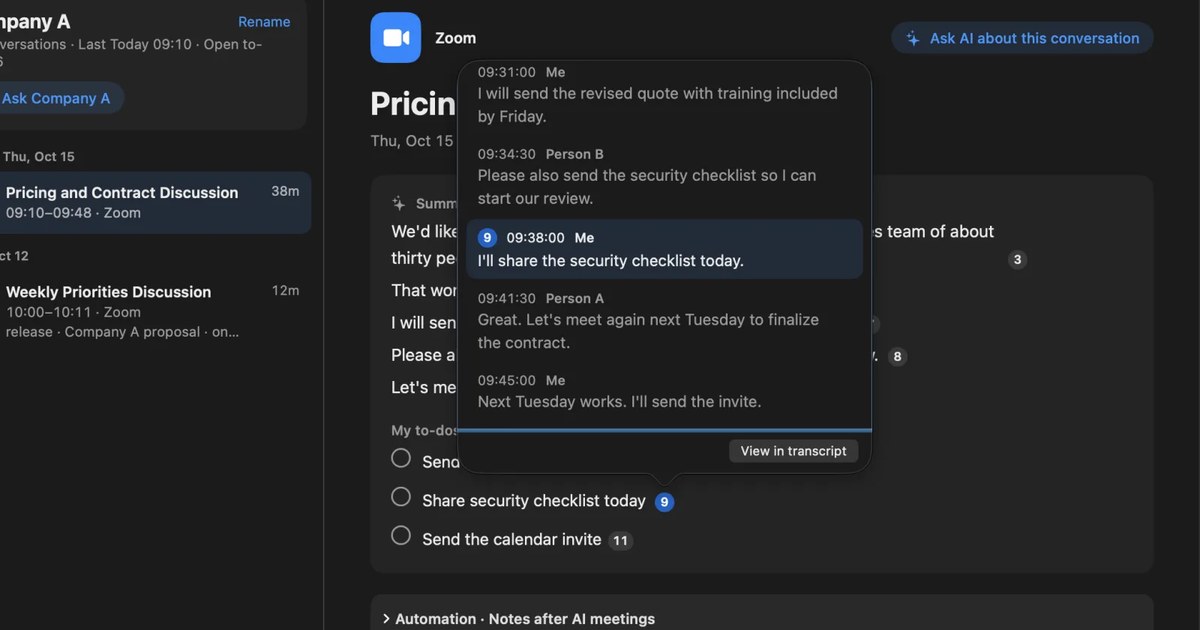
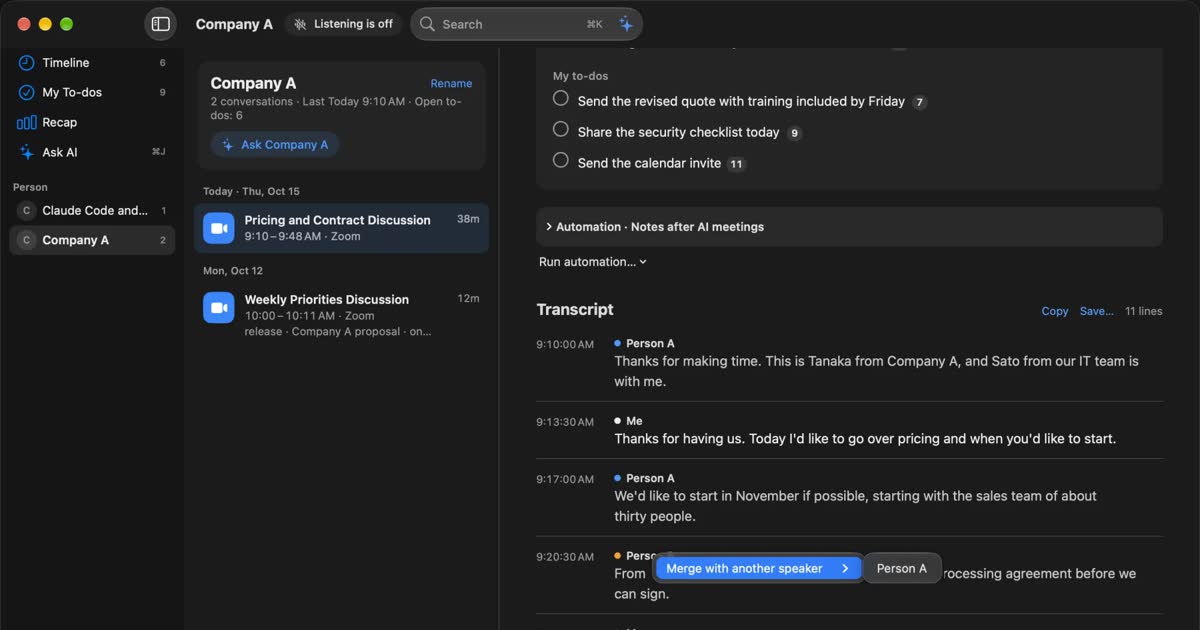
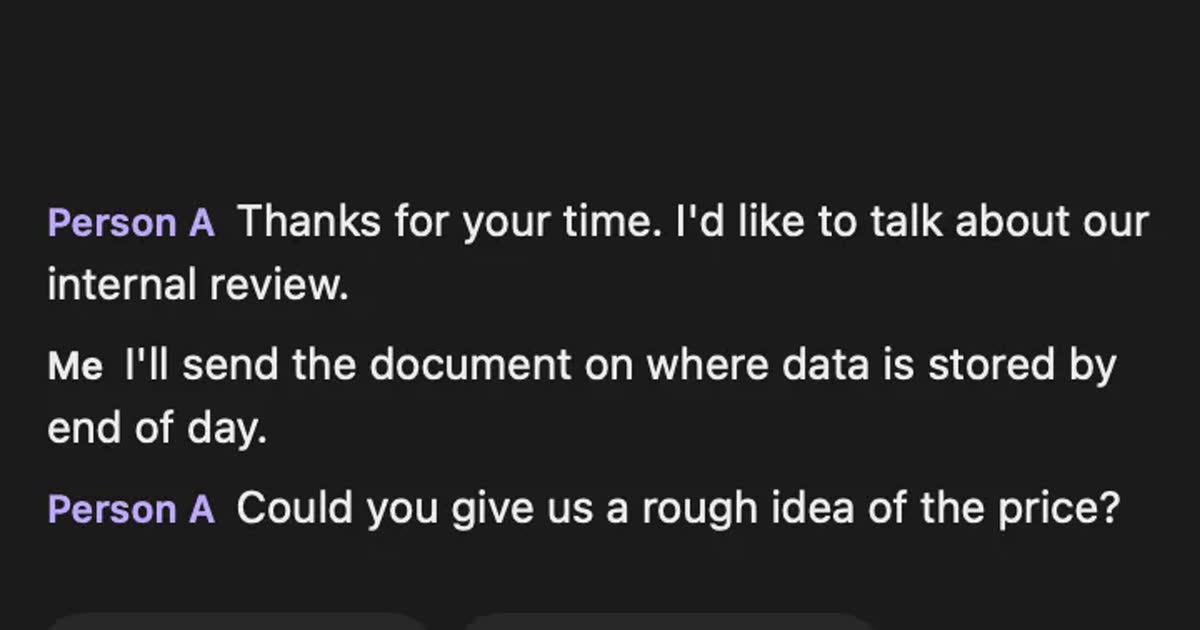
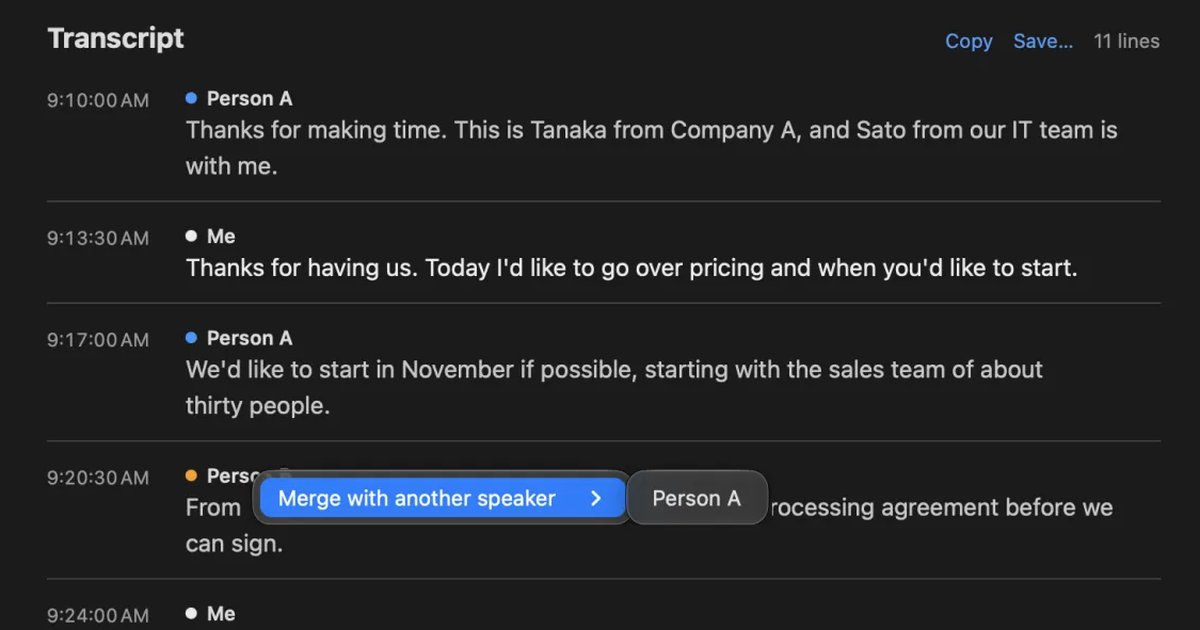
Recall sits in the menu bar and turns the conversations it hears into text. There is nothing to start, so a forgotten start cannot lose a meeting. It records your microphone and the Mac's sound separately, and estimates up to four people heard through the Mac as Person A, Person B and so on. Audio is discarded once it becomes text, so you cannot listen again. By default, summaries and to-dos are made inside the Mac by on-device AI. It is free to use, and no account is needed. Because it is always on, webinars and videos become text too unless you pause it. To stop it, pause for 15 minutes or an hour, or name apps that are not recorded.
MacWhisper turns recordings and audio files into text. Its official page says it records meetings locally on the Mac and transcribes them with local models. Its help lists Chrome, Safari and others among the apps watched for meetings. Meeting detection is in the version bought from the official site, and this help (updated July 15, 2025) calls it beta. The audio stays, so you can listen again, and it also suits turning a Meet recording file into text. See MacWhisper vs Recall.
Notta Privacy Mode makes text on the device in the desktop app on paid plans. It works on Windows too. According to its help, it can record web meetings without a bot, and text appears after the recording ends. Cloud AI summaries and team sharing stop, and the official page says it is currently in beta. See the Notta alternatives comparison.
With any of these apps, protecting the record becomes your job. A Mac with a weak password, or files in a shared folder, can be riskier than the cloud. Recall leaves encryption of records to macOS FileVault, so we recommend turning it on. Choosing local transcription on a Mac covers cloud and local in more depth.
Transcribing a recording
On a plan that can record, you can record in Meet and transcribe the file afterwards. According to the recording help, participants are notified when recording starts and stops, and the file goes to the "Google Meet" folder in the organizer's Drive. Sound and picture both stay, which is strong when you need to check exact wording.
The cost is extra work after the meeting and larger files. Think about where the file goes next as well. MacWhisper can process it inside the Mac. If you upload it to a cloud transcription service, assume the audio stays there too, and check how long it is kept and how to delete it.
Where the record stays with each method
For the same meeting, the method decides who holds the record: the organizer's organization for the built-in feature, the service and your account for an extension or bot, and your own Mac for the on-device apps.
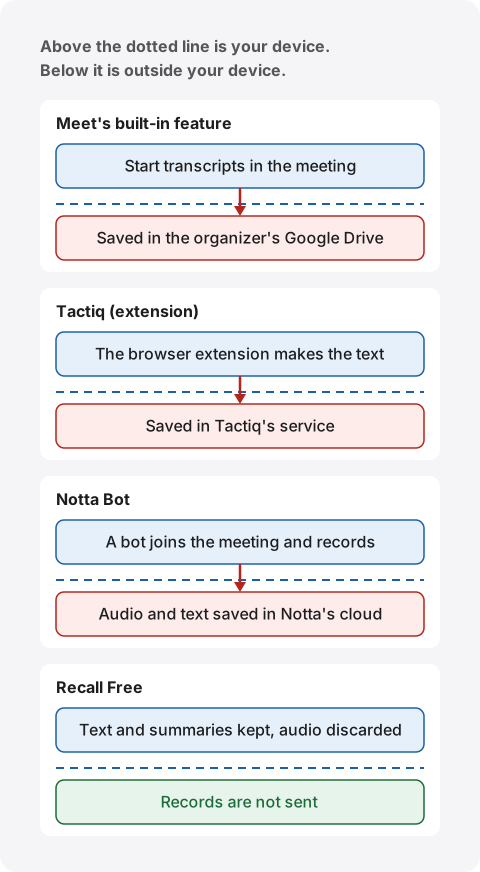
No method can simply be called safe, because each protects against something different. If an organization wants to manage access and retention in one place, the Workspace feature or a service with admin controls fits better. If handing conversations to an outside company does not fit your rules, consider working inside the Mac. What to check when meeting AI data leaks worry you has the full list.
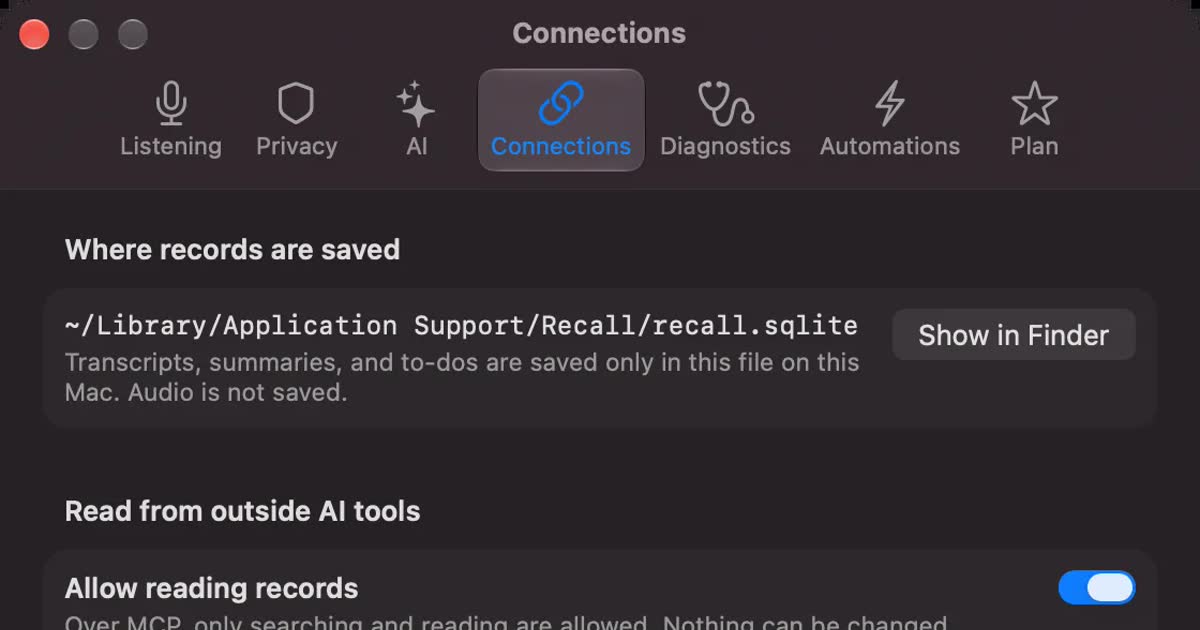
Recall records can leave the Mac too. That happens when you turn on features in Pro: using your own Claude, ChatGPT or Gemini, letting external tools such as Claude Code read records, or passing records to commands with workflows. When it leaves your Mac lists everything sent and where. Text you copy or save yourself is then yours to manage. On Free, records leave only when you hand them over yourself in this way.
How to choose
If you are unsure, decide in this order: can you use the built-in feature, can the record go to an outside service, and what device do you use. This order leads to fewer mistakes than comparing prices first.
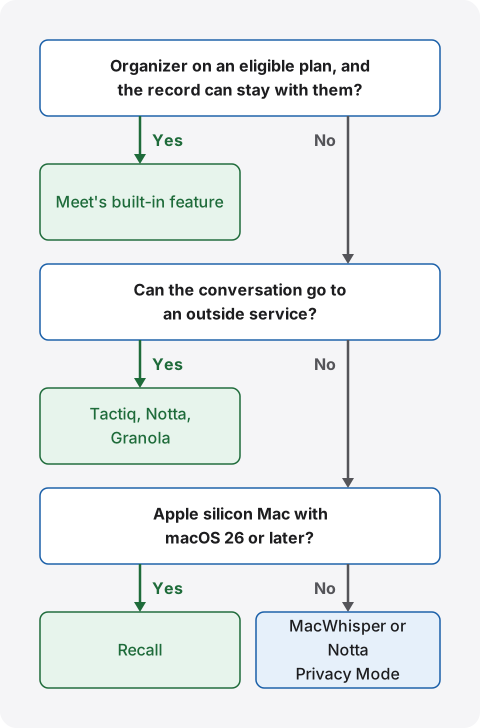
By situation
You host your company's meetings: On an eligible plan, the built-in feature comes first. There is no new tool to review, and the record stays in the organization's Drive. For regular meetings, consider starting it automatically or using Take notes for me.
You are a guest in another company's meeting: The built-in transcript belongs to the organizer's organization, so you usually cannot start it yourself. First ask the organizer whether they will transcribe and share. If that is difficult and you want notes for yourself, tell the others and use a Mac app or extension. You are handling the other company's information, so also check whether a confidentiality agreement limits putting it into outside services.
You use a free personal account: The built-in transcript is not available. Captions are enough if you only need to read along. To keep a record, Tactiq Free and Recall Free are easy to try. Tactiq allows 10 a month, and Recall needs a supported Mac.
You use Meet several times a week: Limits and the effort of starting begin to matter. Tactiq Free is 10 a month, so even three meetings a week gets close partway through the month. Recall is always on, so there is nothing to start and no transcription limit. Free shows and searches only the last 14 days, though, and the default retention is 90 days.
You already have a recording: Use an app that reads files. MacWhisper includes file transcription in Free, and Notta handles files too. Recall cannot read audio files.
Meetings with other countries: Meet's built-in translated captions belong to editions such as Business Standard. Transcripts cover eight languages, and Take notes for me handles one language per meeting. If several languages are mixed, test how language switching works.
HR interviews and sensitive talks: Personal matters stay on record. Tell the person, and shorten how long it is kept. Recall lets you choose from 7 days. With the built-in feature, check your organization's retention settings.
What to look at when you try one
Once you are down to two, try them in something close to a real meeting. How they behave with your own conversations tells you more than product pages. Before you try, tell the others you are transcribing.
- Proper names: How well company, product and people's names come out.
- Speakers: Whether you can follow who said what when voices overlap.
- Finding things: Whether, a week later, you can find a remark by word or by person.
- Handing it over: Whether pasting into minutes or passing it on is free of extra work.
- Load on the device: On-device methods depend on the Mac's performance and battery. Run them next to your usual work.
Whichever you use, how the sound reaches it affects the result. Recall's help also says earphones are the most reliable way to keep your voice and other people's apart.
Tell the others you are transcribing
With every method, tell participants that you are making text. The built-in feature shows an icon, but bot-free methods and Mac apps may show nothing on their screens. Not being visible is no reason to skip telling them.
Notta's help says other participants are not notified with Bot-free recording, and that checking consent is the user's responsibility. Tactiq's pricing page lists an option on paid plans to turn off the notification, but you still need to tell people if you turn it off. The same goes for Recall. It shows nothing to participants, so tell them in your own words.
For example: "I'm transcribing this on my Mac so I can check the details later. No audio is saved, but the transcript stays on my Mac. Let me know if you'd rather I stop." If you send meetings to outside AI or remember other people's voices, tell them that too. Recall's sample wording is in the FAQ.
Google Workspace also has a setting for admins to require explicit consent from participants. It is off by default, and coverage varies by edition. Do not use any of these methods where the organizer prohibits recording or note-taking, or where your workplace rules do not allow it. A method without a bot does not change this.
Who Recall suits, and who it does not
For Meet transcription alone, people who are fine with the built-in feature do not need Recall. If you can use transcripts as the organizer and share minutes in the organization's Drive, that is the natural choice. Recall is for people who want a record of their own beyond what the built-in feature covers. We have not compared accuracy on the same audio, so we make no claim about it.
Who Recall suits
- You want your own record even in meetings without the built-in transcript, and you can tell the others.
- You want to stop losing meetings because nobody started the transcript.
- You want text on your Mac with no audio kept.
- You want summaries and to-dos made inside the Mac too. Free includes summaries and questions with on-device AI. Summaries and to-dos need Apple Intelligence on. Answers to questions need it only on Macs with less than 16 GB of memory.
- You want to search what you heard in Meet, Zoom and videos in one place.
Free to use · No account needed · macOS 26 or later · Mac with Apple silicon · By downloading, you agree to the Terms of Service
Who Recall does not suit
- You want to use it on Windows, a phone, an Intel Mac, or a Mac on a version before macOS 26.
- You want to keep audio or video and listen again later.
- Your team shares the same minutes by link. With Recall, you copy or save the transcript and pass it on yourself.
- You want to read in recordings or audio files.
- You need live translation, like Meet's translated captions. Recall has no translation feature.
- You need records to survive a broken Mac. We keep no copy, so preparing for a failed or lost Mac is up to you.
The conditions matter too. Default retention is 90 days on Free and unlimited on Pro, and you can choose from 7 days to unlimited. Free shows the last 14 days. Older records stay saved during the retention period and can be seen on Pro. Pro is ¥980 a month or ¥9,800 a year, tax included. If the Pro license cannot be checked for 14 days in a row, Pro features stop until it can connect again. See Plans and licenses. Because it is always on, it uses some CPU and battery.
Frequently asked questions
Is Google Meet's transcript free?
No. Free personal accounts are not on the eligible list, and neither is Business Starter. Captions can be read during the meeting. To keep a record, you can use Tactiq Free (10 a month) or Recall Free.
Where is the transcript saved?
In the organizer's Google Drive, in the "Google Meet" folder, in a subfolder for the meeting. The host, co-hosts and the person who started it get an email with a link, and it is attached to the calendar event.
Can I save captions and use them as minutes?
Google's help gives no steps for saving captions alone as a file. You can burn captions into a recording, but that needs a plan that can record. To keep text, use transcripts.
Does it work for Japanese meetings?
Yes. Japanese is among the supported languages for both transcripts and Take notes for me. Both cover eight languages, and Take notes for me handles one language per meeting.
Can I transcribe from Meet on an iPhone?
The built-in transcript works on computers, laptops and Android, so you cannot start it on an iPhone. Recall is a Mac app, so it cannot transcribe a meeting you join on an iPhone either.
Can I keep a transcript just for myself in another company's meeting?
The built-in feature belongs to the organizer's organization, so ask the organizer first. You can keep your own record, but tell the others. Do not use these methods in meetings that prohibit recording or note-taking.
Do Recall's records ever leave the Mac?
They can. That happens with features you turn on yourself in Pro, and with text you copy or save yourself. Connections for models and license checks also happen, and they reveal things like your IP address, but they do not include records.
Which method is the most accurate?
We do not know. We have not compared them on the same audio, so we cannot say. Accuracy changes with speakers, microphones and topics. Compare them in your own meetings, especially on proper names.
Checked on November 2, 2026. Details for Google and other companies are from their official pages and help. The plan table reflects Google's help on that date, and Google's pages do not always list editions the same way. To confirm what you can use, ask your organization's admin or check Google's official pages. Prices and features can change. This article is general guidance, not legal advice.
Free to use · No account needed · macOS 26 or later · Mac with Apple silicon · By downloading, you agree to the Terms of Service
Get the product overview (PDF) by email →
Related articles
How to transcribe Webex meetings: built-in, cloud services, or on your Mac
Three ways to transcribe a Webex meeting: built-in features, cloud services and apps on your Mac. Covers captions, AI Assistant, plan and language limits, where text is saved, and how to choose.
tl;dv alternatives compared: when you do not want a bot in the meeting
For people looking for a tl;dv alternative. We compare the bot and bot-free recording, where the record goes, free limits and pricing, and who should stay on tl;dv and who fits Recall.
How to transcribe webinars and videos so you can find them later
Ways to turn webinars and videos into searchable text, comparing source transcripts, Notta, MacWhisper and Recall, plus what to check on copyright and terms.
Tactiq pricing, how it works, and how it differs from Recall
Tactiq's pricing plans, the Free plan's limits, what its Chrome extension and Mac app can do, how it handles Japanese, and where data is kept, checked against its official pages and compared with Recall, which transcribes on your Mac. Who Tactiq suits, and who Recall suits.
Real-time transcription: free ways on your computer, phone, and in meetings
Free ways to get real-time transcription: live captions on Mac, Windows, iPhone and Android, Zoom, Teams and Google Meet captions, and apps, compared by whether the text is kept and whose voice they hear.