 Recall
Real-time transcription: free ways on your computer, phone, and in meetings
Free ways to get real-time transcription: live captions on Mac, Windows, iPhone and Android, Zoom, Teams and Google Meet captions, and apps, compared by whether the text is kept and whose voice they hear.
The short answer: built-in captions if you only need to read along, and a method that keeps the text if you need a record
If you only want to read what is being said as it is said, you do not need a new app. Mac, Windows, iPhone and Android can turn speech into captions on the device with features such as Live Captions, and Zoom, Teams and Google Meet have captions during a meeting. Most of them handle English, and many handle Japanese too.
Two questions decide which one fits. First, whether the text is kept. Most device and meeting captions are for reading on the spot and are gone once the meeting ends. Second, whose voice it hears. Turning the other side of an online meeting (the sound your computer plays) into text is a different job from transcribing the person in front of you or your own voice (the microphone).
This guide is written by KOROMO K.K., which makes the Mac transcription app Recall. We introduce our own product later on, so weigh that part accordingly. Each company’s features and conditions were checked on their official help and pricing pages on November 16, 2026.
| If this is you | Read next |
|---|---|
| You want to read the other side of an online meeting as captions | Meeting captions or live captions on a computer |
| You want to read the person in front of you on your phone | On a phone |
| You want to type your own words into a document by speaking | Google Docs voice typing |
| You want to keep the meeting’s text to read again later | The “Is the text kept” column in the methods side by side |
What real-time transcription is: captions, dictation and transcribing a recording
Real-time transcription turns speech into text while you listen, with almost no wait. Captions (live captions), dictation and transcribing a recording afterward all turn speech into text too, but the text goes to different places and lasts differently. Deciding which of these you are after narrows the tools quickly.
| What it does | Is the text kept | |
|---|---|---|
| Captions (live captions) | Shows the speech that is playing as captions on screen | Mostly not. They are for reading on the spot |
| Dictation | Types your own words into a document or note | Kept in the document you typed into |
| Real-time transcription | Turns a conversation into text as it happens and saves it as a record | Kept |
| Transcribing a recording | Turns a recorded file into text afterward | Kept, but nothing to read until the recording is over |
If you only want to write with your voice, dictation is the right tool. How to use it on a Mac is covered in how to use dictation on a Mac. To read or keep what the other side says in a meeting, choose captions or transcription.
Where the speech is turned into text
Speech is turned into text either on the device or on a server across the internet. When the content of a meeting should not leave your hands, this is the difference to look at. The official help pages say the following.
- Live Captions on Mac: Apple’s Mac help says the audio is processed on the device
- Live captions on Windows: Microsoft’s help says processing happens on the device and “Generated captions are not stored anywhere on the device or the cloud.”
- Live Caption on Android: Google’s help says it does not use mobile data or an internet connection, and that audio and captions are processed on the device and never stored or sent to Google
- Live Transcribe on Android: its help asks you to check that you are connected to the internet unless you use an offline language
Do not rely on captions alone when it matters
Captions that appear on the spot still mishear words. Apple’s help warns that “The accuracy of Live Captions may vary and shouldn’t be relied upon in high-risk or emergency situations.” For the parts that hurt when wrong, such as amounts, dates and what was promised, confirming them out loud in the meeting is the safest way. Why errors happen and how to reduce them is in how to improve transcription accuracy.
The methods side by side: is the text kept, and whose voice does it hear
Real-time transcription methods are easiest to choose by two questions: whether the text is kept, and whose voice they hear. The figure below sorts the methods in this guide by those two.
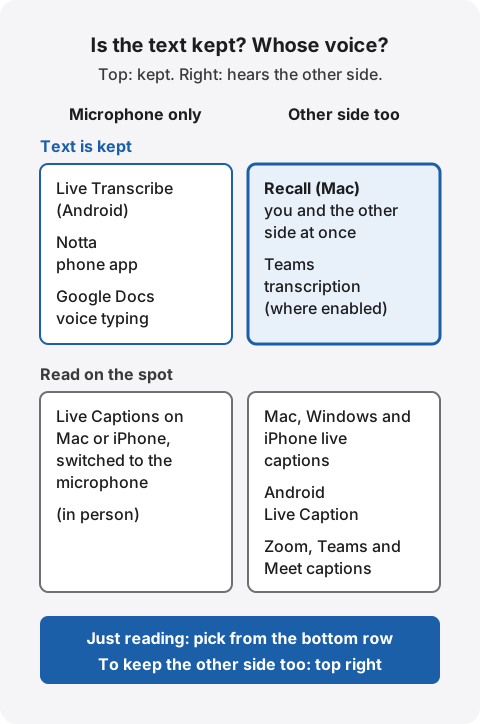
Here is whose voice each method hears and how the text is kept.
| Whose voice | Is the text kept | |
|---|---|---|
| Live Captions on Mac | The Mac’s sound or the microphone, one at a time (you switch) | For reading on the spot |
| Live captions on Windows | The sound the PC plays, plus the microphone if you turn it on | Not stored |
| Google Docs voice typing | The microphone | Kept in the document |
| Live Captions on iPhone | The iPhone’s sound or the microphone, one at a time | Can be copied into another app |
| Live Caption on Android | Media playing on the phone, and calls | Not stored |
| Live Transcribe on Android | The microphone | Up to 3 days (24 hours if history is off). Can be exported |
| Notta phone app | The phone’s microphone | Kept |
| Zoom automated captions | The meeting participants | Not kept after the meeting |
| Teams live captions | The meeting participants | Not saved. Use transcription to keep text |
| Google Meet captions | The meeting participants | During the meeting you can scroll back over the part you had them on |
| Recall | The microphone and the Mac’s sound at the same time | Kept on this Mac. Audio is not kept |
Languages and what you need to use each one:
| Languages | What you need | |
|---|---|---|
| Live Captions on Mac | English, Japanese and more | A Mac with Apple silicon |
| Live captions on Windows | English, Japanese and more | Windows 11, version 22H2 or later |
| Google Docs voice typing | English, Japanese and more | The latest Chrome, Edge or Safari |
| Live Captions on iPhone | English, Japanese and more | iPhone 11 or later |
| Live Caption on Android | English on Pixel 2 and 3; more languages on Pixel 4 and later and selected phones | A supported Pixel or Android phone |
| Live Transcribe on Android | Over 80 languages and dialects | An internet connection, except with an offline language |
| Notta phone app | — | Free plan: 120 minutes a month, up to 3 minutes per conversation |
| Zoom automated captions | English, Japanese and more | Listed on the free Basic plan. The host can limit who turns them on |
| Teams live captions | English, Japanese and more (chosen with the meeting’s spoken language) | Being in a Teams meeting |
| Google Meet captions | English, Japanese and more | Shown only to the person who turned them on |
| Recall | English and Japanese (you choose one) | macOS 26 or later on a Mac with Apple silicon |
The tables come from each company’s official help and pricing pages, and from Apple’s feature availability lists for macOS and iOS (Live Captions lists English and Japanese among its languages). Each source is linked in the sections below.
On a computer: Live Captions on Mac and live captions on Windows
On a computer, the live captions built into the operating system are the easiest start. Both caption the sound playing on the computer, whatever app it comes from. They differ in whose voice they hear and in whether anything is kept.
Live Captions on Mac
Live Captions on Mac captions the audio playing on the Mac or the conversation around you as it happens. According to Apple’s help, it is available only on Mac computers with Apple silicon. To turn it on:
- Choose Apple menu > System Settings
- Click Accessibility in the sidebar, then click Live Captions
- Turn on Live Captions. The first time, language data is downloaded, so be connected to the internet
By default, audio from all apps is captioned. For an in-person conversation, switch between Computer Audio and Microphone in the Live Captions window or from its icon in the menu bar. In an online meeting, while the other side’s voice from the Mac is being captioned, your own voice is not captioned unless you switch to the microphone. The feature is made for following along: what the help describes is showing, pausing, switching the audio and changing how captions look. Using it for videos and webinars is also covered in how to transcribe webinars and videos.
Live captions on Windows
Live captions in Windows 11 also captions the sound playing on the computer. Microsoft’s help says it is available in Windows 11, version 22H2 and later, and can caption audio even without an internet connection. To turn it on:
- Go to Settings > Accessibility > Captions
- Turn on Live captions
- The first time, you are asked to consent to processing voice data on the device and to download a language file
There is also a setting to include microphone audio. The help explains that the microphone is captioned when no other audio on the device is being captioned, and that in an online meeting where you talk over each other, only the other person’s captions are shown. Captions are not stored, so this does not suit keeping a record of a meeting. On a Copilot+ PC, captions can also be translated into English or Simplified Chinese.
Voice typing in the browser: Google Docs
To keep your own spoken words in a document, Google Docs voice typing works. According to Google’s help, it runs on the latest Chrome, Edge and Safari; you click Tools > Voice typing, and a microphone box appears to speak into. It supports English, Japanese and many other languages.
It listens to the microphone. It does not turn the other side of an online meeting into text from the computer’s sound, so it fits notes and drafts written by voice rather than meeting records. Steps and tips for meetings are in how to transcribe with Google Docs voice typing.
On a phone: iPhone, Android and transcription apps
A phone is handy when you want to read the person in front of you as captions. Both iPhone and Android have built-in features, and there are apps if you want to keep the text.
Live Captions on iPhone
Live Captions on iPhone gives you a real-time transcription of audio in apps or of the conversation around you. Apple’s help says it is available on iPhone 11 or later.
- Open the Settings app, then tap Accessibility > Live Captions
- Turn on Live Captions
- To use it, tap Live Captions, then tap Microphone for an in-person conversation or iPhone Audio for sound from apps
With Copy Captions you can paste the transcription into another app, such as Notes or Messages. For calls there is a Keep Call Captions setting: with 1 Hour, call captions are kept for up to one hour after the call and can be copied. In that case, everyone on the call hears a short announcement that the call is being transcribed.
Live Caption on Android
Live Caption on Android captions the audio playing on the phone. According to Google’s help, it works with media such as videos and podcasts, phone calls, video calls and audio messages. To turn it on, press a volume button, then under the volume controls tap More, Live Caption and Done.
Pixel 2 and Pixel 3 support English only. Pixel 4, Pixel 5 and selected Android phones add French, German, Italian, Japanese, Hindi and Spanish, and Pixel 6 and later support more. Captions are not stored and do not leave the phone.
Live Transcribe on Android
To read a conversation in front of you and keep it for a short while, Live Transcribe on Android fits. According to Google’s help, it comes preinstalled on Pixel and selected Android phones and opens from Settings > Accessibility > Live Transcribe. Its Google Play listing says it transcribes in over 80 languages and dialects.
Transcriptions stay in its history for up to three days and are then deleted automatically; with history turned off, they are deleted after 24 hours. To keep one, use “Export all stored transcription” in its settings, or copy the text into another app.
Transcription apps: Notta and Otter
If you want the text properly kept, transcription apps are another choice. Both have limits on their free plans, so they do not suit transcribing long meetings for free.
- Notta: its download page (in Japanese) says the phone app starts recording and real-time transcription with one tap, and that picture-in-picture lets you follow the text while using other apps. On its pricing page, the Free plan includes 120 transcription minutes a month, up to 3 minutes per conversation. Paid plans are billed monthly or annually. How it compares with Recall is in Notta alternatives compared
- Otter: on its pricing page, the free Basic plan includes live transcription, with 300 minutes per user each month and up to 30 minutes per conversation. It transcribes English, Spanish, French, German, Japanese and Chinese. How to choose if you have many English meetings is in Otter alternatives compared
Where to place a phone on the table for an in-person meeting, and how that compares with transcribing on a Mac, is covered in how to transcribe in-person meetings on a Mac.
Meeting captions: Zoom, Teams and Google Meet
For online meetings, the meeting tool’s own captions are the easiest option. The tool turns each participant’s voice into text directly, so you do not have to think about your computer’s sound settings. In all three, though, captions are for reading during the meeting; to keep text, you use a separate transcription feature.
Zoom automated captions
Zoom’s automated captions turn what is said in a meeting into captions as it happens. They appear on the list of free features, where they are also called live transcription. Meetings on the free Basic plan are limited to 40 minutes. Japanese is among the supported languages, and there is a setting that lets only the host, or the host and co-hosts, turn captions on.
According to Zoom’s notice, captions and transcripts were separated in a rollout between May 24 and May 26, 2026, and users can no longer save captions after a meeting ends. During the meeting you can scroll back over the last 3 minutes. To keep the text, the host or an admin turns on Meeting transcript (it is off by default). Requirements and steps are in how to transcribe Zoom meetings.
Teams live captions
Teams live captions turn what is said in a meeting into captions as it happens. Microsoft’s help says “Teams doesn't save captions.” and suggests turning on transcription if you want a transcript. For more accurate captions, set the meeting’s spoken language to the language people actually speak.
Teams transcription shows text during the meeting too. The admin documentation says that with live transcription on, users have a real-time written copy of the conversation, and after the meeting they can find the searchable transcript stored with the recording. Whether you can use it depends on the organizer’s and the organization’s settings. Who can start it and where it is saved are covered in how to transcribe Teams meetings.
Google Meet captions
Google Meet captions are available to every user in many languages, including English and Japanese. According to Google’s help, captions are turned on only for you, and you can scroll back over the parts of the conversation where you were in the meeting with captions on.
Transcripts that keep what was said in a document are a feature of certain Google Workspace editions, such as Business Standard and Workspace Individual, and support English and Japanese among other languages. Ways to keep text on a free personal account are compared in how to transcribe Google Meet. For Webex, see how to transcribe Webex meetings.
Captioning and keeping both sides on a Mac: Recall
Recall is a Mac app that stays in the menu bar and turns both the microphone (your voice) and the sound your Mac plays (the other side of a meeting or a video) into text at the same time. There is no record button, and no bot joins the meeting. Transcription happens on this Mac, and the audio is thrown away as soon as it becomes text. Because it does not depend on the meeting tool, it works the same way whether you use Zoom, Teams or Google Meet.
Reading captions with who spoke in the Live Panel
During a meeting you can read captions in the Live Panel. As the Live Panel help explains, ⌥⌘L opens it from any app, and pressing it again closes it.
- Captions with who spoke: your voice and the other side are kept apart and labeled, such as Me and Person A. On the Mac’s sound it tells up to 4 people apart
- Words still being spoken: before a remark ends, the words being spoken may appear as the last line. When the remark ends, they are replaced by one line with who spoke, and the words may change then
- Scroll back without losing your place: while you read further up, it does not follow new remarks; “New lines ↓” takes you back
- Catch up on what you missed: the buttons “Summarize so far”, “What did they ask?” and “What I committed to” answer from the last 15 minutes
- Set not to show in screen sharing: the panel is set not to appear in screen sharing. Check once in the meeting tool you use
The text and summary stay after the meeting
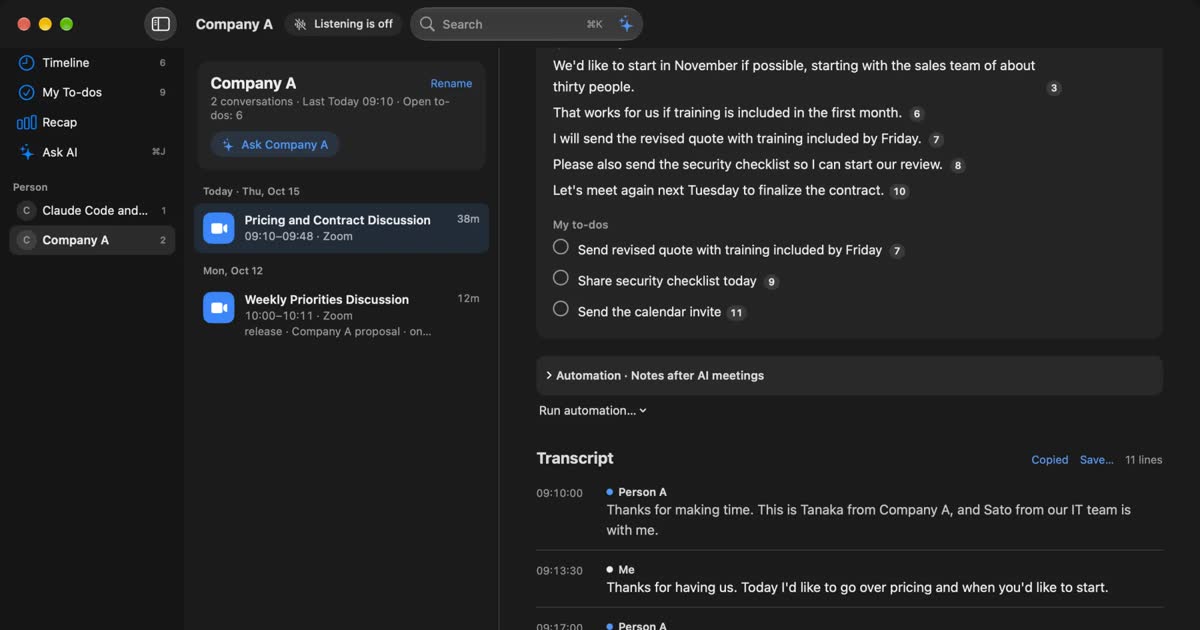
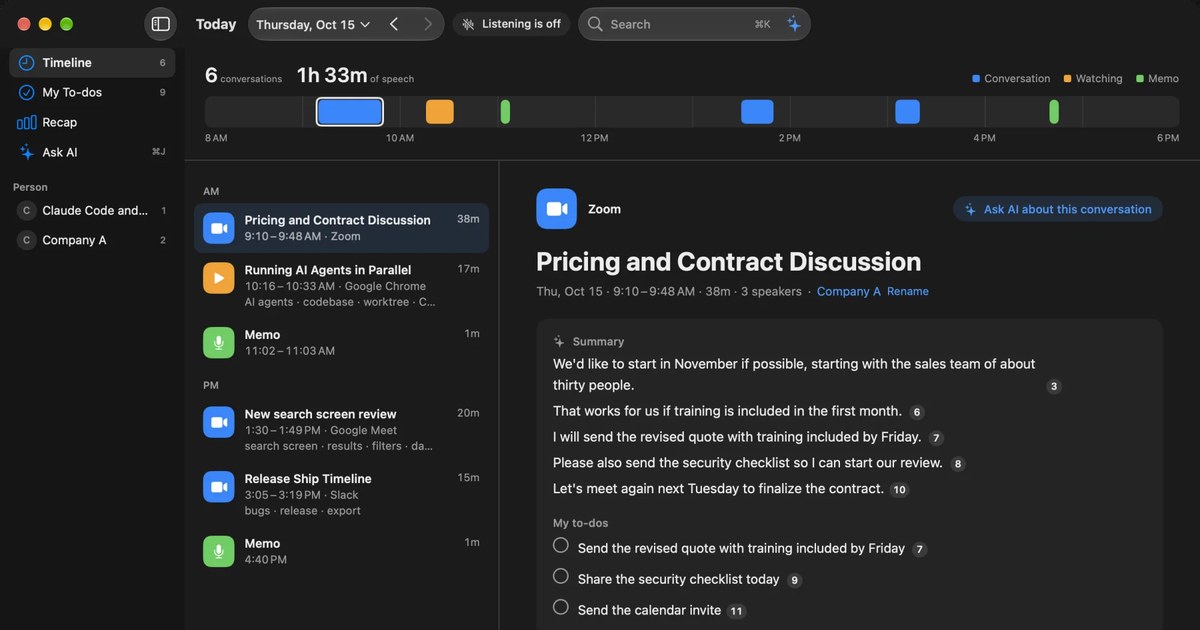
Unlike captions, the transcript is saved on this Mac. When a conversation ends, a summary and My to-dos are written (when Apple Intelligence is on), and you can search the words later. There is nothing to save after each meeting. How to fix speaker names is in the speaker diarization guide.
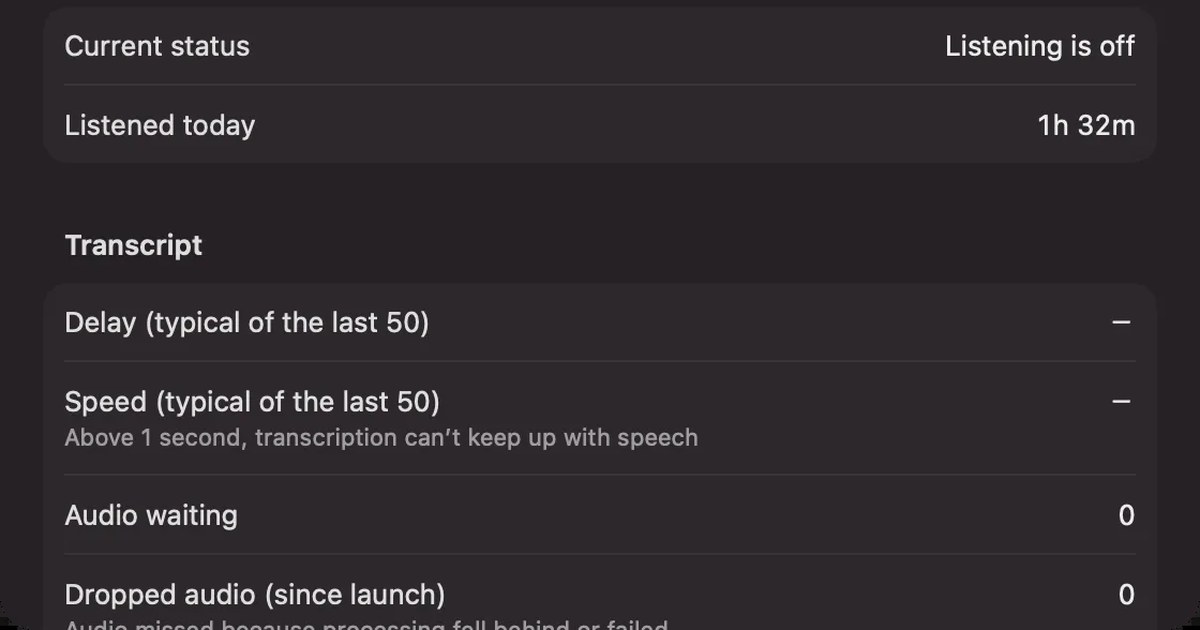
How long captions take to appear differs from Mac to Mac. Settings › Diagnostics shows numbers such as the transcription delay and how many lines are waiting (troubleshooting help). It does not show what was said.
Limits to know first
- Mac only: it runs on Macs with Apple silicon and macOS 26 or later. It does not work on Windows or phones
- English and Japanese: you choose one under Listening language in Settings. It does not switch automatically within a meeting, and it has no translation
- You cannot listen again: the audio is discarded right after it is transcribed, so you cannot check a line by ear later
- What Free covers: Free has no limit on transcription time or count. It shows and searches the last 14 days. Records are kept for 90 days by default on Free and indefinitely on Pro. Pro is ¥980 a month or ¥9,800 a year (tax included), and Pro features stop if the license cannot be checked for 14 days in a row
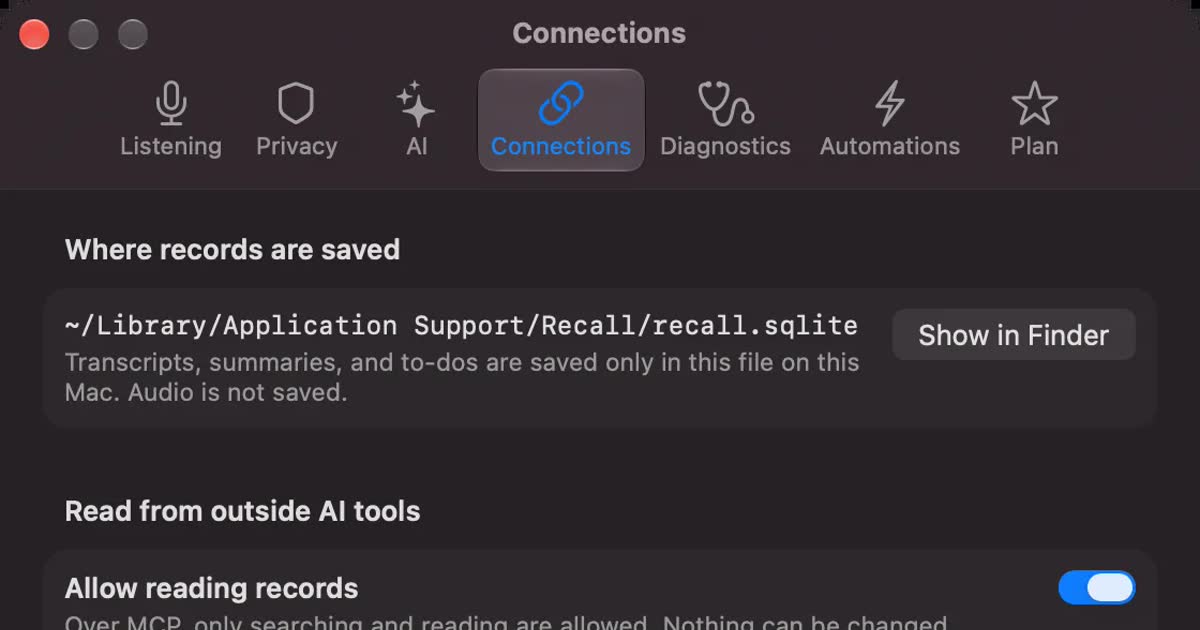
Records are kept on this Mac and are not sent to our servers. They leave the Mac only when you use a Pro feature you turned on, or when you copy or save them and pass them on yourself. The full list is in When records leave the Mac. How to choose transcription that stays on your computer is in how to transcribe locally on a Mac.
Recall suits you if
- You want both the other side’s voice and your own captioned together in online meetings, with who spoke
- You want to keep the text and search it after the meeting, not just read captions
- You sometimes cannot use the meeting tool’s transcription because of the plan or settings
- You do not want meeting audio sent to an outside service
- You use a Mac with Apple silicon and macOS 26 or later, and your workplace rules allow it
Free to use · No account needed · macOS 26 or later · Mac with Apple silicon · By downloading, you agree to the Terms of Service
Recall does not suit you if
- You want to caption a conversation on Windows or a phone
- Reading captions is enough and you do not need a record (the operating system’s or meeting tool’s captions will do)
- You want to keep the audio and listen again later
- Your meetings are in languages other than English and Japanese, or you need translated captions
- Everyone in the meeting needs to see the same transcript
Fewer delays and errors
Whichever method you use, caption errors depend heavily on how the sound gets in. Setting up the following before you start makes both on-the-spot captions and kept transcripts easier to read.
- Match the language: set the caption language to the language spoken in the meeting. In Teams it is the meeting’s spoken language; in Recall, the listening language setting
- Use earphones: when the other side’s voice from your speakers comes back into the microphone, their words can be kept as yours. Recall works to keep them apart when you listen through speakers, but earphones are the surest option
- Bring the microphone close: in person, put the phone or Mac near the people speaking
- Do not talk over each other: when two people speak at once, one of them can drop out, or only one side’s captions appear
- Say that you are transcribing: when you keep text, tell the participants at the start
The Recall site suggests wording like this:
I am transcribing this on my Mac so I can check the details later. The audio is not saved, but the transcript stays on my Mac. Let me know if you would rather I stop.
If someone declines, or your workplace rules do not allow it, do not transcribe. We do not recommend recording anyone without their knowledge, with any product. This guide is not legal advice.
Frequently asked questions
Can I get real-time transcription for free?
Yes. Live captions on Mac, Windows, iPhone and Android are built into the operating system, and Zoom’s automated captions are on the free Basic plan’s feature list. Most of them are for reading, though, and the captions are not kept.
Can I save captions afterward?
The help pages say captions on Windows and Android and in Teams are not stored. Zoom has not let you save captions after a meeting since May 2026. To keep text, use each tool’s transcription or an app that keeps the text.
Why don’t my own words show up in an online meeting?
Live Captions on Mac switches between the Mac’s sound and the microphone. On Windows, the microphone is not captioned while other audio is. Meeting captions show every participant’s words.
How do I transcribe a face-to-face conversation on my phone?
On iPhone, choose Microphone in Live Captions. On Android, use Live Transcribe, which keeps the text for up to three days. Placing the phone near the speakers reduces mishearing.
Does it work without an internet connection?
Live captions on Windows and Live Caption on Android work offline. Live Captions on Mac needs to download language data the first time. Live Transcribe works offline once you download an offline language.
Can I get translated captions?
Live captions on Windows can translate into English or Simplified Chinese on a Copilot+ PC, and Live Caption on Android can translate on Pixel 6 and later. Recall has no translation.
How far behind are Recall’s captions?
It differs from Mac to Mac. Settings › Diagnostics shows the transcription delay on your own Mac as a number. Words still being spoken may appear as the last line before the remark ends.
Checked on November 16, 2026. Live Captions on Mac and iPhone was checked on Apple Support and Apple’s feature availability pages; live captions on Windows and Teams on Microsoft Support and the admin documentation; Live Caption, Live Transcribe, Google Meet and Google Docs on Google’s help and Google Play; Zoom on its support site and free plan page; Notta and Otter on their pricing pages. Recall’s features and limits were checked on Recall’s help pages for the Live Panel, listening, troubleshooting, plans and licenses and privacy, and on its feature pages. Help pages change, so check the official pages before you rely on them.
How to use Recall’s Live Panel is in Live Panel and conversation notes.
Free to use · No account needed · macOS 26 or later · Mac with Apple silicon · By downloading, you agree to the Terms of Service
Get the product overview (PDF) by email →
Related articles
How to transcribe Zoom meetings: built-in, cloud services, or on your Mac
Three ways to transcribe a Zoom meeting: built-in features, cloud services and apps on your Mac. Covers the plans each needs, the May 2026 captions change, and how to choose.
How to transcribe Microsoft Teams meetings: who can start it, where it saves, and Mac options
Three ways to transcribe a Teams meeting: the built-in feature, cloud services and apps on your Mac. Covers who can start it, why the button is missing, where transcripts are saved, and how to choose.
How to transcribe Google Meet: built-in, extensions, or your Mac
Whether Google Meet's transcript works depends on the organizer's plan. Compare the built-in feature and plans, extensions and bots, and on-device Mac apps.
How to improve transcription accuracy: why errors happen, and what to do before, during and after
Transcription accuracy depends on how the sound reaches the microphone before it depends on the tool. Why wrong words, wrong speakers and missing words happen, what to do before and during a meeting and when fixing it afterwards, and how to compare tools.