 Recall
What is speaker diarization? Splitting a transcript by who spoke, and fixing it when it goes wrong
Speaker diarization splits audio by who spoke when and labels each speaker with a number such as Speaker 1 or Person A. How it differs from speaker identification, how Teams, Zoom, Word and do-it-yourself tools split speakers, why in-person meetings split badly, and how to rename and merge speakers.
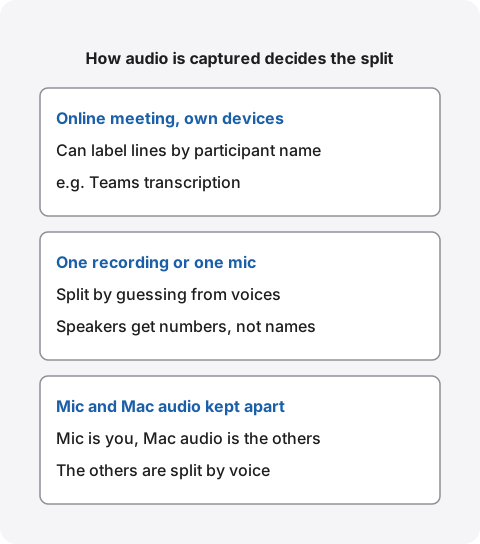
The short answer: diarization splits a transcript by who spoke. It doesn’t add names
Speaker diarization splits a transcript by the person speaking and labels each one with a number such as “Speaker 1” or “Person A”. It only guesses from differences between voices, so names aren’t added automatically; you add them yourself afterwards.
How well speakers split depends on how the audio was captured, before it depends on the tool. In an online meeting where everyone joins from their own computer, the meeting app can often label lines with participant names. An in-person meeting recorded with one microphone has only the voices to go on, so it splits less reliably. Once speakers are split, rename them and merge any one person who was split into two, and the transcript is ready for meeting notes.
This article is written by KOROMO K.K., which develops Recall, a transcription app for Mac. We include our own product, so read with that in mind. We checked other companies’ features against their official help pages on November 12, 2026.
Speaker diarization vs. speaker identification
Diarization groups the lines spoken in the same voice and gives them a number; identification works out who a voice belongs to and gives it a name. Diarization alone can’t tell you whether Speaker 1 is Tanaka.
| Speaker diarization | Speaker identification | |
|---|---|---|
| What it tells you | Which lines come from the same person | Whose line it is |
| What it adds | Numbers such as Speaker 1 or Person A | Names such as Tanaka |
| What it needs first | Nothing | The person’s registered voice, or meeting participant details |
Identification usually relies on people registering their voices in advance. Microsoft Teams, for example, has voice and face enrollment so that Teams Rooms devices in a meeting room can tell who is speaking. It means handing over the features of your voice, so each person chooses whether to use it, and you should check your company’s rules.
How common tools split speakers
Meeting apps’ transcripts can often show participant names, while tools that transcribe a recording show numbers. Here is what we confirmed in official help pages on November 12, 2026.
| How speakers appear | How to fix names | |
|---|---|---|
| Teams transcription | Each speaker’s name and a timestamp. Participants who hide their identity appear without a name | Participant names appear as they are |
| Zoom audio transcript | Sections by timestamp. Lines with no known speaker show Unknown Speaker | Rename Unknown Speaker |
| Word Transcribe | Split automatically into Speaker 1, Speaker 2 | Edit a section to rename, and change every line at once |
| Build your own (pyannote.audio and others) | Numbered speaker turns | Replace the numbers with names yourself |
Meeting apps’ transcripts
According to Teams’ help, the transcript includes each speaker’s name and a timestamp. Participants can hide their identity in captions and transcripts, so some lines may have no name. Who can start it and where it is saved are covered in How to transcribe Microsoft Teams meetings.
Zoom’s audio transcript for cloud recordings is split into sections by timestamp, and lines with no known speaker show Unknown Speaker. The help explains that you can rename it. Zoom’s kinds of transcription and plans are in How to transcribe Zoom meetings.
When several people join from one computer in a meeting room, the meeting app sees that one computer as the participant. To tell the people in the room apart, you need meeting room devices such as Teams Rooms and each person’s registered voice.
Word Transcribe
Word’s Transcribe separates speakers automatically when it transcribes a recording or an audio file, and labels them “Speaker 1”, “Speaker 2”. According to Microsoft’s help, you rename a speaker with “Edit transcript section”, and choosing “Change all Speaker” renames every line from that speaker. Which versions of Word support it and the limits are in How to transcribe in Microsoft Word.
Building it yourself
If you want to split a recording on your own machine, you can put the pieces together yourself. A well-known example, pyannote.audio, is a speaker diarization toolkit written in Python. To load its free model, you accept the user conditions on Hugging Face and create an access token. There is also a version that runs on pyannoteAI’s servers and needs an API key. You pair it with a transcription model such as Whisper and match up the timestamps to join speakers and text. It is a route for people who write code.
Why speakers don’t split well
Most failures come from too few clues in the voices. They are more likely when an in-person meeting is recorded with one microphone, when voices overlap, or when there are many short replies.
- An in-person meeting recorded with one microphone: everyone’s voice reaches the same microphone in the same way, so the differences between voices are the only clue. People far from the microphone sound quieter and are easier to mix up with others
- Overlapping voices: where two people talk at once, the words may go to one of them, or be cut off
- Many short replies: short lines such as “yes” or “right” carry few clues and tend to merge with the lines around them
- One person split into two: after a pause in a long meeting, or when someone’s way of speaking changes, the same person can get a second number
- Similar voices: people with similar pitch and speaking style can be merged into one
- The other side played through speakers: their voices also reach your microphone and mix with your own lines. Earphones are the most reliable fix
Before you record: online, have everyone join from their own device; in person, put the microphone near the people speaking and ask people to say their names at the start. Zoom’s help also recommends placing the microphone near active speakers and keeping background noise down.
How to tidy up after the split
Before using the transcript for meeting notes, replace the numbers with names, merge any one person who has two numbers, and reread lines that may be attributed to the wrong person. Working in this order means fewer fixes.
Replace numbers with names
First, decide a name for each number, using self-introductions at the start and lines such as “Tanaka, what do you think?” as clues. Changing lines one at a time leaves gaps, so use a feature that renames every line with the same number, such as Word’s “Change all Speaker”.
Merge one person’s numbers
When one person has two numbers, use a merge feature if there is one; if not, give both numbers the same name. If you fix the text after exporting it, find-and-replace turns numbers into names quickly.
Check lines given to the wrong person
Finally, reread the lines about decisions, numbers and “who will do it” to make sure the speaker is right. Get these wrong and the person responsible for an action item changes. When in doubt, ask the people who were in the meeting.
How Recall handles speakers, and its limits
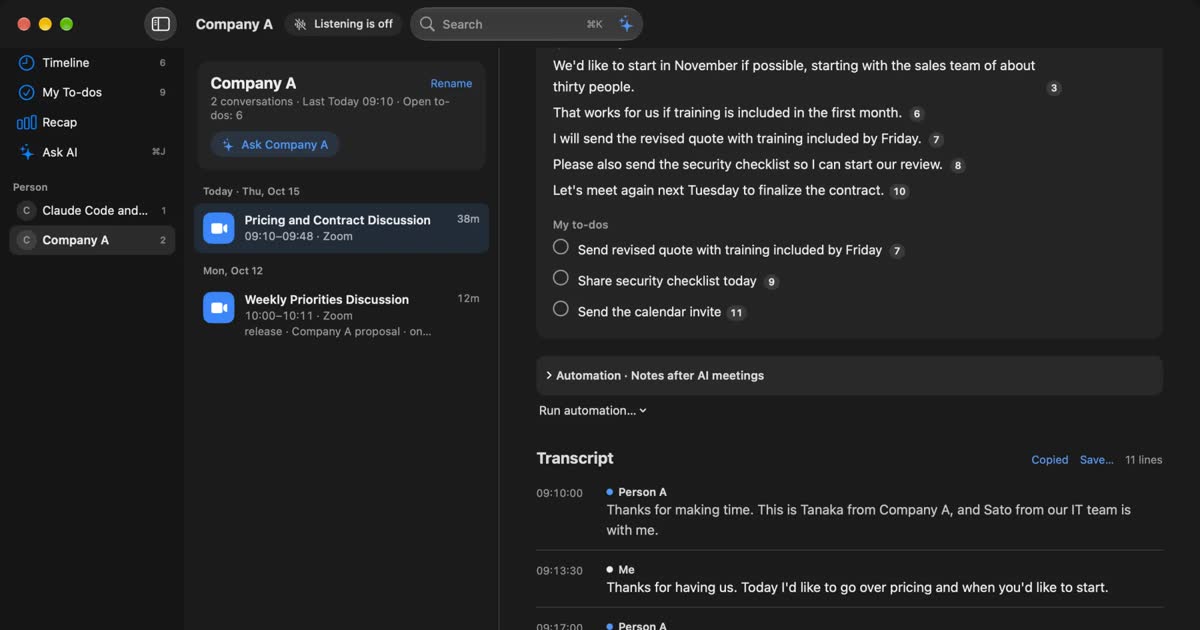
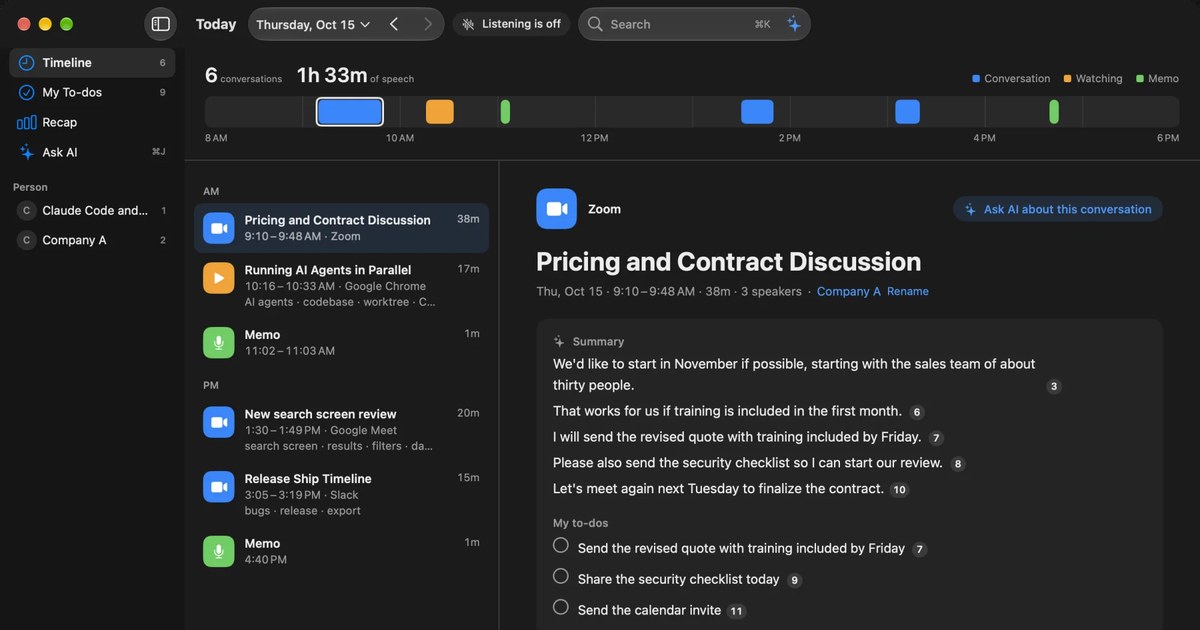
Recall sits in the menu bar and turns your microphone and the sound your Mac plays (the other people in a meeting or video) into text with on-device AI. It captures the microphone and the Mac’s audio separately, so you and the others are told apart without guessing from voices, and diarization runs only on the other side.
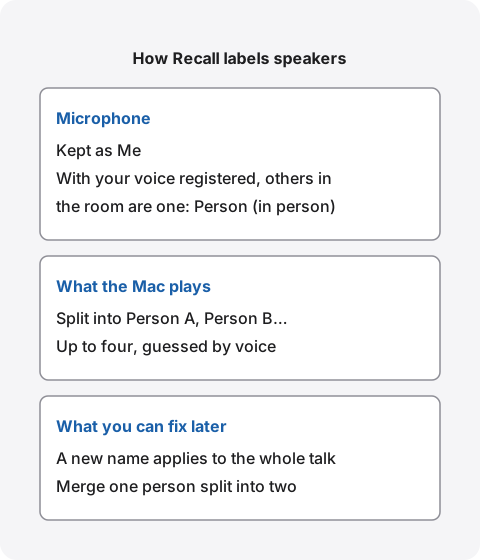
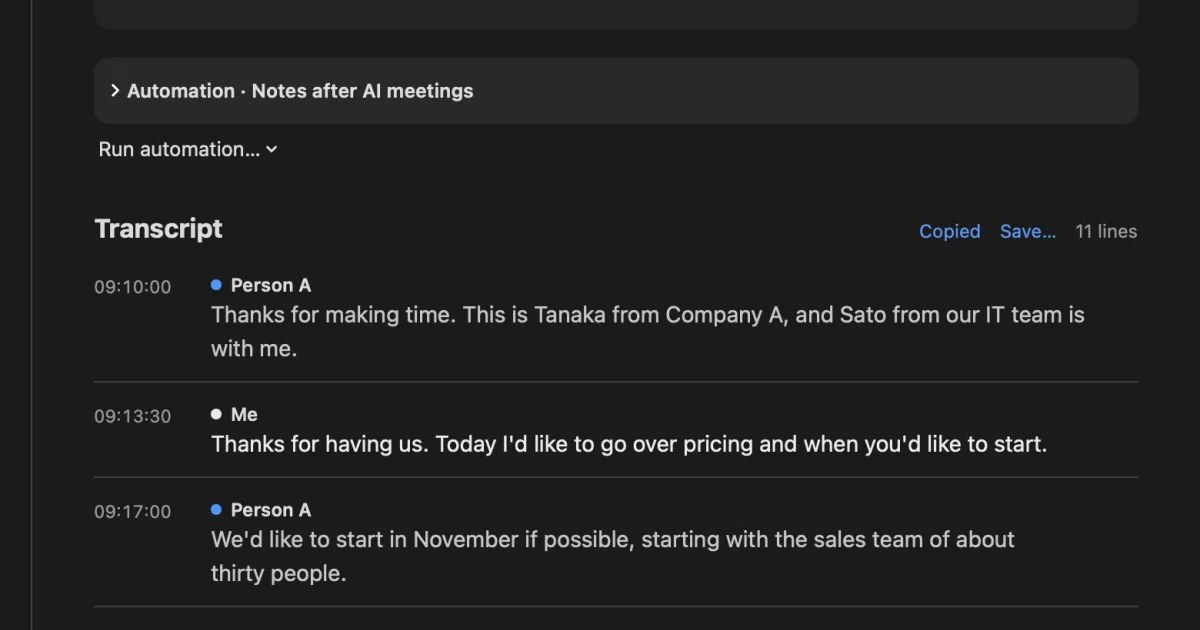
The other side in online meetings: up to four, as Person A and Person B
The sound your Mac plays is split by voice into up to four speakers, “Person A”, “Person B” and so on. The diarization model is downloaded at first launch; if the download fails, the other side isn’t split and appears together as “Person” until the next launch. In meetings where five or more people speak, reread how speakers were split.
Even when the other side plays through your speakers, Recall tries not to keep their voices picked up by the microphone as your lines (echo cancellation, and matching against the other side’s lines from the same moment). Still, when your voice and theirs mix in one line, it can be kept as yours. Earphones are the most reliable.
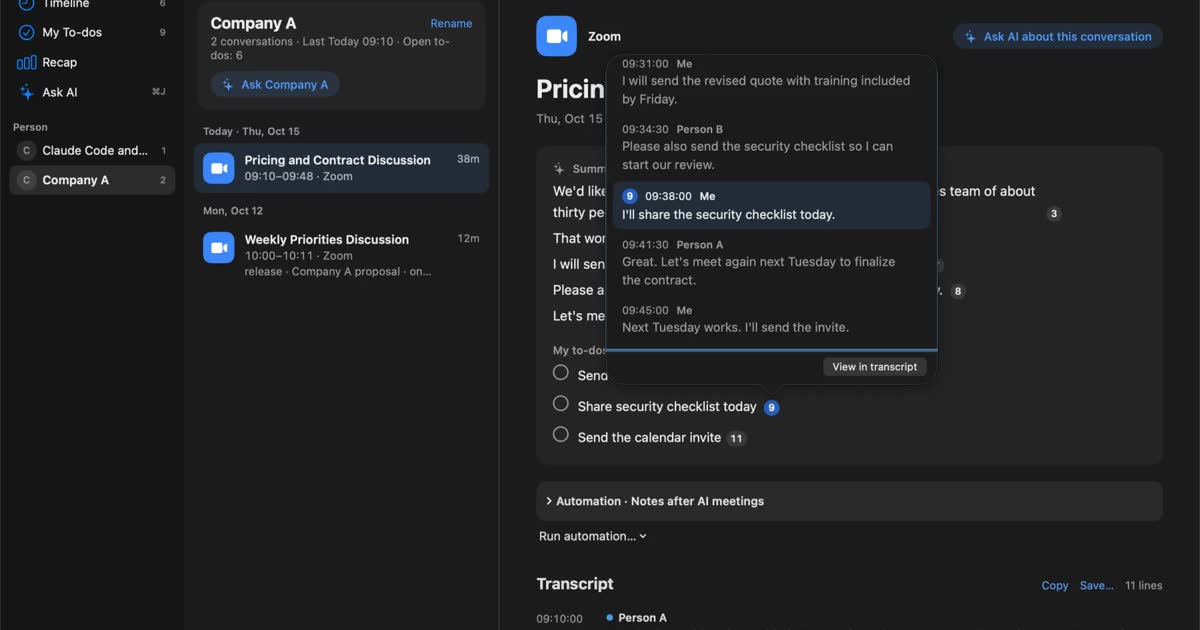
Click a speaker’s name to rename it, and the new name applies to every line in that conversation. With Apple Intelligence on, on-device AI may add names when it summarizes a conversation, from self-introductions and from people being addressed by name (if you choose an outside AI for organizing meetings on Pro, that AI adds them). You can click those names to fix them, too.
When one person is split into two: merge, or split again
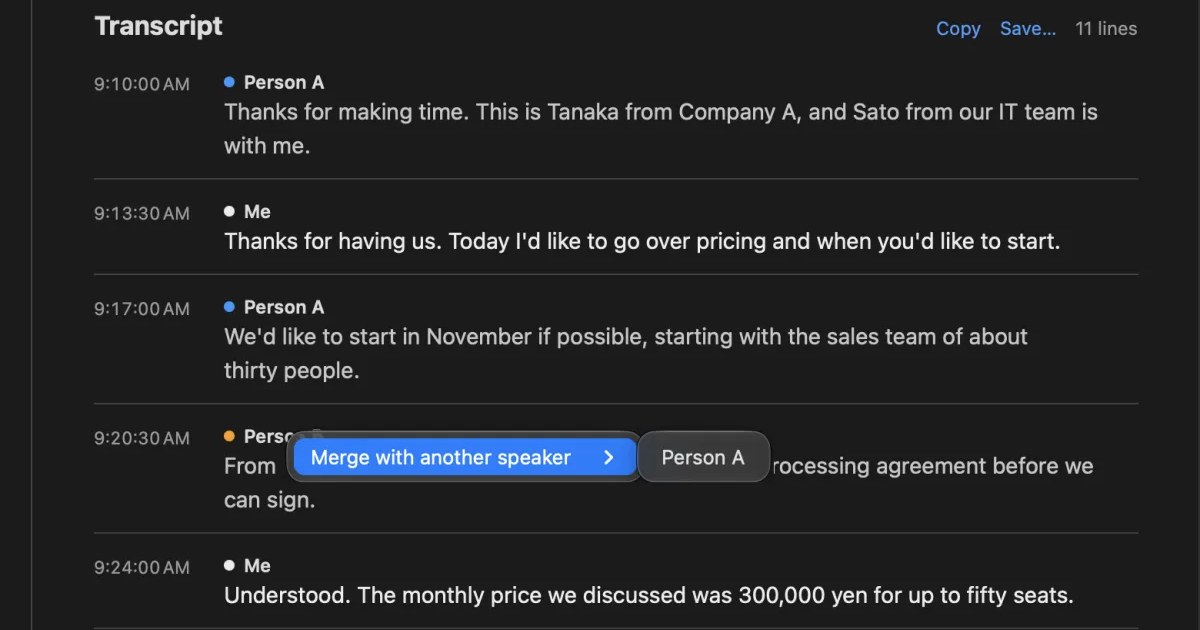
Recall starts telling speakers apart afresh when the conversation changes, or after about five minutes in which nobody speaks. So one person can end up with two numbers, “Person A” and “Person C”. In that case, right-click the speaker’s name and choose “Merge with another speaker”, then pick the speaker to merge into. You can undo a merge later from the same menu.
In-person meetings: register your voice for “Person (in person)”
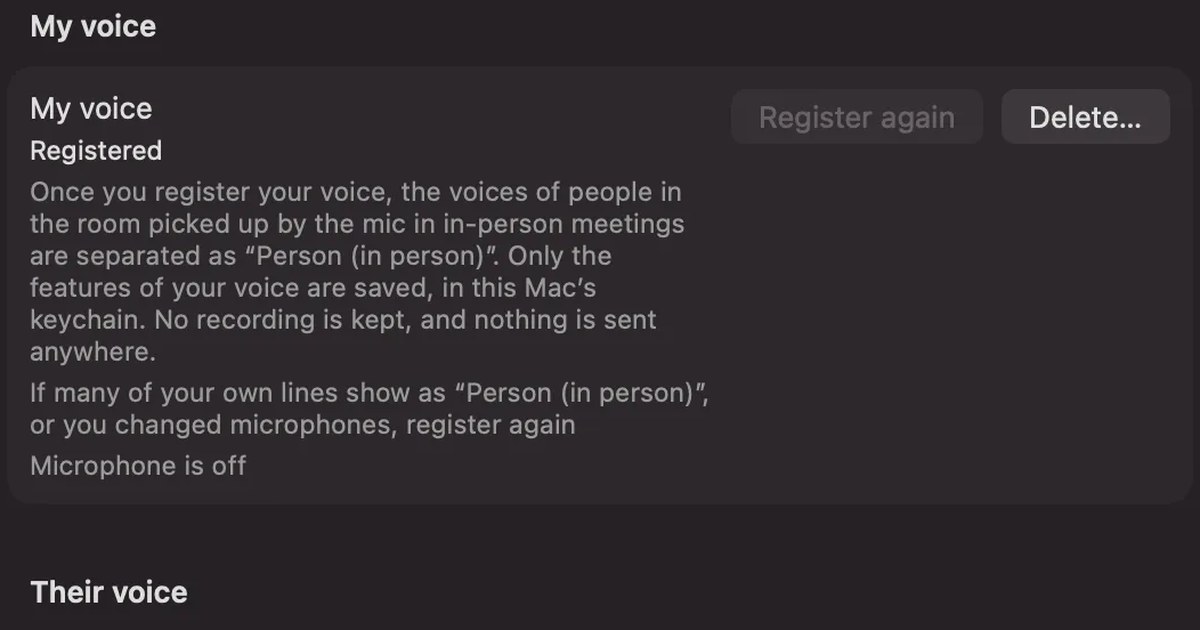
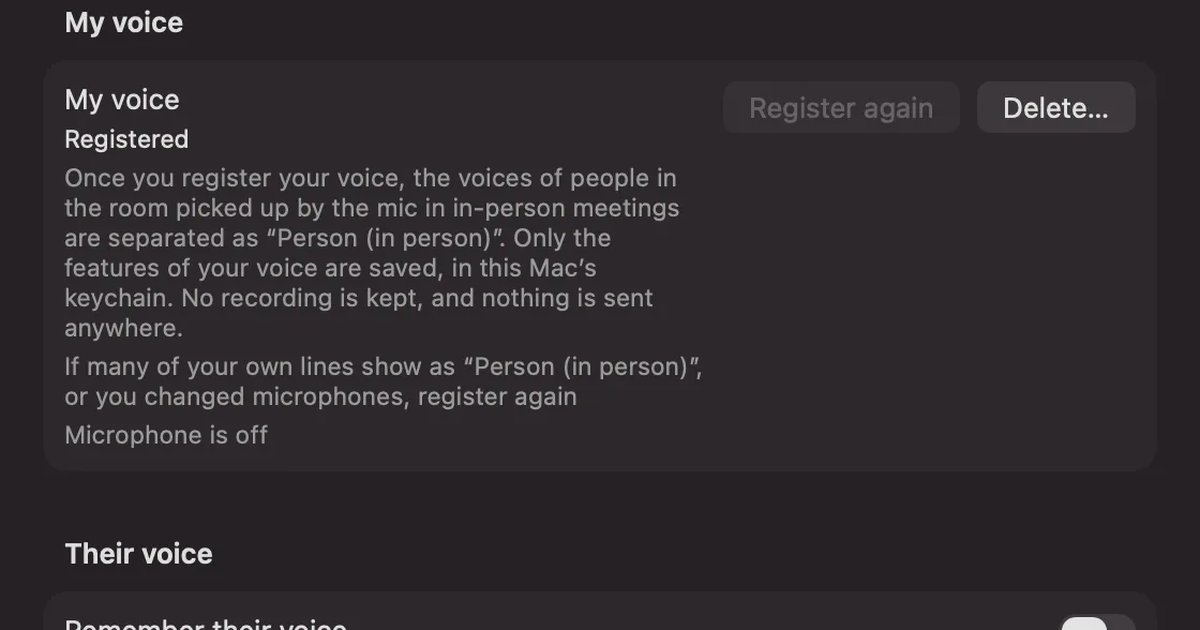
Lines from the microphone are normally kept as “Me”. If you register your voice with “My voice” in Settings › Listening, the voices of other people that the microphone picks up in an in-person meeting are separated as “Person (in person)”. Your voice is not recorded; only its features are kept in this Mac’s keychain, and nothing is sent anywhere.
This has limits, and we list them all here.
- People in the room aren’t told apart from each other: however many people you meet in person, they are recorded as one “Person (in person)”
- You can’t move a line between Me and Person (in person) by hand: you can’t reassign individual lines; if the split looks wrong, register your voice again or delete it. When your own line becomes “Person (in person)”, a promise of yours can drop out of “My to-dos”
- Live captions show Me: until a line is saved, the other person’s words also appear as “Me”
- Without a registered voice, the microphone is always Me: voices picked up by the microphone aren’t split by voice
If your own lines often end up as “Person (in person)”, or when you change microphones, register again. If you delete it, all lines from the microphone go back to “Me”.
Remember their voice (off by default)
Turn on “Remember their voice” in Settings › Listening, give someone a name and choose “Remember”, and Recall can show that name in later conversations. It is off by default and works on Free too. It shows the name on its own only when the voice is nearly the same; when it isn’t sure, it asks “Tanaka?” with the name, and you decide. It remembers only people heard through the Mac, not the people in the room.
While it is on, the features of the other people’s voices in each conversation (not recordings) are kept in this Mac’s keychain for three days, and the voices you chose to remember are kept until you delete them. Turning it off deletes them all. If you use it, tell the other people that too.
Tell people you are transcribing
Whatever you use, tell the people in the meeting that you are transcribing. For example: “To check the details later, I’m transcribing on my Mac. The audio isn’t saved, but the transcript stays on my Mac. Let me know if you’d rather I stop.” Don’t use it where recording or note-taking is not allowed, or where your employer’s rules don’t permit it. More on what to check is in How to transcribe locally on a Mac.
Who Recall is and isn’t for
Recall suits people with many online meetings on a Mac who want their own lines and the other side’s kept apart without mix-ups. It doesn’t suit people who need to split several people in an in-person meeting, or who want to transcribe recordings.
Recall is for you if
- You want your own lines and the other side’s kept clearly apart in online meetings
- Most of your meetings have a few people on the other side
- You don’t want to start a recording for every meeting
- You want meeting audio transcribed without sending it off your Mac
- You use a Mac with Apple silicon on macOS 26 or later
Free to use · No account needed · macOS 26 or later · Mac with Apple silicon · By downloading, you agree to the Terms of Service
Recall isn’t for you if
- You want each of several people in an in-person meeting split apart (they become one Person (in person))
- You want to transcribe recordings (Recall can’t import recordings)
- You want to keep the audio and listen again (audio isn’t kept once it is transcribed)
- You want to use it on Windows or iPhone
- You want to share the same records with a team
What Free includes, and how long records are kept
Separating and merging speakers and registering your voice are available on Free. Free has no limit on transcription, and shows and searches the last 14 days. By default, records are kept for 90 days on Free and indefinitely on Pro, and older records are deleted. Pro is ¥980 a month or ¥9,800 a year (tax included); if the license can’t be checked for 14 days in a row, Pro features stop. Records leave your Mac only when you use Pro features you turn on yourself. Summaries and to-dos are made when Apple Intelligence is on, whatever the memory (except when you choose an outside AI for organizing meetings on Pro). Ask AI needs Apple Intelligence on only on Macs with less than 16 GB of memory.
FAQ
What is speaker diarization?
It splits a transcript by the person speaking and labels each one with a number such as “Speaker 1” or “Person A”. It guesses from differences between voices, so names aren’t added automatically.
How is diarization different from speaker identification?
Diarization groups lines in the same voice and numbers them; identification works out who a voice belongs to and names it. Identification needs the person’s registered voice or the meeting’s participant details.
Can speakers be split in an in-person meeting recorded with one microphone?
Some tools do it, but the voices are the only clue, so there are more mix-ups than in online meetings. Put the microphone near the people speaking and reread before you rely on it. Recall doesn’t split people in the room from each other; with your voice registered, it separates them as one “Person (in person)”.
Can Whisper do speaker diarization on its own?
Whisper is a transcription model; to split speakers, pair it with a diarization toolkit such as pyannote.audio. It is a route that assumes you write and run code.
Are names added automatically?
Not by diarization alone. Meeting apps that know the participants, such as Teams, show names. With Apple Intelligence on, Recall may add names from self-introductions and people being addressed by name, and with “Remember their voice” on, it can show remembered people’s names next time.
What if one person is split into two?
Use a merge feature if there is one; if not, give both numbers the same name. In Recall, right-click the speaker’s name, choose “Merge with another speaker”, and undo it later from the same menu if needed.
How many people can Recall split?
It splits up to four people heard through your Mac. The microphone is “Me”, and with your voice registered, the people in the room are one “Person (in person)” however many there are.
Can I export a transcript with speakers?
In Recall, use “Copy” or “Save…” on a conversation to get one line each in the form “time speaker: text”. Speakers appear with the names shown on screen. It works on Free.
Checked on November 12, 2026. The Teams details are based on the original Microsoft Support page “Start, stop, and download live transcripts in Microsoft Teams meetings” and Microsoft Learn’s “Overview and configuration of voice and face enrollment”; the Zoom details on Zoom Support’s audio transcript page; the Word details on Microsoft Support’s “Transcribe your recordings”; and the pyannote.audio details on its GitHub README. Features and screen names can change. Check each company’s latest pages before you rely on them. The Recall details are based on our published help, features and pricing pages, and on how the app currently works.
The differences between Recall Free and Pro are in Plans and license.
Free to use · No account needed · macOS 26 or later · Mac with Apple silicon · By downloading, you agree to the Terms of Service
Get the product overview (PDF) by email →
Related articles
How to improve transcription accuracy: why errors happen, and what to do before, during and after
Transcription accuracy depends on how the sound reaches the microphone before it depends on the tool. Why wrong words, wrong speakers and missing words happen, what to do before and during a meeting and when fixing it afterwards, and how to compare tools.
How to transcribe Zoom meetings: built-in, cloud services, or on your Mac
Three ways to transcribe a Zoom meeting: built-in features, cloud services and apps on your Mac. Covers the plans each needs, the May 2026 captions change, and how to choose.
How to transcribe Microsoft Teams meetings: who can start it, where it saves, and Mac options
Three ways to transcribe a Teams meeting: the built-in feature, cloud services and apps on your Mac. Covers who can start it, why the button is missing, where transcripts are saved, and how to choose.
How to transcribe in Microsoft Word: Transcribe vs. Dictate, and what works on a Mac
To transcribe in Word, use Transcribe for recordings and audio files, and Dictate to write by speaking. Steps, which versions of Word support it, the 300-minute monthly limit, what to do on a Mac, fixes when it doesn’t work, and how to get meeting audio into text.
How to transcribe locally on a Mac: keeping meetings inside your company
How to transcribe on a Mac without sending audio to the cloud. Compare Notes, MacWhisper, Aiko, whisper.cpp, Recall and more, and check the four places records can still leave.
How to transcribe in-person meetings on a Mac: placement, telling speakers apart, and mixed online meetings
How to transcribe meeting-room discussions and one-on-ones with the Mac on the table. We compare Voice Memos, Zoom’s My Notes, phones and recorders, and Recall, and cover where to put the microphone, how speakers are split, and meetings where online participants join in.