 Recall
How to improve transcription accuracy: why errors happen, and what to do before, during and after
Transcription accuracy depends on how the sound reaches the microphone before it depends on the tool. Why wrong words, wrong speakers and missing words happen, what to do before and during a meeting and when fixing it afterwards, and how to compare tools.
The short answer: accuracy depends on the sound more than the tool
The quickest way to a more accurate transcript is not a different tool but cleaner sound at the microphone. Three things matter most. Wear earphones in online meetings, keep the microphone close to whoever is speaking, and do not talk at the same time. Together they cut wrong words, mixed-up speakers and missing words.
Even so, names of people and companies, product names and numbers are where every tool tends to slip. Note the correct spellings during the meeting and fix the transcript in one pass afterwards. Do not try to correct every line; limit it to words you will search for later and words tied to decisions, and it stays manageable.
This article is written by KOROMO K.K., which develops Recall, a transcription app for the Mac. We include our own product later on, so weigh what we say with that in mind. We give no accuracy figures and no ranking against other products, because we have not compared them on the same audio. We checked the meeting tools’ help pages on November 15, 2026.
| If this sounds like you | Read next |
|---|---|
| The other person’s words are saved as yours | Use earphones |
| Names and numbers come out wrong | Fixing it afterwards |
| In an in-person meeting you cannot tell who spoke | The speaker diarization guide |
| You want to know which tool is most accurate | How to compare tools |
What accuracy means: three ways it goes wrong
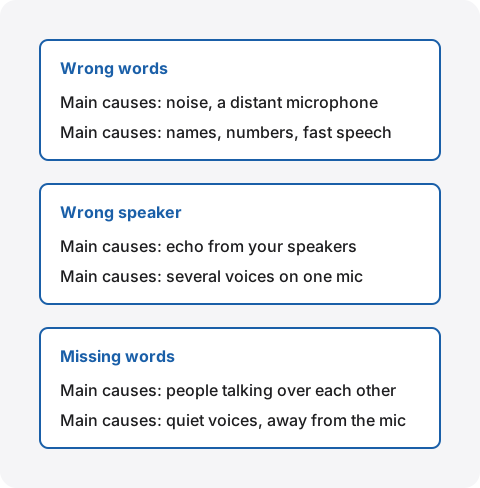
An accurate transcript has every spoken word, in the right spelling, under the right speaker. When a transcript feels inaccurate, one of the following three is usually happening. Each has different causes and fixes, so first work out which one you are seeing.
Wrong words
A word becomes a different word that sounds the same, a name gets the wrong spelling, a number shifts. Mix-ups such as “fifteen” and “fifty”, or “Ann” and “Anne”, are hard to spot just by reading. The main causes are noise, a microphone far from the speaker, and names, numbers and fast speech.
Wrong speaker
The other person’s line is saved as yours, or two people’s lines are merged under one. This hurts most in meetings where minutes need to show who said what. The main causes are echo, when the other person’s voice from your speakers comes back into your microphone, and several voices going into one microphone, as in a meeting room.
Missing words
Something was said but is not in the transcript. When two people talk at once, one or both tend to drop out. Quiet voices, and lines said while turned away from the microphone, also go missing more often.
Research and product materials sometimes give error rates as “word error rate (WER)” or “character error rate (CER)”: the share of words or characters that were substituted, dropped or inserted compared with a correct text. But the figure changes a great deal with the audio it was measured on, and it does not count mixed-up speakers. Treat it as a rough guide and test with the sound of your own meetings (How to compare tools).
The main causes of errors
Most of what lowers accuracy sits on the sound side, before anything is turned into text. The meeting tools’ own help pages put the sound environment first, ahead of the tool. Zoom Support’s page on transcribing cloud recordings recommends keeping background noise to a minimum, speaking clearly into the microphone, avoiding shuffling papers, typing loudly or side conversations, placing the microphone near active speakers, and choosing an external microphone over a built-in one. Webex Help’s page on transcripts likewise lists a noisy background, poor acoustics and heavy accents among the reasons a transcript may not be produced well.
| What tends to go wrong | What you can do first | |
|---|---|---|
| Noise (air conditioning, typing, nearby talk) | Wrong words | Pick a quiet place, use the meeting tool’s noise suppression |
| A room that echoes | Wrong words | Pick a smaller room, sit away from the walls |
| A distant or built-in microphone | Wrong words, missing words | Use a microphone near your mouth, put the Mac near the speakers |
| Playing the other person through speakers | Wrong speaker | Use earphones |
| Talking at once, overlapping “mm-hm”s | Missing words, wrong speaker | Agree at the start to speak one at a time |
| Names, numbers, technical terms | Wrong words | Note the correct spelling, fix them together afterwards |
| Fast speech, hesitations | Wrong words | Slow down and repeat only the important parts |
The point is that whichever tool you choose, bad sound makes the text fall apart. Put the other way, fixing the sound improves accuracy even with the tool you already use.
Before you start
Preparing before you start takes the least effort and makes the biggest difference. You cannot fix it once the meeting is under way, so sort it out in the first few minutes.
Use earphones
In online meetings, earphones or a headset are the most reliable choice. The other person’s voice from your speakers comes back into your microphone and mixes with yours. To a transcription tool it looks as if their voice is in your microphone, so their lines get saved as yours, or the same words are saved twice. Some tools have ways to remove that echo, but keeping it out of the microphone in the first place is more reliable.
Keep the microphone close to the speaker
The further the microphone is from the mouth, the quieter the voice gets and the more the surrounding sound and room echo stand out. Online, a headset with a microphone near your mouth or an external microphone on the desk works well. In person, put the Mac or the microphone in the middle of the table or near whoever talks most. Placement is covered in detail in How to transcribe in-person meetings on a Mac.
Choose a quiet place and settings
Air-conditioning vents, projectors and traffic outside a window come through louder than you expect. Heavy typing also reaches the microphone, so write notes by hand or type softly. If your meeting tool has a noise suppression setting, turn it on in noisy places. The setting’s name and location vary by tool, so check each company’s help.
Tell attendees you are transcribing
When you transcribe a meeting, tell the attendees at the start. Once they know, it is easier to ask “could we speak one at a time?” or “I will check names with you afterwards”, which itself helps accuracy. The Recall site gives this wording as an example.
I am transcribing this on my Mac so I can check the details later. The audio is not saved, but the transcript stays on my Mac. Let me know if you would rather I stop.
If someone declines, or your employer’s rules do not allow it, do not transcribe. We do not recommend recording people without their knowledge, with any product. This article is not legal advice.
While you talk
Small changes in how you speak also reduce errors. You do not need everyone to do this; it already helps if you and whoever runs the meeting take care.
- Do not talk over others: wait until the other person finishes. Keep “mm-hm”s low during important lines. When two people talk at once, one of them tends to drop out
- Say names and numbers clearly, in pieces: “December, the first”, “Smith, S-M-I-T-H”: break up only the parts that are easy to mix up
- Add a hint to proper names: “Acme, the client in Boston” gives you a clue when you fix the transcript later
- Read decisions back at the end: reading back what was decided, who does it and by when puts it in the transcript once more in clean sound
- Do not turn away from the microphone: talking while looking at slides or a whiteboard makes your voice quieter. Face the microphone for the important parts
There is no need to force yourself to stop speaking fast or hesitating. Take care only where a mistake would hurt, such as numbers and deadlines.
Fixing it afterwards
When you correct a transcript, start with the errors that cause trouble rather than the whole text. Correcting every line of a one-hour meeting does not last. Limit it to words you will search for later and words tied to decisions.
Replace names and numbers together
Names of people, companies and products often come out wrong the same way again and again, so a document’s find and replace can fix them in one go. The correct spellings you noted during the meeting pay off here. Check numbers and dates one by one rather than replacing them, because a mix-up like “fifteen” and “fifty” has to be settled from the surrounding talk.
What to check when AI tidies it up
You can also give the transcript to an AI to tidy it into readable text or summarize it. But an AI may rewrite a misheard line into something that sounds plausible, which hides the original error. Compare the tidied text with the original transcript on these three points.
- Numbers, dates and amounts
- Names of people and companies
- Decisions, and who will do what
How to turn a transcript into minutes, and how to ask an AI to help, is in How to turn a transcript into meeting minutes.
Check first whether you can listen again
For an error you cannot work out, listening to the audio again is the surest check. A tool that keeps the recording lets you do that; a tool that does not keep audio does not. Whether a meeting needs listening back changes which tool fits. With a tool that keeps no audio, check on the spot or ask the attendees.
Keeping Recall accurate, and its limits
Recall is an app that sits in the menu bar and transcribes your microphone and the sound your Mac plays. It does not invite a bot to the meeting, and there is no record button. It transcribes on the Mac and discards the audio right after. It records the microphone (your voice) and the sound from your Mac (the other people in a meeting) separately, so what to do depends on which side is going wrong.
Listening through speakers
As the help page on listening through speakers explains, even when you play the other person’s voice through speakers instead of earphones, Recall keeps the other person’s voice that the microphone picks up from being saved as your line (microphone echo cancellation, and matching against the other person’s lines from the same time). Earphones are still the most reliable. There are limits.
- When your voice and the other person’s voice mix in one line, it may be saved as your line
- If you repeat the other person’s words right after them (within 2 seconds), Recall cannot tell it apart from the echo of their voice, and your side may not be saved
Register “My voice” for in-person meetings
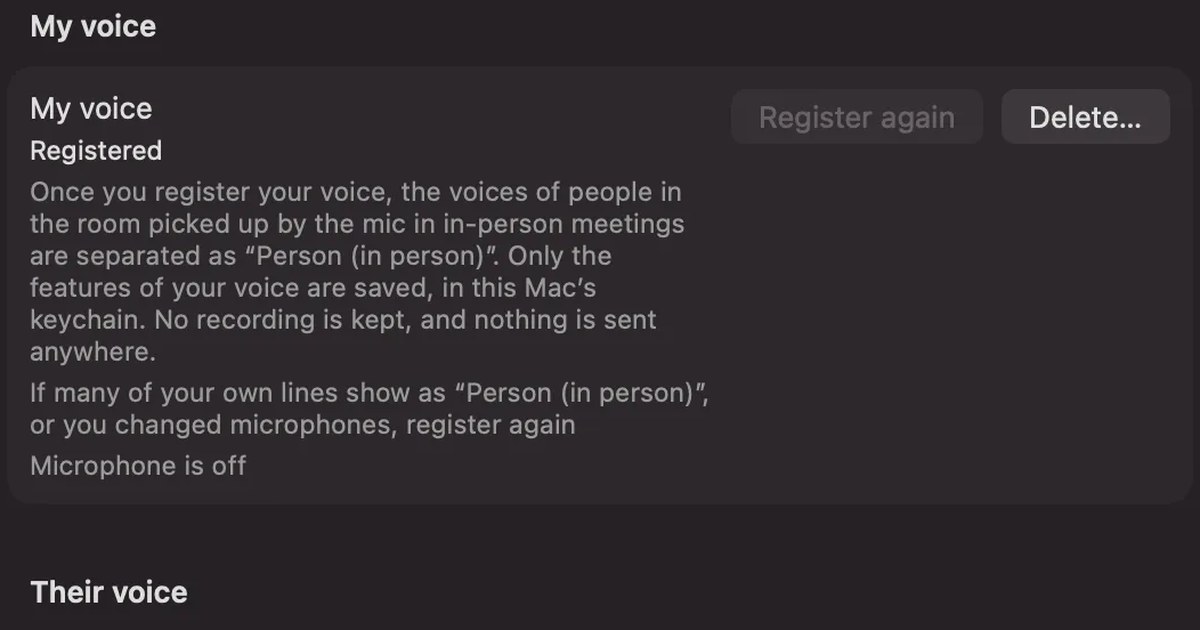
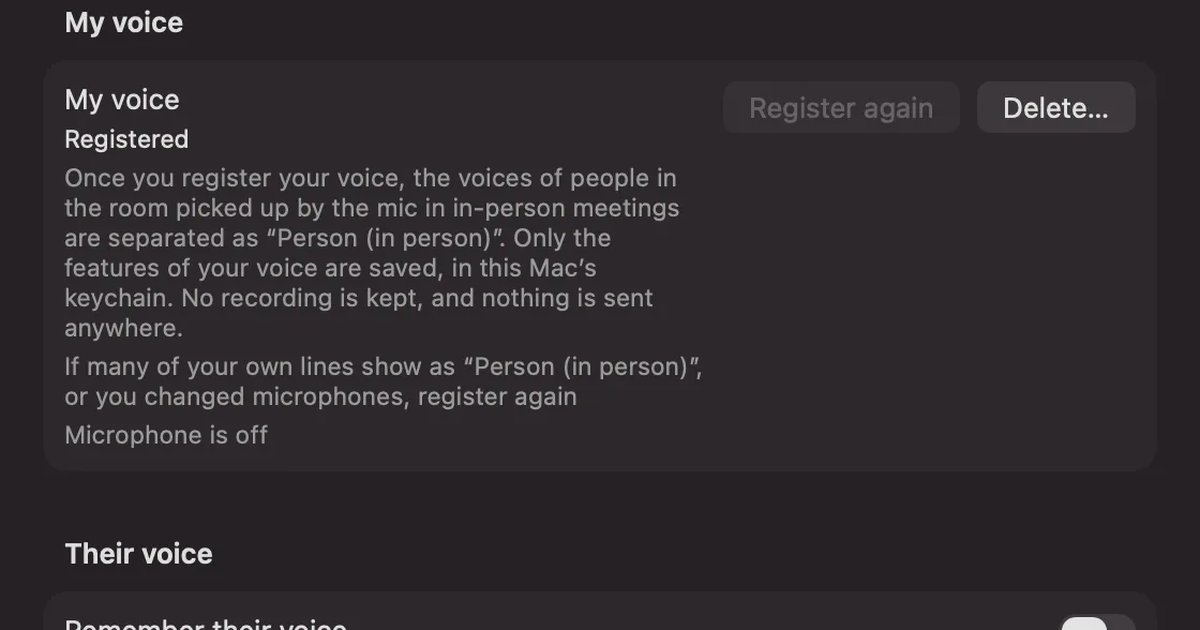
Lines from the microphone are normally recorded as “Me”. If you register your voice with “My voice” in Settings › Listening, the voices of other people that the microphone picks up in an in-person meeting are separated as “Person (in person)” (In-person meetings). Only the characteristics of your voice are saved, in this Mac’s keychain; no recording is kept. Nothing is sent anywhere.
- However many people you meet in person, they are recorded as one “Person (in person)”. You cannot reassign individual lines
- If your own lines often end up as “Person (in person)”, or when you change microphones, register again
- If you delete it, all lines from the microphone go back to “Me”
Rename and merge speakers
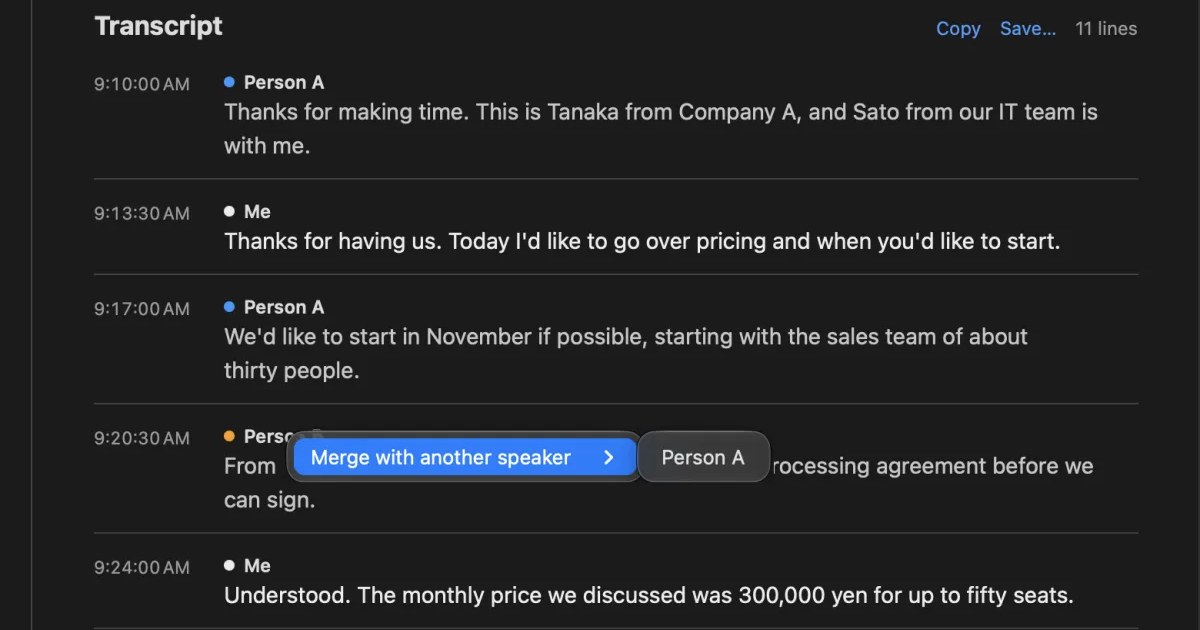
For the sound from your Mac, Recall estimates up to four other people and labels them “Person A”, “Person B” and so on. As the help page on speaker names and merging explains, click a speaker’s name to rename it, and the new name applies to every line in that conversation. When one person is split into two speakers, right-click the speaker’s name and use “Merge with another speaker”; you can undo it later with “Split out …”. How speakers get separated in general is in the speaker diarization guide.
Fixing typos before you share
“Copy” or “Save…” in the transcript heading takes out that conversation’s transcript with times and speakers (Copying and saving transcripts). This works on Free too. The published help does not describe a way to edit the transcript text inside Recall or to add custom words. Fix typos in the document you copied it into.
Limits to know first
- You cannot listen again: the audio is discarded right after it is transcribed, so you cannot check an error by ear
- Mac only: it runs on Macs with Apple silicon and macOS 26 or later. It does not work on Windows or phones
- Summaries need Apple Intelligence: summaries and to-dos are written when Apple Intelligence is on (except when, on Pro, you choose an outside AI for organizing meetings). The transcript can be searched before the summary is ready
- What Free covers: Free shows and searches the last 14 days. Records are kept for 90 days by default on Free and indefinitely on Pro. Pro is ¥980 a month or ¥9,800 a year (tax included), and Pro features stop if the license cannot be checked for 14 days in a row
Records stay on this Mac, and we do not send them to our servers. Records leave the Mac only when you use a Pro feature you turned on, or when you copy or save them and pass them on yourself. The list is in When records leave the Mac.
Who Recall fits
- You want your voice and the other people’s voices kept apart in online meetings
- You cannot always wear earphones and want a tool that is less likely to mix up voices through speakers
- You do not want meeting audio sent to an outside service
- You sometimes forget to press record and lose the start of a meeting
- You use a Mac with Apple silicon and macOS 26 or later, and your employer’s rules allow it
Free to use · No account needed · macOS 26 or later · Mac with Apple silicon · By downloading, you agree to the Terms of Service
Who Recall does not fit
- You want to keep the audio and listen back while you correct
- You use many technical terms and want to add custom words to the transcription
- You want each person in an in-person meeting kept separately
- You want to transcribe audio files you have already recorded
- You join meetings on Windows or a phone
How to compare tools
Compare tools on sound close to your own meetings, not on advertised figures. An accuracy figure changes a great deal depending on whether it was measured on quiet read-aloud speech or a noisy meeting. Check in this order.
- Use the same sound: if you try each tool in a different meeting, you cannot tell whether the difference is the sound or the tool. Try them on the same meeting at once, or under the same conditions
- Count the errors that hurt: rather than an overall impression, count names of people and companies, numbers, and mixed-up speakers. Those are what cause trouble in minutes
- Match your meetings: online or in person, speakers or earphones, how many people talk: set it up like your usual meetings
- Stay within the free tier: many tools have a free tier. Check the conditions on each company’s pricing page
- Look beyond accuracy: also check where audio and text are kept, whether you can listen again, whether you can fix speakers, and whether you can take the text out for minutes
How to check where audio is kept is in Is Otter.ai safe? Five checks for any AI meeting notetaker, and how to use Zoom’s built-in transcription is in How to transcribe Zoom meetings.
FAQ
What is the easiest way to improve transcription accuracy?
In online meetings, wear earphones. The other person’s voice from your speakers stops coming back into your microphone, which cuts mixed-up speakers and wrong words. In person, move the microphone closer to whoever is speaking.
How do I get fewer errors in names and numbers?
Say them clearly and in pieces, and note the correct spelling during the meeting. Fix names afterwards with find and replace, and check numbers and dates one by one against the surrounding talk.
Which transcription tool is the most accurate?
We do not compare them in this article, because we have not tested them on the same audio. Accuracy changes a lot with the sound, so compare on audio close to your own meetings, using the free tiers.
How should I read an accuracy figure such as WER?
It is the share of words substituted, dropped or inserted compared with a correct text. It changes a lot with the audio measured and does not count mixed-up speakers. Treat it as a rough guide and test with your own meetings.
Why are the other person’s words saved as mine?
Usually their voice from your speakers is getting into your microphone. Earphones are the reliable fix. Recall tries to keep this from happening through speakers, but when voices mix in one line it may be saved as yours.
Can I add custom words to Recall?
The published help does not describe a way to add custom words. Copy or save the transcript and fix typos in the document you put it in.
Can I listen back in Recall to check an error?
No. Recall discards the audio right after it is transcribed and does not save it. For meetings you need to listen back to, use a tool that keeps the recording, or check on the spot.
Checked on November 15, 2026. The advice on the sound environment comes from Zoom Support’s page on transcribing cloud recordings and Webex Help’s page on transcripts. Recall’s features and limits come from Recall’s help pages on listening and pausing, the timeline and conversations, privacy and data, plans and licensing, and troubleshooting, and from the features page. We give no accuracy figures. Help pages change, so check the official pages before relying on them.
Recall’s listening settings are in Listening and pausing.
Free to use · No account needed · macOS 26 or later · Mac with Apple silicon · By downloading, you agree to the Terms of Service
Get the product overview (PDF) by email →
Related articles
What is speaker diarization? Splitting a transcript by who spoke, and fixing it when it goes wrong
Speaker diarization splits audio by who spoke when and labels each speaker with a number such as Speaker 1 or Person A. How it differs from speaker identification, how Teams, Zoom, Word and do-it-yourself tools split speakers, why in-person meetings split badly, and how to rename and merge speakers.
How to transcribe in-person meetings on a Mac: placement, telling speakers apart, and mixed online meetings
How to transcribe meeting-room discussions and one-on-ones with the Mac on the table. We compare Voice Memos, Zoom’s My Notes, phones and recorders, and Recall, and cover where to put the microphone, how speakers are split, and meetings where online participants join in.
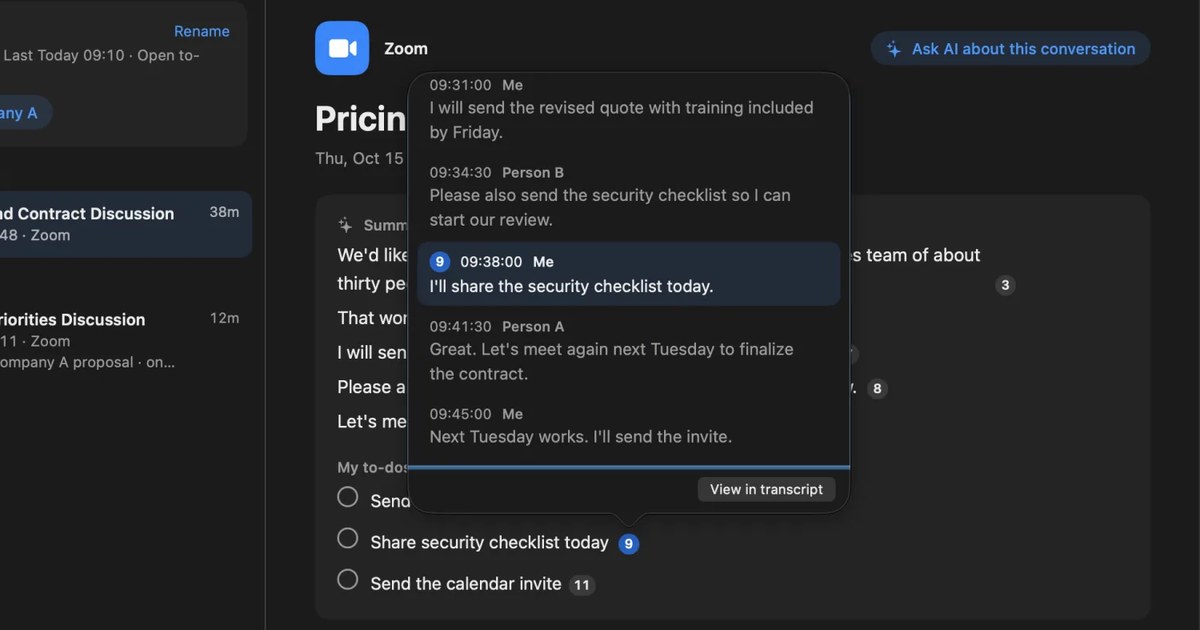
How to turn a transcript into meeting minutes: what to keep, examples, and asking AI
Pasting a transcript is not the same as writing minutes. The difference between verbatim, clean transcripts, summaries and minutes, what to keep with example lines, how to pick out decisions and action items, and how to ask AI for a draft and what a person should check.
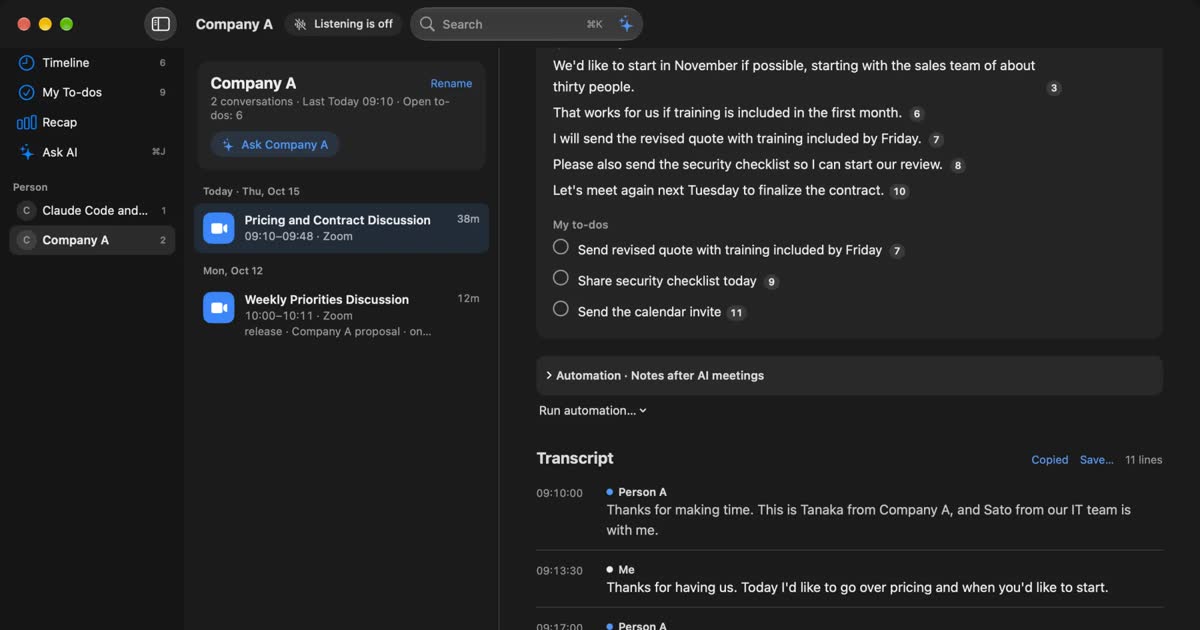
How to transcribe Zoom meetings: built-in, cloud services, or on your Mac
Three ways to transcribe a Zoom meeting: built-in features, cloud services and apps on your Mac. Covers the plans each needs, the May 2026 captions change, and how to choose.