 Recall
How to transcribe in-person meetings on a Mac: placement, telling speakers apart, and mixed online meetings
How to transcribe meeting-room discussions and one-on-ones with the Mac on the table. We compare Voice Memos, Zoom’s My Notes, phones and recorders, and Recall, and cover where to put the microphone, how speakers are split, and meetings where online participants join in.
The short answer: if separating your voice from everyone else’s is enough, a Mac is all you need
There are three ways to turn an in-person meeting into text on a Mac: record it and transcribe afterwards, transcribe during the meeting, or record with a phone or a recorder. Even the Mac’s built-in microphone produces a transcript in a small meeting where the people speaking sit close to it. What decides it is whether you want each attendee kept separately.
- You want each person split, or to record from the middle of the table: a phone app or a dedicated recorder that can split speakers suits you.
- It is enough to split your lines from the other people’s: an app that transcribes during the meeting and lets you register your voice is enough. If you don’t need speakers split, the Mac’s Voice Memos can keep it too.
- People in the room and online participants are mixed: unless the app listens to both the microphone and the sound your Mac plays, the online participants’ voices go missing.
This article is written by KOROMO K.K., which develops Recall, a transcription app for Mac. We include our own product, so read with that in mind. We checked the Apple and Zoom details against each company’s official pages on November 14, 2026. We don’t have results comparing the products’ accuracy on the same audio, so we don’t rank them on accuracy.
Ways and tools to turn an in-person meeting into text
Each method differs in how you start recording, whether the audio is kept, and where the text is stored. How each one starts is described in the sections below; the table shows the audio and where the text is stored.
| Audio | Where the text is stored | |
|---|---|---|
| Voice Memos on Mac | Kept (you can listen again) | This Mac (sync settings are in the Voice Memos guide) |
| Zoom’s My Notes | The official help says it is discarded by default on phones. Nothing is stated for computers | Zoom’s service. You can also open it in My Notes on the web |
| Phone apps and recorders | Kept in many products | The cloud, in many products |
| Recall | Not kept (thrown away once transcribed) | This Mac |
Record, then read: Voice Memos on Mac
The easiest option is Voice Memos, which comes with your Mac. According to Apple’s Voice Memos User Guide for Mac, pressing the transcript button while recording shows the text as it is spoken, and after recording you can select the recording and use the same button to show, copy and search the text. It isn’t available in some countries and regions. Which Macs and OS versions it works on is covered in How to transcribe Voice Memos.
Its strength is that the audio is kept, so you can listen again later to check the wording. On the other hand, if you forget to press the record button, nothing is kept. You do the summary and the sorting out of “who does what” yourself.
Transcribe during the meeting: Zoom’s My Notes
If your workplace uses Zoom, My Notes also works for transcribing in-person meetings. Zoom’s help says it can be used for personal transcripts and for transcripts of meetings where people actually gather, and it needs a Pro, Business or Enterprise account, or a standalone My Notes subscription. In the Mac desktop app, all features work on version 6.7.5 or later with macOS 14.2 or later. According to the help for the web version, notes can be opened from mynotes.zoom.us.
Record from the middle of the table: phone apps and dedicated recorders
For meetings with many attendees, or where nobody opens a Mac, putting a phone or a recorder in the middle of the table works well. It is close to every seat, and some products can split speakers. We compared well-known products’ pricing and data handling, based on their official pages, in PLAUD NOTE alternatives, AutoMemo pricing, features, and how it differs from Recall and Notta alternatives compared. Many products transcribe recordings in the cloud, so for confidential meetings, check where the data is stored first.
Transcribe during the meeting, without a record button: Recall
Recall is an app that sits in the menu bar and turns the voices your microphone picks up and the sound your Mac plays into text. There is nothing to start, so a conversation that begins suddenly or a meeting that runs long is kept too. Audio is thrown away once it is transcribed, and the transcript and summary are saved on this Mac. There are limits to how it handles the people in the room; they are covered in the next section.
Where to put the Mac and the microphone
Whatever you use, an in-person transcript depends on how loudly voices reach the microphone. If you record with the built-in microphone, put the Mac near the attendees so people in far seats don’t sound too quiet.
- Even out the distance: put the Mac between the people speaking, not in front of you. In a one-on-one, placing it sideways halfway between the two of you keeps both close.
- Cut down noise: avoid air-conditioning vents and projectors. The microphone also picks up typing on the Mac’s keyboard, so if you take notes, use paper or another device.
- Use an external microphone: in large rooms or meetings of four or more, a conference microphone placed on the table helps. Recall listens with the microphone selected on your Mac, so choose the external microphone under Input in System Settings › Sound, and it listens through that microphone.
- Agree on how to talk: when people talk over each other, the text breaks down whatever you use. Just having one person speak at a time makes rereading easier.
If you change microphones, register your voice again in Recall. If the microphone differs from the one you registered with, more of your own lines end up recorded as someone else’s.
How far speakers can be told apart
In an in-person meeting, everyone’s voice reaches the same microphone. Telling who said what needs “speaker diarization”, which guesses from differences between voices. How far it can split people differs by product, and names aren’t added automatically. How it works and how to fix it are covered in What is speaker diarization?
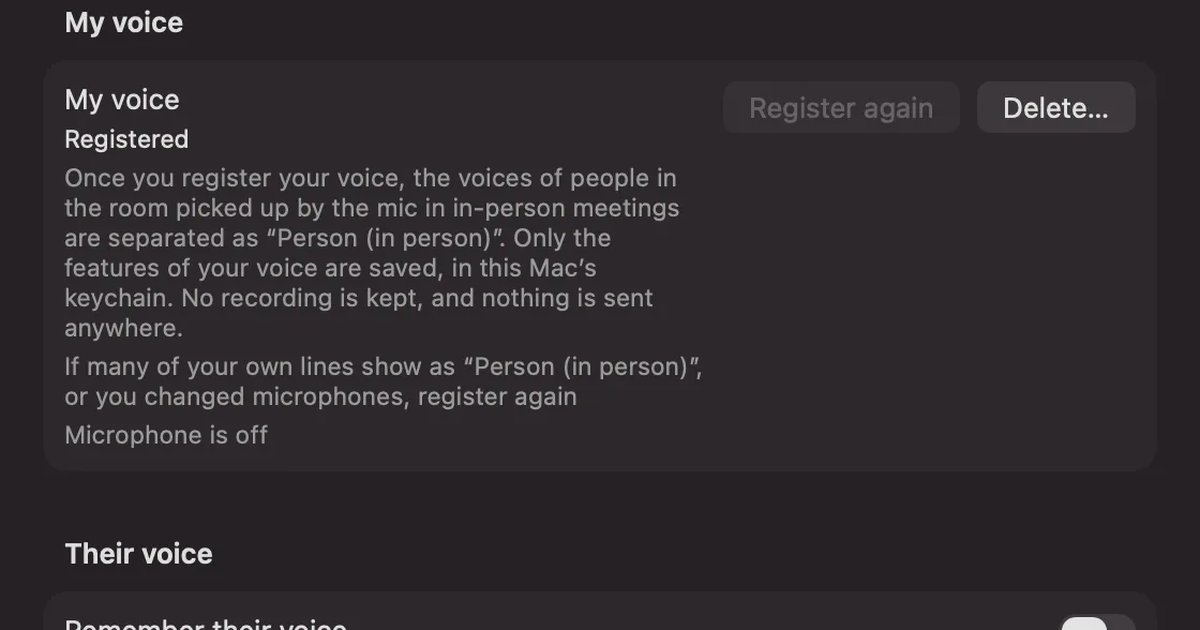
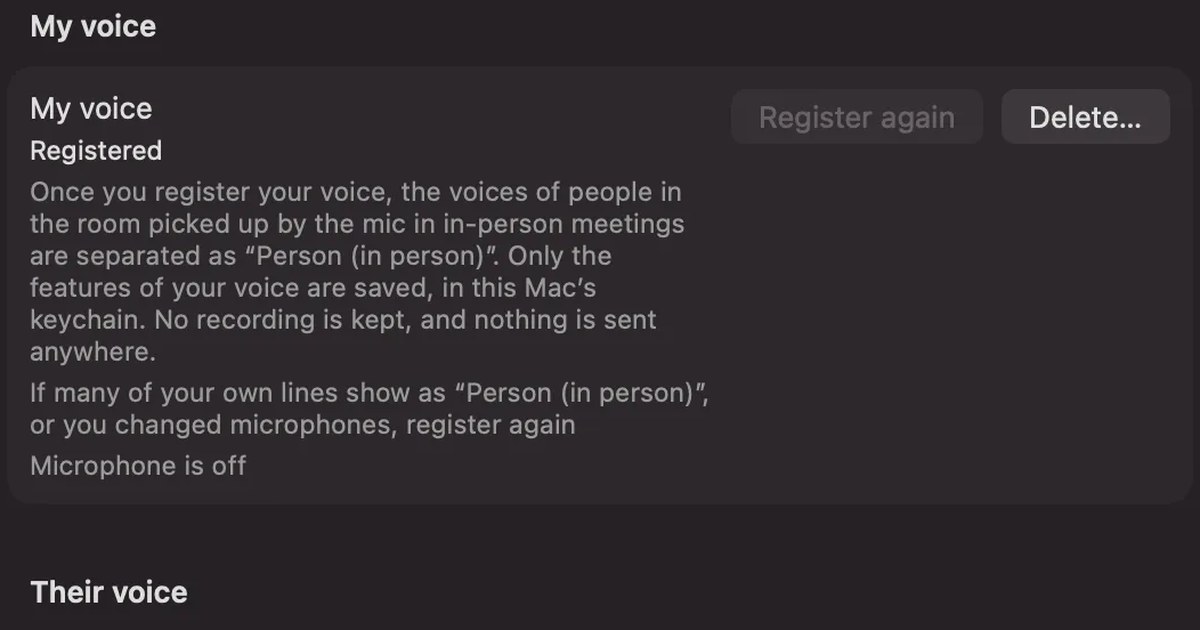
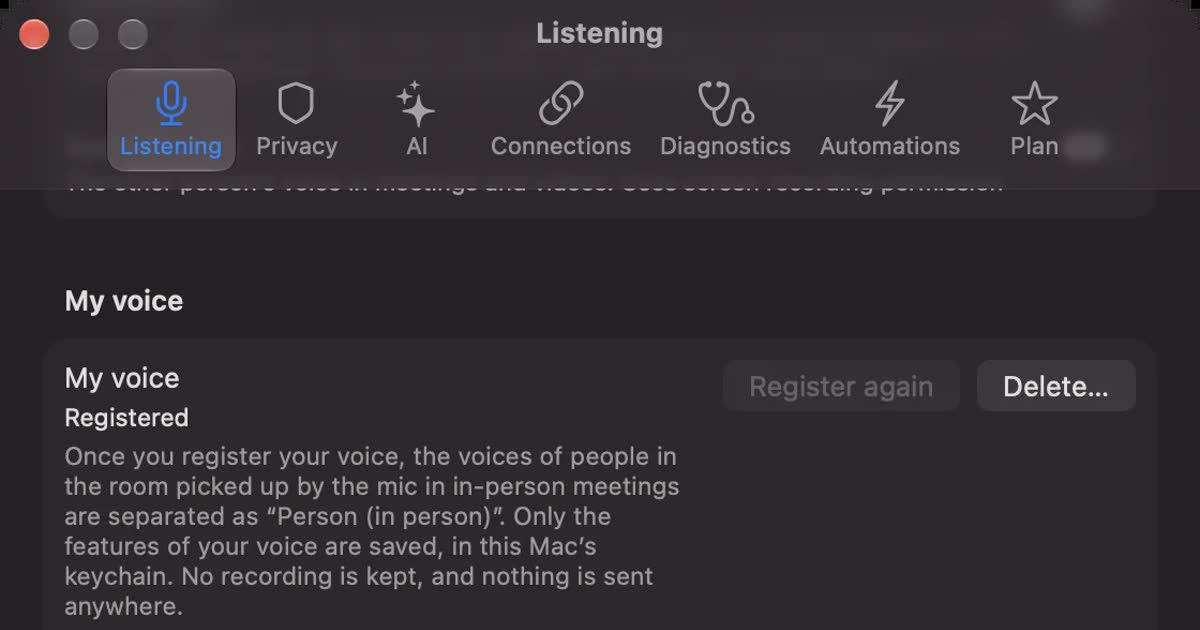
In in-person meetings, Recall splits speakers into two: “Me” and “Person (in person)”. If you register your voice with “My voice” in Settings › Listening, Recall compares the voices the microphone picks up with your registered voice and records them as “Me” when they are close and as “Person (in person)” when they aren’t. Only the features of your voice are kept, in the Mac’s keychain, and no recording is kept. Without a registered voice, every line from the microphone is “Me”.
The limits are clear. However many people are in the room, they are recorded as one “Person (in person)”. You can’t switch individual lines between “Me” and “Person (in person)”; your only options are to register again or delete the registration. When your own line is kept as “Person (in person)”, a promise in it may not appear in your to-dos. If you need notes split by speaker for an in-person meeting of three or more, a recording-based product that can split speakers suits you better.
Meetings that mix the room and online
A meeting where a few people gather in a room and others join on Zoom or Teams is the form where the most goes missing when you transcribe on a Mac. Voices in the room reach the microphone, while the online participants’ voices come out of the Mac’s speakers or your earphones, so a method that records only the microphone misses the online participants you hear through earphones.
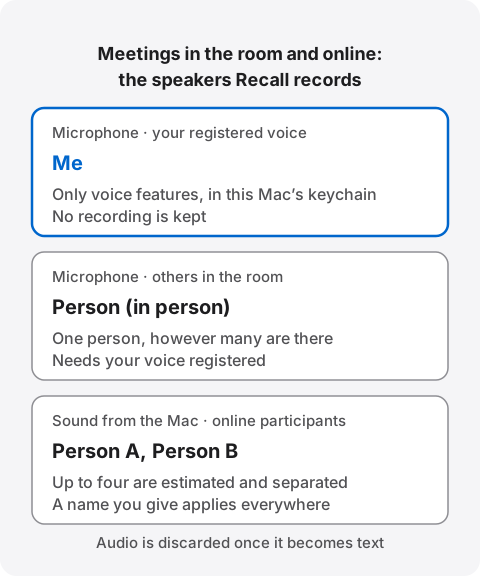
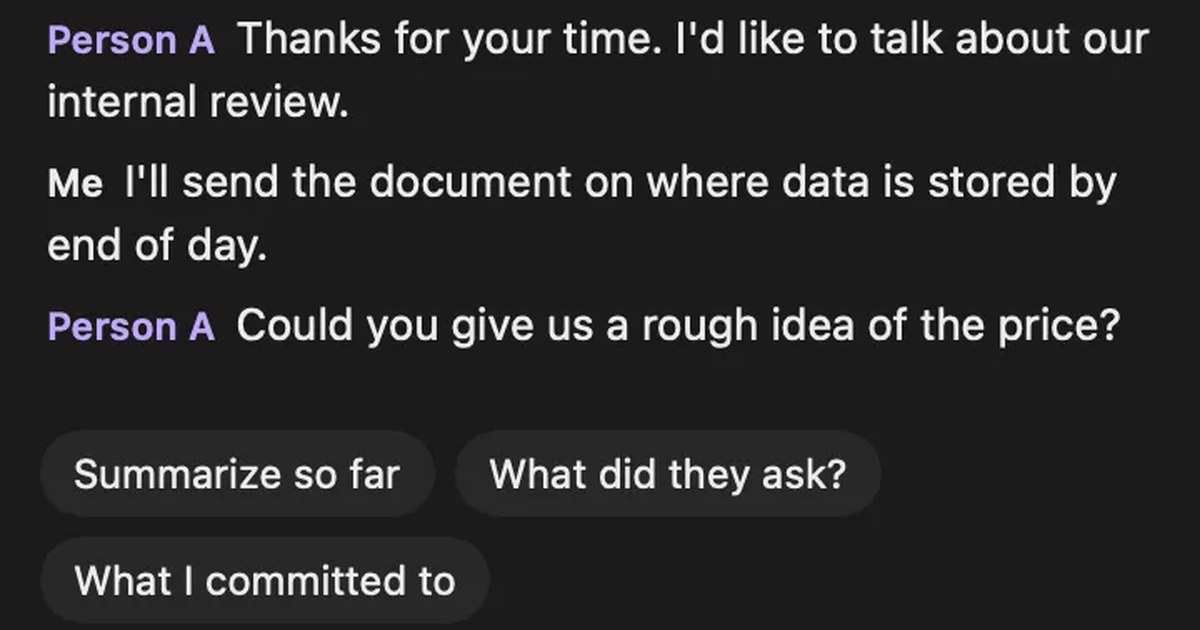
Recall listens to the microphone and the sound your Mac plays (system audio) separately. It guesses up to four online participants from the sound your Mac plays and splits them into Person A, Person B and so on; give one a name and it applies to the whole conversation. Voices in the room come in through the microphone and, if you have registered your voice, are split into “Me” and “Person (in person)”. Even when the other side plays through your speakers, Recall tries not to keep their voices picked up by the microphone as your lines, but when your voice and theirs overlap it can mix them up. Earphones are the most reliable.
In a meeting connected through the room’s speakerphone, with no Mac joined, the online participants’ voices also come out of the room’s speaker and reach the microphone. In that case, if you have registered your voice, Recall puts the online participants in “Person (in person)” too. If you haven’t, they go into “Me”.
How to keep an in-person meeting with Recall
Recall runs on Macs with Apple silicon on macOS 26 or later. During setup, it asks for permission to use the microphone and for screen recording and system audio recording.
- Install and open Recall, and follow the first-run guide to allow the microphone and screen recording. Detailed steps for the permissions are in the help.
- Under “My voice” in Settings › Listening, choose to register your voice and read the three sentences shown. It takes about 15 seconds, and listening pauses during that time. We recommend headphones while registering.
- In Settings, choose Japanese or English as the language to listen in. It doesn’t switch automatically partway through.
- During the meeting, do nothing. If the menu bar icon shows that it is listening, it is being transcribed. For anything you don’t want kept, you can pause for 15 minutes, 1 hour, or until you resume from the popover.
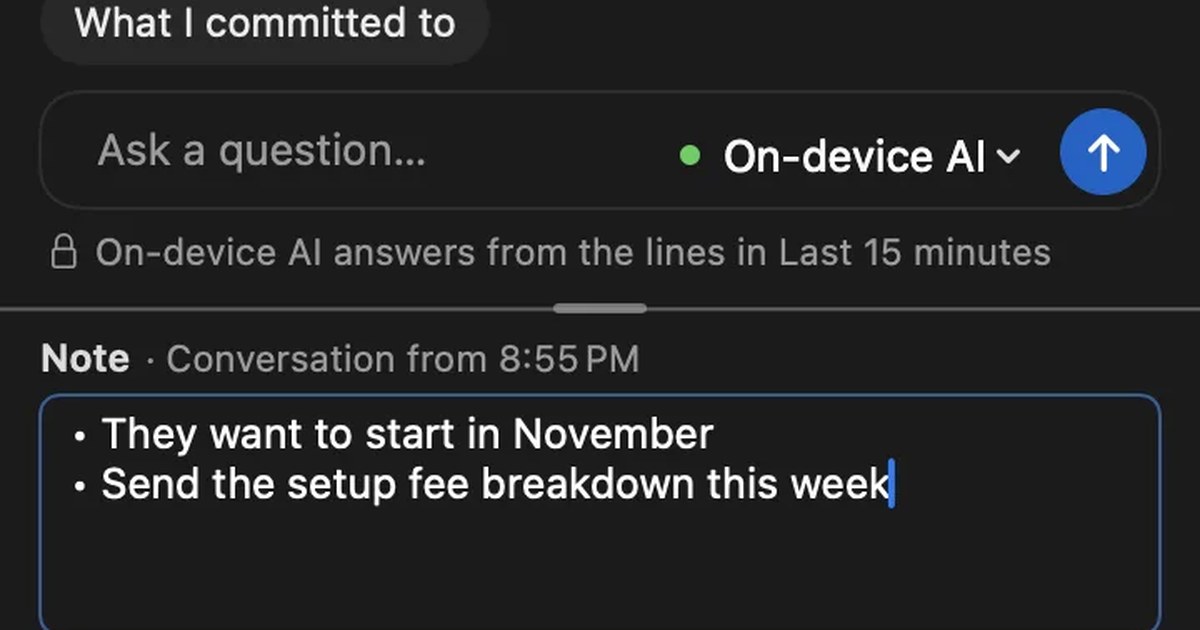
- When the meeting ends, the on-device AI writes a summary and “My to-dos”. The summary and to-dos are made when Apple Intelligence is on.
- To paste into meeting notes, copy the conversation’s transcript or save it as a text file. It comes as lines in the form “time speaker: text”, and it works on Free.
In long meetings, keep an eye on the Mac’s battery too. Recall runs transcription while people talk, so the battery drains faster. If your seat has power, plugging in is the safe choice.
Telling the people in the room
People in the room can’t see that you are transcribing on your Mac. At the start of the meeting, say something like: “To check the details later, I’m transcribing on my Mac. The audio isn’t saved, but the transcript stays on my Mac. Let me know if you’d rather I stop.” In meetings with people from outside the company, or on sensitive topics such as HR or health, check your employer’s rules first too. Don’t use it where recording or note-taking is not allowed. We don’t recommend recording without people noticing, with any product.
If you decide after talking that you don’t want it kept, in Recall you can delete it with “Delete the last 15 minutes…” in the popover. You can also delete a whole conversation, or shorten how long records are kept to 7 or 30 days.
Who it is and isn’t for
Recall is for you if
- You want to keep one-on-ones and small meetings with a Mac on the table.
- You want to keep both sides of meetings that mix people in the room and online participants.
- You tend to forget to press record, and want conversations that start suddenly kept too.
- You don’t want conversations in the cloud, and want only the text on your own Mac.
Free to use · No account needed · macOS 26 or later · Mac with Apple silicon · By downloading, you agree to the Terms of Service
Recall isn’t for you if
- You need a record with each speaker’s name for in-person meetings of three or more.
- You want to keep the audio and listen again later, or to transcribe recorded files.
- You want to use it on a phone, Windows, an Intel Mac, or a Mac older than macOS 26.
- You want to transcribe meetings in languages other than Japanese and English.
To compare more ways that keep your data from leaving the Mac, see How to transcribe locally on a Mac.
FAQ
Can a MacBook’s built-in microphone transcribe an in-person meeting?
Yes. In a small meeting where the people speaking are close to the Mac, the built-in microphone produces a transcript. Voices from far seats sound quieter, so in large rooms or meetings with many people, consider connecting a conference microphone or putting a phone or recorder in the middle of the table.
Can lines be split by attendee in an in-person meeting?
Not in Recall. With your voice registered, lines are split into “Me” and “Person (in person)”, and the people in the room are recorded as one person however many there are. If you want each attendee split, choose a recording-based product that can split speakers.
Does it work for meetings that mix people in the room and online?
Yes. Recall listens to the microphone and the sound your Mac plays separately, so both the voices in the room and the online participants’ voices are kept. It guesses up to four online participants and splits them into Person A, Person B and so on.
Does it work in a meeting room with no internet?
Yes. Once the transcription and on-device AI models are first prepared, listening, transcription and the on-device AI work without an internet connection. Preparing the models, buying, checking your license and checking for updates need a connection.
Can I listen again later?
Not in Recall. Audio is thrown away once it is transcribed and isn’t saved. For meetings you want to listen to again, also keep a recording with Voice Memos or similar.
Do I need to tell the people in the room?
Please do. They can’t see that you are transcribing on your Mac. At the start of the meeting, tell them you are transcribing and where the record is kept, and stop if anyone objects. Don’t use it where recording or note-taking is not allowed, or where your employer’s rules don’t permit it.
Checked November 14, 2026. The Voice Memos details are based on Apple’s Voice Memos User Guide for Mac, and the My Notes details on Zoom’s help. Features and conditions can change, so check the official pages before you rely on them. This article is a general explanation, not legal advice.
Free to use · No account needed · macOS 26 or later · Mac with Apple silicon · By downloading, you agree to the Terms of Service
Get the product overview (PDF) by email →
Related articles
How to improve transcription accuracy: why errors happen, and what to do before, during and after
Transcription accuracy depends on how the sound reaches the microphone before it depends on the tool. Why wrong words, wrong speakers and missing words happen, what to do before and during a meeting and when fixing it afterwards, and how to compare tools.
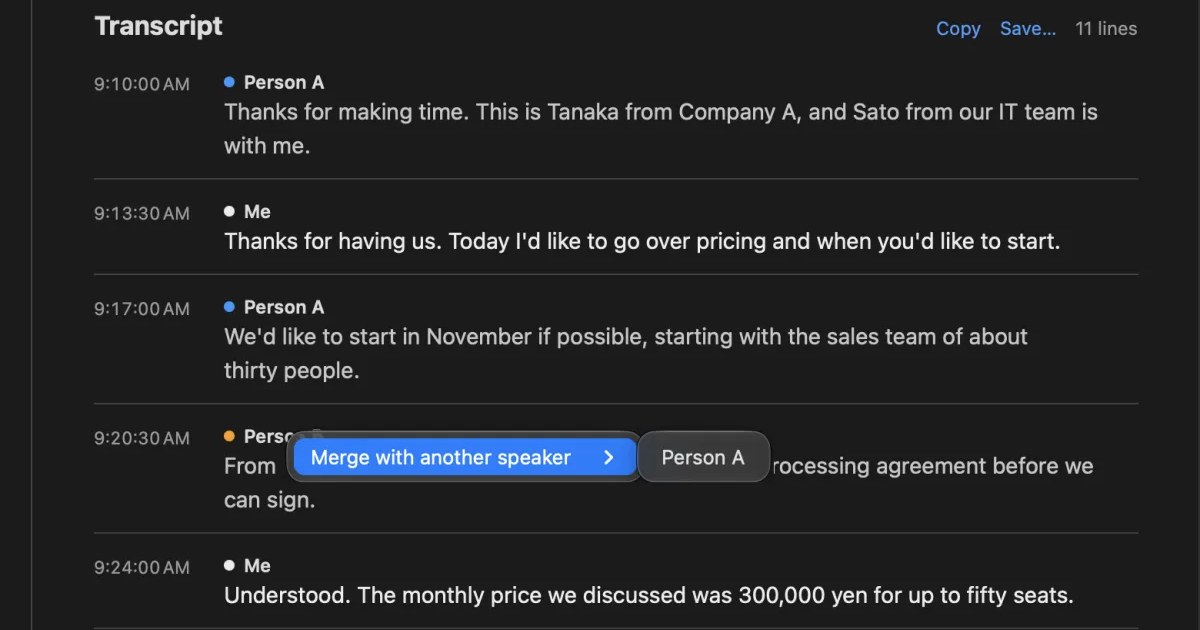
What is speaker diarization? Splitting a transcript by who spoke, and fixing it when it goes wrong
Speaker diarization splits audio by who spoke when and labels each speaker with a number such as Speaker 1 or Person A. How it differs from speaker identification, how Teams, Zoom, Word and do-it-yourself tools split speakers, why in-person meetings split badly, and how to rename and merge speakers.
How to transcribe Voice Memos on iPhone and Mac, and what to check when it doesn’t work
Voice Memos on iPhone and Mac can transcribe recordings so you can view, copy and search them. The steps, the device, OS and language conditions to check when no transcript appears, how to keep the text, and what to use for meetings and calls.
PLAUD NOTE alternatives: choosing between a recorder and an app
Looking for a PLAUD NOTE alternative? Compare a dedicated recorder with Recall by where you talk, saved audio, cloud handling and three-year cost, and see who each suits.
How to take meeting notes when there is a transcript: what to write, and paper, laptop or meeting tool
If the meeting is transcribed, your notes do not need to capture everything. How meeting notes differ from minutes, the four things to write down, when paper, a laptop, or the notes features in Teams, Google Meet and Zoom fit, and what to watch for when sharing your screen or meeting in person.