 Recall
How to take meeting notes when there is a transcript: what to write, and paper, laptop or meeting tool
If the meeting is transcribed, your notes do not need to capture everything. How meeting notes differ from minutes, the four things to write down, when paper, a laptop, or the notes features in Teams, Google Meet and Zoom fit, and what to watch for when sharing your screen or meeting in person.
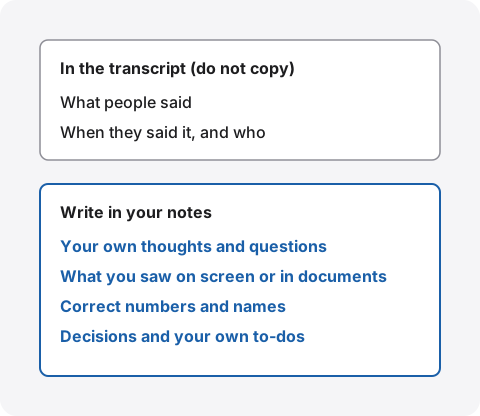
The short answer: when there is a transcript, note only what the transcript cannot keep
If the meeting is being transcribed, you do not need to copy what people say into your notes. Write down four things a transcript does not keep: your own thoughts and questions, what you saw on screen or in documents, the correct numbers and names, and a line on what was decided and what you will do.
Once you stop copying, your hands and attention are free to listen and think. The exact words can be checked in the transcript, so short notes that tell you where to look later are enough. In meetings with no transcript, keep writing down decisions and numbers as you always have.
This article is written by KOROMO K.K., which develops Recall, a transcription app for the Mac. We include our own product later on, so weigh what we say with that in mind. We checked the notes features of Teams, Google Meet and Zoom on November 15, 2026, in each company’s official help pages.
| Your situation | Where to read next |
|---|---|
| Taking notes keeps you from following the discussion | Four things to put in your notes |
| You are not sure whether to use paper or a laptop | Paper, laptop or meeting tool |
| You want to know whether to use the notes in Teams or Google Meet | Notes in meeting tools |
| After the meeting, you write minutes from your notes and the transcript | How to turn a transcript into meeting minutes |
Meeting notes and minutes
Meeting notes are what you write for yourself during the meeting. Minutes are written after the meeting for attendees and people who were not there, to record what was decided and what happens next. They are written for different readers, so they are written differently.
- Meeting notes: mainly read by you. Single words and symbols are fine. Written during the meeting
- Short summary notes: some workplaces share a brief list of decisions and tasks that is less polished than minutes. What it is called and how it looks differ from place to place
- Minutes: tidied so that someone who was not there can act on them. Written after the meeting and checked by the attendees before sending
- Transcript: what was said, written down as it was said. It is raw material for both notes and minutes
Meeting notes do not replace minutes. Notes only need to make sense to you, so rewrite them as minutes before you send anything to others. How to do that is in How to turn a transcript into meeting minutes.
Four things to put in your notes
When a meeting is transcribed, your notes should hold what the transcript does not keep, and what a transcript often gets wrong. Write these four, and writing the minutes later is straightforward.
1. Your own thoughts and questions
A transcript keeps only what was said out loud. Thoughts and questions that come to you while listening, such as “how does this number compare with last year?” or “who pays for this option?”, are lost unless you write them down. Mark questions with “?”, and decide whether to ask before the meeting ends or check afterwards.
2. What you saw on screen or in documents
A shared screen, a handout or a whiteboard in the meeting room does not reach the transcript unless someone reads it out. Writing where you were looking, such as “table on page 5” or “new price list on screen”, tells you later what “this number here” in the transcript referred to.
3. Correct numbers and names
Transcripts often get numbers, dates, names of people and companies, product names and jargon wrong. Words that sound alike are hard to catch by reading the text alone. Writing down the numbers and names correctly as you hear them gives you something to fix the transcript with.
4. Decisions and your own to-dos
Decisions and what you took on are in the transcript too. A short line in your notes is still worth it, so you can read them back at the end of the meeting to confirm them. Something like “launch on Dec 1” or “quote → me, by Nov 18” is enough. If an owner or due date was unclear, ask on the spot.
An example
For a one-hour weekly meeting, notes of about this length are enough. The exact words can be checked in the transcript.
Nov 15 website weekly
- Option B of the price list, p.5 (seen on screen)
- Launch on Dec 1, decided
- Quote → me, by Nov 18
- ? Who checks the photo rights
- Client name is spelled “Kaito”, not “Kyto”
The meeting, dates and names in the example are made up for illustration.
Paper, laptop or meeting tool
The tools for meeting notes fall into three groups: paper, a notes app on your laptop, and the notes feature of the meeting tool. None is right for every case; choose by the kind of meeting and who will read the notes.
| Suits | Watch for | |
|---|---|---|
| A paper notebook | In-person meetings, drawing diagrams and arrows quickly | Harder to search alongside the transcript later |
| A notes app on the laptop | Online meetings, copying into minutes later | Typing noise, showing up in screen sharing, looking away from people |
| The meeting tool’s notes | Working from the same notes as the other attendees | Others may see them; people outside the company may not be able to |
Typing on a laptop in an in-person meeting can look as if you are not listening. One way to split the work is to jot short notes on paper and leave the transcript to the Mac. How to transcribe in-person meetings is in How to transcribe in-person meetings on a Mac.
Notes in Teams, Google Meet and Zoom
The notes features in meeting tools differ in whether the notes are shared with attendees or kept to yourself. If you write your own thoughts and questions, check first whether others can see them.
Meeting notes in Teams
According to Microsoft Support’s page Take meeting notes in Microsoft Teams, any attendee or organizer can start notes, and others see changes as they are made. You can @mention people to assign tasks to them. After the meeting, the notes can be opened from the past meeting in the calendar or from the chat and edited further. External attendees cannot access or edit them, and people not invited directly may have limited access.
Because everyone sees the same notes, they suit agendas and decisions. Keep your own questions and thoughts somewhere else.
Take notes for me in Google Meet
According to the Google Meet Help page on Take notes for me, Gemini writes the meeting notes, and it needs an eligible Google Workspace edition or Google AI plan. It supports Japanese among other languages, one language at a time. The notes are saved in the “Google Meet” folder in the organizer’s Google Drive and attached to the calendar event. Only the organizer and attendees from the organizer’s organization can start or stop it. When it is turned on, everyone in the meeting is told that notes are being taken. The full notes include decisions and action items.
These are notes the AI writes, so they do not replace your own. What you saw on screen and your own questions are not in them, so use them together with your own notes.
My Notes in Zoom
According to Zoom Support’s page on My Notes, My Notes is a personal notes feature: you can write notes during a meeting and add a transcript. Notes are saved as you type and are not shared with the host or other participants automatically. It needs a Pro, Business or Enterprise account, or a standalone My Notes account. How to transcribe Zoom meetings is in How to transcribe Zoom meetings.
For all of these, what is available depends on your company’s settings and plan. If you cannot find the button, ask your company’s administrator.
Screen sharing and in-person meetings
When you share your screen, others may see your notes. If you share the whole screen, a notes app in front is shared too. A note with frank questions on it can be awkward if it shows up on everyone’s screen.
- Share only the document’s window: many meeting tools let you share a single window instead of the whole screen
- Keep notes on another display: if you have an external display, put your notes on the one you are not sharing
- Write names with care: write in a way that would be fine if it did show up
In an in-person meeting, do not cut into the time you spend looking at and listening to people. Keep notes to single words and fill in from the transcript later. If you open a laptop, saying “I will take notes as we go” at the start helps people not mind it.
Taking notes in Recall’s Live Panel
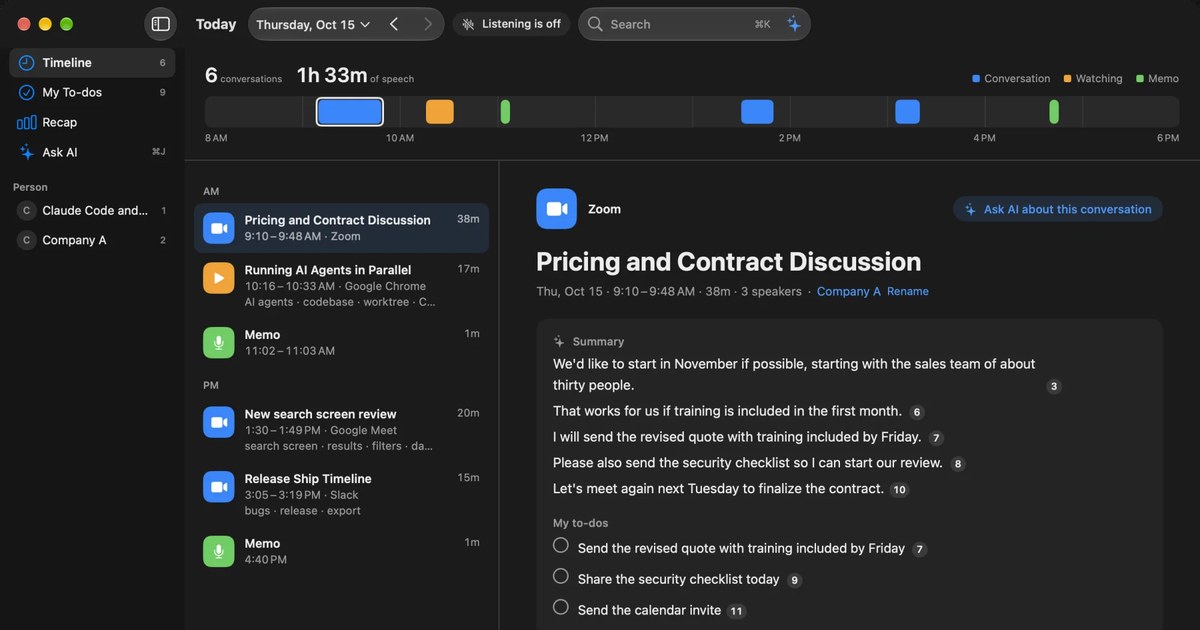
Recall is an app that sits in the menu bar and transcribes your microphone and the sound your Mac plays. It does not invite a bot to the meeting, and there is no record button. It transcribes on the Mac and discards the audio right after. During a meeting, the Live Panel lets you write notes about the conversation while reading the captions.
What the Live Panel’s note does
- Opens from any app: ⌥⌘L opens the Live Panel, and pressing it again closes it. The captions show who spoke
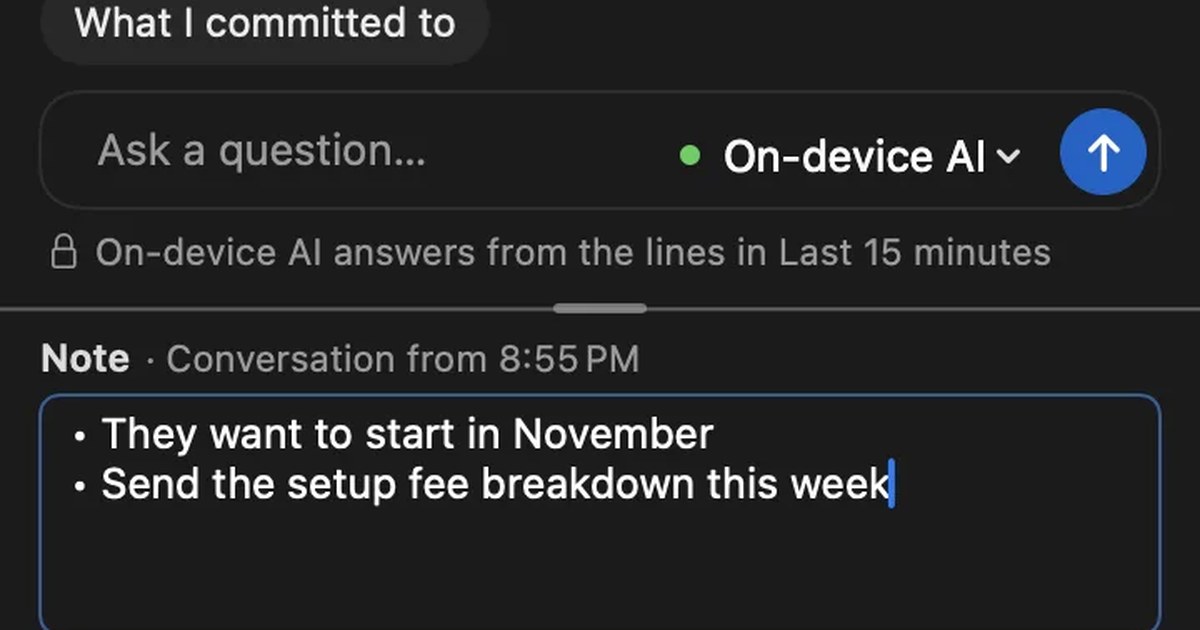
- A note under the captions: what you write in “Note” at the bottom of the panel becomes the note for the conversation being listened to, saved on this Mac. The heading shows something like “Note · Conversation from 14:02”
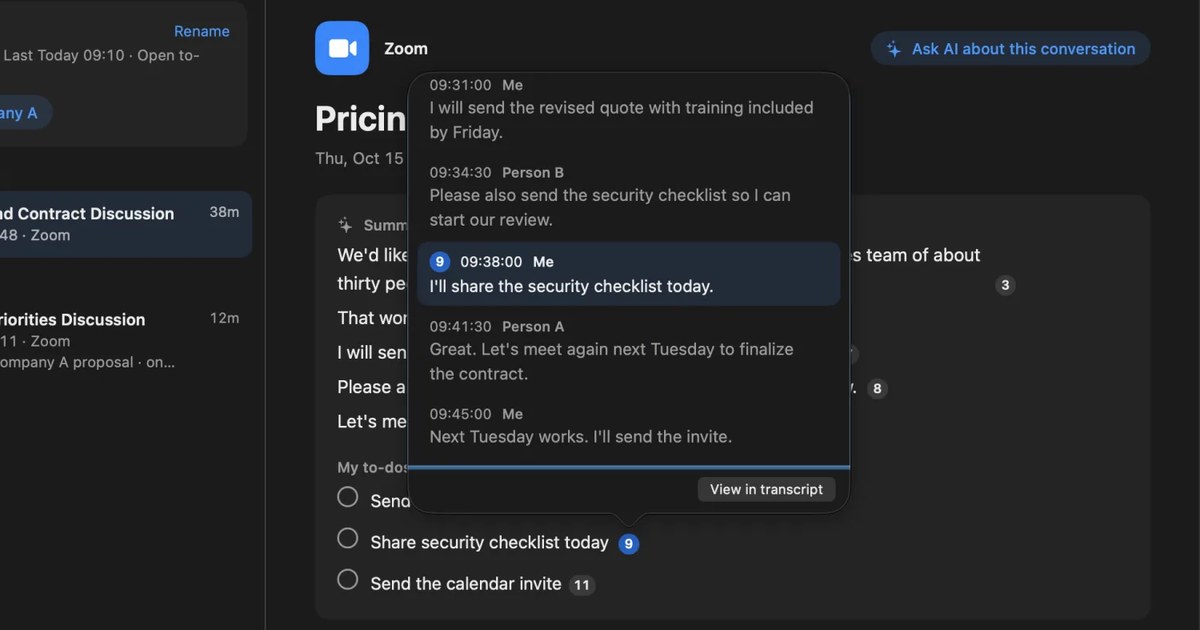
- Read it later with the summary: the note appears below the summary in the conversation’s details. It belongs to the same conversation as the transcript, so it is easy to check one against the other
- Catch up on the spot: the buttons “Summarize so far”, “What did they ask?” and “What I committed to” answer from the lines of the last 15 minutes. On Free, the on-device AI writes the answers (on Pro you can choose which AI answers). On a Mac with less than 16 GB of memory, turn Apple Intelligence on
The Live Panel is set not to show in screen sharing, but check once in the meeting tool you use. It never opens on its own.
Limits to know first
- Not before the meeting: a note can be written once the conversation starts. You cannot write an agenda in it beforehand
- A new conversation gets a new note: when the conversation splits, the note so far is saved to the earlier conversation and a new note begins
- Not the same as “Memo” in the Timeline: “Memo” in the Timeline is the kind of conversation with only your own voice
- Mac only: it runs on a Mac with Apple silicon and macOS 26 or later. It does not run on Windows or phones
- What Free covers: the Live Panel is available on Free. Free shows and searches the last 14 days. Records are kept for 90 days by default on Free and indefinitely on Pro. Pro is ¥980 a month or ¥9,800 a year (tax included), and Pro features stop if the license cannot be checked for 14 days in a row
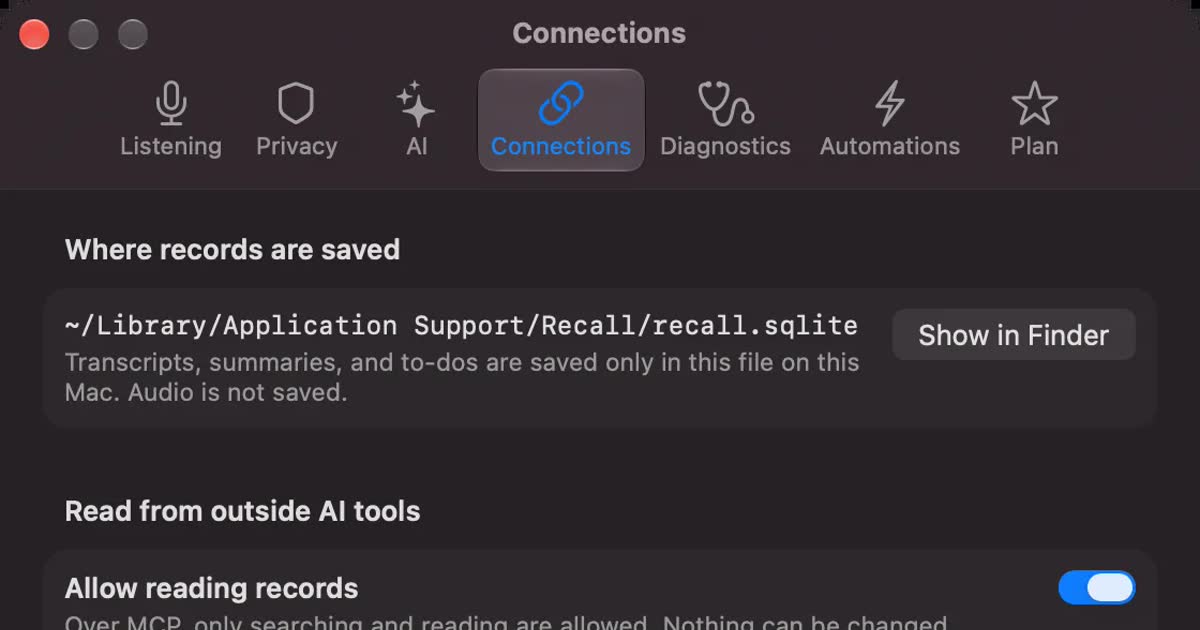
Your records are kept on this Mac, and we do not send them to our servers. Records leave the Mac only when you use a Pro feature you turned on, or when you copy or save something and pass it on yourself. The full list is in When records leave the Mac.
Who Recall suits
- In online meetings, taking notes keeps you from following the discussion
- You want your notes and the transcript kept together for each meeting
- You do not want others to see your questions in the meeting tool’s shared notes
- You sometimes cannot get a meeting tool’s transcript because you are not the organizer
- You use a Mac with Apple silicon and macOS 26 or later, and your employer’s rules allow it
Free to use · No account needed · macOS 26 or later · Mac with Apple silicon · By downloading, you agree to the Terms of Service
Who Recall does not suit
- You want to write an agenda or notes before the meeting and share them with attendees (a meeting tool’s notes fit better)
- You want to keep the audio and listen again
- You join meetings on Windows or a phone
- You think better writing by hand on paper
- Your employer only allows apps it has approved
Telling attendees you are transcribing
Unlike handwritten notes, transcribing a meeting is something to tell attendees about. Recall has no way to notify others and cannot be seen by them, so telling them is your responsibility. The Recall site gives this as an example.
I am transcribing this on my Mac so I can check the details later. The audio is not saved, but the transcript stays on my Mac. Let me know if you would rather I stop.
If someone declines, or your employer’s rules do not allow it, do not transcribe; take notes on paper or your laptop only. We do not recommend recording people without their knowledge with any product. This article is not legal advice.
FAQ
If there is a transcript, do I need notes at all?
A few are worth it. Your own thoughts and questions, and what you saw on screen or in documents, are not in the transcript. Correct numbers and names also help you fix transcript mistakes.
Should I take meeting notes on paper or a laptop?
Paper suits in-person meetings; a laptop suits online meetings where you will use the notes for minutes. With a laptop, watch for screen sharing and typing noise. Either way, a little is enough.
Can I send my meeting notes as the minutes?
We do not recommend it. Meeting notes are for you and often make little sense to others. Rewrite decisions, action items and open questions as minutes before sending.
Can others see my meeting notes in Teams?
Yes. Microsoft says any attendee or organizer can start notes and others see changes as they are made. Keep your own questions and thoughts somewhere else.
Can I write an agenda in Recall’s note before the meeting?
No. A note can be written once the conversation starts. To write an agenda first and share it with attendees, use the meeting tool’s notes or a shared document.
Checked on November 15, 2026. The notes features of meeting tools come from Microsoft Support’s page on taking meeting notes in Teams, the Google Meet Help page on Take notes for me, and Zoom Support’s page on My Notes. Button names follow each company’s help pages and may differ from what you see. Plans and features change, so check the official pages before relying on them. The advice on taking notes is general guidance for everyday meetings.
How to use Recall’s Live Panel and note is in Live Panel and conversation notes.
Free to use · No account needed · macOS 26 or later · Mac with Apple silicon · By downloading, you agree to the Terms of Service
Get the product overview (PDF) by email →
Related articles
How to turn a transcript into meeting minutes: what to keep, examples, and asking AI
Pasting a transcript is not the same as writing minutes. The difference between verbatim, clean transcripts, summaries and minutes, what to keep with example lines, how to pick out decisions and action items, and how to ask AI for a draft and what a person should check.
How to transcribe in-person meetings on a Mac: placement, telling speakers apart, and mixed online meetings
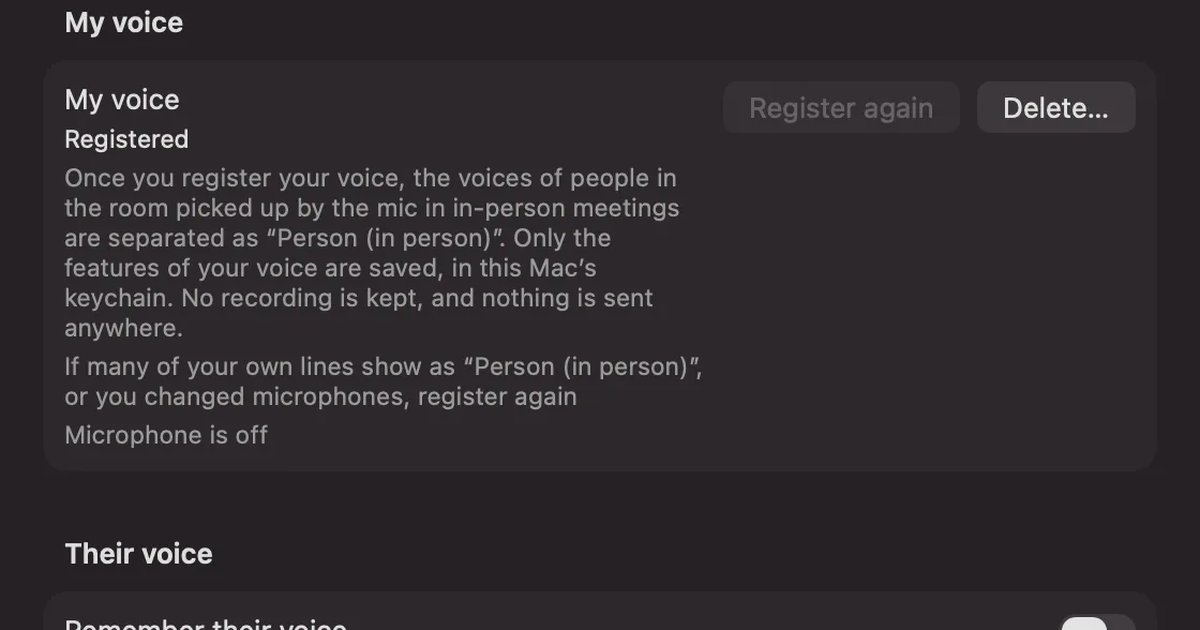
How to transcribe meeting-room discussions and one-on-ones with the Mac on the table. We compare Voice Memos, Zoom’s My Notes, phones and recorders, and Recall, and cover where to put the microphone, how speakers are split, and meetings where online participants join in.
How to transcribe Microsoft Teams meetings: who can start it, where it saves, and Mac options
Three ways to transcribe a Teams meeting: the built-in feature, cloud services and apps on your Mac. Covers who can start it, why the button is missing, where transcripts are saved, and how to choose.
How to transcribe Google Meet: built-in, extensions, or your Mac
Whether Google Meet's transcript works depends on the organizer's plan. Compare the built-in feature and plans, extensions and bots, and on-device Mac apps.