 Recall
How to transcribe Microsoft Teams meetings: who can start it, where it saves, and Mac options
Three ways to transcribe a Teams meeting: the built-in feature, cloud services and apps on your Mac. Covers who can start it, why the button is missing, where transcripts are saved, and how to choose.
The short answer: your role in the meeting and your organization's settings decide it
There are three ways to transcribe a Microsoft Teams meeting: Teams' built-in transcription, a cloud service such as Notta, and an app that transcribes on your Mac. If you use Teams through work or school, and you or someone in your organization can start it, the built-in feature is the quickest. If you join another organization's meeting, you cannot start it and you cannot read the transcript afterwards. Then ask the organizer, or check that it is acceptable and use one of the other two.
This article is written by KOROMO K.K., the developer of Recall. What it says about Teams, Notta and MacWhisper comes only from their official pages. It also says when Recall is not the right choice. It does not say which method is most accurate, because we have not measured them under the same conditions.
| Your situation | What fits, and where to read next |
|---|---|
| You organize meetings in your work Teams | Teams' built-in feature. See how to start |
| You cannot find Transcribe | There are several causes. See when the button is missing |
| You join Teams meetings run by another company | Ask the organizer first. See meetings outside your organization |
| You want the transcript as a file | The organizer downloads it. See how to download |
| You want meeting minutes | AI recap or by hand. See turning a transcript into minutes |
| You want the text to stay on your Mac | An app that transcribes on your Mac. See transcribing outside Teams |
How the three ways differ
The three differ in who starts them and where the text ends up. Settle those two points before accuracy or price, and the choice narrows quickly.
| Who runs it | Where the text stays | |
|---|---|---|
| Teams built-in | The organizer or a presenter in the same organization starts it in the meeting | The organizer's OneDrive, read from the chat |
| Cloud service | You invite a bot, and the organizer admits it if there is a lobby | The service's cloud |
| On your Mac | You run it on your Mac | Your Mac |
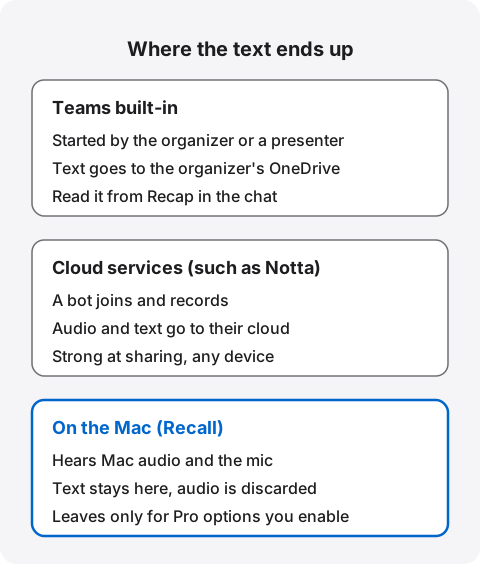
What matters is not which is safest but which suits your meeting. Teams keeps text inside your organization's management, so it is easier to fit to workplace rules. Cloud services are strong at sharing. Apps on your Mac let you decide where text lives, but managing and deleting it is then your job.
Transcribing with Teams' built-in feature
Teams transcription is something you start in a meeting and read from the chat afterwards. Some features have similar names, so check the difference first.
| What it does | What remains afterwards | |
|---|---|---|
| Live captions | Shows subtitles during the meeting | Nothing |
| Transcription | Writes text with speaker names and timestamps | The transcript |
| Recording | Captures audio, video and screen sharing | The recording, and a transcript |
Microsoft's support page says Teams does not save captions, and that you should turn on transcription if you want a record. Text from a meeting that only showed captions cannot be recovered later.
How to start in a meeting
These are the steps from Microsoft's support page.
- Select More actions in your meeting controls.
- Select Transcribe.
- Check the language everyone in the meeting is speaking.
- Select Confirm.
Everyone in the meeting is notified that it is being transcribed. The organizer, co-organizers and presenters can stop it, and it stops automatically when everyone leaves. Text appears with speaker names and timestamps, but participants can choose to hide their identity, so some lines may have no name.
Transcribing while you record
If you also want a recording, use Record. According to Microsoft's page on recording, you select Record under More actions, then specify your spoken language and what to record, which can be audio only. Microsoft's support page says transcription starts automatically when you record. Microsoft's admin guide adds that if transcription is off, the recording has no transcript.
If you tend to forget, meeting options include Record and transcribe automatically. Where admins allow it, organizers turn it on meeting by meeting.
How to download a transcript
After a meeting, the transcript is available right away from the event in your calendar. By default, organizers and co-organizers can download it, as a .docx or .vtt file.
- Open Chat in Teams.
- Open the chat of the past meeting.
- Select Recap, then Transcript.
- Select the arrow next to Download and choose a file type.
To correct the text, the organizer edits it through the recording. According to Microsoft's steps, once the recording has uploaded to OneDrive or SharePoint, open OneDrive, My files, Recordings, and edit the transcript on the player page in your browser.
Turning a transcript into minutes
A transcript is a record of what was said, not minutes. Pull out decisions, next steps with owners, and deadlines first, and the rest goes faster.
To get a summary inside Teams, there is intelligent recap, which puts AI notes and suggested tasks in Recap. It needs a Teams Premium or Microsoft Copilot license, and transcription must be turned on in policy. Supported languages include English and Japanese. Microsoft warns that AI content can be inaccurate, so check numbers and names.
Copilot can also be used only during the meeting, with no transcription or recording. Copilot is then not available in Recap afterwards. If you paste a transcript into another AI to make minutes, what you paste goes to that AI's provider. Check your workplace rules before pasting anything that includes outside people's words.
When you cannot start or find transcription
The cause is usually your organization's settings, your account type, your role in the meeting, or your device. Many of these are not yours to fix, so work out which it is first.
Transcribe is missing or greyed out
Start with your organization's settings. According to Microsoft's admin guide, the setting must be on for both the organizer and the person who starts the transcript. If yours is on and the organizer's is off, you cannot start it. The setting lives in the Teams admin center, so ask your IT team.
Next is your role. Microsoft's troubleshooting page says organizers and presenters can start it. In a meeting where presenters are limited, people with the attendee role cannot. Guests and people from another organization cannot either.
Last are meeting options. Organizers with Teams Premium or a Copilot license can choose who can record and transcribe: organizers and co-organizers; organizers, co-organizers and presenters; or no one. If that excludes you, you cannot start it. Turning Copilot off in meeting options also makes transcription unavailable. In both cases, ask the organizer.
Personal Microsoft accounts and free Teams
Paid business plans include it. Microsoft's plan comparison lists meeting recordings and transcripts in plans such as Microsoft 365 Business Basic and Teams Essentials. Teams Essentials lists live captions in English only, and we could not confirm whether it transcribes other languages, so try it first if your meetings are not in English.
For enterprise and education, Microsoft's page on recording lists licenses such as Office 365 Enterprise as requirements for recording. Your admin can confirm yours.
For personal Microsoft accounts and free Teams, we could not confirm this from Microsoft's feature pages. An answer on the Microsoft Q&A site says transcription is not available on either, and is supported with Microsoft 365 work or school accounts. The answer is anonymous and not an official statement, so check your own screen too.
Meetings outside your organization
In a meeting run by another organization, you cannot start transcription. As the table below shows, you can read the text during the meeting but not afterwards. If you need it, ask the organizer to start it and send you the file. Giving a reason helps: "May we use transcription so I can keep accurate notes?"
Do not quietly capture it another way because asking feels awkward. Some organizers do not allow records. Check whether it is acceptable before you choose a method.
When you cannot see it on your phone
Microsoft says the Teams mobile app supports viewing transcripts after the meeting, and that live transcription is available only in Teams for desktop. The same page's mobile section also lists steps for starting, so check your own screen if you want to start from a phone. To read afterwards, open the past meeting in Chat and select Transcript.
When the text looks wrong
Start with the meeting's spoken language. If it does not match what people are speaking, accuracy suffers. When Teams detects a mismatch, it prompts the organizer or the person who started the transcript to change it. To change it yourself, select the arrow next to the transcription control, choose Show transcript, then Language settings. This applies to everyone's transcript and captions. Anyone other than the organizer, co-organizers or the person who started it must stop transcription first.
The spoken language setting is shared by everyone, so in meetings that mix languages, parts in the other language may come out badly. Check important remarks before the meeting ends.
Where transcripts are saved and who can read them
For a regular meeting, the transcript is saved in the organizer's OneDrive, not the OneDrive of whoever started it. The organizer owns it even if a colleague pressed the button.
| Where it is saved | Note | |
|---|---|---|
| Regular meeting | Recordings folder in the organizer's OneDrive | Even if the organizer did not attend |
| Channel meeting | Recordings folder in the team's SharePoint | Inside the team's documents |
| 1:1 or group call | OneDrive of the person who selected Record | For recordings |
Details are in Microsoft's storage guide. If the organizer has no OneDrive, files can go to a co-organizer or the person who started recording.
What each role can do
| During the meeting | After the meeting | |
|---|---|---|
| Organizer | Can start and read | Can read and download |
| Same organization | Presenters can start. Can read | Can read. Downloads if the organizer allows |
| Another organization | Cannot start, can read | Cannot read |
| Anonymous | Cannot start or read | Cannot read |
This summarizes Microsoft's table, with the role condition above added. People who dial in by phone cannot see the transcript. By default, co-organizers can download just as organizers can. To change who can read it, the organizer can use Manage access in OneDrive to set view, edit and download permissions. Some options may be unavailable, depending on your admin's policies.
How long it stays, and how to delete it
How long depends on your organization. Microsoft's admin guide gives a default expiration of 120 days for recordings and transcripts, after which they move to the recycle bin. Admins can change the number of days or turn expiration off. For A1 users, the default maximum is 30 days. The support page, meanwhile, says transcripts can be read from the chat and Recap until the organizer deletes them. Ask your admin which applies, and download anything you want to keep.
Organizers and co-organizers can delete a transcript. According to Microsoft's guide, deleting in the Teams desktop app removes both the OneDrive and Exchange Online copies, while deleting from the video player page removes the OneDrive copy. If you want AI notes, generate them first.
Transcribing outside Teams
When the built-in feature is not available, there are two other routes: a bot in the meeting, or an app that listens on your Mac. If your admin turned transcription off because of workplace rules, do not use either as a way around that. Check the rules first.
Cloud services: invite a bot to the meeting
Cloud services put a bot in your Teams meeting to record, and you read the text in their app. According to Notta's help, Notta Bot is available on all plans, and joins when you paste the invite URL. Watch for these points with Teams.
- Meetings that require sign-in are not supported for now.
- With the lobby on, the organizer must admit the bot. It leaves if not admitted within 5 minutes.
- Only meetings already in progress can be transcribed.
- It stops when no other participants remain, or at the 5-hour maximum.
- Company policies may block other kinds of meetings too.
The strength is what comes after: recordings and transcripts are saved to a workspace, where you can edit and share them. Teams reading one record together is hard to do with a Mac app. Check storage and training terms. Notta keeps data until you delete it. See our Notta comparison, and data safety for meeting AI for how to check any tool.
Recall: runs in the background and keeps only text on your Mac
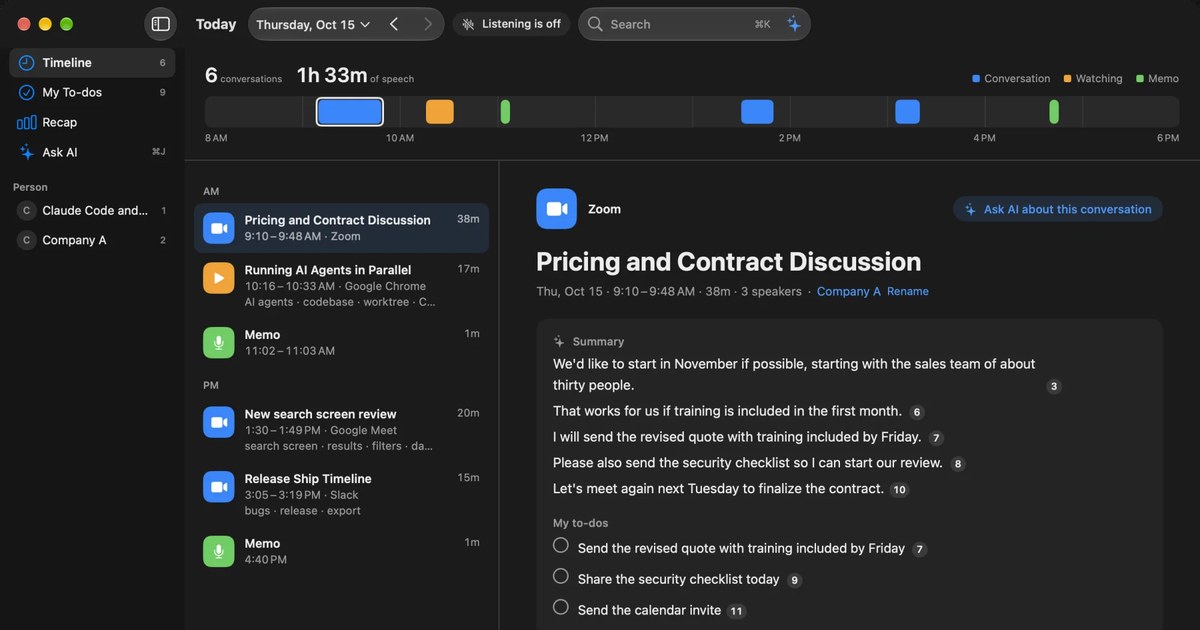
Recall sits in the menu bar and transcribes the conversations it hears, with no record button. It turns other people's voices from your Mac's audio and your own from the microphone into text on that Mac. It listens to apps shown in the Dock, so it does not join the Teams meeting as a participant, and there are no organizer settings or bot approvals. It does not use Teams' transcription, so you can keep text on your Mac in another organization's meeting too. You still need to check that a record is acceptable.
- No audio is kept. It is discarded as soon as it becomes text. Transcripts and summaries stay on this Mac.
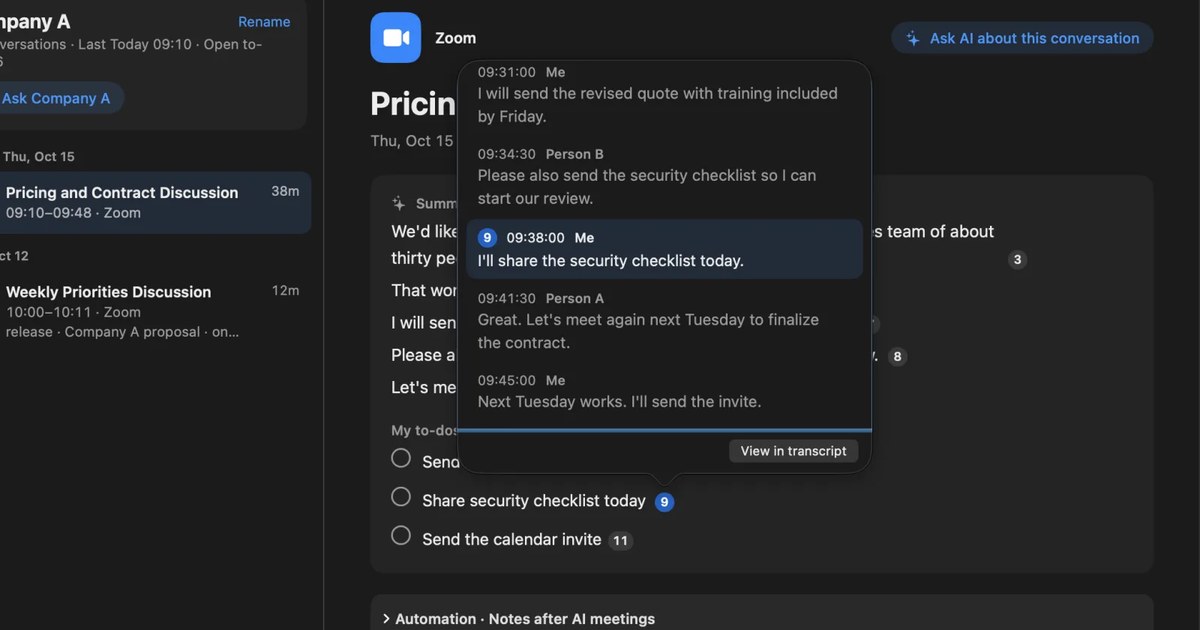
- Other people appear as Person A, Person B. Participant names are not filled in as they are in Teams. Click a speaker's name to change it across the conversation.
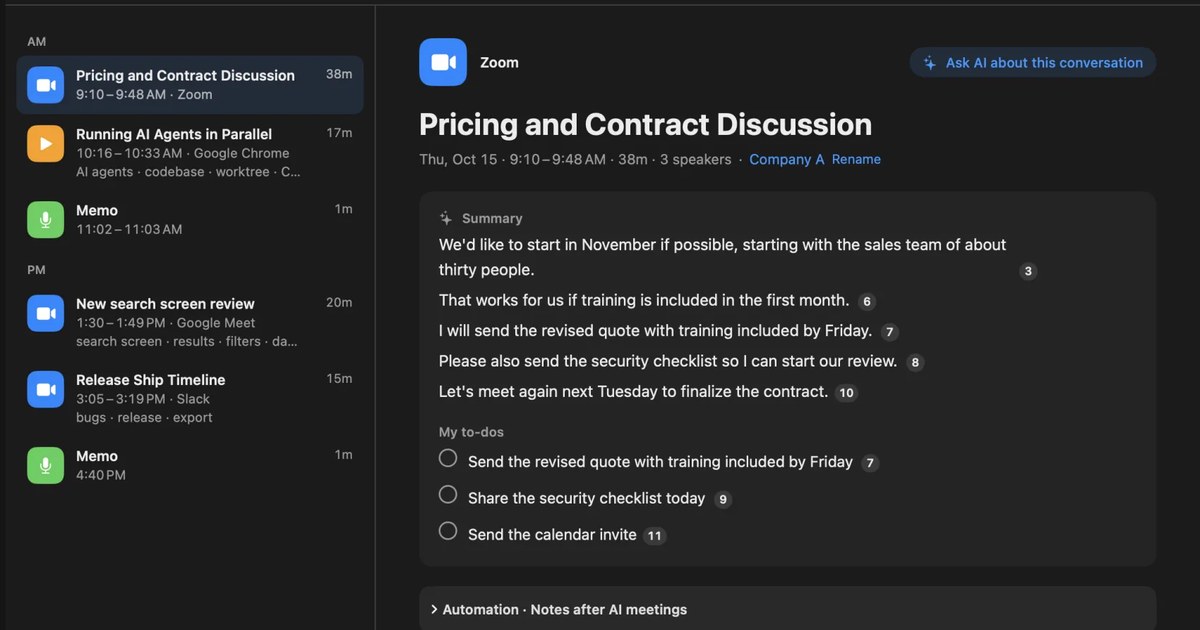
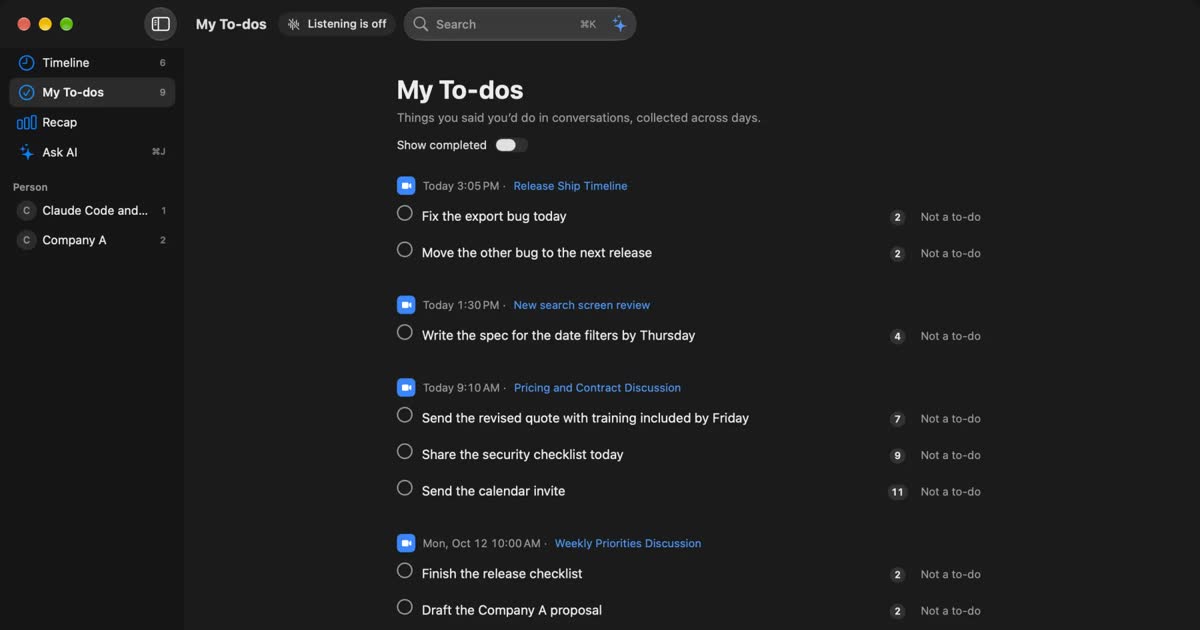
- The on-device AI writes summaries and to-dos. Sentences carry numbers that link to the remarks behind them.
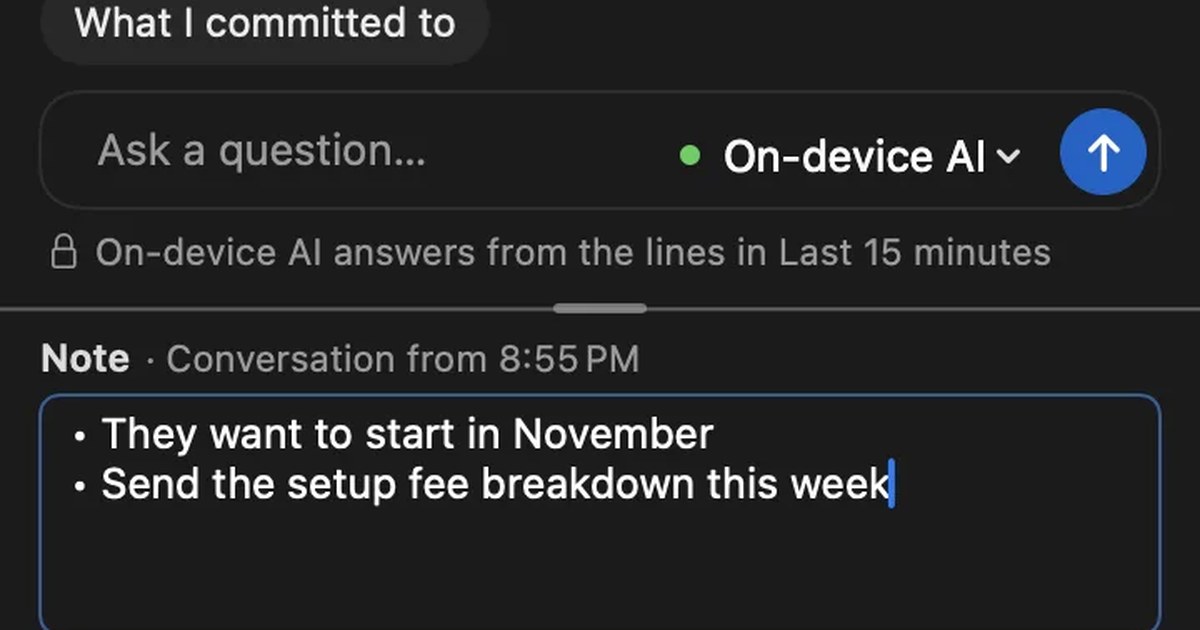
- You can search past conversations. Use ⌘K with conditions such as "yesterday" or a company name, or ask the AI.
- Text can be saved as TXT. Copy one conversation with times and speakers, or save it as a file.
The conditions, up front. It runs only on Macs with Apple silicon on macOS 26 or later. Summaries and to-dos are made when Apple Intelligence is on, whatever the memory (except when you choose an outside AI for organizing meetings on Pro). Answers to questions need Apple Intelligence on only on Macs with less than 16 GB of memory. Free has no transcription limit, but viewing and search cover the last 14 days. Records are kept 90 days by default on Free and indefinitely on Pro. Pro is ¥980 a month or ¥9,800 a year (tax included), and Pro features stop if the license cannot be checked for 14 days.
It is also not true that nothing ever leaves the Mac. Part of your records leaves only when you use Pro features you turned on, such as answers from your own Claude or ChatGPT, or outside AI tools reading your records. It also connects to get the model, check the license and check for updates. The full list is in Privacy and data.
On a work Mac, check two things first: whether you may install the app, and whether you may grant microphone and screen recording permission. Workplaces that use Teams often manage devices closely, and an admin's policy may block this. If your rules do not allow it, do not use it.
It also helps to know how audio is handled. Recall tries not to record the other person's voice from your speakers as your own, but earphones are the most reliable. If the talk turns to something you do not want kept, pause for 15 minutes or an hour with one click, or delete the last 15 minutes afterwards. Because no audio is kept, you cannot listen again to check. For content where a misheard word matters, use another method where recording is allowed.
MacWhisper: transcribes audio files on your Mac
MacWhisper transcribes audio and video files with models on your Mac. If you can download the Teams recording, you can give it that file. It also records meetings without bots, though its pricing table puts that in Pro. It differs from Recall in keeping the recording, which is an advantage if you want to listen again. See our MacWhisper comparison, and local transcription on a Mac for the wider picture.
How to choose
If you are unsure, go through these four questions in order. The first that applies is the least work.
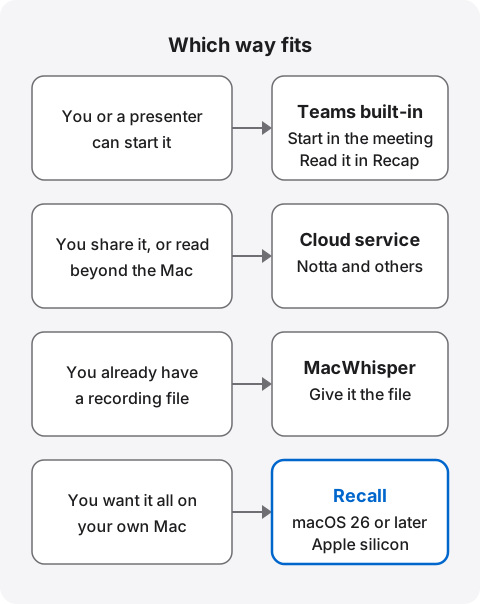
| What fits | Why | |
|---|---|---|
| Regular internal meeting | Teams built-in | No new contract, and it stays under your organization's management |
| Training you want to rewatch | Record | Video and text stay together |
| Only the main points are needed | Intelligent recap | Appears in Recap with Teams Premium or Copilot |
| Sales calls the team reviews | Cloud service | Built around sharing and editing |
| Meetings run by another company | Check with the organizer, then a Mac app | You cannot start it, or read it afterwards |
| A past meeting with a recording file | An app that takes files | Recall cannot import past recordings |
For sales calls, also think about what to keep and how it fits your CRM. See automating sales call notes. Avoid recording one meeting two ways. With records in two places, one gets left behind when you delete, and explaining it to others gets harder.
Who Recall suits
- People who do not want to start anything for each meeting
- People often in Teams meetings run by others, where they cannot start it, and who can tell the other people
- People who want no audio kept and only text on their Mac
- People who want to search other meetings and videos as well as Teams
- People with an Apple silicon Mac on macOS 26 or later, whose workplace rules allow it
Free to use · No account needed · macOS 26 or later · Mac with Apple silicon · By downloading, you agree to the Terms of Service
Who Recall does not suit
- People who join Teams on Windows or a phone
- People who want the recording or video itself. Recall does not save audio
- Teams that want to share records. Recall has no sharing, so you pass text as files
- People who want to transcribe audio files they already have
- People whose workplace allows only approved apps
- People for whom the Teams built-in feature is enough
How to tell the other people
Whichever method you use, tell people it is being transcribed. Teams notifies everyone when it starts. Organizations can also turn on a policy requiring participant agreement: when transcription starts, others are muted and asked for consent when they unmute. That setting is off by default. Microsoft's page on recording says that depending on your region, you may need everyone's permission before you record them.
A bot is visible as a participant. An app on the Mac has nothing like Teams' notice. Nobody can see it, so telling them is on you. The Recall site suggests wording like this.
I'm transcribing this on my Mac so I can check the details later. No audio is saved, but the transcript stays on my Mac. Let me know if you'd rather I stop.
With a bot or cloud service, say "I'm using a transcription service, and the record is stored in [service name]." If you send meetings to outside AI or remember other people's voices, tell them that too. Do not use any of these where recording or note-taking is prohibited, or where your workplace rules do not allow it. Whether rules cover transcription differs by company, so ask if unsure. Some places require everyone's consent. This article is not legal advice.
For use at work, decide three things before you start: which meetings to transcribe, where the text lives and who can read it, and when it is deleted. In Teams, your organization sets the expiration and who can read. In Recall you can choose a retention period from 7 days to indefinite, and delete conversations one by one.
Frequently asked questions
Is Teams transcription free?
Paid business plans include it. Microsoft's plan comparison lists recordings and transcripts in plans such as Microsoft 365 Business Basic and Teams Essentials. We could not confirm personal accounts and free Teams from Microsoft's feature pages, and an answer on the Microsoft Q&A site says they do not have it. With a work account, check your organization's settings before thinking about extra cost.
Where do I start transcription in Teams?
In the meeting, select More actions, then Transcribe, check the spoken language and select Confirm. Starting a recording also starts transcription.
Where are Teams transcripts saved?
For a regular meeting, in the organizer's OneDrive. To read one, open the past meeting's chat and select Recap, then Transcript. Channel meetings use SharePoint.
Why can't I download a transcript?
By default, only organizers and co-organizers can. Others may be able to read but not save it. Ask the organizer to send the file or change your permissions.
Can someone other than the organizer start it?
Yes, a presenter in the same organization, if settings allow. People with the attendee role, guests, people from another organization and anonymous attendees cannot. If the organizer limited who can start it, some presenters cannot either.
Can other people tell it is being transcribed?
It depends. Teams notifies everyone, and a bot appears as a participant. An app on the Mac shows nothing on their screen. Whichever you use, tell them.
Can I transcribe a past meeting?
Teams has no text for a meeting that was not transcribed, and captions are not saved. If you have an audio file, use an app that takes files. Recall cannot import past recordings.
Which method is the most accurate?
We have not measured them under the same conditions, so this article does not compare them. In Teams, matching the spoken language setting to the meeting matters. A short trial in your own meeting is the surest way.
Does Recall need any settings in Teams?
No. Grant your Mac's microphone and screen recording permissions and it hears audio from apps shown in the Dock. Recall guides you through this on first run. On a work Mac, first check that you may grant them. It runs only on Macs with Apple silicon on macOS 26 or later.
Checked on November 3, 2026. Details of Teams come from the text of Microsoft's support pages on transcription and recording, and its admin guide on managing transcription, among others. Details of Notta come from its official help, checked the same day. Licenses, screens and features vary with your organization's settings and change over time, so check the official pages and your admin before relying on them.
Free to use · No account needed · macOS 26 or later · Mac with Apple silicon · By downloading, you agree to the Terms of Service
Get the product overview (PDF) by email →
Related articles
How to transcribe Slack huddles: AI notes, exporting the transcript, and what to do without them
To transcribe a Slack huddle, you either use AI notes on a paid plan or transcribe it on your own Mac. We cover the conditions, where the notes and transcript go, how to export them as a PDF or text, why there is no huddle recording to download, and how to tell others.
How to transcribe Webex meetings: built-in, cloud services, or on your Mac
Three ways to transcribe a Webex meeting: built-in features, cloud services and apps on your Mac. Covers captions, AI Assistant, plan and language limits, where text is saved, and how to choose.
How to automate sales call notes: what to keep, what to say, and your CRM
A guide for sales and customer success. What to keep in call notes, phrases for telling the other side, how notes relate to your CRM, and how to choose among tools such as Notta and amptalk.
How to take meeting notes when there is a transcript: what to write, and paper, laptop or meeting tool
If the meeting is transcribed, your notes do not need to capture everything. How meeting notes differ from minutes, the four things to write down, when paper, a laptop, or the notes features in Teams, Google Meet and Zoom fit, and what to watch for when sharing your screen or meeting in person.