 Recall
How to transcribe Slack huddles: AI notes, exporting the transcript, and what to do without them
To transcribe a Slack huddle, you either use AI notes on a paid plan or transcribe it on your own Mac. We cover the conditions, where the notes and transcript go, how to export them as a PDF or text, why there is no huddle recording to download, and how to tell others.
Short answer: AI notes for internal huddles on a paid plan, your Mac for the rest
The quickest way to transcribe a Slack huddle is Slack’s own AI notes. In a workspace on a paid plan, with only internal members in the huddle, anyone in the huddle turns them on and the notes arrive in the huddle thread afterwards. They are not available on the free plan, when an admin has turned the feature off, or in huddles with external people or guests. To take the notes and transcript out of Slack, print the notes canvas to a PDF.
For a huddle where AI notes are not available, you need a tool outside Slack. Slack’s huddle help does not describe any way to record a huddle. The live captions you can show during a huddle are English only and are not saved after the huddle ends. Outside tools fall into two kinds: recording first with something like Mac screen recording and transcribing afterwards, or transcribing what your Mac hears as it happens, as Recall does.
This article is written by KOROMO K.K., the company that makes the Mac transcription app Recall. We include our own product among the options, so please read with that in mind. We checked the Slack and Notta details on their official pages on November 7, 2026, and Slack’s help on printing a canvas on November 18, 2026. We have not compared the methods on the same huddle, so we do not rank their accuracy.
| Your situation | What fits, and where to read next |
|---|---|
| Paid plan, internal people only | Slack AI notes. See how to start |
| You cannot find the AI notes button | It comes down to the plan or an admin setting. See no button |
| Partners or guests join the huddle | AI notes are not available. See external people |
| You want to export the transcript | Print the notes canvas to a PDF. See exporting |
| You want audio you can replay | Record first, then transcribe. See recording |
| You join on a Mac and text is enough | Transcribe what your Mac hears. See Recall |
Three ways to turn a Slack huddle into text
The three ways are Slack AI notes, recording first and transcribing afterwards, and transcribing what your own Mac hears. The bigger differences are not accuracy but which huddles each one works in and where the text ends up.
| Huddles it works in | Where the text stays | |
|---|---|---|
| Slack AI notes | Paid plan, with no external people or guests | A canvas in the huddle thread. Members of the channel or DM can read it |
| Record, then transcribe | Any huddle, on a device you can record with | The audio file stays with you, and the text stays in the tool you choose |
| Transcribe what your Mac hears (Recall) | Any huddle you join on a Mac | No audio is kept, and the text stays on your Mac |
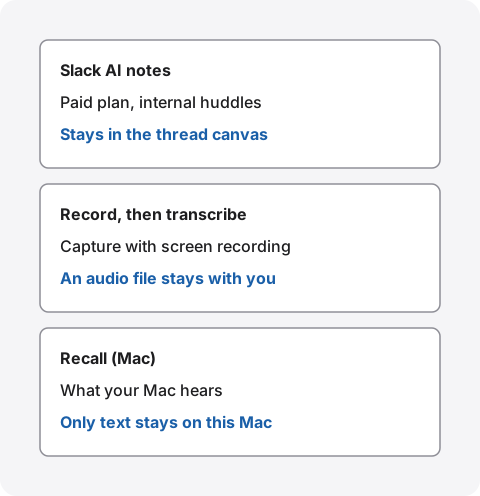
AI notes keep the notes inside your team’s Slack, so they suit a team reading the same record. The Mac-side methods keep what you heard on your own device. Neither is better in general. They keep different things for different readers.
Transcribing with Slack AI notes
AI notes are a Slack feature that turns the huddle conversation and the messages in the huddle thread into key points and action items in a canvas. According to Slack’s help, after the huddle the notes, including the list of people in the huddle, topics discussed, and action items, are shared in a canvas in the huddle thread.
Plans and who can use them
AI notes are a paid-plan feature. In the table in Slack’s help on managing AI features, huddle notes are included in Pro, Business+, and Enterprise+. All members can use them, but guests cannot. Prices change over time, so check Slack’s pricing page.
They are not available on the free plan. According to Slack’s huddle help, a huddle on the free plan can have up to 2 people, and up to 50 on paid plans.
Starting and stopping
By default, someone in the huddle turns AI notes on. On desktop:
- In the huddle, click “AI notes: Off” in the top left.
- Click “Start AI notes”, then “Start”.
On mobile, tap the three dots at the bottom of the huddle screen, tap “Start AI notes”, then “Start notes”. Everyone in the huddle is notified when notes are started, stopped, or cancelled. Not only the person who started them: anyone in the huddle can stop and resume them at any time. To turn them off completely, choose “Delete AI notes” and confirm with “Delete and cancel”.
Starting automatically for every huddle in a channel
If you keep forgetting to turn them on in a regular huddle, you can make it automatic in the channel settings. On desktop, open the channel, click the channel name, open “Settings”, and click “Edit” next to “Always start AI notes”. Tick the box to start AI notes automatically for every huddle in that channel and save. Any member of the channel can change this, but the option does not appear if an admin has restricted it.
Where the notes go and who can read them
Anyone in the channel or DM where the huddle took place can read the notes. That includes channel members who were not in the huddle. Like any canvas, the notes can also be shared further.
The huddle transcript itself is embedded in the notes canvas if your admins allow it. The embedded transcript does not appear in Slack search results. To find what someone said, you open the canvas and read it.
How the content is handled is described in Slack’s page on AI security. Slack says customer data does not leave infrastructure Slack controls and is not used to train language models. The AI notes help does not say how long the notes canvas is kept, so check your organization’s retention settings with an admin.
Exporting the notes and transcript
Slack has no button that exports a huddle transcript as a file. What you can take out is the notes canvas. According to Slack’s help on printing a canvas, open the canvas on desktop, click the three dots in the top right, and choose “Print canvas”. In the system dialog on a Mac, click “PDF” in the bottom left and save. On Windows, choose “Microsoft Print to PDF” as the printer.
- Links: in a PDF saved from the Slack desktop app, links in the canvas stop working. To keep them, open Slack in a web browser and print from there
- No print option: owners and admins can turn printing off, and you can print only canvases made by members of your own workspace or organization
- Wide tables: tables wider than the page are cut off. Change the orientation or scaling in the print settings
- The transcript: it is in the canvas only when admins allow it. We have not confirmed whether the embedded transcript comes out in the PDF, so print one huddle and check before you rely on it
Admins who export workspace data get canvases in HTML, according to Slack’s help on data management for canvases. That is an organization-wide export, not a way to take out one huddle. If you want a plain text file of each line, AI notes are not the route. Recall saves the transcript as a text file on your Mac.
Using AI notes in languages other than English
As of November 7, 2026, the AI notes help page did not list the spoken languages it supports. Before relying on it in a huddle held in another language, try it once in a short huddle. AI summaries can get numbers and names wrong, so read the notes before passing on important decisions.
Captions are a separate feature. According to the huddle help, captions currently support English only and are not saved after the huddle ends. If you want a record, use AI notes rather than captions.
When AI notes are not available
The cause is one of three things: the plan, an admin setting, or who is in the huddle. Most of these you cannot fix yourself, so work out which one it is first.
There is no AI notes button
Check the workspace’s plan first. The free plan has no AI notes. If you are on a paid plan and still have no button, it is an admin setting. According to Slack’s help on managing AI features, owners and admins choose, for each AI feature, whether “Everyone” or “No one” can use it. On Enterprise plans they can also limit it to specific people or groups. You cannot change this yourself, so ask your admin.
If the admin turned it off because of company policy, do not work around it with another tool. First confirm whether the huddle may be recorded at all.
When external people or guests are in the huddle
Slack’s help says AI notes cannot be used in huddles with external people or guests. In a huddle that partners join through Slack Connect, or one with guests, AI notes are not available even on a paid plan. In that case, choose a method outside Slack, or hold conversations that need a record in another meeting tool such as Zoom.
If you want a recording
The huddle help does not describe any way to record a huddle, so there is no huddle recording to download or export. Slack has clips for recording audio or video and sending it as a message, but a clip is something you send, not a recording of a huddle.
Some outside services that supported huddles have dropped them. In its release notes dated July 14, 2026, Notta announced that it had ended support for Slack huddles. If an older article recommends a tool for huddles, check its official pages to see whether it still works.
Record first, then transcribe
If you want audio you can replay, record the huddle on your own device and transcribe it afterwards. It takes more effort, but you choose the transcription tool and can listen again.
On a Mac, screen recording and similar tools can capture the sound coming out of the Mac. The other people’s voices come out of the Mac and your own voice goes into the microphone, so you need a setup that captures both. Steps for each macOS version, and what to check when there is no sound, are in How to record internal audio on a Mac.
You then give the audio file to an app or service that transcribes files. A cloud service receives the audio on its own servers. For work huddles, check where the audio is stored and whether it is used for training before you choose. What to check is in What to check if you worry about leaks from AI meeting notes. An audio file keeps everyone’s voice exactly as spoken, so get the participants’ agreement before you record.
Transcribing huddles on your Mac: Recall
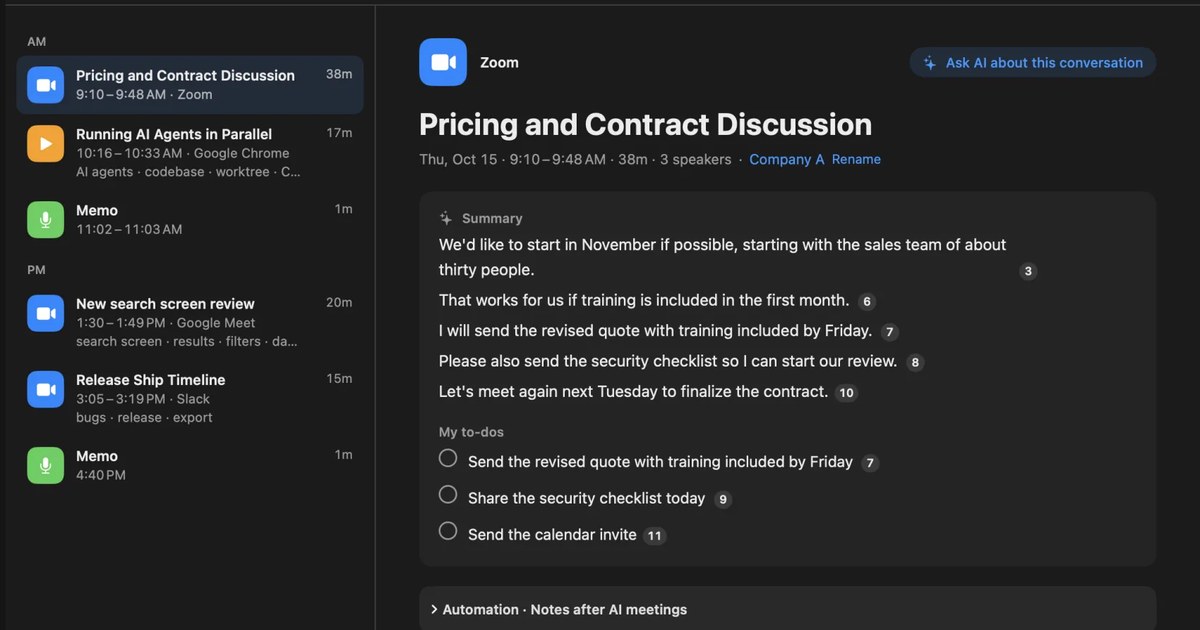
Recall is an app that stays in the menu bar and turns your microphone and the sound coming out of your Mac into text. It does not invite anything into the huddle, and you do not press a record button. When you join a huddle on your Mac, the other people’s voices are transcribed from the Mac’s audio and yours from the microphone. Because it does not use Slack’s AI features, it does not depend on your plan or your admin’s AI settings, and text stays on your Mac even in a Slack Connect huddle. You still need to make sure recording is acceptable.
It works with the Slack desktop app and with Slack in a browser. You need a Mac with Apple silicon on macOS 26 or later, and permission for the microphone and for screen and system audio recording. It does not record the screen itself, but it saves the title of the front window with each line on this Mac.
How speakers are separated
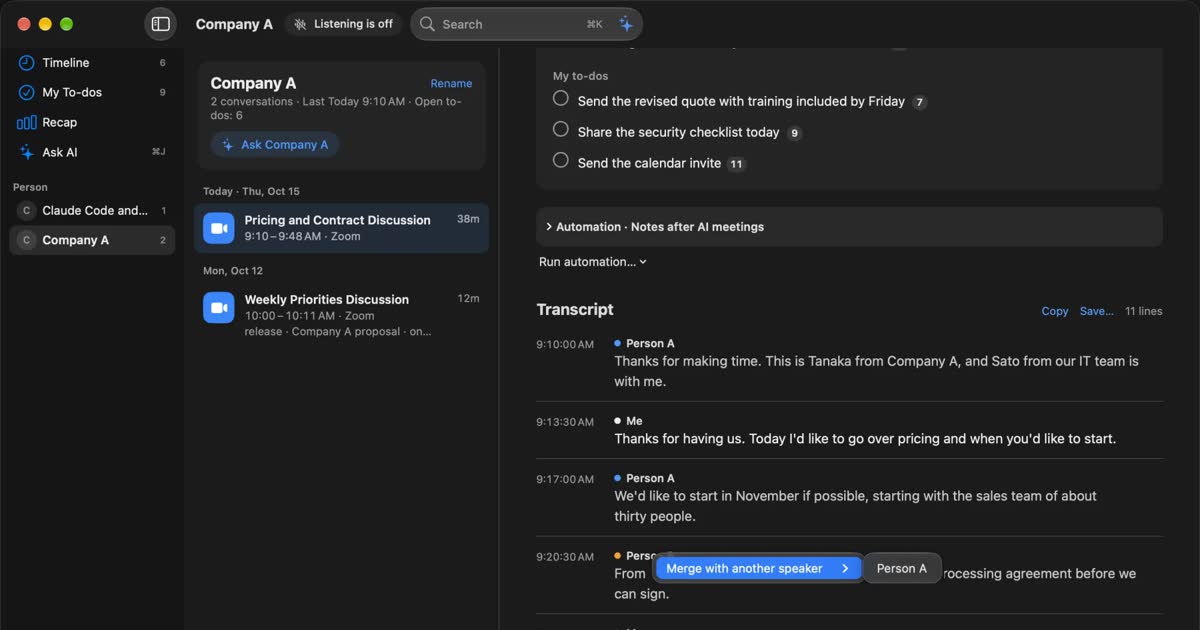
Speakers in the transcript appear as “Me”, “Person A”, “Person B” and so on. Recall does not read Slack display names, so you click a speaker’s name to rename them. A new name applies to every line in that conversation. If one person is split into two speakers, you can merge them. We have not measured how many people it can separate well in a large huddle.
Limits to know first
- Only what you heard: Recall transcribes the sound your Mac hears. Anything said after you leave is not kept. Nothing reaches the other participants, so if you want to share, you hand over the text yourself
- No audio is kept: audio is discarded as soon as it becomes text, so you cannot replay it in Recall. If you also want audio, record it
- It listens separately from Slack’s mute: Recall listens to the Mac’s microphone directly, so things you say while muted in the huddle are kept as your lines too. Pause Recall when you do not want that
- Other sounds become text too: if you play a video during the huddle, its speech is transcribed as well. If you add Slack to excluded apps, nothing is transcribed while you use Slack, huddles included
- You pick the language in settings: it listens in Japanese or English and does not switch automatically mid-huddle
- Mac only: it does not work with Slack on Windows or phones
Even when you play the other people through speakers, Recall tries not to keep their voices picked up by your microphone as your own lines, but headphones are the most reliable.
Keeping notes and sharing them with the team
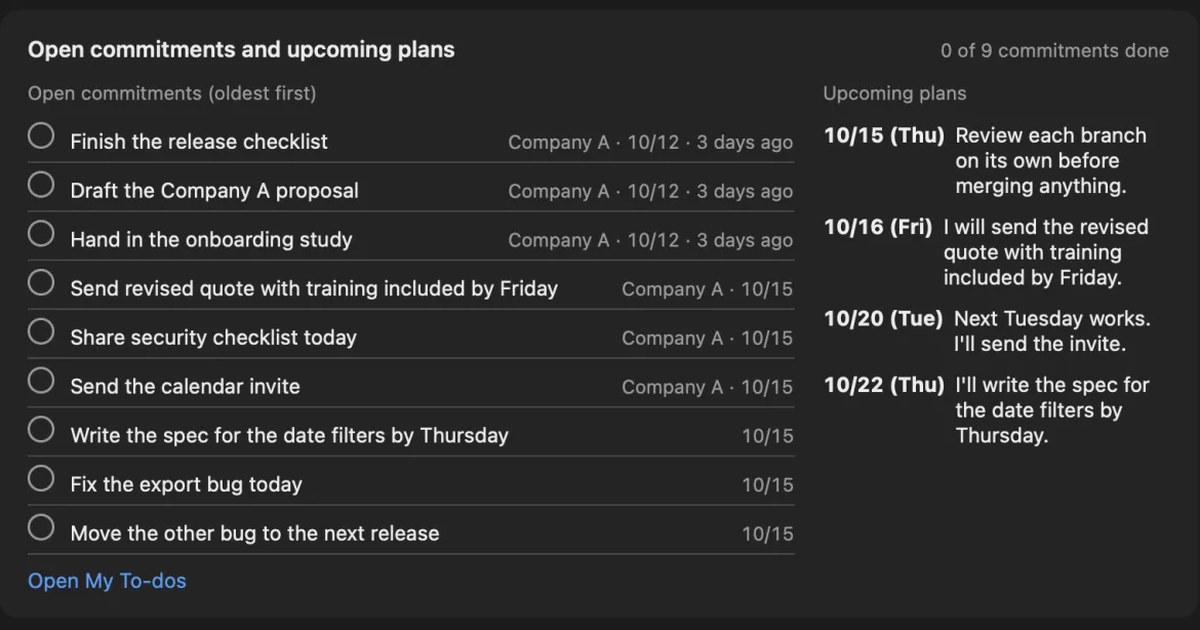
When the huddle ends, the on-device AI writes a summary, topics, decisions, and “My to-dos”. Summaries and to-dos are written when Apple Intelligence is on. Click the number after a summary sentence to see the line it came from.
To share with the team, copy the transcript or save it as a text file and paste or attach it in the huddle thread. This works on Free too. It contains lines of “time speaker: text”, without the summary. If the text includes things external people said, check before posting it in an internal channel.
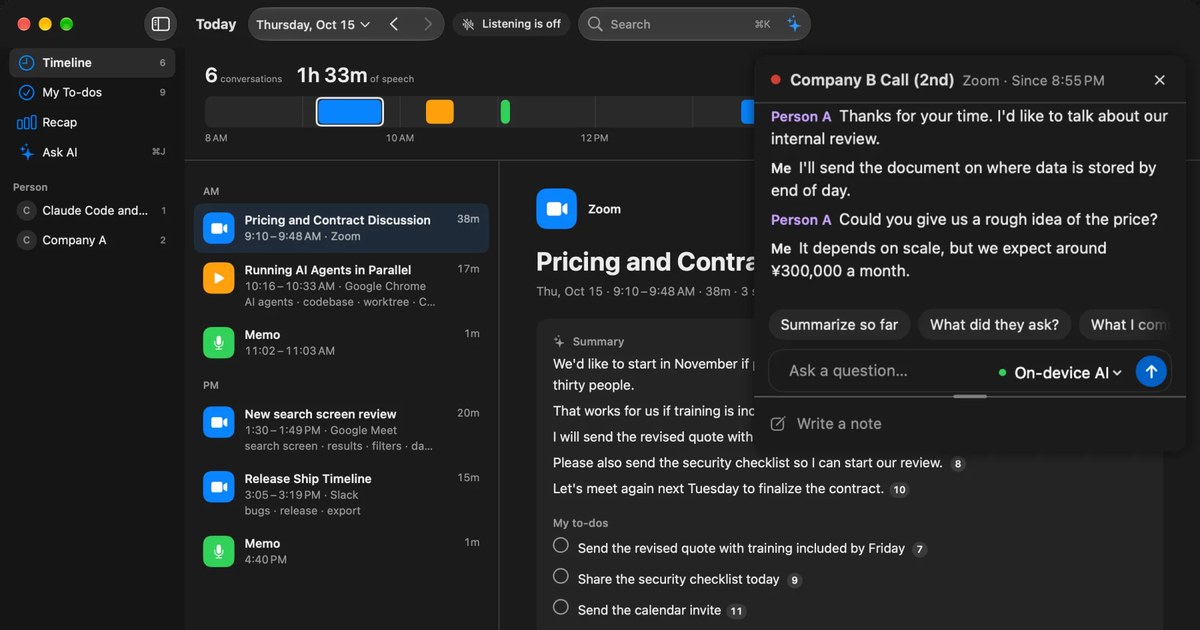
When you later want to recall “what deadline did we set in last week’s huddle?”, type words into ⌘K search. Typing “Slack” narrows it to conversations heard in Slack. You can also ask the AI. By default the on-device AI answers, and neither the question nor the records leave the Mac. On a Mac with less than 16GB of memory, Apple Intelligence must be on for it to answer questions.
What Free includes, and how long records are kept
Free has no limit on transcription, and shows and searches the last 14 days. Older records are still stored during the retention period and become visible with Pro. Retention defaults to 90 days on Free and unlimited on Pro, and records past it are deleted. Pro is ¥980 a month or ¥9,800 a year (tax included). If the license cannot be confirmed for 14 days in a row, Pro features stop.
Records stay on this Mac, and we do not send them to our servers. Records leave the Mac only when you use a Pro feature you turned on, or when you copy or save them and hand them over yourself. The full list is in When records leave the Mac.
Pause for huddles you do not want kept
Because the app stays running, anything you hear becomes text unless you do something. For a casual chat, or a huddle you agreed not to record, pause from the menu bar. You can choose 15 minutes, 1 hour, or until you resume. If you notice afterwards, “Delete the last 15 minutes…” removes it.
Choosing the right method
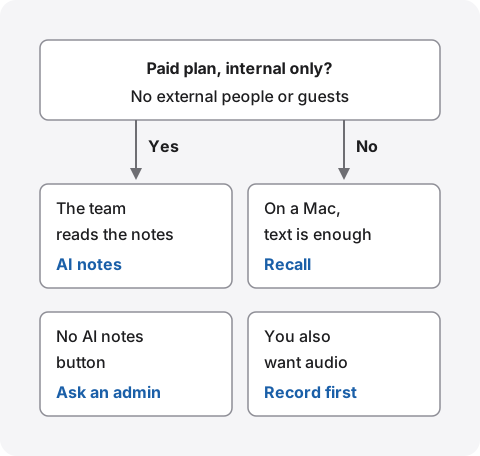
If you are unsure, start by asking whether the huddle is on a paid plan with only internal people.
| What fits | Why | |
|---|---|---|
| A team’s regular huddle | AI notes, automatic in the channel | No action each time, and notes arrive in the thread |
| A Slack Connect huddle with a partner | Check with them, then keep it on your Mac | AI notes are unavailable with external people |
| A one-to-one huddle on the free plan | Keep it on your Mac | The free plan has no AI notes |
| A conversation you want to replay word for word | Record, then transcribe | The audio stays with you |
| Searching huddles and Zoom calls together | Recall | Everything heard on the Mac sits in one place |
Avoid recording the same huddle two ways at once. With records in two places, one copy gets left behind when you delete, and explaining it to others gets complicated. How these compare with tools that put a bot in the meeting is in tl;dv alternatives compared.
Who Recall suits
- You want huddles in text even on the free plan or in a workspace where AI features are off
- You often huddle with external people and want to keep your own record after telling them
- You want to stop starting something for every huddle
- You want to search huddles and what you heard on Zoom or YouTube in one place
- You use a Mac with Apple silicon on macOS 26 or later, and your workplace rules allow it
Free to use · No account needed · macOS 26 or later · Mac with Apple silicon · By downloading, you agree to the Terms of Service
Who Recall does not suit
- You want notes delivered to the whole team automatically (AI notes fit)
- You want audio to replay (recording fits)
- You join huddles on Windows or a phone
- You want what is said after you leave
- Your workplace allows only apps the company has approved
Telling the people in the huddle
Whatever the method, tell the participants you are turning the huddle into text. With Slack AI notes, everyone is notified when they start, and anyone can stop them. Recording and Recall have no notice like Slack’s and are invisible to others, so telling them is up to you. The Recall site gives this as an example.
I am transcribing this on my Mac so I can check the details later. The audio is not saved, but the transcript stays on my Mac. Let me know if you would rather I stop.
If you record, say clearly that audio will be kept, for example “May I record this so I can listen again later?” If you use settings that send meeting content to an outside AI, or features that remember people’s voices, say so too. Do not use any method when someone declines, or where your workplace rules do not allow it. We do not recommend recording people without their knowledge with any product. This article is not legal advice.
If a team uses this, deciding three things up front avoids trouble later: which huddles to transcribe, where the text lives and who can read it, and when to delete it. With AI notes, check which channels start automatically and who is a member of them. With Recall, you can choose retention from 7 days to unlimited and delete conversations one by one.
FAQ
Can I transcribe huddles on Slack’s free plan?
Slack AI notes are a paid-plan feature, so not on the free plan. Free-plan huddles are limited to 2 people. To keep them as text, record first and transcribe afterwards, or transcribe what your Mac hears with a tool like Recall.
Can I record a Slack huddle?
The huddle help does not describe a recording feature. If you want audio, record your own device’s sound with something like Mac screen recording, and get the participants’ agreement first.
Can I export a Slack huddle transcript?
Not as a transcript file. You can print the AI notes canvas to a PDF from the three-dot menu with “Print canvas”, and the transcript is in that canvas only when admins allow it. There is no huddle recording to export. For a text file of each line, record first and transcribe, or use Recall on a Mac.
Who can see the AI notes?
Anyone in the channel or DM where the huddle took place, including members who were not in the huddle. The transcript is embedded in the canvas when admins allow it, and does not appear in search.
Can I use AI notes in a huddle with external people?
No. Slack’s help says AI notes cannot be used in huddles with external people or guests. To keep a Slack Connect huddle, check with the other side and use a method outside Slack.
Does it work for huddles not held in English?
We could not find a list of supported spoken languages on Slack’s AI notes help page, so try it in a short huddle first. Captions are English only. Recall listens in Japanese or English, chosen in settings.
Are participants notified when I use Recall?
No. Recall runs inside your own Mac and invites nothing into the huddle, so nothing appears on other people’s screens. That is why you should tell them yourself.
Can I transcribe a huddle after it ended?
If AI notes were not on, Slack has no text to give you, and captions are not kept. If you have a recording, give it to an app that transcribes files. Recall cannot import past recordings.
Does Recall work for huddles I join on my phone?
No. Recall is a Mac app and transcribes only what the Mac hears. If you join on a phone, use AI notes in an internal huddle on a paid plan.
Checked on November 7, 2026. Slack details come from Slack Help Center pages on AI huddle notes, huddles, managing AI features, and AI security. Button names follow Slack’s pages and may differ from what you see. Notta details come from its official release notes, checked the same day. Canvas printing and canvas export details come from Slack Help Center pages checked on November 18, 2026. Plans and features change over time and with organization settings, so check the official pages and your admin before use.
The difference between Recall Free and Pro is in Plans and licenses.
Free to use · No account needed · macOS 26 or later · Mac with Apple silicon · By downloading, you agree to the Terms of Service
Get the product overview (PDF) by email →
Related articles
How to transcribe Discord calls: bots vs. your Mac, and keeping meeting notes
Discord has no built-in way to transcribe calls. We compare transcription bots, the recording bot Craig, and Recall, which transcribes what your Mac hears, by who can set them up, DM calls, and where audio and text go.
How to take meeting notes with Notion AI: using AI Meeting Notes and what it requires
Notion AI takes meeting notes through AI Meeting Notes. How to start it, which plans and devices it needs, what to watch for in non-English meetings, where the audio and text go and who can read them, and how to paste a Mac transcript into Notion when you cannot use it.
tl;dv alternatives compared: when you do not want a bot in the meeting
For people looking for a tl;dv alternative. We compare the bot and bot-free recording, where the record goes, free limits and pricing, and who should stay on tl;dv and who fits Recall.