 Recall
How to transcribe Discord calls: bots vs. your Mac, and keeping meeting notes
Discord has no built-in way to transcribe calls. We compare transcription bots, the recording bot Craig, and Recall, which transcribes what your Mac hears, by who can set them up, DM calls, and where audio and text go.
The short answer: it depends on whether you can add a bot to the server
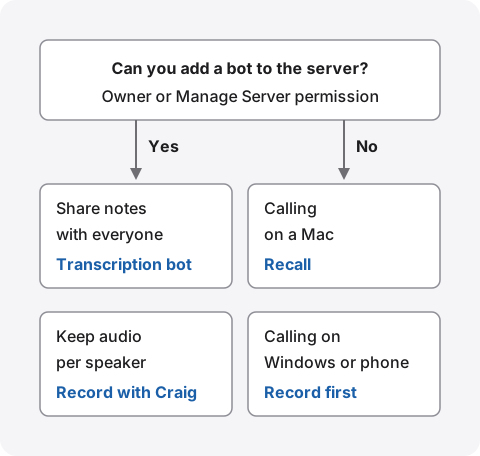
To transcribe a Discord call, you need a tool from outside Discord. Discord’s official guidelines say it does not provide a recording or transcript feature, and we found no feature that turns calls into text either. The deciding question is whether you can add a bot to the server.
If you talk in a server’s voice channels and want to share notes with everyone, a transcription bot fits. If you also want each speaker’s audio, record with the recording bot Craig and transcribe afterwards. If you can’t add bots, want to keep DM calls with friends, or only need your own record, you can use something like Recall, which transcribes what your Mac hears.
This article is written by KOROMO K.K., the developer of Recall, a transcription app for Mac. Our own product is among the options, so please read with that in mind. Details of Discord and other products were checked on their official pages on November 5, 2026. We haven’t compared accuracy on the same call, so we don’t rank accuracy.
Three ways to turn a Discord call into text
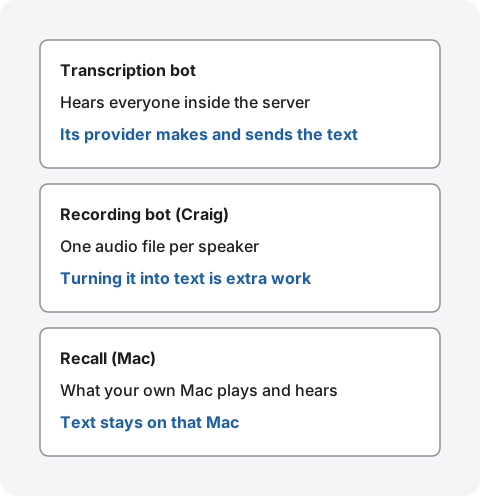
There are three ways: add a bot to the server that transcribes, record with a bot and transcribe later, or transcribe what your own Mac hears. The big differences are not accuracy but who sets it up, which calls it works in, and where the voices go.
| Who sets it up, and which calls | Where audio and text go | |
|---|---|---|
| Transcription bot (e.g. Memolin) | Someone who owns the server or has Manage Server permission adds the bot. Used in voice channels | The bot’s provider records, transcribes, and sends the result to Discord |
| Recording bot (Craig) | The bot is added the same way. Used in voice and stage channels | Audio files per speaker are kept for 7 days. Transcripts are for top-tier supporters |
| Transcribe what your Mac hears (Recall) | You just install it on your Mac. DM calls become text too, if you hear them on your Mac | No audio is kept, and the text stays on your Mac |
A bot hears everyone from inside the server, so it suits notes the whole group shares. Transcribing on your Mac keeps only what you heard, on your own machine. Neither is better; they keep different things.
If you’re unsure, start by checking whether you can add a bot.
Meeting notes with a transcription bot
For a team that talks in a server’s voice channels, a transcription bot is the least work. The bot joins the call, records it, and sends text or a summary to the server when it ends. Participants don’t need to install anything.
Only owners and people with Manage Server permission can add bots
According to Discord’s help, adding an app to a server requires being the server owner or having Manage Server permission. An added app shows up as a member of the server. So in a server you have only joined, you can’t add a bot yourself; you’ll need to ask whoever manages it.
Memolin: notes and tasks delivered to Discord
Memolin is a bot that records conversations in Discord voice channels, transcribes them, and turns them into meeting notes, decisions, and tasks. Its official page explains that you sign in with Discord, add the bot to a server, and type /join in a voice channel to start recording. When the meeting ends, it sends the summary to Discord. It has a free plan, and recording time and retention vary by plan. Check the conditions on its official page.
There are many other transcription bots, including hobby projects, and they come and go quickly, so we don’t list them one by one. When choosing, look at these four points.
- Where the audio is processed: Bots usually send recordings to the provider’s servers to transcribe. For work conversations, read the provider’s privacy policy
- Retention and deletion: See how long recordings and text stay, and who can delete them
- Who can read it: Check which channel the notes go to and which members can read them
- Requested permissions: Look at the permission list shown when adding the bot, and make sure it isn’t broader than needed
A bot is visible as a server member and joins the call, so participants can more easily tell they’re being recorded. Even so, check that the server’s rules allow recording before adding one, and say so at the start. How to check AI note-takers is covered in What to check if you worry about leaks from AI meeting notes.
Recording first, then transcribing
If you want to keep the voices as audio, record first and transcribe later. It takes more steps, but you can listen again and choose the transcription tool yourself. Craig’s official page quotes people who use it for podcasts and tabletop role-playing sessions.
Craig: a bot that records each speaker separately
Craig is a bot that records voice channels with a separate audio track for each speaker. According to its official page, it records in voice and stage channels, for up to 6 hours per recording, and keeps recordings for 7 days. You can download FLAC or MPEG-4 AAC, or open the recording as an Audacity project. According to its supporter page, Craig itself is free to use, and supporters get longer retention and more.
As its getting started page explains, join a voice channel and type the /join command to start recording. When the recording ends, a DM tells you how to download it. The documentation lists the permissions the bot needs: send messages, connect to voice, and change nickname.
Craig also has a transcription feature. It is for Tier 3 supporters, and you get WebVTT, SRT, or plain text. It is described as using a model called Faster Whisper, processed on an outside service (Runpod).
Transcribing the audio files you recorded
If you don’t use Craig’s transcription, give the downloaded audio files to an app that transcribes files. Transcribing each speaker’s file separately keeps who said what from the start. Lining up the times into a single set of notes, though, is up to you.
For work calls, you can transcribe on your Mac without sending the files to an outside service. How to choose tools such as MacWhisper is in How to transcribe locally on a Mac. To keep a call as audio where you can’t add a bot, you can record your Mac’s sound with screen recording and similar tools; the steps are in How to record internal audio on a Mac.
Transcribing the call your Mac hears: Recall
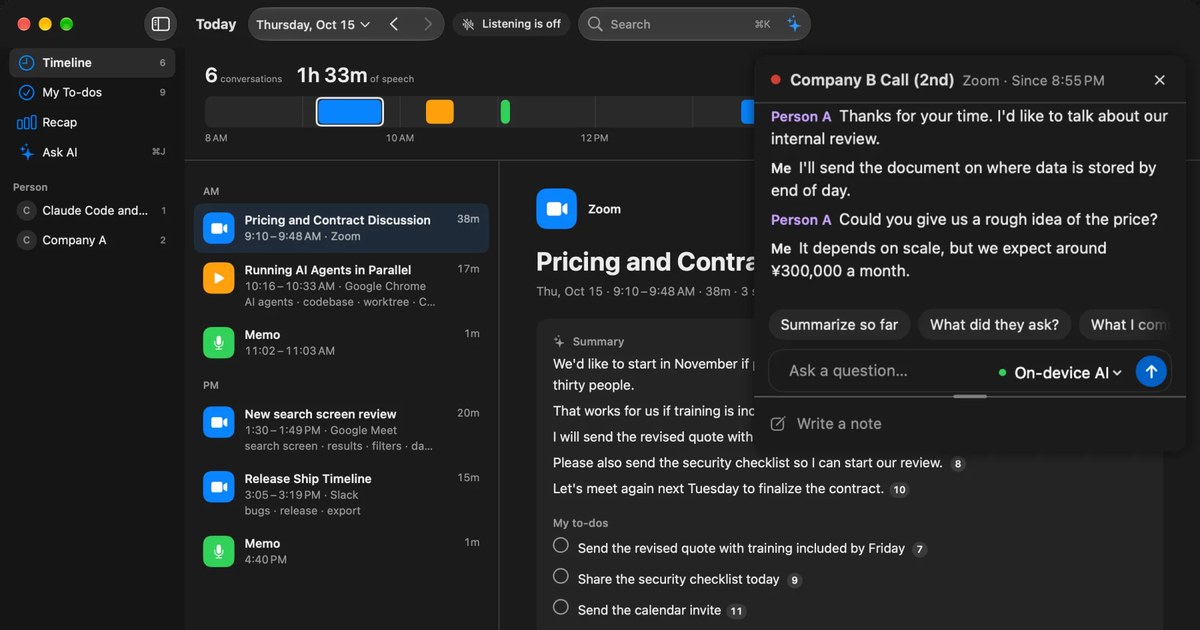
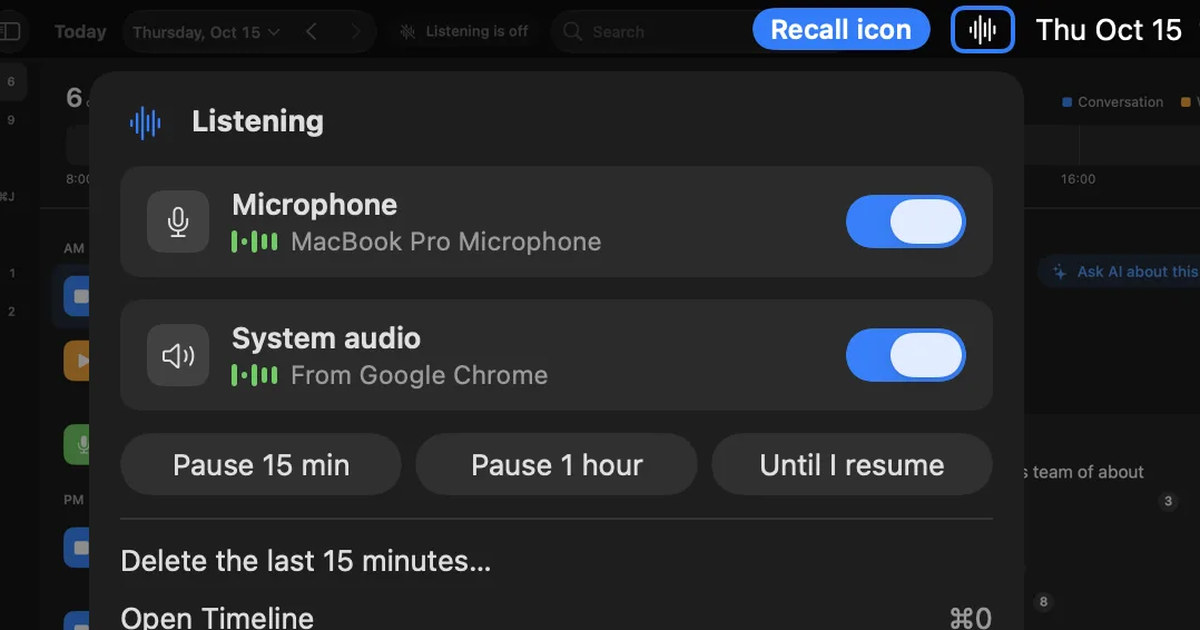
Recall is an app that stays in the menu bar and turns your mic and your Mac’s sound into text. You don’t add a bot to the server or press a record button. On a Discord call, the other people’s voices become text as sound from your Mac, and your voice as input from the mic. It works the same for DM calls and server voice channels.
It works with the Discord desktop app and with Discord in a browser. It needs a Mac with Apple silicon on macOS 26 or later, and permission for the microphone and for screen and system audio recording. The screen itself isn’t recorded, but the title of the front window is saved on this Mac with what was said.
How speakers are separated
Speakers in the transcript appear as “Me”, “Person A”, “Person B” and so on. Recall doesn’t read Discord display names, so when a speaker has no name or the wrong one, you click a speaker’s name to rename them. A new name applies to every line in that conversation. If one person is split into two speakers, you can merge them. We haven’t measured how many people it separates well on a large call.
Limits to know first
- Only what you heard: Recall transcribes the sound your own Mac hears. Talk after you leave isn’t kept. Nothing reaches the other participants, so to share, you hand over the text yourself
- No audio is kept: Audio is discarded as soon as it’s turned into text, so you can’t listen again in Recall. If you also want audio, use a recording method
- It listens separately from Discord’s mute: Recall listens to the Mac’s microphone directly, so what you say while muted in Discord is still saved as your own lines. Pause Recall when you don’t want that kept
- Game and video sound becomes text too: Speech coming from your Mac isn’t told apart from the call. If you add a game to Excluded apps, nothing is transcribed while you use that game or it plays sound, including the call
- You choose the language in settings: Recall listens in Japanese or English and doesn’t switch automatically during a call
- Mac only: It doesn’t work with Discord on Windows or a phone
Keeping and sharing it as meeting notes
When a call ends, the on-device AI writes a summary, topics, decisions, and “My to-dos”. Summaries and to-dos are made when Apple Intelligence is turned on. Click the number after a sentence in the summary to see the lines it came from.
To share with server members, copy the transcript or save it as a text file, then paste or attach it in a Discord channel. This works on Free too. It contains lines of “time speaker: text”, without the summary. When you later want to remember “what date did we settle on in last week’s call?”, type words into ⌘K search or ask the AI. By default the on-device AI answers, and neither your question nor your records leave the Mac. On a Mac with less than 16GB of memory, answering questions needs Apple Intelligence turned on.
What’s free, and how long records are kept
Free has no limit on transcription, and shows and searches the last 14 days. Older records are still stored for the retention period and become visible with Pro. Retention defaults to 90 days on Free and unlimited on Pro, and records past the period are deleted. Pro is ¥980 a month or ¥9,800 a year (tax included). If the license can’t be checked for 14 days in a row, Pro features stop.
Records are kept on this Mac, and we don’t send them to our servers. Records leave the Mac only when you use a Pro feature you turned on, or when you copy or save them and hand them over yourself. The list is in When records leave the Mac.
Pause it for calls you don’t want kept
Because the app keeps running, whatever you hear becomes text unless you do something. For casual chat, or calls you agreed not to transcribe, pause from the menu bar. If you notice afterwards, you can remove it with “Delete the last 15 minutes…”.
What to tell the people on the call
Whichever method you use, tell the people on the call that you’re transcribing. Discord’s Stage Channel Guidelines ask that if you use third-party tools to record or transcribe, you follow relevant laws, including getting consent from speakers and audience members if needed.
A bot is visible on the call, but Recall runs inside your own Mac and the others can’t see it. That makes a word at the start all the more important. Something like “I’m transcribing this on my Mac so I can look back later. No audio is kept” is enough. Example wording is in the FAQ. Don’t use it if the server’s rules prohibit recording or note-taking, or if the others object. We don’t recommend recording people without their knowledge, with any product.
Who Recall fits, and who it doesn’t
Recall fits people who use Discord on a Mac and want to keep their own record without adding a bot. If you want notes sent to everyone in the server automatically, a bot suits you better.
Recall fits you if you
- want text from servers where you can’t add bots, and from DM calls with friends
- want to stop starting a recording for every call
- want to search Discord calls and what you heard on Zoom or YouTube in one place, by word
- want no audio kept and the text on your own Mac
- use a Mac with Apple silicon on macOS 26 or later
Free to use · No account needed · macOS 26 or later · Mac with Apple silicon · By downloading, you agree to the Terms of Service
Recall doesn’t fit you if you
- want notes delivered to everyone in the server automatically (a transcription bot fits)
- want each speaker’s audio to edit (Craig fits)
- use Discord on Windows or a phone
- want to keep what was said after you leave
- want only the call’s voices kept while a loud game is playing
Methods for each meeting tool are also covered in guides such as How to transcribe Zoom meetings.
Frequently asked questions
Does Discord have a transcription feature?
Not that we could find. Discord’s official guidelines say it does not provide a recording or transcript feature. To get text, use a bot or a tool on your computer.
Can I transcribe for free?
There are ways. Memolin has a free plan, and Recall’s Free plan has no limit on transcription. Craig’s recording is free, but Craig’s transcription is for Tier 3 supporters. Check the conditions of each free tier on the official pages.
Can DM and group calls be transcribed?
Craig’s page covers voice and stage channels and doesn’t mention DM calls. Recall transcribes what your Mac hears, so DM calls become text too, as long as you’re on the call on a Mac.
Can I add a bot to a server I’ve only joined?
No. According to Discord’s help, adding an app to a server requires being the owner or having Manage Server permission. Ask whoever manages the server, or choose a method without a bot.
Can it tell who spoke?
Craig records each speaker separately, so transcribing each file keeps them apart. Recall separates “Me” from “Person A”, “Person B” and so on, and you rename them yourself. We haven’t measured how well it separates people on a large call.
Will others be notified if I use a bot or Recall?
A bot shows as a server member and joins the call. Recall runs inside your own Mac, so nothing appears to the others. Either way, tell them yourself that you’re transcribing.
Does Recall transcribe calls while I’m gaming?
Yes. But speech coming from the game becomes text too. If you add the game to Excluded apps, the call isn’t transcribed while you use that game either, so if it bothers you, sort out the call’s lines when you read them later.
Can I transcribe Discord on my phone?
Recall is a Mac app, so it can’t transcribe calls on a phone. To keep calls you join from a phone, a transcription bot or recording bot added to the server is the option. Check each bot’s description for the devices it supports. If you can’t add a bot yourself, ask a server admin; where a bot can’t be called in, such as a DM call, record with the other person’s consent and transcribe afterward.
Checked on November 5, 2026. Discord details come from its Stage Channel Guidelines and app help, Craig’s from its official site, getting started page, supporter page, and documentation, and Memolin’s from its official site. Bot features and conditions can change, so please check each provider’s latest pages before use.
The difference between Recall Free and Pro is in Plans and licenses.
Free to use · No account needed · macOS 26 or later · Mac with Apple silicon · By downloading, you agree to the Terms of Service
Get the product overview (PDF) by email →
Related articles
How to record internal audio on a Mac: macOS 27’s built-in option, BlackHole and OBS
On macOS 27 or later, a Mac can record internal audio with built-in screen recording. Steps for BlackHole and OBS on earlier Macs, what to check when there is no sound, and an option if you don’t need audio.
How to transcribe LINE calls: Call Recording’s conditions and keeping calls on a Mac
LINE’s 1:1 calls can be recorded and transcribed with Call Recording in LINE Labs. We cover which calls it works for, what the other person sees, and where files are saved, plus ways to transcribe video calls, group calls, and calls on LINE for Mac.
How to transcribe Slack huddles: AI notes, exporting the transcript, and what to do without them
To transcribe a Slack huddle, you either use AI notes on a paid plan or transcribe it on your own Mac. We cover the conditions, where the notes and transcript go, how to export them as a PDF or text, why there is no huddle recording to download, and how to tell others.