 Recall
How to take meeting notes with Notion AI: using AI Meeting Notes and what it requires
Notion AI takes meeting notes through AI Meeting Notes. How to start it, which plans and devices it needs, what to watch for in non-English meetings, where the audio and text go and who can read them, and how to paste a Mac transcript into Notion when you cannot use it.
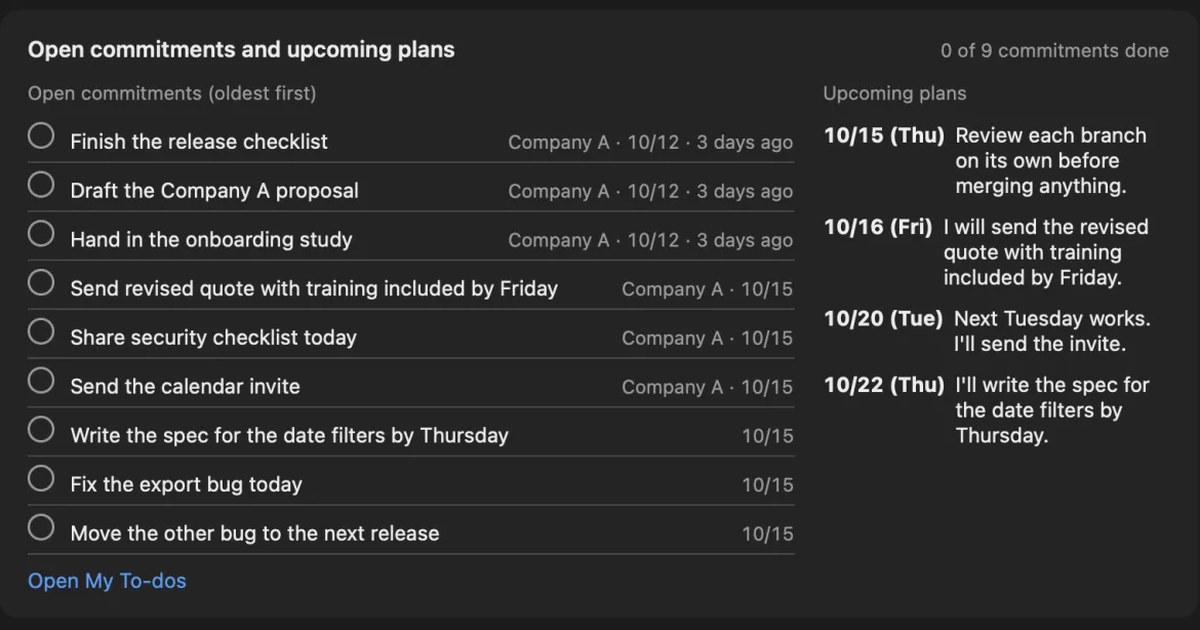
The short answer: a Business plan or higher, started from the desktop app
To take meeting notes with Notion AI, you use Notion’s AI Meeting Notes. Type /meet on a page to start it: it transcribes the meeting and, afterwards, writes a summary and action items. Notion’s help page says you need a Business or Enterprise plan, and the pricing page lists Free and Plus as a limited trial.
For online meetings, start it in the desktop app, not the browser. The desktop app captures both the other people’s voices (the sound your computer plays) and your own, while the browser and the phone app capture only the microphone. Many languages are transcribed, but speaker labels, which mark who said what, are currently available in English only.
This article is written by KOROMO K.K., which develops Recall, a transcription app for the Mac. We include our own product as an option for when Notion does not fit, so weigh what we say with that in mind. We checked Notion’s official help and pricing pages on November 9, 2026. We do not say which method transcribes more accurately, because we have not compared them on the same meeting.
| Your situation | Where to read next |
|---|---|
| You are on a Business plan and want notes from Zoom or Meet calls | Starting it |
Typing /meet shows nothing | When it is missing from the menu |
| You are unsure about using it with people from other companies | Where it goes and who reads it and telling people |
| You are on Free or Plus but want your notes in Notion | Transcribe first, then paste |
What AI Meeting Notes does
AI Meeting Notes is a Notion feature that turns what is said in a meeting into text and sums up the key points and action items. It does not invite a bot to the meeting; it transcribes what your own computer or phone hears.
- Transcript: what is said during the meeting becomes text. A new line starts when the speaker changes
- Summary and action items: after the meeting, it sums up the points and the to-dos. The summary uses your own typed notes as well as the transcript
- Summary instructions: you can change how the summary is written with instructions
- Kept in a database: the notes are Notion pages in a meetings database. For a recurring meeting, every session’s notes can go into the same database
Using it in non-English meetings
The help page lists 16 supported languages, including Japanese, Chinese, Spanish, French and German. Speaker labels, which put a name on each line, are “currently available in English only.” In other languages it can be hard to tell later who said what, so read the notes and check important decisions before passing them on.
A summary needs about 300 transcribed characters (about a minute). Each person can use it for up to 10 hours a day. It does not work offline.
How to use it: starting and where notes are saved
There are three ways to start. With each one, you are asked to get consent from all participants before transcription starts.
Starting it
- Type
/meeton a page: AI Meeting Notes goes into the page you have open. You can also switch it to full page - Create it from Meeting notes in the sidebar: the notes become a page of their own
- Start from a calendar event: you can start notes from an event in Notion Calendar. Notes linked to a calendar event may show participants’ names
When the desktop app notices that you have joined a video call, it asks with a notification whether to start. Transcription does not start on its own. When you use a meeting platform, transcription stops automatically when you leave the call.
Confirming consent before you start
Notion asks you to tell all participants and get their consent before transcription starts. You can paste the provided text into the chat, play a consent audio message with the button below the notes, or say it out loud. A workspace owner can set the consent audio to play automatically at the start of every transcription.
Where the notes are saved
If you have not set anything, notes are saved to a private My meetings database that only you can see. If you have chosen a default meetings database in settings, they go there. You can change where each set of notes is saved. A workspace owner can set a default database for everyone, and can make it required.
Plans and devices
Whether you can use AI Meeting Notes depends on two things: the plan and the device.
Plans
The AI Meeting Notes help page says you must be on a Business or Enterprise plan. It is also available on eligible mobile subscriptions that include Notion AI.
On the pricing page, Free and Plus get a trial of Notion AI, and AI Meeting Notes is listed as a limited trial. As of November 9, 2026, the pricing page did not say how much the trial allows. Prices change over time, so check the pricing page.
How devices differ
| What it captures | Best for | |
|---|---|---|
| Desktop app (Mac and Windows) | The sound your computer plays, and the microphone | Online meetings such as Zoom or Google Meet |
| Browser | The microphone only | Meetings in the same room |
| Phone app | The phone’s microphone only | Meetings in the same room. Other people’s voices are not captured when you use headphones |
The desktop app must be version 4.7.0 or later. On a Mac you need macOS 13 or later; on Windows, the latest version. If you start notes in Notion in the browser, it captures only the microphone, so the voices you hear through earphones are not picked up. Use the desktop app for online meetings.
Where the audio and text go, and who can read them
The text and summary stay in your Notion workspace, and who can read them depends on each page’s sharing settings. By default, the audio is not kept.
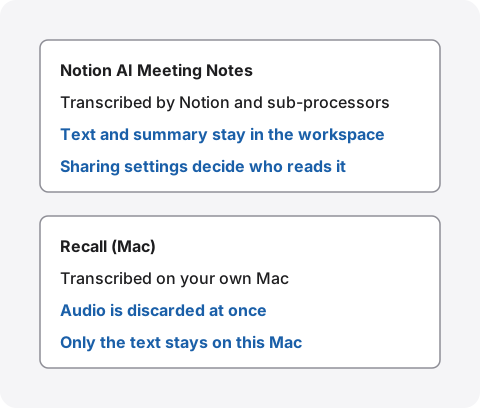
How the audio is handled
According to the help page, meeting audio is sent to Notion’s sub-processors (companies such as OpenAI and Anthropic) to be transcribed, and the sub-processors do not store audio. During the session, a temporary copy of the audio sits on your device, and if processing fails, Notion keeps it for up to 3 days to try again. In the phone app, the audio is uploaded to Notion’s servers for processing and deleted as soon as that succeeds.
Store audio locally is off by default on every plan. When a workspace owner turns it on in Settings → Meeting notes, the last 10 recordings stay on the recorder’s device, and only that person can download them.
Who can read the notes
The notes are ordinary Notion pages, so each page’s sharing settings decide who can read them. Notes in a shared database take that database’s permissions. If you put them in a team database, members who were not in the meeting can read them too.
If you turn on Auto-share with internal calendar event participants in Settings → Meeting notes, notes created from a Notion Calendar event are shared automatically with the participants who are members of your workspace. Each person sets this for themselves.
Use for AI training
Notion AI security & privacy practices says customer data is not used to train models by default. AI providers keep data for up to 30 days on Free, Plus and Business, then delete it. On Enterprise, most models keep no data. This describes Notion AI as a whole, not a rule specific to meeting notes. If you use it at work, check with your admin against your company’s policies. A list of what to check is in What to check if you worry about leaks from AI meeting notes.
When you cannot use it
The cause is the plan, an admin setting or the device. Find which one it is first, and if you cannot fix it yourself, transcribe the meeting another way and paste it into Notion.
When /meet is missing from the menu
First check your workspace’s plan. If you are on Business or higher and it still does not appear, the workspace owner may have turned meeting notes off for the workspace in the meeting notes section of settings. You cannot change this yourself, so ask the owner. If it is turned off because of company policy, do not work around it with another tool.
If it is missing in the desktop app, also check that the app is version 4.7.0 or later and that your Mac runs macOS 13 or later.
Transcribe first, then paste into Notion
Even on Free or Plus, you can keep meeting notes in Notion by pasting a transcript into a page. Create one database for meeting notes and add one page per meeting, and they are easier to find later.
To get the transcript, you can use the meeting tool’s built-in transcription, record and then transcribe, or transcribe what your own Mac hears. For Zoom, the choices are in How to transcribe Zoom meetings. Whether you can have Notion AI summarize the pasted text depends on your Notion plan.
Transcribing meetings on your Mac: Recall
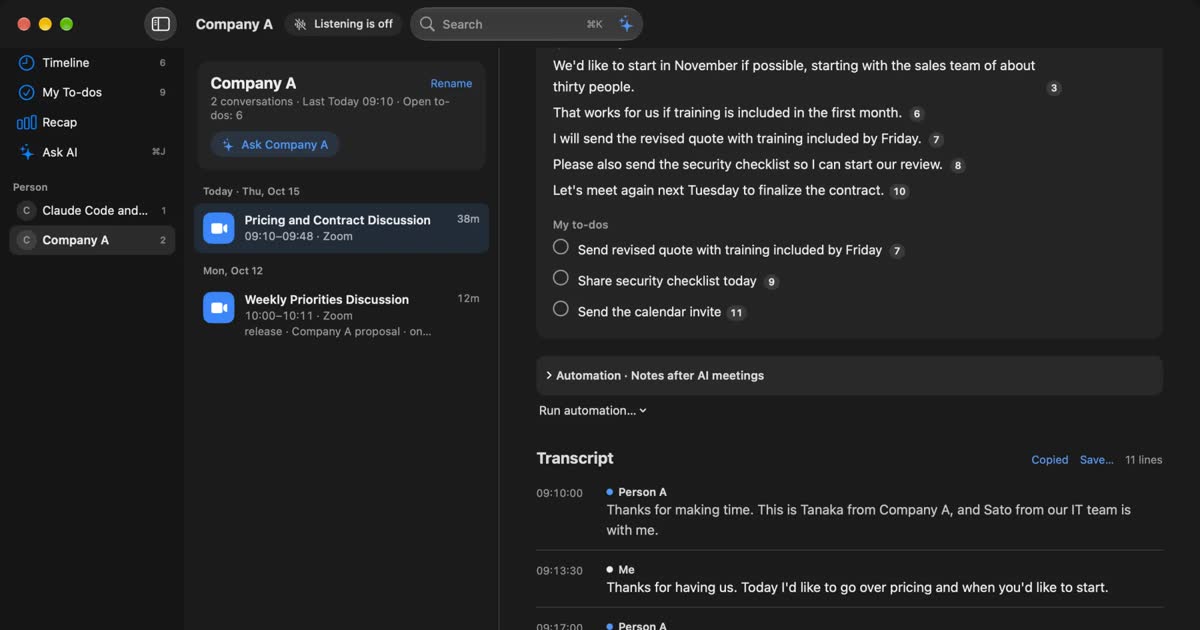
Recall is an app that stays in the menu bar and turns your microphone and the sound your Mac plays into text. It does not invite a bot to the meeting, and there is no record button to press. When you join a meeting on your Mac, the other people’s voices come in as the sound your Mac plays and yours comes in through the microphone, and both become text. Transcription happens on the Mac, and the audio is discarded as soon as it has been transcribed.
To put it in Notion, use Copy on the conversation’s transcript to put the text on the clipboard, then paste it into a Notion page. This works on Free. You get the conversation’s title and date, then one line per remark: time, speaker, text. Recall’s summary is not included. Speakers show as “Me”, “Person A” and so on, so rename them first and the pasted text will still show who said what.
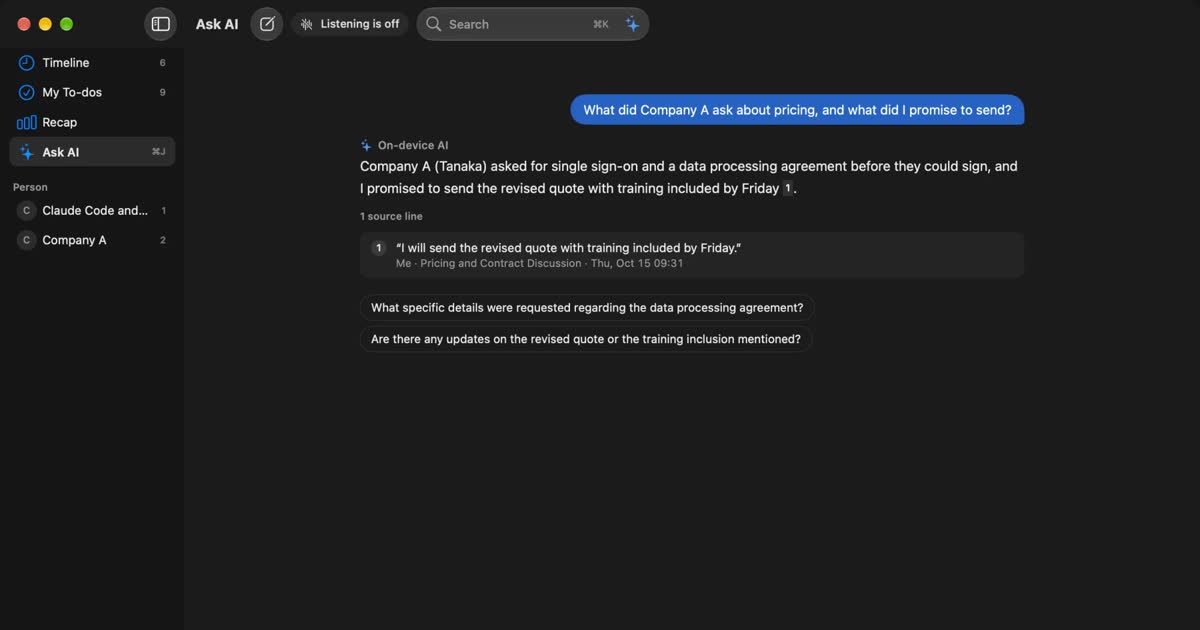
When a conversation ends, the on-device AI writes a summary, topics, decisions and your own to-dos. Summaries and to-dos are made when Apple Intelligence is on.
Recall’s limits to know first
- Mac only: it runs on Macs with Apple silicon and macOS 26 or later. It does not work on Windows or phones
- No automatic link to Notion: you copy and paste it yourself. If the team should read the same notes automatically, Notion’s AI Meeting Notes fits better
- Only what you heard: only the sound your own Mac hears becomes text, and nothing reaches the other participants
- No audio kept: you cannot listen again in Recall
- What Free covers: Free has no limit on transcription and shows and searches the last 14 days. Records are kept 90 days by default on Free and indefinitely on Pro. Pro is ¥980 a month or ¥9,800 a year (tax included), and Pro features stop if the license cannot be checked for 14 days in a row
Records are kept on this Mac and are not sent to our servers. They leave the Mac only when you use a Pro feature you turned on yourself, or when you copy or save them and pass them on. Text you paste into Notion is handled under Notion’s terms. The full list is in When records leave the Mac.
Choosing the right method
If you are unsure, start by asking whether you are on a Business plan or higher and the team should read the same notes.
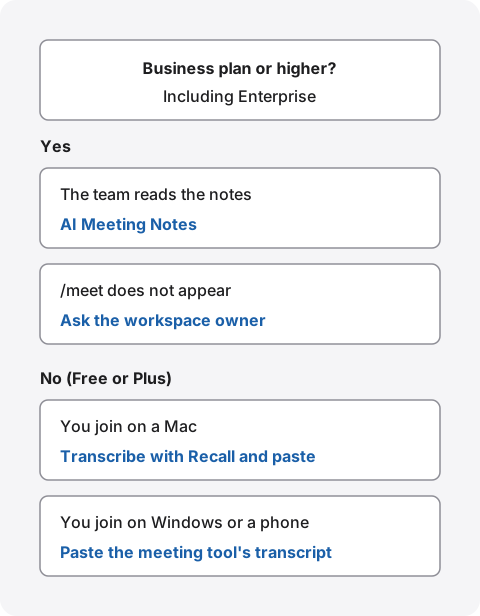
| Method that fits | Why | |
|---|---|---|
| A recurring team meeting | AI Meeting Notes (from the calendar) | Each session lands in the same database and members can read it |
| A meeting in the same room | AI Meeting Notes on a phone or in the browser | The microphone alone is enough |
| A Free workspace, joining on a Mac | Transcribe with Recall and paste | It does not depend on the Notion plan |
| You want the meeting text only on your own machine | Recall | The text stays on your Mac |
Avoid recording the same meeting two ways at once. With the record in two places, one copy gets left behind when you delete, and it is harder to explain to participants. How Recall compares with another app that takes notes on the Mac without a bot is in Granola AI alternatives compared.
Who Recall suits
- Your Notion is on Free or Plus, so you cannot use AI Meeting Notes
- You want the meeting text on your own Mac first, and to choose what goes into Notion yourself
- You want to stop starting something for every meeting
- You want to search, by words, what you heard in Zoom, Meet or YouTube in one place
- You use a Mac with Apple silicon and macOS 26 or later, and your workplace’s policies allow it
Free to use · No account needed · macOS 26 or later · Mac with Apple silicon · By downloading, you agree to the Terms of Service
Who Recall does not suit
- You want notes saved automatically to a team database and edited together (AI Meeting Notes fits)
- You join meetings on Windows or a phone
- You want to keep the audio and listen again
- You also want what was said after you left
- Your workplace only allows apps the company has approved
Telling the people in the meeting
Whatever the method, tell participants that you are transcribing. Notion’s AI Meeting Notes asks you to get consent before it starts and provides consent text and audio. Recall has no way to notify others and is invisible to them, so telling them is up to you. The Recall site gives this as an example.
I am transcribing this on my Mac so I can check the details later. The audio is not saved, but the transcript stays on my Mac. Let me know if you would rather I stop.
In meetings with people from other companies, also tell them that the text will stay in your company’s Notion and that colleagues there can read it. Deciding beforehand whether you will share the notes with them makes it easier to explain. If someone declines, or your workplace’s policies do not allow it, do not use any of these methods. We do not recommend recording people without their knowledge with any product. This article is not legal advice.
If your team uses it, decide three things first: which meetings to transcribe, which database the notes go in and who can read it, and when to delete them. In Recall, you can choose a retention period from 7 days to forever, and delete conversations one by one.
FAQ
Can I use AI meeting notes on Notion’s Free plan?
The help page says AI Meeting Notes needs a Business or Enterprise plan. The pricing page lists Free and Plus as a limited trial and does not say how much it allows. To keep going, you can paste a transcript into Notion.
Does it work with Zoom or Google Meet?
Yes. It does not add a bot to the meeting; it transcribes what your computer hears. Only the desktop app captures the other people’s voices; the browser and the phone app capture only the microphone.
Does it tell speakers apart in a non-English meeting?
The help page says speaker labels are currently English only. A new line starts when the speaker changes, but names may not be added. Recall separates speakers as “Me”, “Person A” and so on, and you can rename them.
Is the recorded audio kept?
Not by default. The help page says the audio is sent to sub-processors to be transcribed and that they do not store it. If a workspace owner turns on Store audio locally, the last 10 recordings stay on the recorder’s device.
Who can see the notes?
Each page’s sharing settings decide that. In the default My meetings database, only you can. In a shared database, anyone who can see that database can read them.
Can I use it for long meetings?
Each person can use it for up to 10 hours a day. A summary needs about 300 transcribed characters. It does not work offline.
Can Recall send transcripts to Notion automatically?
No, there is no automatic link. Use Copy or Save on the conversation’s transcript and paste it into a Notion page. You get one line per remark, with time, speaker and text; Recall’s summary is not included.
Checked on November 9, 2026. Notion details come from the Notion Help Center pages on AI Meeting Notes and Notion AI security and privacy, and from Notion’s pricing page. Button and setting names may differ from what you see. Plans and features change over time and with workspace settings, so check the official pages and your workspace owner before use.
The difference between Recall Free and Pro is in Plans and licenses.
Free to use · No account needed · macOS 26 or later · Mac with Apple silicon · By downloading, you agree to the Terms of Service
Get the product overview (PDF) by email →
Related articles
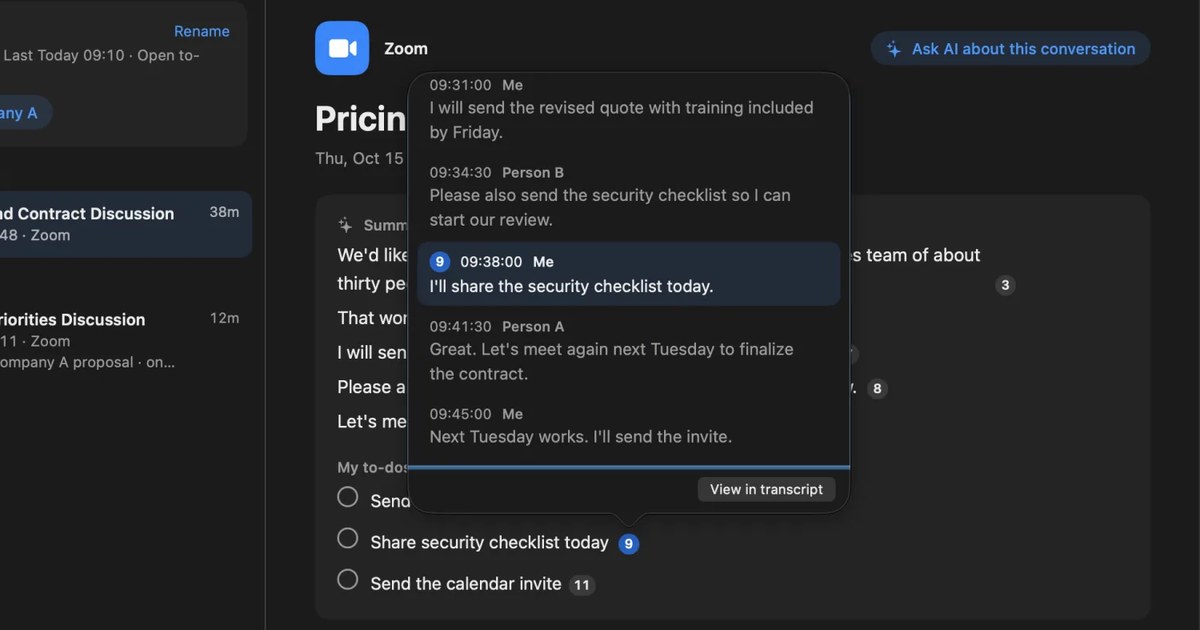
How to turn a transcript into meeting minutes: what to keep, examples, and asking AI
Pasting a transcript is not the same as writing minutes. The difference between verbatim, clean transcripts, summaries and minutes, what to keep with example lines, how to pick out decisions and action items, and how to ask AI for a draft and what a person should check.
How to transcribe Zoom meetings: built-in, cloud services, or on your Mac
Three ways to transcribe a Zoom meeting: built-in features, cloud services and apps on your Mac. Covers the plans each needs, the May 2026 captions change, and how to choose.
Granola AI alternatives: Granola vs Otter and Recall compared
For people looking for a Granola AI alternative. We compare languages, Granola vs Otter, where notes are processed and stored, how to opt out of training, and pricing from official sources, including who should stay with Granola and who Recall does not suit.