 Recall
Granola AI alternatives: Granola vs Otter and Recall compared
For people looking for a Granola AI alternative. We compare languages, Granola vs Otter, where notes are processed and stored, how to opt out of training, and pricing from official sources, including who should stay with Granola and who Recall does not suit.
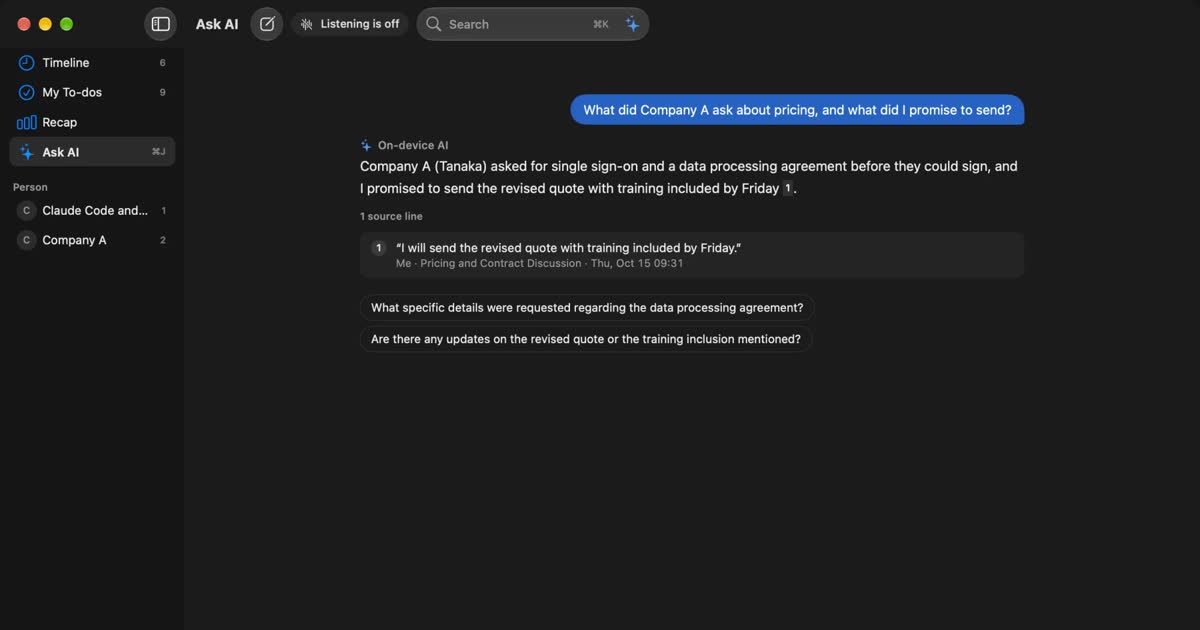
The short answer: Granola for teams and phones, Recall for records on your Mac
If you share meeting notes with a team and also work on Windows or a phone, Granola fits. If you work alone and want an app that runs on your Mac and keeps the text and summaries there, Recall fits. Neither puts a bot in the meeting, and neither keeps audio. They differ in where transcripts and summaries are made, and where records are kept. If you want to replay audio, look at Otter rather than either (Granola vs Otter).
This article is written by KOROMO K.K., the company that makes Recall, a transcription app for the Mac. Our own product is in the comparison, so read with that in mind. We checked Granola's pricing page, security page and help center on November 13, 2026. We also cover where Granola is stronger and who Recall does not suit.
| Your situation | What fits, and where to read next |
|---|---|
| You share notes with your team in folders | Granola. See where Granola is stronger |
| One meeting mixes Japanese and English | Granola's desktop app. See mixed-language meetings |
| You want to replay the audio | Otter. See Granola vs Otter |
| You do not want conversations on outside servers | Recall. See where conversations go |
| You want to search older records for free | Free shows 30 days on Granola, 14 days on Recall. See pricing |
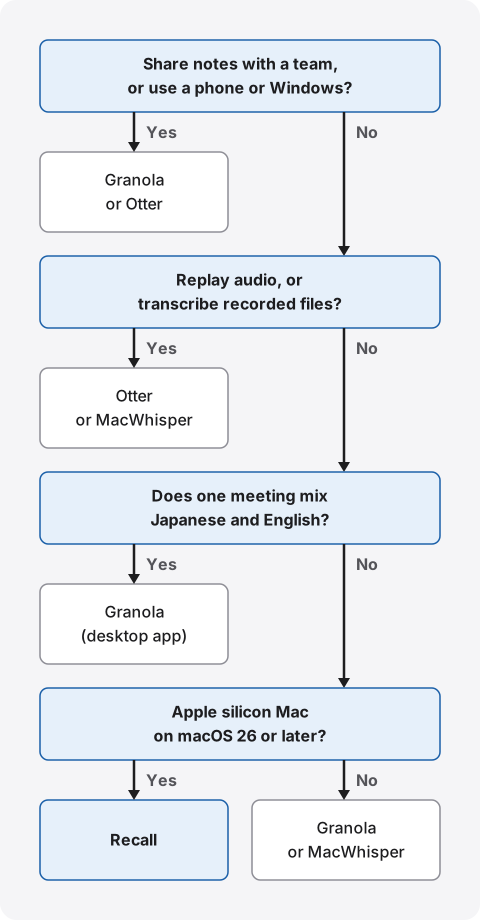
What Granola and Recall are
Granola turns your own notes and a transcript into meeting notes with cloud AI. Recall is an app that runs on your Mac and handles everything from listening to summaries there. Both skip the bot, but conversations go to different places.
Granola is a meeting notes app from Granola, Inc. It has desktop apps for Mac and Windows, apps for iPhone and Android, and an Apple Watch app. You jot short notes during the meeting, and afterwards AI fills them out from the transcript. The web app (notes.granola.ai) only views and edits notes. It cannot transcribe.
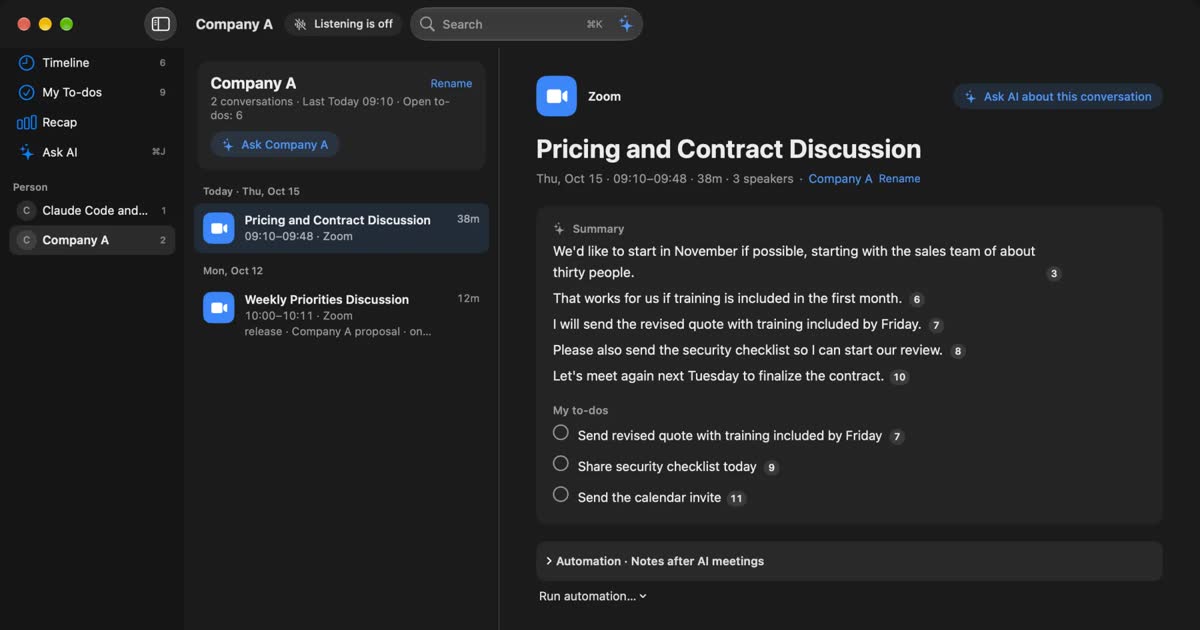
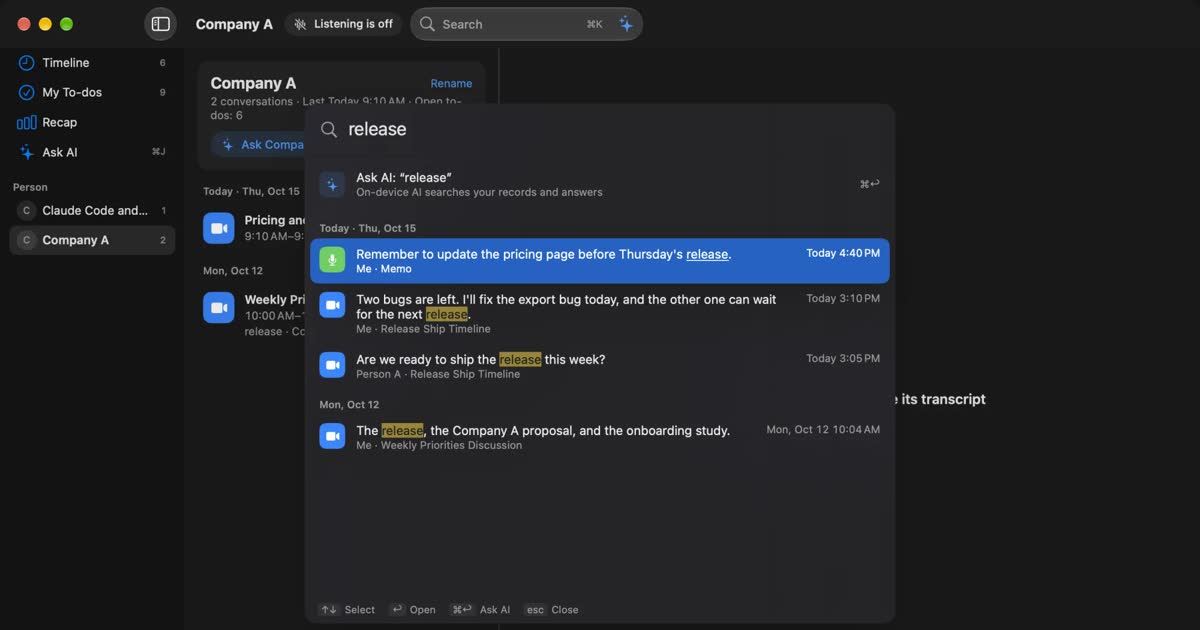
Recall sits in the menu bar and turns conversations heard on your Mac into text. There is no record button. Once speech is text, the audio is discarded, and transcripts and summaries are saved on the Mac. By default, summaries and answers come from on-device AI. No account is needed.
| Granola | Recall | |
|---|---|---|
| Where transcription happens | Cloud (Deepgram, Assembly and others) | On this Mac |
| Where summaries are made | Cloud (OpenAI, Anthropic and others) | On this Mac by default. Pro can also use outside AI |
| Audio | Deleted after transcription | Discarded once it is text |
| Where records are kept | AWS in the US, with a copy of notes on the device | This Mac. Not sent to our servers |
| How it starts | Open the meeting's note or click a notification | Runs in the background and listens automatically |
| Devices | Mac (macOS 14 or later), Windows, iPhone, Android, Apple Watch | Apple silicon Macs with macOS 26 or later |
| Sharing with others | Folders, team space, Slack, Notion | Copy or save the transcript and pass it on yourself |
| Transcription languages | 31 on desktop, 17 on mobile, Japanese included on both | Japanese or English, chosen in settings |
| App language | English only | Japanese and English |
| Free | Last 30 days of history | Unlimited transcription. Viewing and search for the last 14 days |
| Paid | Per user: Business $14 a month, Enterprise $35 a month | Pro ¥980 a month, ¥9,800 a year (tax included) |
Granola's details come from its pricing page, security page, transcription help and setup help. Recall's details match our pricing and features pages. We have not compared accuracy on the same audio, so we do not say which is more accurate.
Where Granola is stronger
Granola's strengths are notes built around what you write, and running it as a team. Recall has few of these.
- Notes guided by yours: AI uses the short notes you wrote during the meeting to add detail from the transcript. Templates set the shape of the notes.
- Sharing: There is a private space and a team space, and you can share by folder. Shared folders are on the free Basic plan too.
- Integrations: Slack is on Basic. Notion, HubSpot, Attio, Affinity and Zapier are on Business. Salesforce is on Enterprise.
- Devices: You can transcribe an in-person meeting on a phone and read it later on a Mac or Windows PC.
- Languages: The desktop app supports 31 languages and handles a meeting that switches between them.
- Connecting AI tools: With MCP you can search notes from Claude or ChatGPT. Basic covers your own notes from the last 30 days. The API starts on Business. Recall has the same kind of connection, but it is a Pro feature.
- Administration: Granola says it meets the SOC 2 Type 2 standard. Enterprise adds SSO (50 or more seats), SCIM, organization-wide transcript auto-deletion and HIPAA support.
If meeting notes are meant to become a team asset, a product that gathers records in one place, like Granola, is the natural choice. A memory aid for one person, or a record system for a team: that is the first fork.
Granola vs Otter
Granola and Otter both transcribe in the cloud. Otter keeps audio so you can replay it; Granola joins without a bot and builds notes from your own. The two are often compared, so we added Recall to make one table of three.
| Granola | Otter | Recall | |
|---|---|---|---|
| How it joins | No bot. Captures device audio | Notetaker bot joins. Desktop app: no bot | No bot. Always listening |
| Audio | Not kept | Kept. You can replay and export it | Not kept |
| How notes are made | AI fills out your own notes | Summary and action items from the text | Summary and to-dos from the text |
| Japanese | Yes. Mixed languages on desktop | Yes. One language set before recording | Yes. Japanese or English, one at a time |
| Free | Last 30 days of history | 300 min a month, 30 min per call | No cap on text. View and search the last 14 days |
| Paid | Business $14 per user a month | Pro $16.99 a month, or $8.33 billed annually | Pro ¥980 a month, ¥9,800 a year (tax included) |
We checked Otter's prices on its pricing page on November 13, 2026. Its other details come from Otter alternatives compared (checked November 2, 2026).
Reasons to pick Otter are replaying audio and transcribing recorded files. Granola keeps no audio, so you cannot listen again to a line you missed. On the other hand, if you want no bot in the meeting, use Otter's desktop app or choose Granola. Otter limits you by minutes, Granola by days. If your meetings run long, Otter's free plan runs out quickly.
Meetings in Japanese and other languages
Granola transcribes Japanese. But the app and help center are in English, and the way summary language works has quirks. Here is what to know before using it for meetings that are not in English. Details come from its multi-language help.
Setting the language
On desktop, go to Settings › Preferences › Language and set Transcription language to English or Multi-language. For Japanese meetings, choose Multi-language. Listing the languages you speak in meetings (up to 10) helps it detect the right one. The setting applies to new meetings only. You can change the language during a meeting, though transcription may pause briefly.
The iPhone and Android apps need no setup and transcribe in multiple languages from the start. Mobile supports 17 languages against 31 on desktop, and Japanese is on both lists.
When one meeting mixes Japanese and English
This is a Granola strength. With Multi-language on desktop, it says it transcribes even when the language changes within one meeting. On mobile, Granola analyzes the transcript and picks one language per meeting, so it does not suit mixed meetings, and the language cannot be changed afterwards.
Recall listens in one language, Japanese or English, set in Settings › Listening. It cannot switch between two languages automatically within a meeting. If two languages alternate, as with an interpreter, Recall is not a fit.
Summary language and app language
On desktop, summary language is either English or Auto. Auto writes the summary in the language spoken most in the meeting. A Japanese meeting gets a Japanese summary with Auto, but there is no setting to summarize an English meeting in Japanese. For that, ask Granola's chat to rewrite it. Mobile has no summary language setting and uses the language spoken most. There is no live translation.
Menus, buttons and settings are in English only, and so is the help center. Sign-in uses a Google or Microsoft account (Enterprise can also use SSO), and you connect a calendar from one of them. On-premises Exchange servers are not supported.
Recall's app is in Japanese and English. If you want summaries of English meetings in Japanese, try it on your own meetings. There is no translation, so you cannot read remarks translated into another language. Summary quality depends on the Mac and the model. Check important numbers and promises by following the reference numbers back to the original remarks.
Company names and jargon
Granola lets you add terms. Its help on custom terms allows up to 30 personal terms, and admins can add up to 50 workspace terms. They help recognition when spoken; they do not replace words. Recall has no custom vocabulary. In meetings full of company and product names, expect some mishearing.
Granola makes no Japanese-specific accuracy claim. Results vary with speakers and microphones. Both have a free tier, so the surest way is to try your own meetings.
How each one starts, and telling others
You start Granola yourself; Recall listens in the background. That changes whether you forget to start, and how it looks to others.
Granola: Transcription starts when you open a calendar meeting's note, click a notification, or click New Note. If you open the note before the meeting, it starts at the scheduled time. It does not transcribe unless a note is open. It stops when it detects the call ended, after 15 minutes with no new audio, or when the computer sleeps. Jumping straight into another call can merge two meetings into one note, so it advises stopping in between. The phone apps cannot capture audio from online meeting apps.
Recall: It sits in the menu bar and turns microphone audio and sound from the Mac into text, keeping the two apart. Besides meetings, webinars and video audio become text unless you pause. You can pause for 15 minutes, an hour or until you resume, and name apps not to record. Even after you register your own voice, in-person counterparts are recorded as one “Person (in person)”, however many there are.
Whichever you use, tell people
Without a visible bot, people do not notice the notes. Granola can post a message in the meeting chat when it starts transcribing, and can show a marker on your video (Granola Watermark). Its official guide says customers are responsible for deciding what notice or consent they need.
Recall has no automatic notice. The FAQ on our home page has sample wording. If you use a setting that sends content to outside AI, say that too. Where recording or note-taking is not allowed, do not use either product.
Where conversations go
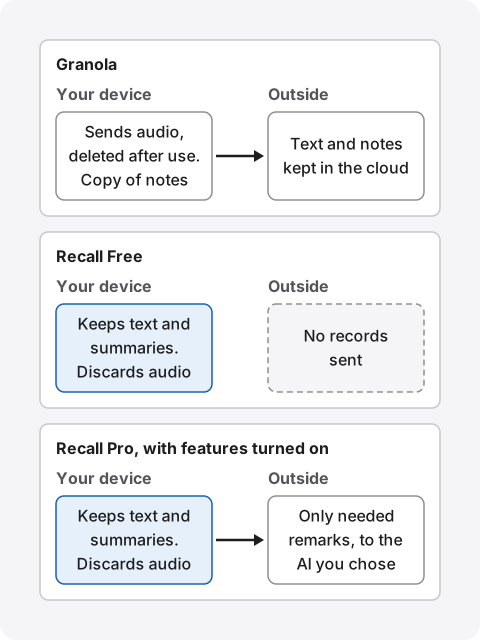
Granola stores transcripts and notes in a US cloud, and Recall stores them on the Mac. With Recall too, records leave when you use a Pro feature you turned on.
How Granola handles data
According to its security page, Granola transcribes in real time on desktop, and on mobile after the meeting from temporarily cached audio. It uses Deepgram and Assembly for transcription, and OpenAI and Anthropic for summaries. It says it does not store audio. Its data FAQ adds that audio is held only during transcription, then deleted from Granola and third-party services.
Notes and transcripts are encrypted and stored on AWS in the US, with a copy of notes cached on the device. The same FAQ says data is stored only in the US, and you cannot choose the EU, the UK, Japan or any other region.
Notes and transcripts are kept indefinitely unless you delete them. An auto-deletion period removes transcripts only; notes stay. Outside Enterprise, you can set your own period under Data & sharing in Settings › Preferences. Deleted notes stay in the trash for 30 days, then are removed for good. When you delete your account, it says all data is removed within 30 days.
Use for AI training
On Basic and Business, Granola may use anonymized data to improve its own AI. This is on by default. To stop it, turn off "Use my data to improve models for everyone" in Settings › Preferences › Data & sharing. It also says it cannot guarantee that data from before you opted out was not used. Enterprise has training off by default. It says third parties such as OpenAI and Anthropic never train on your data.
If your workplace rules ask about training, turn this off before you start. On Business, each person has to opt out themselves. For how to break down the worry, see What to check if you worry about leaks from AI meeting notes.
When Recall records leave the Mac
On Recall Free, records leave only when you copy or save them and pass them on. On Pro, the remarks a feature needs go to the destination you chose when you turn on any of these:
- Answering with your own Claude, ChatGPT or Gemini, or with Claude Code or Codex
- Using outside AI for meeting cleanup or review summaries
- Letting outside AI tools read records, or workflows that pass them to a command
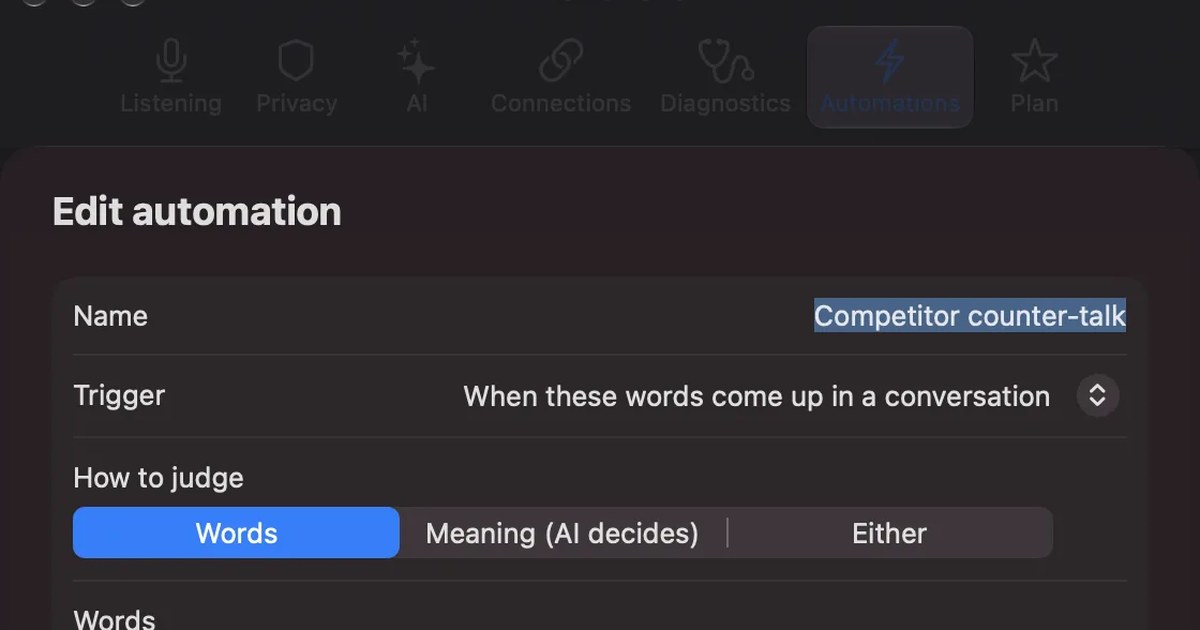
- Using cloud AI or registered tools with triggers during a conversation
When records leave the Mac lists everything sent and where. Recall also uses the network to download models at first, check the Pro license and check for updates, which exposes your IP address and similar connection details. No records are included.
Local does not mean safe by default. A Mac with a weak password or an unencrypted disk cannot protect your records. Recall leaves encryption to macOS FileVault, so we recommend turning it on. We hold no copy of your records either, so preparing for a broken Mac is up to you. The question is not which is safer, but whether handing conversations to an outside company fits your requirements.
Pricing: free limits and yearly cost
Granola's free Basic plan shows the last 30 days of history. Recall Free shows and searches the last 14 days. Recall has no cap on meetings or minutes transcribed, and Granola's pricing page lists no such cap either.
| Main scope | Price | |
|---|---|---|
| Granola Basic | Last 30 days of history. Shared folders, templates, Slack. You can opt out of training | Free |
| Granola Business | Unlimited history. Notion, HubSpot and other integrations, API, MCP, shared terms | $14 per user a month |
| Granola Enterprise | SSO, SCIM, organization-wide transcript auto-deletion, Salesforce, HIPAA | $35 per user a month |
| Recall Free | Unlimited transcription. Viewing and search for the last 14 days | Free |
| Recall Pro | Unlimited transcription. All saved records shown | ¥980 a month, ¥9,800 a year (tax included) |
Granola's pricing page shows monthly prices in "$" only, with no annual price. If you pay in another currency, the amount billed depends on exchange rates and card fees. A year of Business is $168 per user (12 months), and Recall Pro is ¥9,800 a year. The currencies differ and so do the features, so price alone does not rank them.
On Granola Basic, notes older than 30 days disappear from view. Its export help says the CSV export includes notes older than 30 days. Notes without a summary are left out.
On Recall Free, records older than 14 days are hidden. They stay on the Mac for the retention period, and Pro shows them. Retention defaults to 90 days on Free and forever on Pro, and records past it are deleted. If you use your own AI with an API key on Pro, that company bills you separately. If Pro cannot check its license for 14 days, Pro features stop until it reconnects.
Granola's free plan is sometimes described with different numbers in older articles. On November 13, 2026, the pricing page showed "30 days" of history, not a note count. Check older figures against the official page before relying on them.
Other options
To replay audio, look at Otter; for storage in Japan, Notta; to transcribe recorded files, MacWhisper. We checked them on their official pages on November 2, 2026 (Otter's prices again on November 13), and annual prices are per month when billed annually.
| What stands out | Price | |
|---|---|---|
| Otter | Keeps audio for replay. Records with Notetaker or the desktop app | Pro $16.99 a month, or $8.33 billed annually |
| Notta | Offered in Japanese. Stored in the AWS Tokyo region | Premium ¥14,220 a year (tax included) |
| Fireflies | 100+ languages. Free shows unlimited transcription (with a footnote) | Pro $18 a month, or $10 billed annually |
| MacWhisper | Transcribes on the device, strong with files | Free version. Pro is a one-time €64 |
Otter suits people who want to replay audio or transcribe recorded files. We cover it in Otter alternatives compared. Notta suits people who value Japanese support and storage in Japan. See Notta alternatives compared. MacWhisper suits people who want recorded files transcribed on the Mac. See MacWhisper vs Recall. If you are looking because you want no bot in meetings, tl;dv alternatives compared may help too.
Who each one suits
If you are unsure, decide by whether you pass notes to others. If you do, start with Granola. If they are only for you, try Recall first.
Granola suits you if
- You share meeting notes with your team in folders.
- You also use Windows, iPhone or Android.
- You take your own notes in meetings and want them turned into finished notes.
- One meeting mixes languages, such as Japanese and English.
- You send notes to Notion, HubSpot or Slack.
- An English-only app is fine for you.
Recall suits you if
- You do not want conversations on outside servers, or your workplace forbids it.
- You want no start step and want it to run in the background, so talks from webinars and videos are searchable too.
- You want an app in Japanese, or want to start without creating an account.
- You want text on your Mac and no audio kept.
- You want summaries made on your Mac too. On-device AI handles summaries and questions on Free. Summaries and to-dos need Apple Intelligence on. Answers to questions need it only on Macs with less than 16 GB of memory.
Free to use · No account needed · macOS 26 or later · Mac with Apple silicon · By downloading, you agree to the Terms of Service
Recall does not suit you if
- You want to use Windows, a phone, an Intel Mac, or a Mac before macOS 26.
- Your team wants to share the same notes. You would copy or save the transcript and pass it on.
- One meeting mixes Japanese and English, or you need languages other than Japanese and English.
- You want to register company or product names to help transcription. There is no custom vocabulary.
- You want your own notes turned into notes of a set shape.
- You want to keep audio and replay it, or import recorded files to transcribe.
Recall runs all the time, so it uses some CPU and battery, and more while people are talking. On an Intel Mac or a Mac before macOS 26, look at Granola (macOS 14 or later) or MacWhisper, which transcribes recorded files.
Choosing by type of meeting
Sales calls with outside companies: You hold the other company's information, so first check that your confidentiality agreement does not restrict entering it into outside services. To send notes to a CRM, Granola Business fits. To keep them for preparing the next call, Recall is enough.
Team standups: To pass notes to people who missed the meeting, Granola fits. If you only need decisions and your own tasks, Recall's summaries and to-dos are enough. Recall's to-dos collect what you agreed to do, together with the remarks behind them.
Work across countries: If languages mix within a meeting, Granola's desktop app fits. For English-only meetings, either transcribes.
1-on-1s: Personal matters end up in the record. Tell the other person you are transcribing, and keep records for a short time. Recall lets you keep records for as little as 7 days. Granola can auto-delete transcripts, but notes stay until you delete them.
What to look at when you try them
- Names and jargon: How well company names, product names and people's names come out.
- Gaps in summaries: Whether decisions and requests are missing, and whether you can trace them back to the original remarks.
- Forgetting to start: Granola does not start unless a note is open. Use it for a week and see whether you missed any meetings.
- Finding things: A week later, whether you can find a remark by words or by person.
- Load on the device: Recall depends on your Mac's performance and battery. Run it alongside your usual work.
Before you move from Granola
- Export the notes you want to keep: Generate CSV in Settings › Profile emails you a link within a few hours. The link lasts 24 hours, and you can export once every 24 hours.
- Check whether the new tool can import them: Recall cannot import past records. Keep the exported file separately.
- Delete old data: Delete notes you no longer need, and empty them from the trash if you want them gone now. If you delete your account, export first.
- Decide how to tell people: If you used the automatic chat message, decide how you will tell people with the new tool.
FAQ
Does Granola support Japanese?
For transcription, yes. Japanese is in both the 31 desktop languages and the 17 mobile languages. But the app and help center are English only. Summary language is English or Auto; a Japanese meeting gets a Japanese summary with Auto.
Is Granola free?
Yes. Basic is free and shows the last 30 days of history. To keep older notes, move to Business ($14 per user a month) or export them as CSV.
Does Granola work on Windows?
Yes. The desktop app is on Mac and Windows, and there are apps for iPhone, Android and Apple Watch. Macs need macOS 14 or later. Recall is Mac only.
Does Granola store audio?
It says it does not. Audio is held temporarily during transcription, then deleted from Granola and third-party services. What remains are transcripts and notes.
Does Granola use my data for training?
On Basic and Business it may use anonymized data to improve its own AI, and this is on by default. You can turn it off in Settings › Preferences › Data & sharing. It says outside AI companies do not train on your data.
Is Granola safe?
Granola says it stores notes and transcripts encrypted on AWS in the US and meets the SOC 2 Type 2 standard. On Basic and Business, though, using anonymized data to improve its own AI is on by default, so turn it off before you start if that concerns you. Also check first whether keeping conversations with an outside company fits your workplace rules.
Granola or Otter: which is better?
It depends on how you work. For no bot and notes built from your own, Granola. To replay audio or transcribe files, Otter. Both transcribe in the cloud. If you do not want conversations stored outside, look at a product that processes on the Mac, like Recall.
Which is more accurate, Granola or Recall?
We do not know. We have not compared them on the same audio, so we cannot say. Accuracy varies with speakers, microphones and topics. Both have a free tier, so try them on your own meetings.
Do Recall records ever leave the Mac?
Sometimes. Records leave when you use a Pro feature you turned on, or when you copy or save them yourself. Model downloads and license checks also use the network and expose your IP address. They include no records.
Checked November 13, 2026. Granola's details come from its official pricing and security pages and its help center. Other products' prices are shown in dollars and other currencies, and what you are billed can change with tax and region. Prices and features can change, so check the official pages before you sign up. This article is a general comparison, not legal advice.
See Plans and licenses for how Recall Free and Pro differ.
Free to use · No account needed · macOS 26 or later · Mac with Apple silicon · By downloading, you agree to the Terms of Service
Get the product overview (PDF) by email →
Related articles
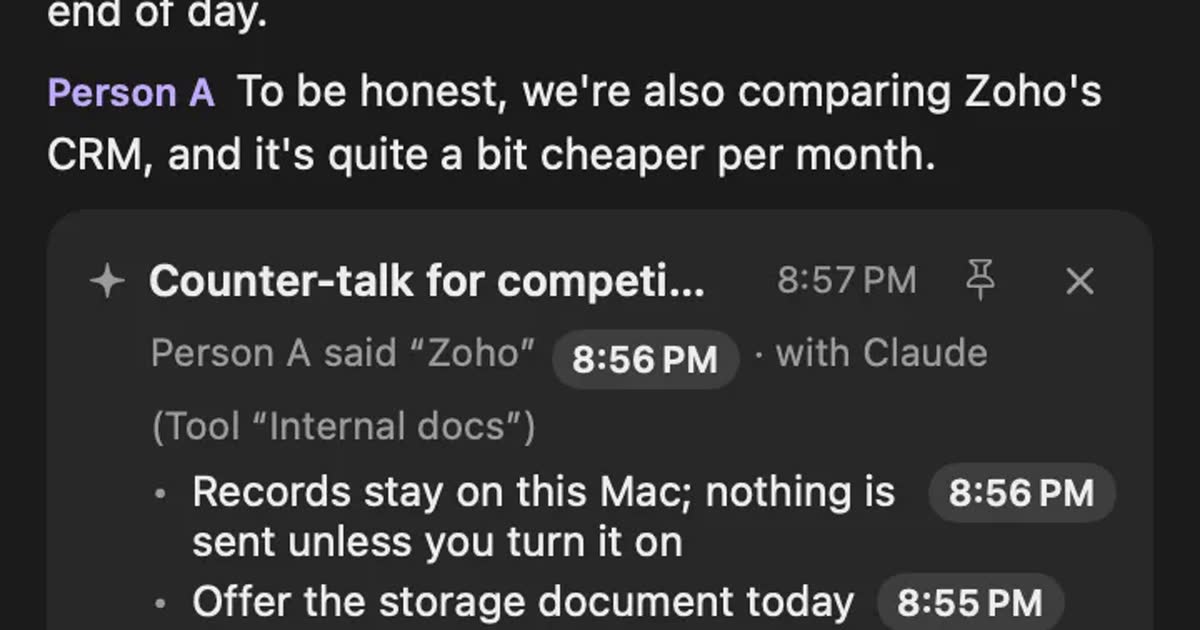
Hedy alternatives compared: choosing AI help during meetings
For people looking for a Hedy alternative. We split help during meetings into three forms and compare automatic suggestions, screen sharing, where processing happens and plan limits, including who should stay with Hedy and who Recall does not suit.
Otter.ai alternatives compared: 8 options for English meetings, and when to stay on Otter
Looking for an Otter.ai alternative? We compare Recall, Fireflies, Fathom, Granola, Notta, MacWhisper, tl;dv and Tactiq on bots, where data lives, languages and free limits, and say when Otter is still the better choice.
Notta alternatives compared: choosing when you worry about data leaks
For people looking for a Notta alternative. We split the worry about leaks into three, then cover what you can do within Notta, Privacy Mode, and how five products including Recall differ, and who they do not suit.
Jamie AI alternatives: free plan limits, pricing, and where your notes are kept
Jamie's free plan limits (10 AI notes a month, 30-minute meetings), pricing, how recording starts, and where data is kept, checked against its official pages on November 19, 2026, and compared with Krisp, Granola, Tactiq and Recall. Who should stay with Jamie, and who should switch.