 Recall
Hedy alternatives compared: choosing AI help during meetings
For people looking for a Hedy alternative. We split help during meetings into three forms and compare automatic suggestions, screen sharing, where processing happens and plan limits, including who should stay with Hedy and who Recall does not suit.
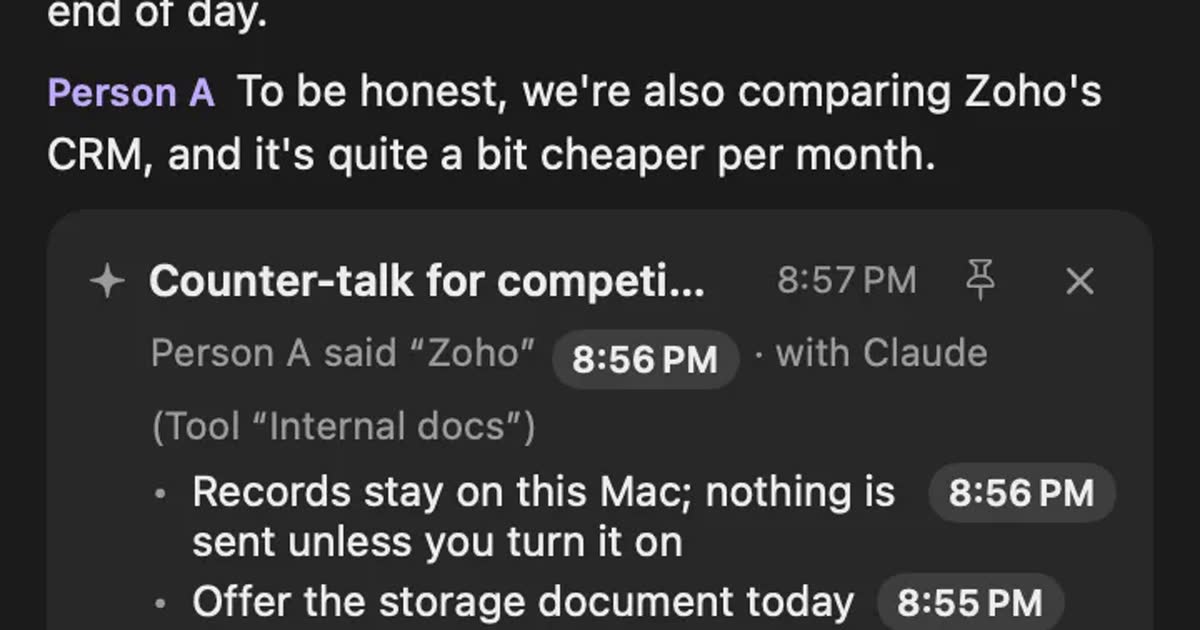
The short answer: Hedy for automatic suggestions, Recall for an always-on record you can ask
If you want the AI to offer questions and points during a meeting without being asked, staying with Hedy is the right fit. If you use only a Mac, want conversations kept even when you forget to start anything, and want help only when you ask or in situations you set up in advance, Recall is an option. Recall is not the same thing as Hedy. Automatic suggestions are at the center of Hedy.
The dividing line is less about accuracy than about when help starts and who starts it. In Hedy, once a session begins, the AI offers suggestions every few minutes. Recall is always listening, and help appears when you open the panel or when a condition you set is met.
This article is written by KOROMO K.K., which develops Recall. So what we say about Hedy is limited to what we confirmed on its official site and in its help center, and we do not hide the situations where Hedy fits better. We do not say whose transcripts or suggestions are better, because we have not measured them under the same conditions.
| Your situation | What fits, and where to read next |
|---|---|
| You want suggestions without asking | Hedy. See Hedy's automatic suggestions |
| You want suggestions based on past meetings or your background | Hedy. See what you can give it in advance |
| You also need a phone, Windows or in-person use | Hedy. See devices |
| You forget to start a session and lose the meeting | Recall. See how each one starts |
| You want the AI only in set situations, such as when a competitor is named | Recall. See Live AI cards |
| You share your screen often and do not want the help to show | Recall. See screen sharing. You still need to tell people you are transcribing |
| You want suggestions without the conversation leaving your Mac | Both can do this. See where it is processed |
| The AI inside Zoom or Teams may be enough | See other options |
Help during a meeting comes in three forms
AI help during a meeting is easier to compare when you split it into suggestions that appear on their own, answers you ask for, and captions you read. Hedy and Recall both have all three, but they put their weight in different places.
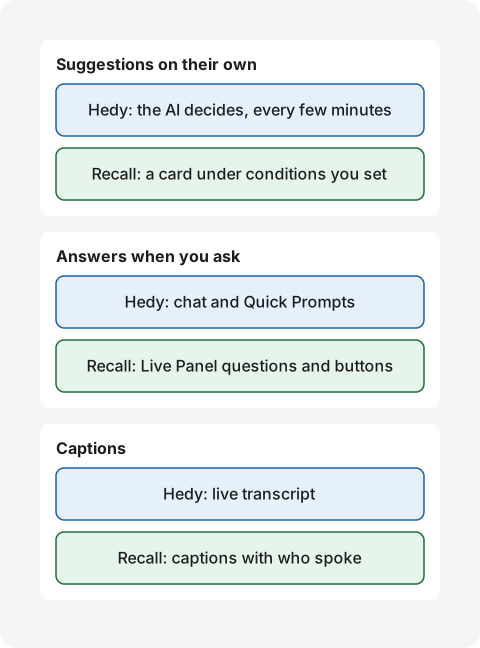
- Suggestions on their own: the AI watches the conversation and offers questions or points without being asked. This helps when you need to think while you talk, but reading the screen can pull your attention away from the other person.
- Answers when you ask: you get an answer only when you ask, as in “Summarize this” or “What did they ask?” You look only when you need to, but asking takes effort, and you are least able to ask at the busiest moments.
- Captions: you check by eye the words you missed. No AI judgment is involved. They work well in meetings in a second language, or to avoid asking people to repeat numbers.
Which form you need depends on where meetings get hard for you. If the next question does not come, automatic suggestions. If you lose track of the topic, questions and summaries. If you cannot catch the words, captions. If your trouble is sorting things out after the meeting, you may not need help during it at all. Hedy's own explainer on AI meeting coaches also says to choose a documentation tool if the pain comes after the meeting.
What Hedy and Recall do during a meeting
Hedy was built as a coach for the meeting itself, and Recall is a record of what you heard with help during meetings added. Because they start from different places, features with similar names are used differently.
Hedy's automatic suggestions
The center of Hedy is Automatic Suggestions. According to the official help, the AI watches the conversation during a session and, when it finds a chance to ask a question or raise a topic, posts a suggestion in the chat. Suggestions typically begin after about 2 minutes of meaningful conversation, and then arrive every couple of minutes.
You can set the frequency to Off, Selective, Balanced or Frequent. On a Mac there is also a setting that shows suggestions in Hedy's own panel while the app is in the background. Choosing a session type, such as a business meeting, lecture, interview, coaching session or negotiation, changes the direction of the suggestions and the shape of the summary.
The help also says Automatic Suggestions is not for instant answers. When you want an answer to a question you were just asked, you use chat or Quick Prompts, buttons prepared for each session type. You can also write your own.
What you can give Hedy in advance
A strength of Hedy's suggestions is that they can use information you give it beforehand. The official help describes three layers: a session context for your role and background, a Topic context for a client or deal, and notes for that one conversation. What you write in a session's notes shapes the automatic suggestions.
Conversations grouped in Topics can draw on past conversations in the same Topic. If you want help on a third call with the same client that builds on the earlier ones, this fits better than Recall's Live Panel.
Recall's Live Panel
Help during a meeting in Recall is based on the Live Panel, which you open yourself. Press ⌥⌘L from any app to get captions with who spoke, the buttons “Summarize so far”, “What did they ask?” and “What I committed to”, a question field, and a note. It is available on Free.
Answers are based by default on the lines from the last 15 minutes. With some AIs you can also choose the whole conversation. Clicking a time chip jumps to that line. It reads only the current conversation. To ask about past meetings, you use Ask AI instead of the Live Panel. The note is not given to the AI, so unlike Hedy's notes it does not feed suggestions. The panel never opens on its own.
Recall's Live AI cards
The closest thing to help that appears by itself is Live AI cards. Set something up like “When a competitor's name comes up, suggest a response”, and the AI's answer appears as a card when the condition is met.
The condition can be words, a meaning the AI judges, or either. You can also set who said it (by default, the other person), the interval between cards, and a limit per conversation. So a Recall card does not have the AI looking for chances. It acts in the situations you decided. In situations you did not define, nothing appears.
This means no unwanted suggestions, but some setup at the start. If you cannot put into words which situations you want help with, Hedy's automatic suggestions will be easier to begin with. Cards stay with the conversation, and you can read them later in its details. Word conditions and on-device AI judging and answers are available on Free. Answers from a cloud AI, judging by anything other than on-device AI, and registered tools need Pro.
Bringing Recall closer to automatic suggestions
If you set broader conditions, you can use Recall in a way close to automatic suggestions. Here are some examples. Each is text you would write yourself in a live trigger, not a built-in feature.
- By words: when the other person says “discount” or “budget”, offer three questions to check.
- By meaning: when the other person voices a concern, sum up their point in one line and offer one question to ask back.
- By speaker: when you say “I'll do it”, offer a short reminder to check that a deadline was set.
Too many cards become unreadable, so also set the interval and the limit per conversation. By default, on-device AI does the judging. If you hand judging or answers to a cloud AI, part of the conversation leaves your Mac as described later, so read the confirmation shown before saving. Even with these settings, Recall does not make suggestions based on your background or past conversations the way Hedy does.
How to check the AI's answers
Check an AI's idea before you say it out loud. AI can write things nobody said, and mistakes matter most with numbers and names.
Live Panel answers in Recall come with time chips that take you to the original line, and a card shows the words that matched and who said them, or the condition that was judged. In Hedy you can look back through the transcript during the conversation. According to its help, suggestions are not stored unless you copy them, so copy the ones you want to read later. Recall's cards stay with the conversation and can be read after the meeting. If you do not want them kept, delete the conversation.
What you use after the meeting
Both make summaries and to-dos after the meeting. Hedy is stronger on sharing, export and importing recordings: on Pro you can share by email or link, import recordings and YouTube videos, and use its API, webhooks and Zapier.
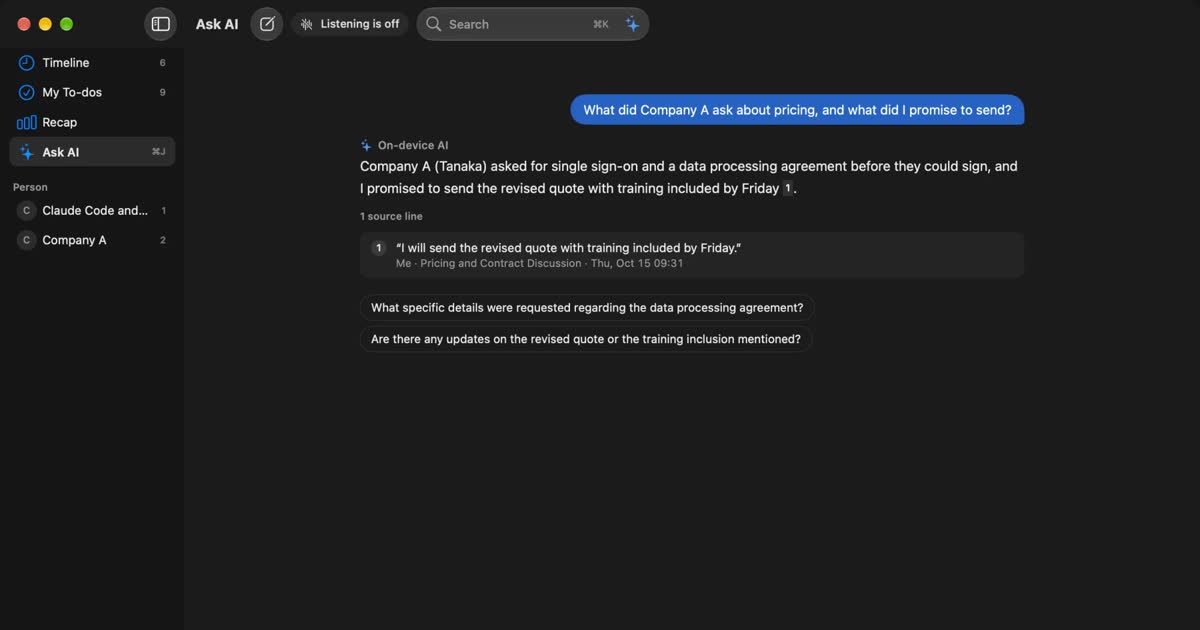
Recall leans toward finding things in your own record. It has ⌘K search, Ask AI with numbered sources, the assistant with commitments and due dates gathered from your conversations, and history by person. It cannot read audio files and has no share links. To pass something on, you copy a transcript or save it as a text file.
How Hedy and Recall differ
The main difference is that in Hedy the AI supports a session you started, and in Recall you use a record that is always kept. The details are in this table.
| Hedy | Recall | |
|---|---|---|
| Automatic suggestions | Yes. The AI decides, every few minutes | Cards only when a condition you set is met |
| Starting | You start a session. Supported apps prompt you | Runs in the background and listens automatically |
| What suggestions use | Your background, deal details, notes, past conversations in a Topic | The current conversation and what you wrote in the trigger |
| Meeting audio | Microphone and Mac audio (no bot) | Microphone and Mac audio (no bot) |
| Speakers in person | Live speaker labels on Apple devices | Everyone else is one “Person (in person)”. Needs your voice registered |
| Devices | Mac, Windows, iPhone, iPad, Android, Apple Watch, web | Mac only |
| Requirements (Mac) | macOS 14.2 or later. Intel Macs work too | macOS 26 or later on Apple silicon |
| Screen sharing | Shows if you share the whole screen | Set not to show. Check in your meeting tool |
| Account | Required | Not required (email and card to buy Pro) |
| Importing recordings | Pro | Not available |
| Team features | Team plan available | None |
How each one starts
Hedy listens from the moment you start a session. Meeting detection is on by default and offers to start a session when Zoom, Teams, Webex, or FaceTime on the Mac begins using the microphone. No audio is captured until you accept. For other apps you start it yourself. Google Meet in a browser is not on the detection list.
Recall sits in the menu bar and listens to the microphone and the sound from your Mac. No start action is needed, so an impromptu conversation is kept too. In exchange, you need to stay aware that it is listening. You can pause it, and you can set apps such as banking or password managers as apps not to record.
This difference also affects help during meetings. Hedy has you pick a session type and Topic at the start, which suits preparing for an important meeting. Recall keeps things with no preparation, which suits conversations that were not on the calendar.
Screen sharing
Hedy's official help explains that if you share your whole screen, others can see Hedy's window, suggestions and transcript. Its suggestion panel on the Mac shows like any other window. To avoid this, it suggests sharing a single window, keeping Hedy on a second monitor, or following on your phone.
Recall's panel and cards are set not to show in screen sharing. Check once in the meeting tool you use. That is handy if you want to read captions while presenting. But not showing does not mean you can skip telling people that you are transcribing. A later section covers how to tell them.
Devices and languages
If you need anything other than a Mac, the choice is Hedy. Its requirements cover iOS 17, Android 12 and Windows 10 (1809) or later, and it runs on Intel Macs, though Local AI, described below, does not. Placing a phone on the table for an in-person meeting, or reading suggestions on an Apple Watch, are things Recall does not do.
Hedy also covers more languages: it says it understands 36 languages and replies in 50. Japanese is in both lists, so you can read answers about an English meeting in Japanese. Its official table recommends Nemotron Multilingual for Japanese on a Mac. Recall is built mainly for Japanese and English and has no translation. We could not confirm from Hedy's official pages whether its app interface is available in Japanese.
Using it as a team
To standardize across a team, choose Hedy. The Team plan covers 2 to 200 seats, with one admin dashboard for seats and billing, and members can ask Hedy across sessions added to a shared Topic. Hedy says admins never see private sessions. Enterprise, from 200 seats, adds enforced Local AI, SSO, audit logs and more. Recall is installed on each person's Mac and has no team management.
Where the conversation is processed and what stays
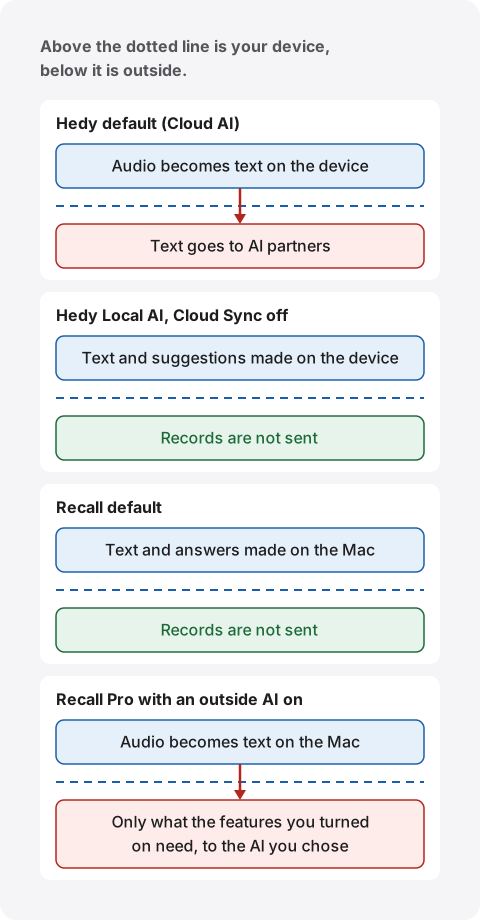
By default both Hedy and Recall turn audio into text on the device, but they differ in where suggestions are made by default: a cloud AI for Hedy, on-device AI for Recall. Hedy can also make suggestions on the device if you change its settings, so “Hedy is cloud, Recall is local” is too simple.
With Hedy
According to Hedy's privacy overview, in the default cloud mode the transcript goes to its AI partners for automatic suggestions, summaries and chat. It says those partners are bound by agreements not to keep it or train on it. Audio is not stored on its servers.
To keep things from leaving the device, you check five settings. The official steps are local speech recognition, iCloud audio sync off, Local AI, Cloud Sync off, and email recaps off. Cloud Sync has no default, because you choose when you create your account, so check which you picked. When it is on, the official page lists two storage regions, the US and the EU, and the region cannot be changed afterward.
Local AI Processing comes with conditions worth knowing.
- It works on Apple silicon Macs, and models range from about 2.5 GB to over 20 GB. It is available on Free.
- Hedy says cloud AI is faster and a step ahead in quality.
- It says a summary can take from 30 seconds to several minutes.
- It recommends turning off Automatic Suggestions for long sessions, because they keep the model busy, slow other work and generate heat.
That last point matters if you are looking for help during meetings. If you want suggestions made only on your device, test a long meeting on your own Mac. Account information, usage data and crash reports reach Hedy's servers regardless of these settings. Hedy says these do not contain transcripts.
With Recall
By default Recall makes transcripts, summaries and Live Panel answers on your Mac. Records do not reach our servers. But that does not mean nothing can ever leave your Mac. As Privacy and data explains, records leave in these cases.
- When you use the Live Panel or Ask AI with your own Claude, ChatGPT or Gemini on Pro. Lines from the last 15 minutes (up to 6,000 characters) and similar go to that company. If you choose the whole conversation in the Live Panel, up to 60,000 characters go (16,000 with an API key).
- When you use an outside AI for Live AI cards on Pro. If judging is outside, each new line and the 60 seconds before it are sent.
- When you turn on outside AI tools, per-feature AI or workflow commands on Pro.
- When you copy or save a transcript and pass it on yourself.
Pro features run only when you turn them on, and Recall shows what will be sent before the first time. Apart from records, the app connects for the first model download, the Pro license check and the update check, and communication information such as your IP address reaches those services. By default, records are kept for 90 days on Free and forever on Pro, and Free shows and searches the last 14 days.
On a Mac with less than 16 GB of memory, the on-device AI that answers questions needs Apple Intelligence turned on. Summaries and to-dos are made when Apple Intelligence is on, whatever the memory (except when you choose an outside AI for organizing meetings on Pro). As with Hedy's Local AI, answers from an AI running on the device depend on your Mac and may not match a large cloud model.
By default, neither keeps audio
The handling of audio is similar. Hedy discards audio after turning it into text by default, and keeping a recording is opt-in. A temporary on-device audio cache used to work out speakers is on by default and is deleted after processing. Recall discards audio once it becomes text and has no setting to keep it. If you want to listen again later, Hedy, which lets you choose to save audio, is the better fit.
Telling others is the same for both
Even without a bot in the meeting, tell people you are transcribing. Hedy's help also explains that consent can be needed for transcribing itself, even when no audio is kept. Recall takes the same position. You might say something like this.
“So I can check the details later, I'm transcribing this on my Mac. The audio isn't saved, but the transcript stays on my Mac. Let me know if you'd rather I stop.”
If you use Hedy, name it instead, and mention it if a cloud AI is on. The same goes for Recall when you send to an outside AI. Do not use either where recording or note-taking is forbidden, where your employer's rules do not allow it, or in interviews and exams where AI is not permitted.
Pricing and what is free
If your meetings run long, Recall is the one you can keep using for free. Hedy's Free plan gives 5 hours a month, with automatic suggestions for the first 30 minutes of each session. Recall's Free plan has no limit on transcription, but shows and searches only the last 14 days.
| Hedy | Recall | |
|---|---|---|
| Free | 5 hours a month. Unused time does not carry over | Unlimited transcription. Shows and searches the last 14 days |
| AI during meetings (free) | Automatic suggestions for the first 30 minutes of each session | Live Panel available. Cards work with on-device AI |
| Paid (monthly) | Pro $12.99 | Pro ¥980 (tax included) |
| Paid (yearly) | Pro $99.99 | Pro ¥9,800 (tax included) |
| One-time | $299 | None |
| Main paid difference | No time limit. Automatic suggestions up to 120 minutes per session | Records older than 14 days. Your own AI and outside tools |
Prices are from Hedy's pricing page and Recall's pricing. Hedy is priced in US dollars, and amounts in the App Store and Google Play differ with local currency and tax.
Applying these numbers to your own meetings changes how they look. With a one-hour meeting every weekday, Hedy's Free plan reaches its monthly limit in 5 days. It warns you with 5 minutes left, and if time runs out the session is saved and you still get the recap. In a one-hour meeting, the second half has no automatic suggestions. Even on Pro, the last hour of a three-hour training has none.
Over a year, Hedy Pro costs $155.88 paid monthly or $99.99 paid yearly. The one-time $299 is about three years of the yearly plan. Recall Pro costs ¥11,760 paid monthly or ¥9,800 paid yearly. Hedy Pro works on all your devices, and Recall Pro works on another Mac with the same key. Recall Pro stops its Pro features if the license cannot be checked for 14 days. They return once it can connect, and listening and transcription continue.
Purchases on Hedy's website can be refunded on request within 14 days, while Recall does not refund partway through a period. Both can be tried for free, so you can test them in your own meetings before paying.
Other ways to get help during a meeting
Hedy and Recall are not the only options. If your company has a paid Zoom, Teams or Google Meet plan, check the AI inside those first. You may not need a new app.
| Help during the meeting | What to check | |
|---|---|---|
| Granola | Ask Chat to catch you up, list action items or explain terms | You have to ask. Basic chat covers the last 30 days of notes |
| Fireflies | Live Assist. Four suggestions such as Follow Up and Catch Up, a transcript and questions | Topic-based suggestions are paid. Desktop and Chrome extension are described as working without the bot. Questions use AI credits |
| Zoom | Meeting questions. Ask about what was discussed | Needs a qualifying paid plan. The host starts and stops it. Questions come from the desktop app |
| Copilot in Microsoft Teams | Ask for notes and tasks during the meeting. Others cannot see your conversation | Options depend on your organization. It works without transcription, but prompts may be retained under your organization's policies |
| Ask Gemini in Google Meet | Ask for summaries and key points. Answers are private to you | Needs an eligible Workspace plan. Supports Japanese. Participants see a consent banner |
Granola is an ask-when-you-need-it tool that is strong on notes and sharing. Fireflies is closer to Hedy, with suggestions of its own. The AI in Zoom, Teams and Meet runs only inside each meeting tool and depends on admin and host settings. When you join a meeting on someone else's tool, you may not be able to use the AI you prefer.
Apps you install on your device, such as Hedy and Recall, have the advantage of working with any meeting tool. On the other hand, if your employer's rules do not let you install apps, the AI in the meeting tool your company already pays for is the realistic choice. See Granola AI alternatives compared for how Granola differs, and the guide to meeting AI safety for what to check at work.
Who each one suits, and who it does not
Hedy suits people who want help without asking. Recall suits people who want a record kept at all times and help only when needed. Many people do not need to switch at all, so go through these in order.
Hedy suits you if
- You want the AI to offer the next question automatically in sales calls, interview practice or negotiations.
- You want suggestions based on your background and deal details.
- You want to group meetings with a client in a Topic and carry past conversations forward.
- You also need iPhone, Android, Windows or in-person use.
- You have meetings in languages other than Japanese and English.
- You want to keep recordings, or import audio files and YouTube videos.
- You want to share conversations across a team.
- Your organization’s review needs third-party assessments. Hedy’s security page lists a SOC 2 Type I examination (April 2026) and an independent HIPAA assessment.
Recall suits you if
- You use a Mac with Apple silicon on macOS 26 or later.
- You forget to start a session and lose meetings.
- You do not need constant suggestions and want the AI to act only in set situations.
- You want to see captions and answers while sharing your screen.
- 5 hours a month is not enough, and you want to keep going for free at first.
- You want to use it without creating an account.
- You want conversations processed on your Mac with the default settings.
Free to use · No account needed · macOS 26 or later · Mac with Apple silicon · By downloading, you agree to the Terms of Service
Recall does not suit you if
- You want the AI to offer suggestions with no setup. Recall's cards act only once you set conditions.
- You want live suggestions based on past meetings or your own documents. The Live Panel reads only the current conversation.
- You need Windows, a phone, an older macOS or an Intel Mac.
- You want each person told apart in in-person meetings. Recall records them as one “Person (in person)”.
- You want to keep recordings or read audio files.
- You need translation.
- You want team management or sharing.
Thinking it through by situation
- Sales calls and client meetings: if you want to give the AI client details and get suggestions, Hedy. If the moments that need a response are known, such as price or competitors, Recall's cards can be enough.
- Internal regular meetings: you often do not need automatic suggestions. Checking what you missed and “What I committed to” is enough, and an always-on Recall is easy. If your company has AI in Teams or Meet, that may be plenty.
- One-on-ones: these are for listening, so fewer suggestions on screen is better. In Hedy, set the frequency to Selective or turn it off. In Recall, just do not open the panel. The content is personal, so avoid sending it to an outside AI, and take particular care in telling the other person.
- Lectures and training: Hedy has a lecture session type and can explain terms. For long training, check the time limit on automatic suggestions.
- Meetings in English or other languages: for captions alone, Recall can be enough. If you want answers in Japanese, or have meetings in languages beyond Japanese and English, Hedy covers more.
- In-person meetings: if you want to place a phone on the table, Hedy. Recall listens through the Mac's microphone and, once you register your voice, separates others as “Person (in person)”. With either, tell the people in the room first.
What to check in your own meetings
Both can be tried for free, so before an important meeting, look at these four points in the same meeting. Tell the others about the transcription first.
- Readability: when you read suggestions while talking, do you miss what the other person says?
- Useful count: in a one-hour meeting, how many suggestions or cards did you actually use?
- Room on your Mac: with on-device AI, do your meeting app and documents slow down?
- Words: how well do company names, product names and technical terms come out?
If your only complaint about Hedy is the monthly time, moving to Pro is quicker. If it is “it shows on screen”, “I forget to start it” or “there are too many suggestions to read”, try Hedy's frequency setting first, and if that does not suit you, try Recall.
What to check when moving from Hedy
If you switch, decide first what to do with your past records. Hedy's pricing page lists export in Markdown, CSV and JSON. Recall cannot import past records, so keep exported transcripts outside Recall.
If you used Cloud Sync, turning it off does not remove sessions already synced to the server. According to the official guidance, you delete them from the device that captured them. Deletion takes effect immediately, and Hedy says data leaves backups within 14 days. Public links stay active until revoked, so review them in settings. Cancel where you subscribed: the App Store, Google Play, or the billing portal.
Frequently asked questions
Can Recall replace Hedy?
It depends on how you use Hedy. If you want captions, questions, cards in set situations and summaries afterward, yes. If you want the AI to look for chances on its own, or suggestions based on your background and past conversations, no.
Does Hedy work for meetings in Japanese?
Yes. Hedy lists Japanese for both listening and answers, and recommends Nemotron Multilingual on a Mac. We have not checked its accuracy. We could not confirm from its official pages whether the interface is in Japanese, so try it in your own meetings.
Can I keep using AI during meetings for free?
Both have a free range. Hedy's Free plan gives 5 hours a month, with automatic suggestions for the first 30 minutes of each session. Recall's Free plan includes the Live Panel and cards with on-device AI, with no limit on transcription. It shows and searches the last 14 days.
Can Hedy run only on the device?
It can. With five settings, including Local AI and Cloud Sync off, sessions stay on the device. The default is cloud AI. Account information, usage data and crash reports still reach Hedy, and sharing a session uploads it.
Do Recall's records ever leave my Mac?
They can. Records leave when you use Pro features you turned on, or when you copy or save them yourself. The app also connects for the model download and the license check, and information such as your IP address arrives. These connections do not include records.
If it does not show on screen, can I skip telling people?
No, please tell them. Neither an invisible bot nor a panel set not to show in sharing replaces consent. Do not use it where recording or note-taking is forbidden, where your employer's rules do not allow it, or in interviews and exams where AI is not permitted.
Which has more accurate suggestions or transcripts?
We do not know. We have no results from comparing the same audio, so we cannot say which is better. With both, results change with how people speak, the microphone, the topic and the AI used. Please check in your own meetings.
Do they work without the internet?
Once its models are ready, Recall can listen, transcribe and use on-device AI offline. Hedy says that with Local AI, suggestions work without a connection, and that in cloud mode it transcribes offline and generates insights once you are back online.
Can I get help during meetings on Windows or a phone?
Not with Recall. Hedy supports Windows, iPhone, iPad and Android. To make suggestions on the device on Windows you need a Vulkan-capable GPU, and Local AI on phones is limited to small models.
Checked on November 2, 2026. Details of Hedy and other products come from each company's official site and help. Fireflies' guide is not consistent within the page about the bot, and pricing and features can change, so please check the official pages before adopting anything. This article is a general comparison, not legal advice. The difference between Free and Pro is explained in Plans and license.
Free to use · No account needed · macOS 26 or later · Mac with Apple silicon · By downloading, you agree to the Terms of Service
Get the product overview (PDF) by email →
Related articles
Granola AI alternatives: Granola vs Otter and Recall compared
For people looking for a Granola AI alternative. We compare languages, Granola vs Otter, where notes are processed and stored, how to opt out of training, and pricing from official sources, including who should stay with Granola and who Recall does not suit.
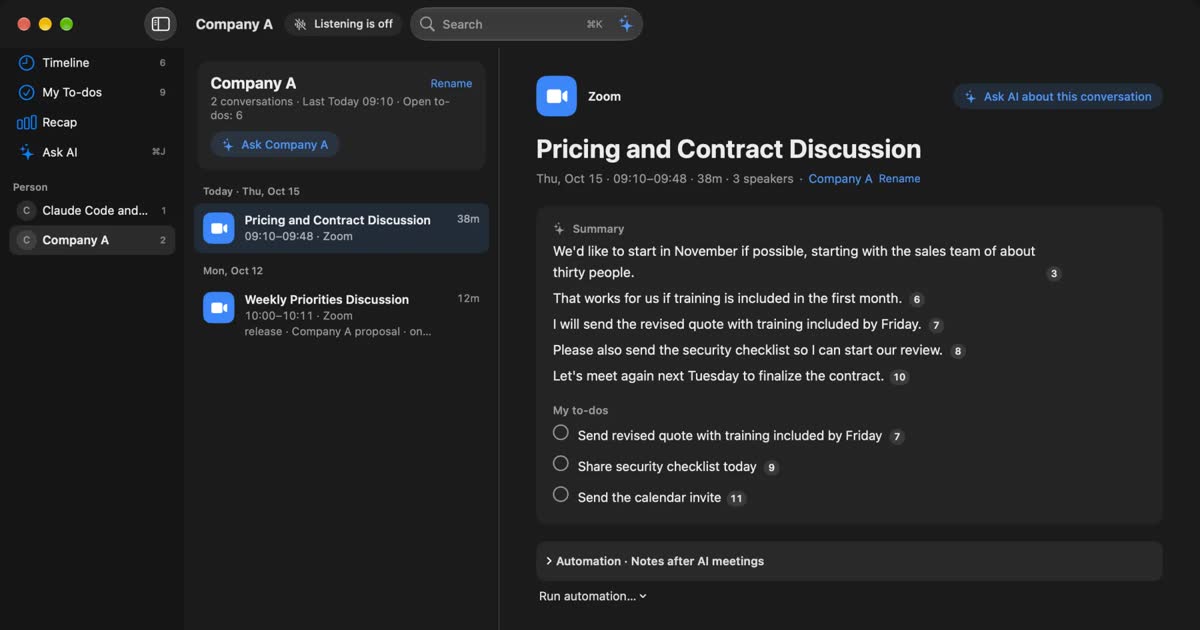
Otter.ai alternatives compared: 8 options for English meetings, and when to stay on Otter
Looking for an Otter.ai alternative? We compare Recall, Fireflies, Fathom, Granola, Notta, MacWhisper, tl;dv and Tactiq on bots, where data lives, languages and free limits, and say when Otter is still the better choice.
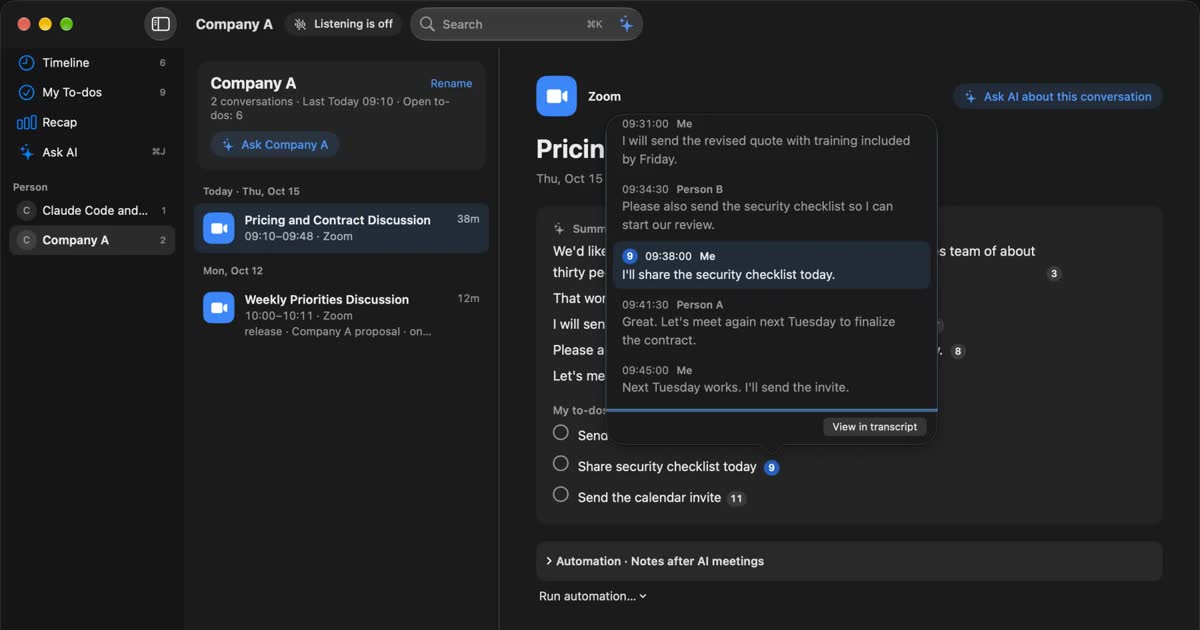
Rimo Voice (now Rimo) vs Recall: choosing a meeting notes tool
Comparing Rimo Voice (now Rimo) and Recall: where records live, bots, sharing, and cost, with Notta and AiNote in the picture, and who each one does not suit.