 Recall
How to use dictation on a Mac: settings, shortcut, punctuation, and fixes when it stops
Turn on Dictation in the Keyboard settings, then start it with the Microphone key or a shortcut. How to change the shortcut, voice commands for punctuation, new lines and emoji, how to check whether it runs on your Mac, what to check when it stops, and why it isn’t a meeting recorder.
The short answer: turn it on in Keyboard settings, then press the Microphone key or the shortcut
To dictate on a Mac, turn on Dictation in System Settings > Keyboard > Dictation, click where you want the text, then press the Microphone key, press the Dictation shortcut, or choose Edit > Start Dictation. To stop, press Escape, the Microphone key or the shortcut.
Your words go in where the cursor is. There is no length limit and no timeout, but Dictation stops on its own after 30 seconds without detected speech. In Apple’s feature list, English (US and UK) supports auto-punctuation and on-device dictation.
Dictation types the words you say into the microphone. It doesn’t capture the other people in a meeting or keep a running record of a conversation. This article is written by KOROMO K.K., which develops Recall, a transcription app for Mac. We introduce our own product at the end, so read with that in mind. We checked the Dictation details against Apple’s original Mac User Guide pages on November 11, 2026.
Turn on Dictation and start it
Dictation settings are in System Settings, under Keyboard > Dictation (audio sharing and Voice Control are set elsewhere). The steps follow Apple’s “Dictate messages and documents on Mac”.
- Choose Apple menu > System Settings, then click Keyboard in the sidebar (you may need to scroll down)
- Turn on Dictation and click Enable. You’re asked whether to share audio recordings with Apple to improve Siri and Dictation: choose to share them, or click Not Now
- In the app where you want the text, click where it should go
- Press and release the Microphone key (on Macs that have one in the row of function keys), press the Dictation shortcut, or choose Edit > Start Dictation
- Speak. To stop, press Escape, the Microphone key or the shortcut
Press the Microphone key and let go. If you hold it down, Siri starts instead of Dictation. On a Mac with Apple silicon, you can keep typing while you dictate.
Older guides that mention a “Dictation & Speech” pane in System Preferences or “Use Enhanced Dictation” describe earlier versions of macOS. Apple’s guide for macOS 26 doesn’t mention them, so on a current Mac look in Keyboard settings.
Change the shortcut
The current shortcut is shown in the Shortcut pop-up menu in Keyboard > Dictation. Choose another from the menu, or choose Customize and press the keys you want. Apple’s example is Option-Z.
If you choose Press Fn Key Twice as the shortcut, depending on your Mac, the fn or Globe key option in Keyboard settings may change to Start Dictation too. If you used that key for something else, check it after you change the shortcut.
Choose the microphone
Choose the microphone in the “Microphone source” pop-up menu in Keyboard > Dictation. With Automatic, your Mac listens to the device you’re most likely to use for Dictation. To always use the built-in microphone instead of earbuds or a headset, pick it here.
Add or switch languages
To add or remove languages, click Edit next to Languages in Keyboard > Dictation. If you add more than one, switch while dictating by clicking the language indicator next to the cursor, or by pressing the Globe key. If you speak English but get another language, check this first.
Punctuation, new lines and emoji
In English, commas, periods and question marks go in automatically as you speak. Say “new line” or “new paragraph” to break lines. The commands come from Apple’s “Commands for dictating text on Mac”.
| What you say | What you get | |
|---|---|---|
| Punctuation | “comma”, “period”, “question mark”, “exclamation mark” | , . ? ! |
| Lines | “new line”, “new paragraph” | A new line, or a new paragraph |
| Formatting | “all caps”, “numeral” | The next word in capitals, the next phrase as a number |
| Emoji | The name and “emoji”, such as “heart emoji” | That emoji |
If you don’t want automatic punctuation, turn off Auto-punctuation in Keyboard > Dictation, and say the punctuation yourself.
Words Dictation isn’t sure about are underlined in blue. Click one to see alternatives, or type or dictate the correction.
In macOS 27, with Apple Intelligence, Dictation uses an on-device model to improve spelling, punctuation and capitalization. Apple says this works in English on Macs with an M3 chip or later and at least 12GB of unified memory.
Check whether it runs on your Mac
Apple says you can check in Keyboard settings whether your speech and its transcription are processed on your device and not sent to Siri servers, while Dictation is on. That applies to general text dictation, such as writing messages and notes, and not to search boxes.
In Apple’s macOS feature availability list, English (US and UK) is listed under “Dictation: On-Device and Modeless Dictation”, with the note “Requires download of speech models.” Right after you turn Dictation on, your Mac may need to download them.
Audio sharing follows what you chose when you turned Dictation on. If you chose to share recordings, Apple may store audio of your Siri and Dictation interactions and may review a sample. You can change this later in System Settings > Privacy & Security > Analytics & Improvements, with Improve Siri & Dictation.
Before you dictate anything confidential, check where it’s processed in Keyboard settings and check your company’s rules. We compare ways to transcribe on a Mac without sending audio out in How to transcribe locally on a Mac.
What to check when it doesn’t work or stops
If it stops partway, it’s usually the 30 seconds of silence. If no text appears, check the microphone source. If it won’t start at all, check Voice Control. These are based on Apple’s guide, in the order people tend to hit them.
- It stops when you pause: Dictation stops after 30 seconds without detected speech. If you think as you talk, start it again when it stops. There is no length limit or timeout otherwise
- The microphone shows, but no text appears: Check that “Microphone source” isn’t set to earbuds or an external microphone you aren’t using. If in doubt, choose the built-in microphone
- Dictation doesn’t start: When Voice Control is on in Accessibility settings, you dictate with Voice Control, and standard macOS Dictation isn’t available
- The Microphone key opens Siri: Holding the key starts Siri. Press it and let go
- The shortcut does nothing: Check the current setting in the Shortcut menu, and make sure another app doesn’t use the same keys
- The wrong language comes out: Check that your language is in Languages and that the indicator next to the cursor shows it
- Search boxes behave differently: Dictation in search boxes isn’t covered by on-device processing. If that matters, type in search boxes
Where Dictation doesn’t fit
Dictation types what you say into the microphone, wherever the cursor is. It doesn’t pick up the other people in a meeting or keep what was said as a conversation. In these cases another method fits better.
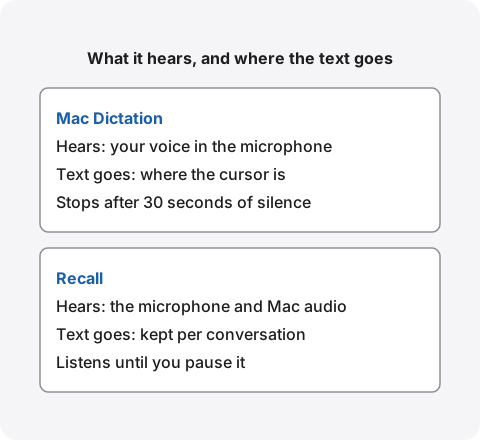
- The other people in an online meeting: Dictation listens to the microphone. If you hear them through earbuds, their voices never reach the microphone, so they don’t become text. To keep meeting audio as a recording, see How to record internal audio on a Mac
- A recording you already have: Dictation can’t open audio files. For things you recorded on an iPhone or Mac, Voice Memos transcription can help
- A record of a long meeting: It stops after 30 seconds of silence, the text only goes into whatever document is open, and it doesn’t separate speakers
- Writing by voice in Word: Word has its own Dictate feature. The differences are in How to transcribe in Microsoft Word
Turn your Mac’s conversations into text: Recall
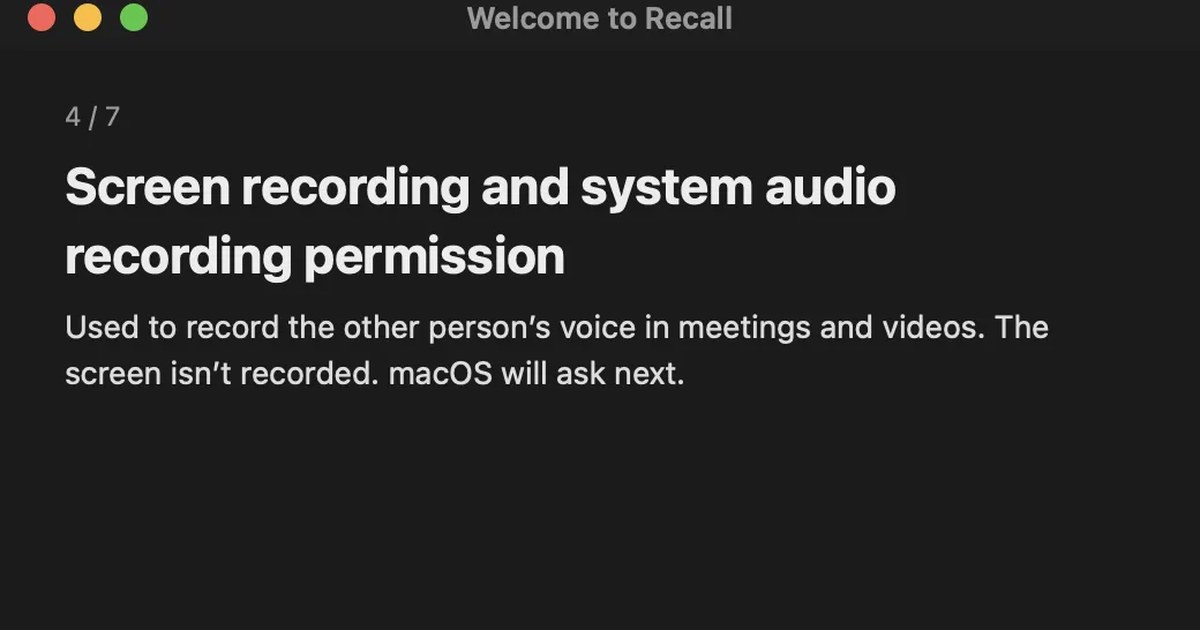
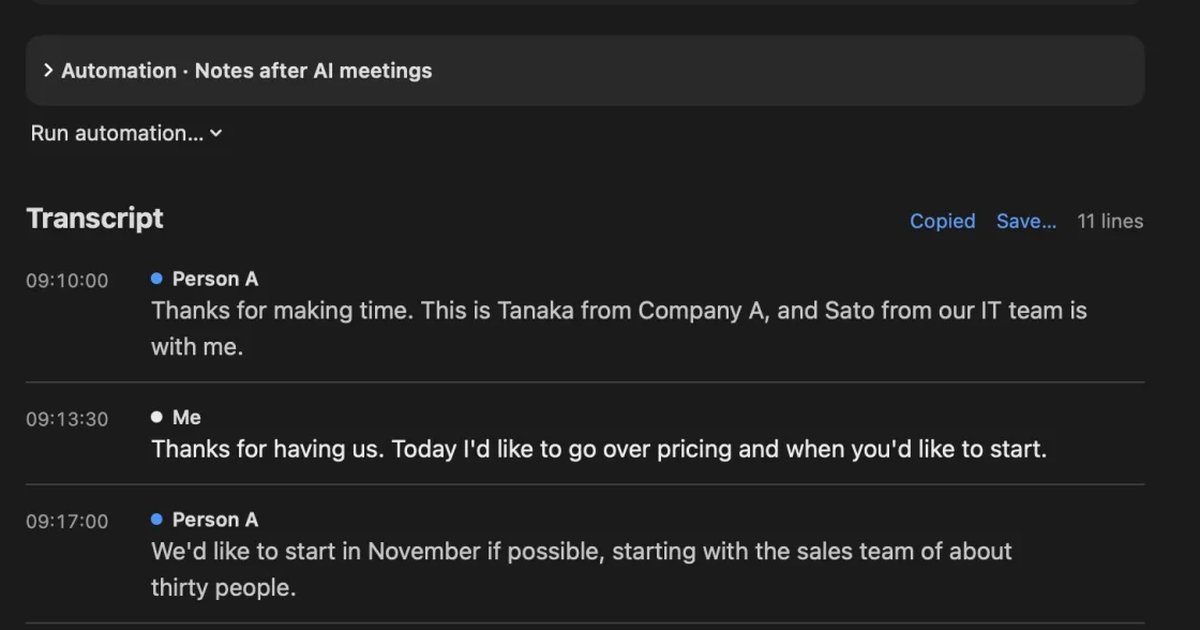
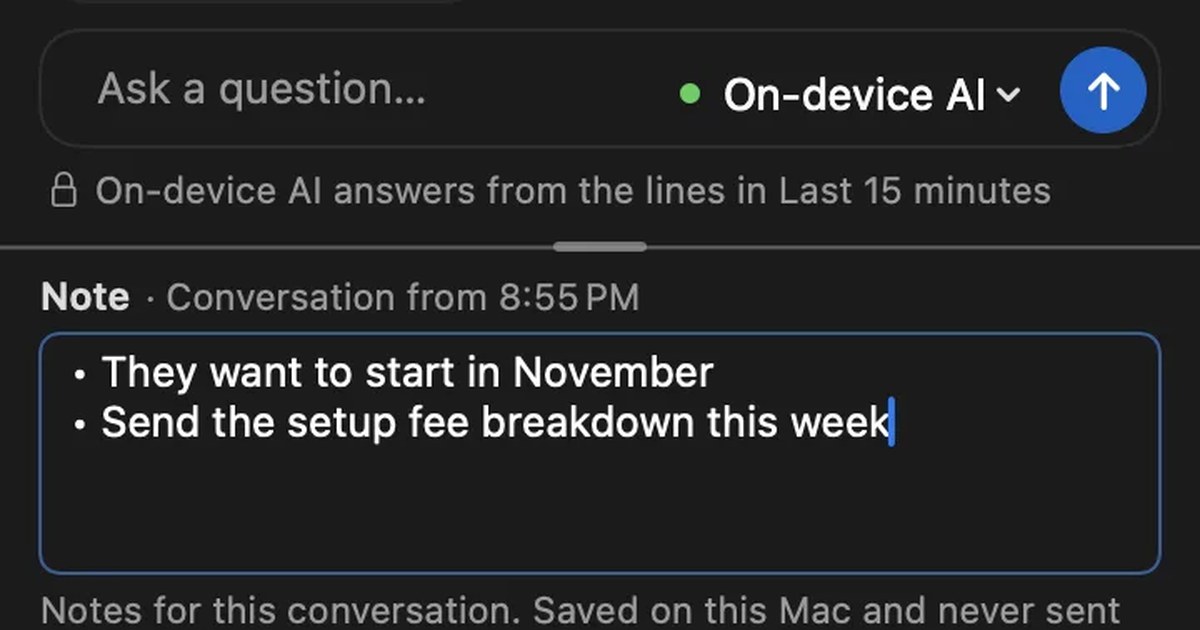
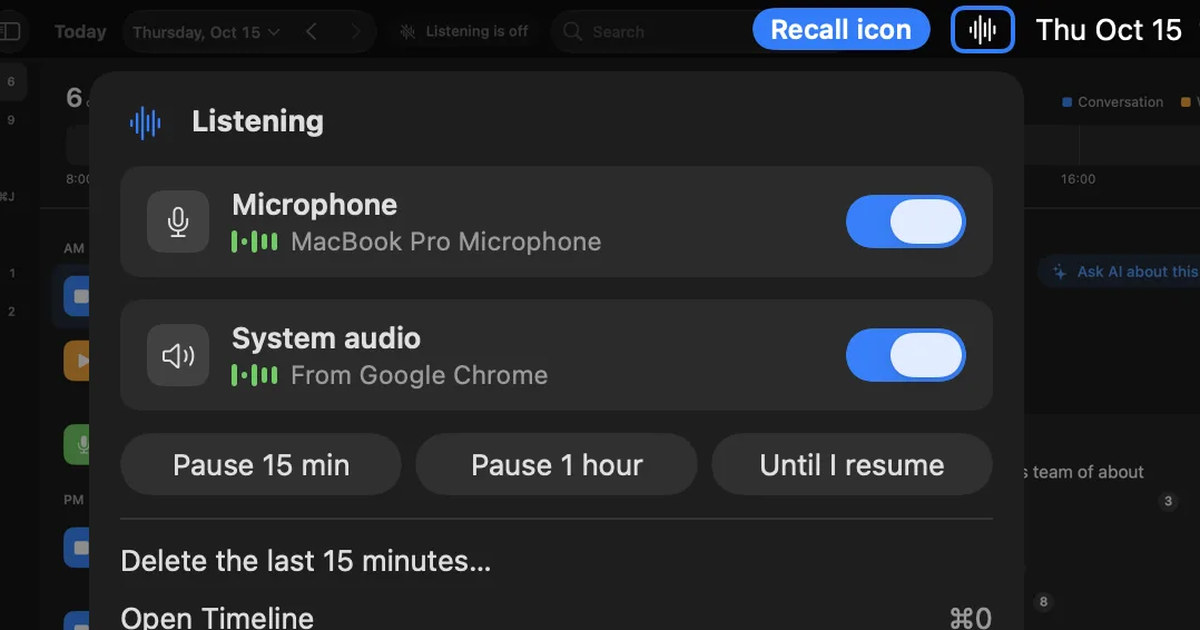
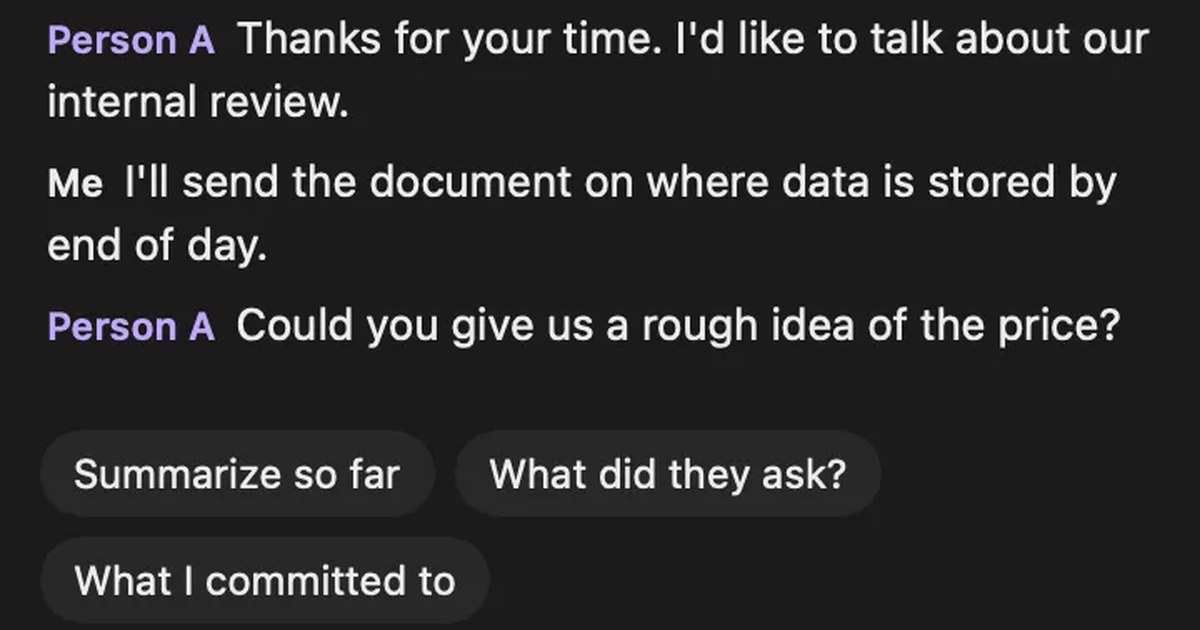
Recall is an app that stays in your menu bar and turns your microphone and the sound your Mac plays (the other people in meetings and videos) into text, on your Mac. It doesn’t type where the cursor is like Dictation. It keeps the text for each conversation so you can read it later.
There’s nothing to start for each meeting, and it transcribes the other people even when you listen through earbuds. Audio is discarded once it’s transcribed, and no recording file is made. Records are stored on your Mac, and leave it only when you use Pro features you turned on yourself (When records leave your Mac).
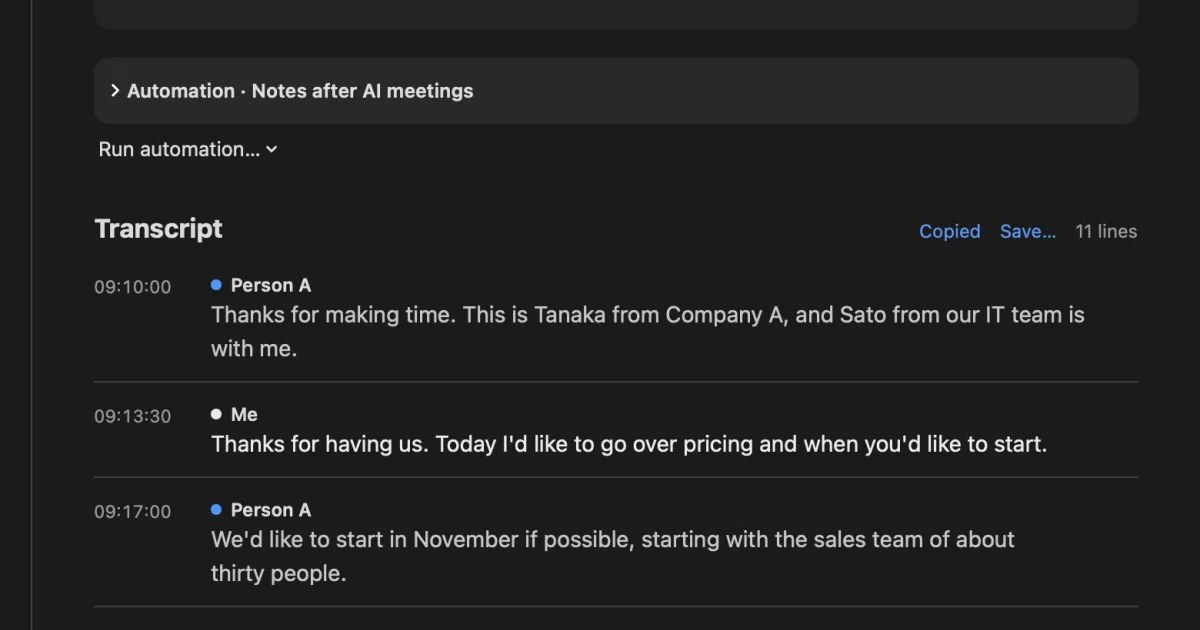
Find past conversations by their words with ⌘K search, and turn each conversation into text with Copy or Save… (Copy and save). Summaries and to-dos are made when Apple Intelligence is on.
Recall stays running, so pause it from the menu bar before conversations you don’t want kept. Tell the people in the meeting that you’re transcribing, and stop if they say no. That’s the same for Dictation and any other method.
Who Recall is and isn’t for
Recall fits people with many meetings and calls on a Mac who want to keep the conversation, other people’s voices included. If you only want to write emails and notes by voice, Mac Dictation is enough.
Recall is for you if you
- Want the other people in online meetings transcribed along with you
- Don’t want to start recording for each meeting
- Want to search days of conversations by their words in one place
- Want meeting audio transcribed without sending it off your Mac
- Use a Mac with Apple silicon on macOS 26 or later
Free to use · No account needed · macOS 26 or later · Mac with Apple silicon · By downloading, you agree to the Terms of Service
Recall isn’t for you if you
- Want to type by voice where the cursor is (Recall doesn’t type into documents)
- Want to transcribe recording files (Recall can’t import them)
- Want to keep recordings to listen to again (audio is discarded once transcribed)
- Want to use it on Windows or iPhone
- Want to share the same records with a team
What’s free, and how long records are kept
Free has no limit on transcription, and shows and searches the last 14 days. Records are kept for 90 days by default in Free and indefinitely in Pro, and deleted after that. Pro is ¥980 a month or ¥9,800 a year (tax included), and if your license can’t be checked for 14 days in a row, Pro features stop. Recall needs permission for the microphone, and for screen and system audio recording. On a Mac with less than 16GB of memory, asking AI needs Apple Intelligence turned on.
FAQ
Where do I find the dictation shortcut on a Mac?
It’s shown in the Shortcut pop-up menu in System Settings > Keyboard > Dictation. Choose another from the menu, or choose Customize to set your own keys. On Macs with a Microphone key, pressing and releasing it also starts Dictation.
Is Mac dictation free?
It’s built into macOS, with nothing extra to sign up for. Turn it on in Keyboard settings to use it.
Why does dictation stop on its own?
It stops after 30 seconds without detected speech. There’s no length limit or timeout otherwise, so start it again when it stops.
How do I add punctuation?
In supported languages, including English, commas, periods and question marks go in automatically. You can also say “comma”, “period” or “question mark”, and “new line” or “new paragraph”. Turn off Auto-punctuation in Keyboard > Dictation if you want to say every mark yourself.
Does dictation work without the internet?
English is listed for on-device dictation in Apple’s feature list, which requires downloading speech models. Keyboard settings show whether your dictation is processed on your Mac. Dictation in search boxes isn’t covered.
Can I transcribe a meeting with dictation?
Dictation listens to the microphone, so people you hear through earbuds don’t get in. It stops after 30 seconds of silence and doesn’t separate speakers, so a meeting tool’s transcription or an app that keeps conversations fits meetings better.
Can Recall replace dictation?
No. Recall records conversations so you can read them later, and it doesn’t type where the cursor is. Use Mac Dictation to write by voice, and Recall to keep meetings and calls.
Checked on November 11, 2026. The Dictation details are based on the original Apple Mac User Guide pages “Dictate messages and documents on Mac” (the macOS 26 and macOS 27 versions) and “Commands for dictating text on Mac”, and Apple’s macOS feature availability list. Setting names, languages and conditions can change between versions of macOS. Check Apple’s latest pages before you rely on them. The Recall details are based on our published help and pricing pages.
The differences between Recall Free and Pro are in Plans and license.
Free to use · No account needed · macOS 26 or later · Mac with Apple silicon · By downloading, you agree to the Terms of Service
Get the product overview (PDF) by email →
Related articles
How to record and transcribe audio in Apple Notes on iPhone and Mac, and what to check when it doesn’t work
Apple Notes on iPhone and Mac can record audio inside a note, show a live transcript, add the transcript to the note and summarize it. The steps, the device and language conditions to check when no transcript appears, Notes versus Voice Memos, and what to use for calls and meetings.
How to use voice typing in Google Docs: steps, punctuation, and fixes
Start voice typing in Google Docs from Tools › Voice typing. Which browsers work, how punctuation commands work, the limits for recordings, videos and meeting audio, voice typing on your phone, and what to check when it doesn’t work.
How to record internal audio on a Mac: macOS 27’s built-in option, BlackHole and OBS
On macOS 27 or later, a Mac can record internal audio with built-in screen recording. Steps for BlackHole and OBS on earlier Macs, what to check when there is no sound, and an option if you don’t need audio.
How to transcribe Voice Memos on iPhone and Mac, and what to check when it doesn’t work
Voice Memos on iPhone and Mac can transcribe recordings so you can view, copy and search them. The steps, the device, OS and language conditions to check when no transcript appears, how to keep the text, and what to use for meetings and calls.
How to transcribe in Microsoft Word: Transcribe vs. Dictate, and what works on a Mac
To transcribe in Word, use Transcribe for recordings and audio files, and Dictate to write by speaking. Steps, which versions of Word support it, the 300-minute monthly limit, what to do on a Mac, fixes when it doesn’t work, and how to get meeting audio into text.