 Recall
How to use voice typing in Google Docs: steps, punctuation, and fixes
Start voice typing in Google Docs from Tools › Voice typing. Which browsers work, how punctuation commands work, the limits for recordings, videos and meeting audio, voice typing on your phone, and what to check when it doesn’t work.
The short answer: Tools › Voice typing, then speak. It isn’t built for recordings or videos
To type with your voice in Google Docs, open the document in a browser on your computer, choose Tools › Voice typing, click the microphone that appears, and start speaking. Your words go in at the cursor.
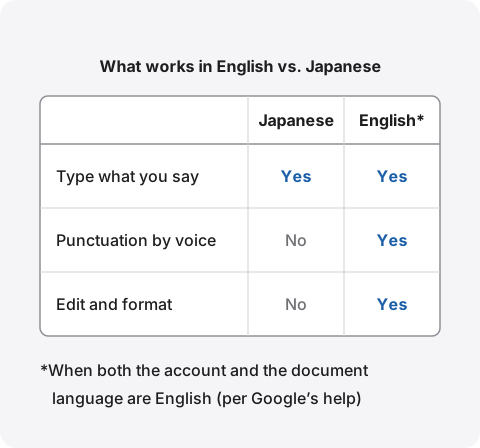
According to Google’s help, it works in the latest versions of Chrome, Edge and Safari. Voice commands, including punctuation such as “period” and “new line”, work only in English, and only when both your account language and the document language are English. If you speak another language, such as Japanese, add punctuation with the keyboard.
Voice typing only listens to your microphone, and it can’t open audio files. If you want to transcribe a recording, a video, or the other people in a meeting you hear through earphones, another method fits better. This article is written by KOROMO K.K., which develops Recall, a transcription app for Mac. We include our own product, so read with that in mind. We checked the Google Docs details against Google’s original help pages on November 11, 2026.
How to use voice typing on a computer
Open a document, choose Tools › Voice typing, and click the microphone to start; click it again to stop. The steps follow Google’s help page “Type & edit with your voice”.
- Check that your computer’s microphone is connected and working
- Open the document in Chrome, Edge or Safari, and put the cursor where you want the text
- Choose Tools › Voice typing. A microphone box appears
- Click the microphone and speak clearly at a normal volume and pace
- When you’re done, click the microphone again
If something comes out wrong, move the cursor to the mistake and fix it without turning off the microphone, then move the cursor back to where you want to continue. For words underlined in gray, right-click to see suggestions.
Start with a keyboard shortcut
Google’s list of keyboard shortcuts for Google Docs gives ⌘ + Shift + S on a Mac and Ctrl + Shift + S on Windows to start voice typing. That list says the shortcut is for Chrome only, so in Edge or Safari, start from the menu.
Allow the microphone the first time
The first time you use it in Chrome, Chrome asks whether to allow the microphone. Voice typing won’t work if you don’t. To change it later, go to Chrome’s Settings › Privacy and security › Site settings › Microphone and allow the Docs site. The steps are in Chrome’s help. On a Mac, also check that your browser is turned on in System Settings › Privacy & Security › Microphone.
Speaker notes in Google Slides
In Google Slides, Tools › Dictate speaker notes lets you write your presenter notes by voice. The text goes into the speaker notes, not onto the slide. Voice commands don’t work in speaker notes.
What you need: browser, language and punctuation
Voice typing works in the latest Chrome, Edge and Safari and supports many languages, but punctuation and editing commands are English only. Here are the conditions from Google’s help.
| What Google’s help says | Notes | |
|---|---|---|
| Browser | The latest Chrome, Edge or Safari | Update the browser if it isn’t current |
| Spoken language | Many languages and regional accents | English has separate entries by country |
| Punctuation commands | English only | Both the account and document language must be English |
| Editing and formatting commands | English only | Not available in Slides speaker notes |
| Work or school accounts | An administrator may turn it off | If it’s missing from the menu, ask your administrator |
Punctuation commands
Google’s help lists these punctuation commands: “Period”, “Comma”, “Exclamation point”, “Question mark”, “New line” and “New paragraph”. They work when both your account and the document are set to English. In other languages, try one of these:
- Type while you talk: keep the microphone on and add punctuation and line breaks from the keyboard
- Fix it afterwards: add punctuation where you paused once you’ve finished speaking
- Use Mac or iPhone dictation: Apple’s dictation is part of the operating system, so it types into Google Docs too. According to Apple’s help, you can say punctuation marks by name, and in supported languages punctuation is added automatically (see how to use dictation on a Mac)
Where your voice is turned into text
The help says that when you turn on voice typing, your web browser controls the speech-to-text service: it decides how your speech is processed and then sends the text to Google Docs. Whether your voice is processed on your computer or sent to a server depends on the browser, and the help doesn’t say. Before using it in work meetings, check whether your company allows sending audio outside.
Transcribing recordings, videos and meetings
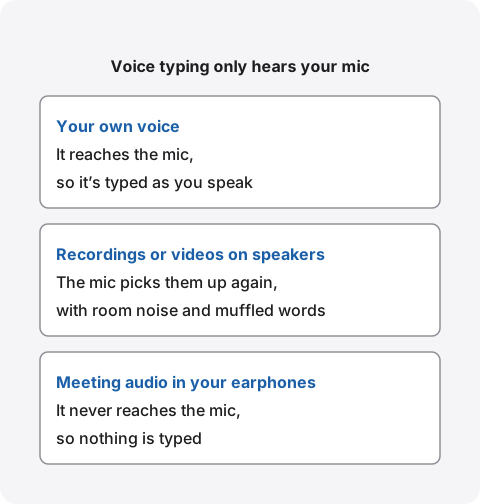
Google Docs voice typing turns what reaches your microphone into text. It can’t open audio or video files. To transcribe a recording or a meeting, the question is how to get that sound into the microphone.
Play a recording through speakers for the mic
A common tip is to play the recording or video through your speakers and let the microphone pick it up. It does produce text, but room noise and echo come in too, so accuracy drops. You also have to play it for as long as the recording lasts. It’s best kept for a quick look at what a short recording says.
Feeding your Mac’s own sound in directly
We couldn’t find a built-in way in Apple’s guides to pass the sound your Mac plays to a browser in place of the microphone. A common approach is to install a virtual audio device such as BlackHole, which lets you choose your Mac’s sound as if it were a microphone. How to set it up and what to watch for are in How to record internal audio on a Mac.
For audio files, use something that opens files
If you have the recording as a file, a method that opens the file directly is faster and more accurate than playing it through speakers. Steps and limits for giving an audio file to Gemini or ChatGPT are in How to transcribe audio with Gemini and How to transcribe with ChatGPT. For Google Meet, Meet’s own transcript is saved as a Google Doc. When it’s available is covered in How to transcribe Google Meet.
Typing by voice on your phone
On a phone, you can type by voice in the Docs app with your keyboard’s microphone. Google’s help covers browsers on a computer and doesn’t describe Tools › Voice typing in the phone apps.
- iPhone: turn on Enable Dictation in Settings › General › Keyboard, then tap the microphone on the keyboard and speak. According to Apple’s help, many languages are processed on the iPhone, punctuation is added automatically in supported languages, and dictation stops after 30 seconds without speech
- Android: tap the microphone icon at the top of the Gboard keyboard and speak. The steps are in Gboard’s help, and some languages aren’t supported
What to check when voice typing doesn’t work
If it’s missing from the menu, check the browser and your administrator; if the microphone doesn’t respond, check permissions and other apps; if punctuation doesn’t appear, check the language. These causes come from Google’s and Chrome’s help, roughly in order of how often they come up.
- Voice typing isn’t in the Tools menu: make sure you’re using the latest Chrome, Edge or Safari. On work or school accounts, an administrator may have turned it off
- Nothing happens when you click the microphone: check that the browser allows the microphone for the Docs site, and on a Mac that the browser is on in System Settings › Privacy & Security › Microphone. On a work or school Chrome, your administrator may control the microphone settings
- The microphone doesn’t work: check it’s connected and not in use by another app such as a video call. For an external mic, check it’s the input selected in your computer’s settings. If it still doesn’t work, restart the computer
- “We’re having trouble hearing you”: move to a quiet room, plug in an external microphone, or turn up the input volume
- Punctuation doesn’t appear, or “period” is typed as a word: voice commands work only in English, with both the account and the document language set to English
- English voice commands aren’t recognized: speak slowly and clearly and pause before and after each command. If the wrong command runs, say “Undo”
- Sound from a recording or video doesn’t come through: if you’re listening on earphones, the sound never reaches the microphone. Play it on speakers, or switch to a method that opens files
Transcribe the other people in meetings on a Mac
If you have online meetings on a Mac every day and want the other people’s words in text too, it’s less work to transcribe meetings another way and paste only what you need into Google Docs. With voice typing, you’d have to play the other people through speakers for the microphone to hear them.
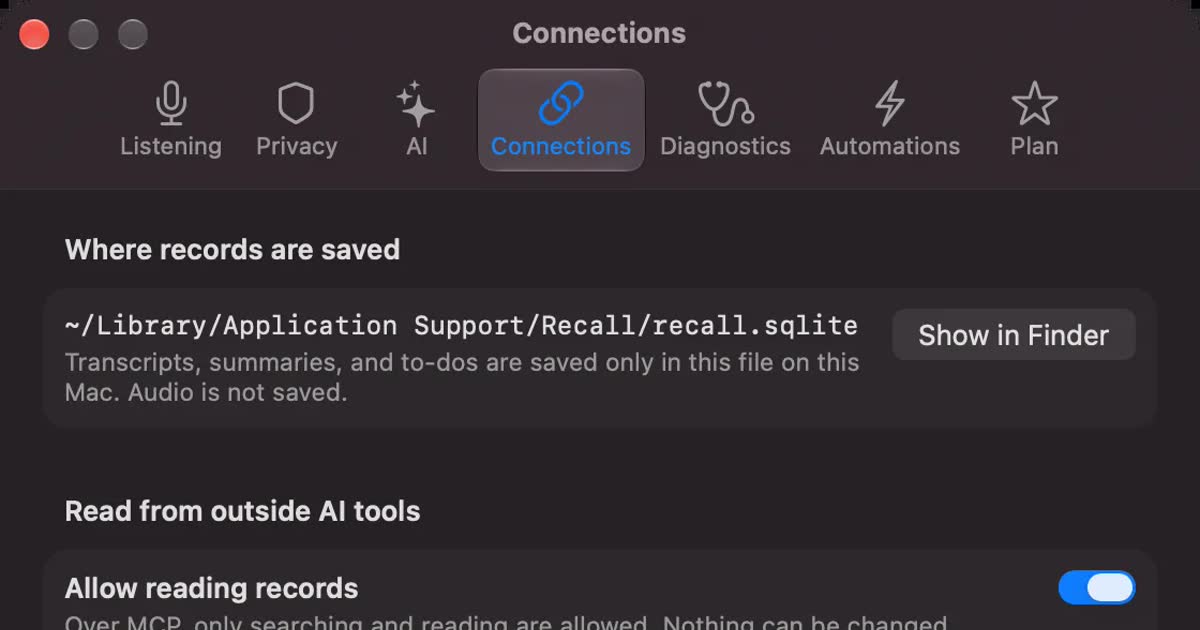
Recall lives in the menu bar and uses on-device AI to turn your mic and the sound your Mac plays (the other people in meetings and videos) into text. There’s nothing to start for each meeting, and it transcribes the other people even when you listen through earphones. Audio is discarded once it’s text and isn’t sent off your Mac.
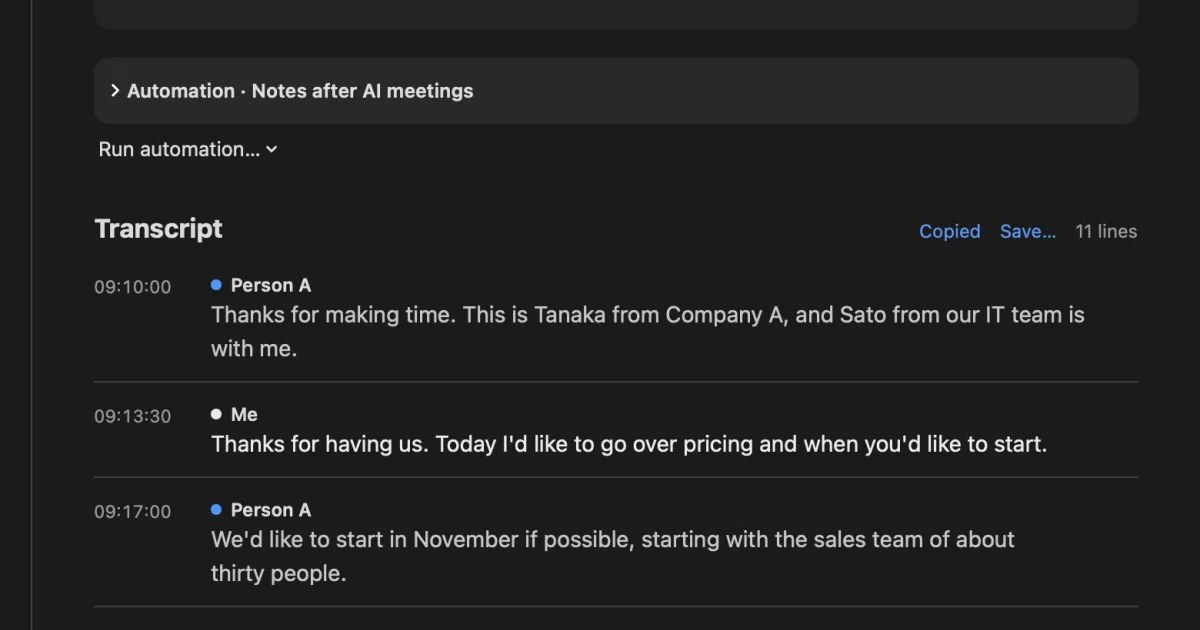
For each conversation, Copy puts the transcript on the clipboard, and Save… saves it as a text file (.txt). It contains the title and date, then one line per remark as “time speaker: text”. Copy and save work in Free too. Paste it into Google Docs and all that’s left is adding headings to make meeting notes.
Recall can’t import recordings, so to transcribe a recording you already have, use one of the file-based methods above or an app that transcribes on your Mac. We compare those apps in How to transcribe locally on a Mac.
Because Recall runs all the time, pause it from the menu bar before conversations you don’t want kept. Telling the other people that you’re transcribing, and stopping if they say no, is the same whether you use voice typing or Recall. What to check is in What to check if you worry about leaks from AI meeting notes.
Who Recall is and isn’t for
Recall suits people with many meetings on a Mac who want the other people’s words too, even through earphones, and paste only the conversations they need into Google Docs. If you just want to write notes or drafts with your own voice, Google Docs voice typing is enough.
Recall is for you if
- You want the other people transcribed while you wear earphones
- You want to stop starting a recording or voice typing for every meeting
- You want meeting audio turned into text without sending it off your Mac
- You want to search many days of conversations in one place
- You use a Mac with Apple silicon on macOS 26 or later
Free to use · No account needed · macOS 26 or later · Mac with Apple silicon · By downloading, you agree to the Terms of Service
Recall isn’t for you if
- You want to write documents with your own voice (Google Docs voice typing fits)
- You want to transcribe recording files (Recall can’t import them)
- You want to keep recordings to listen again (audio isn’t kept once it’s text)
- You want text written straight into Google Docs (Recall hands it over by copying or as a text file)
- You want to use it on Windows, iPhone or a Chromebook
- You want a team to share the same records
What Free includes and how long records are kept
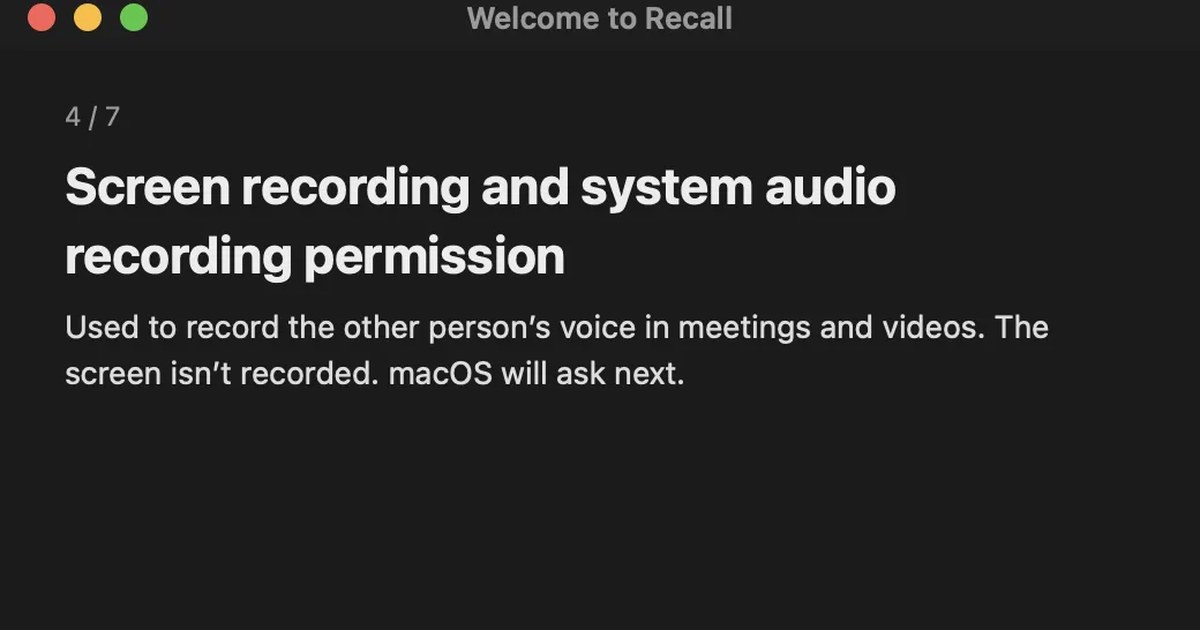
Free has no transcription limit and shows and searches the last 14 days. Records are kept for 90 days by default on Free and indefinitely on Pro, and older records are deleted. Pro is ¥980 a month or ¥9,800 a year (tax included), and if the license can’t be checked for 14 days in a row, Pro features stop. Recall listens in Japanese or English, and needs permission for the microphone, plus Screen Recording and System Audio Recording.
FAQ
Is Google Docs voice typing free?
The help we checked on November 11, 2026 doesn’t mention any charge for voice typing. The conditions it gives are the latest supported browser and a working microphone, and on work or school accounts an administrator may have turned it off.
Does it work outside Chrome?
The help says it works in the latest Chrome, Edge and Safari. The keyboard shortcut (⌘ + Shift + S on a Mac), though, is listed as Chrome only.
Can I add punctuation by voice in other languages?
The help says voice commands, including punctuation, work only in English, when both the account language and the document language are English. In other languages, type punctuation with the keyboard or use Mac or iPhone dictation.
Can it transcribe an audio or video file?
Voice typing can’t open files. You can play the file through speakers for the microphone, but room noise comes in too. If you have a file, a method that opens files, such as Gemini or ChatGPT, fits better.
Can voice typing transcribe a Zoom or Google Meet call?
It can pick up the other people if you play them through speakers, but on earphones their voices never reach the microphone. Google Meet has its own transcription, which is saved to Google Docs when the conditions are met.
Does voice typing work in the Docs app on my phone?
Use your keyboard’s microphone instead of a Voice typing menu. On iPhone, turn on dictation in Settings › General › Keyboard; on Android, tap the microphone icon in Gboard.
What if it stops partway?
If the microphone has turned off, click it again to resume. If you see “We’re having trouble hearing you”, move somewhere quieter or turn up the input volume. With English voice commands, you can also say “Resume”.
Can I get Recall’s transcripts into Google Docs?
Use Copy on a conversation and paste it, or Save… to a text file. Both work in Free. Recall can’t import recording files.
Checked on November 11, 2026. The Google Docs details are based on the original Google Docs Editors Help pages “Type & edit with your voice” and “Keyboard shortcuts for Google Docs”, Chrome’s help “Use your camera and microphone in Chrome”, and Gboard’s help. The iPhone and Mac dictation details are based on Apple’s user guides. Features and conditions can change. Check each company’s latest pages before you rely on them. The Recall details are based on our published help and pricing pages.
The differences between Recall Free and Pro are in Plans and license.
Free to use · No account needed · macOS 26 or later · Mac with Apple silicon · By downloading, you agree to the Terms of Service
Get the product overview (PDF) by email →
Related articles
How to transcribe audio with Gemini: file limits, the app vs. AI Studio
Where you transcribe with Gemini depends on how long your audio file is. We compare the Gemini app, Google AI Studio, Gemini Notebook and Google Meet, cover why uploads fail, and list what to check before you share meeting audio.
How to transcribe Google Meet: built-in, extensions, or your Mac
Whether Google Meet's transcript works depends on the organizer's plan. Compare the built-in feature and plans, extensions and bots, and on-device Mac apps.
How to use dictation on a Mac: settings, shortcut, punctuation, and fixes when it stops
Turn on Dictation in the Keyboard settings, then start it with the Microphone key or a shortcut. How to change the shortcut, voice commands for punctuation, new lines and emoji, how to check whether it runs on your Mac, what to check when it stops, and why it isn’t a meeting recorder.
How to transcribe in Microsoft Word: Transcribe vs. Dictate, and what works on a Mac
To transcribe in Word, use Transcribe for recordings and audio files, and Dictate to write by speaking. Steps, which versions of Word support it, the 300-minute monthly limit, what to do on a Mac, fixes when it doesn’t work, and how to get meeting audio into text.