 Recall
How to transcribe with ChatGPT: audio uploads vs recording meetings
Since October 2026, paid ChatGPT plans can transcribe attached audio files. How uploads, dictation, and Meetings and Record in the Mac app differ, what to do when an upload fails, and which settings to check before sharing meeting audio.
The short answer: if you have a recording, attach it on a paid plan
To transcribe a recording with ChatGPT, the quickest way is to attach the audio file to a chat on a paid plan and ask for the full transcript. According to OpenAI’s release notes, audio uploads started on October 6, 2026. They aren’t available on the Free plan.
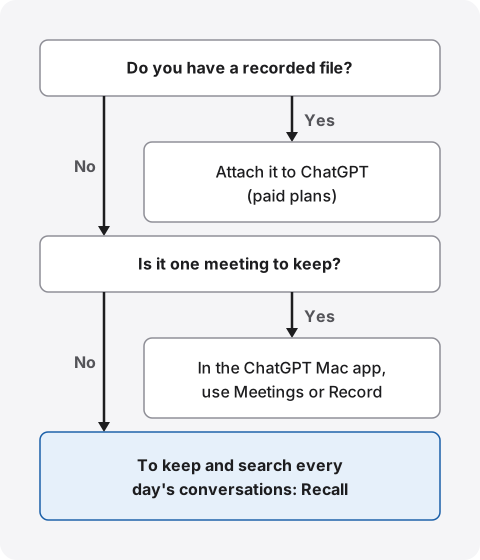
If you don’t have a file and want to capture meetings as they happen, use the meeting notes features in the ChatGPT Mac app. There are two right now: the Meetings plugin and the older Record, and they’re offered on different plans. If you only want to turn your own voice into text on the spot, the microphone in the message box (dictation) is enough. To transcribe many recordings from your own program, there’s also the developer API.
If you read that ChatGPT can’t transcribe audio files, that predates the October change. This article is written by KOROMO K.K., which develops Recall, a transcription app for Mac. We include our own product near the end, so read with that in mind. We checked the ChatGPT details against the original pages of OpenAI’s Help Center on November 8, 2026. We haven’t compared accuracy on the same recording, so we don’t rank accuracy.
Four ways to transcribe with ChatGPT
ChatGPT transcription comes in four forms: attach a recording, speak into the microphone, capture a meeting in the Mac app, or send audio to the API. Which one you can use depends on your plan and what you have, before accuracy even comes into it. Here is what OpenAI’s help says.
| Plans | Limit | |
|---|---|---|
| Attaching an audio file | Paid plans and workspaces. Not on Free | Up to 512 MB per file |
| Dictation (the microphone in the message box) | All plans | No length stated in the help |
| Meetings plugin (Mac app) | Pro and Business (beta) | Stops automatically at 4 hours |
| Record (Mac app) | Plus, Pro, Business, Enterprise, Edu | Up to 4 hours per session |
| API speech to text | An OpenAI developer account | Up to 25 MB per file |
For dictation, the Voice Dictation FAQ says the audio you record with the microphone button is sent to the models to be transcribed, and you can edit the text before sending. The release notes say the dictation speech-to-text model was updated on all plans, with evaluations showing gains in languages including Japanese. It makes text for the message box, so it isn’t meant for keeping meetings.
ChatGPT Voice, where you talk with ChatGPT, also leaves a transcript in the chat afterward. But the Voice help says that transcript isn’t a verbatim record, and points you to dictation to turn a single recording into text. We don’t count it as a transcription tool.
The API is described in the developer speech-to-text guide, which accepts mp3, mp4, mpeg, mpga, m4a, wav and webm files up to 25 MB. It’s for writing your own program, and usage is billed separately from ChatGPT plans. This article focuses on what you can do in the ChatGPT app.
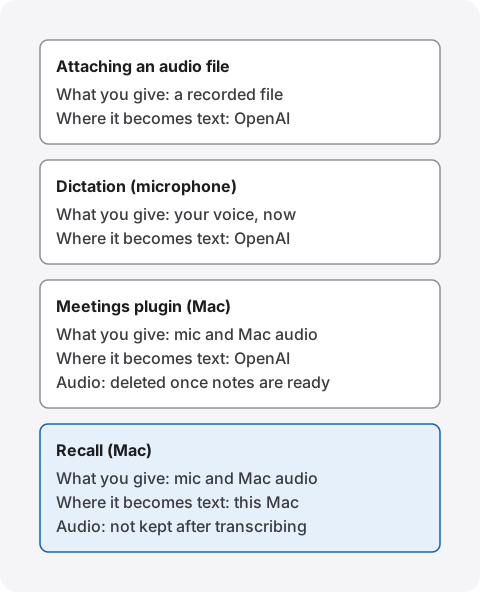
If you’re unsure, it comes down to whether you have a recorded file, and whether you want to keep one meeting or every day’s conversations.
Attach an audio file and get text
To transcribe a recording, attach the audio file to a chat, say what you need, and send it. The help on uploading files and audio sets these conditions:
- Plans: paid subscriptions and workspaces, including Enterprise. Not available on the Free plan
- Formats: WAV, MP3/MPEG, OGG/OGA, audio-only WebM, PCM, FLAC, AAC, M4A, audio-only MP4
- Size: up to 512 MB per file
- Long recordings: when Data Analysis is available, they may be processed in smaller sections. Processing is best-effort, and very long recordings may time out
- Availability: may vary by workspace settings, region, client version and selected model
Common formats like m4a, mp3 and wav are on the list. MP4 and WebM files identified as video aren’t accepted for audio uploads. If all you have is a meeting video, export the audio on its own first.
From attaching to text
- Select + in the message box, then Add photos & files, and choose the audio file
- Type what you want done (see the prompts below)
- Send it, and check the text against the original recording
- Follow up with something like “list the decisions and next steps”
The help gives examples such as asking follow-up questions after the transcript, or turning a recording into a meeting recap or a follow-up email draft. With the file attached you can also ask, for example, what was said about the deadline.
Prompts for a full transcript instead of a summary
If you write “summarize this recording”, you get a summary. When you want every word, say so clearly. The help doesn’t give set prompts, so these are examples we wrote ourselves.
- The full text: “Transcribe this recording word for word in full. Don’t summarize. Write [inaudible] where you can’t make it out.”
- Separate speakers: “Start a new line for each speaker and label them Speaker 1, Speaker 2 and so on.”
- Easier to use later: “After the full text, list the decisions, next steps and owners as bullet points.”
The help warns that transcripts may contain errors and speaker identification may be unreliable. Check names, product names, amounts and dates against the recording before passing the text on. We found nothing in the help on whether timestamps can be added.
Capture meetings in the Mac app: Meetings and Record
To transcribe meetings as they happen, the ChatGPT Mac app listens to your Mac’s microphone and system audio and creates meeting notes. As of November 8, 2026, there are two ways it does this.
Meetings plugin: Pro and Business (beta)
According to the Meetings plugin help, it’s in beta in the ChatGPT desktop app on macOS for all Pro and Business plans. Enterprise is limited to an alpha with some customers, and iOS, Android and Windows are coming. The release notes announced it on September 29, 2026.
- Getting started: install Meetings from Plugins in the sidebar, then allow microphone and system audio access. In a meeting, click Take notes
- What joins the meeting: no bot joins. It works for online calls and in-person conversations
- What you get: a summary and suggested action items on a page in ChatGPT Space, based on the transcript and your own notes. You can ask ChatGPT about the meeting
- When it stops: when you close your laptop lid, when no audio is detected for a long time, or when a session reaches 4 hours
- Calendar: not required to start manually. Connect Google Calendar or Outlook Calendar to get reminders before meetings
The audio is streamed from your Mac to OpenAI to make the notes. Once the notes are ready, it’s deleted from your Mac and OpenAI’s servers and can’t be replayed. Meeting pages are private by default, and people you share a page with can see the notes but not the transcript.
Record: Plus, Pro, Business, Enterprise, Edu
According to the Record help, you start with the Record button at the bottom of a chat, it transcribes as you talk, and when you finish, the transcript and summary notes are saved in ChatGPT. It’s only in the macOS desktop app, and a session is capped at 4 hours. In Enterprise and Edu, it’s off until a workspace owner turns it on.
It distinguishes speakers, labels unknown ones as Speaker 1 and so on, and lets you rename them afterward. The help also says it works best in English today, and accuracy in other languages can vary. For meetings in other languages, expect to spend time checking the text.
The Record help opens by saying the Meetings plugin in the new desktop app is a better experience. The Meetings help says the two are separate features, with Record in the older desktop app. If you’re on Pro or Business, check which one your app shows first.
Telling the other people
Both help pages ask you to get participants’ consent before you start. The Meetings help says the consent reminder in the app is visible only to you and doesn’t notify anyone else. Say at the start of the meeting that you’re taking notes with ChatGPT, and stop if anyone objects. The same applies to any product.
If the meeting service itself has transcription, you can use that instead. The conditions for each are in transcribing Zoom and transcribing Google Meet.
When uploads fail, stop partway, or come back summarized
When something goes wrong, suspect the file format and your plan first. Here are the causes and fixes the help lists, by problem.
The audio file won’t attach
- You’re on Free: audio uploads are paid plans only. Dictation still works
- The file counts as video: even MP4 or WebM isn’t accepted when identified as video. Export the audio on its own
- The audio can’t be read: the file must contain a valid, decodable audio stream. Play it on your Mac to check it isn’t broken
- You see “upload limit reached”: if the error shows a time to retry, wait until then. Failed uploads can count too. The help’s “80 files every 3 hours” is listed for documents and images; it doesn’t state an upload count limit for audio
- A work account: workspace settings may turn it off. Ask your admin
It uploads but won’t transcribe, or stops partway
The help suggests converting the recording to WAV and uploading it again if it uploads but won’t transcribe. Long recordings may be processed in sections, and very long ones may time out. For meetings over an hour, splitting the recording into pieces of about 30 minutes and sending them one at a time makes it easier to see where it stopped. That split is our suggestion, not the help’s.
You get a summary instead of the full text
What comes back depends on how you ask, so rewrite the request with the prompts above, saying “in full, don’t summarize”. If it still stops early, ask it to continue, or split the recording.
Speakers aren’t separated, or the names are wrong
For attached files, the help says speaker identification may be unreliable. In-person meetings recorded on one microphone are harder to separate. For important meetings, plan on fixing speaker names yourself. Record separates speakers and lets you rename them afterward.
What to check before you give ChatGPT meeting audio
Before giving ChatGPT meeting audio, check two things: whether it can be used for training, and where the audio and text are kept. Personal and business plans start with different settings.
| Used for training (default) | Notes | |
|---|---|---|
| Free, Plus, Pro (personal) | The setting is on | Turn off Improve the model for everyone in Settings › Data controls |
| Business, Enterprise, Edu | Not used | Your organization’s retention and access rules apply |
| API | Not used | A separate agreement from ChatGPT plans |
This table is based on the data controls help. Turning the setting off doesn’t delete your chat history; delete chats separately if you want them gone. It also says that if you rate a response with thumbs up or down, the whole conversation may be used for training.
Where the audio and text are kept
- Attached audio: the help doesn’t say how long uploaded audio files are kept. Its retention notes cover documents and images, saying files saved in Library or Space stay even if you delete the chat. The transcript stays in the chat, so delete the chat too if you want it gone
- Dictation: the audio is kept as long as the chat is in your history, and deleted within 30 days after you delete the chat
- Meetings: the audio is deleted once the notes are ready. If you’re offline, it can stay on your Mac until it uploads
- Record: the audio is deleted after transcription and not used for training. But on personal plans with the training setting on, transcripts and summaries may be used for training
A temporary chat doesn’t appear in your history and isn’t used to improve models, though it may be kept up to 30 days for safety. For work meetings, first check whether your company allows giving meeting audio to ChatGPT. What to check with AI meeting notes in general is in what to check if you worry about leaks from AI meeting notes.
To keep every day’s conversations without making files: Recall
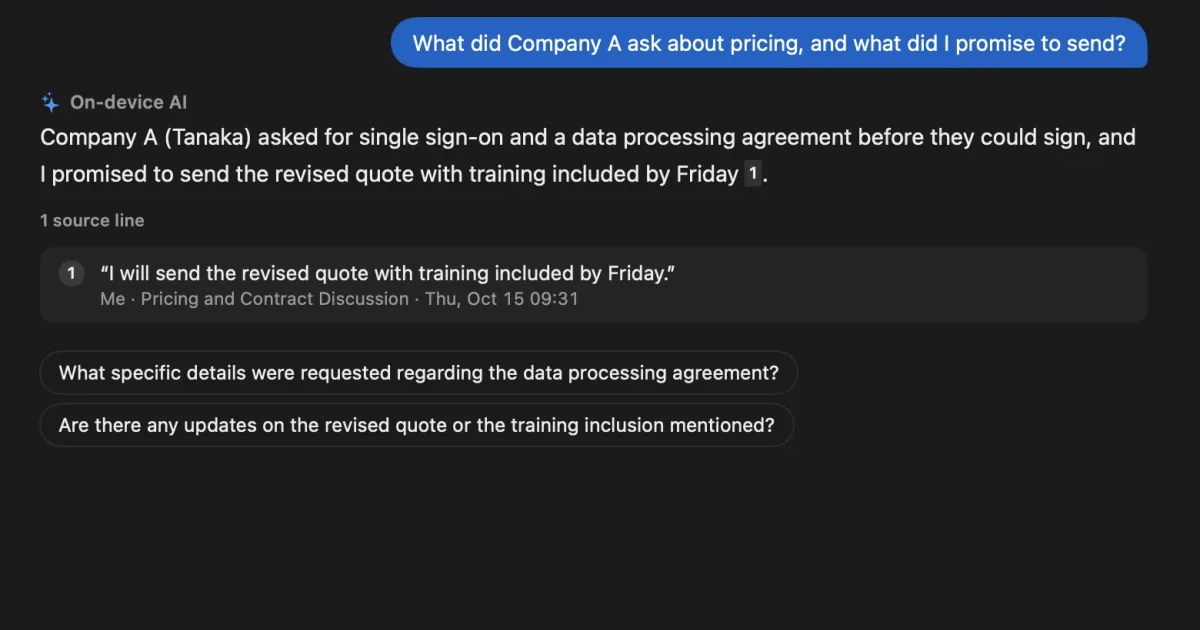
Recall sits in the menu bar and turns your microphone and Mac audio into text with on-device AI. There’s no recording to start for each meeting and no file to export. Whether you talk in Zoom, Meet, Teams or a Slack huddle, the conversations you hear on your Mac are kept by date.
Like ChatGPT’s Meetings, it listens to the microphone and system audio on your Mac. The difference is that it doesn’t send the audio off the Mac; it turns it into text on this Mac and doesn’t keep the audio afterward. It needs a Mac with Apple silicon on macOS 26 or later, and permission for screen and system audio recording.
Compared with ChatGPT’s meeting notes
| ChatGPT Meetings | Recall | |
|---|---|---|
| How it starts | Click Take notes for each meeting. It may also detect a call and offer to take notes | Stays running and transcribes what you hear. Pause it when you want |
| Where audio becomes text | OpenAI | This Mac |
| Recorded files | Not taken (attaching is a separate feature) | Not taken |
| Strengths | Summaries, suggested action items, follow-up work in connected apps, sharing | Searching many days of conversations by word |
| Plans | Pro and Business (beta) | Free with no transcription limit |
If you want to go straight from a meeting to a summary and an email draft, ChatGPT’s Meetings fits. Recall helps when you later need to find which meeting something came up in. Type a word in ⌘K search to see lines by date, or ask AI, which searches the record first and numbers the lines its answer is based on.
On Pro, ask your own ChatGPT about your record
By default, on-device AI answers, and neither your question nor your record leaves the Mac. On a Mac with less than 16 GB of memory, it needs Apple Intelligence turned on to answer questions. Summaries and to-dos are made when Apple Intelligence is on, whatever the memory.
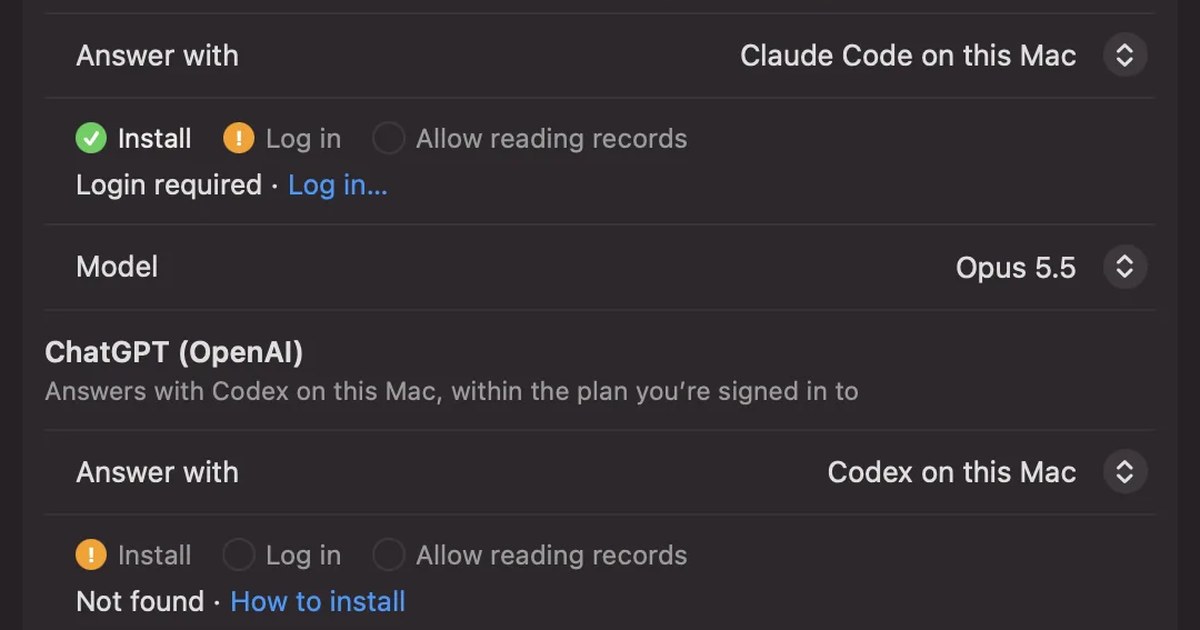
On Pro, you can also have ChatGPT answer about your record, by entering your own OpenAI API key in Settings › AI, or by using Codex on this Mac (0.160.0 or later). With an API key, what’s sent is your question and what the search found, such as excerpts of lines and summaries, never the audio or a whole conversation. With Codex, Codex reads the record, and what it reads is sent to OpenAI with your question. Either way, Recall shows what will be sent and asks before the first time.
Limits to know first
- It can’t import recordings: to transcribe an mp3 you already have, ChatGPT’s upload is a better fit
- Audio isn’t kept: you can’t replay a part in Recall
- You choose the language in settings: Japanese or English, and it doesn’t switch automatically mid-meeting
- Mac only: it doesn’t run on iPhone or Windows
What’s free and how long records are kept
Free has no limit on transcription, and shows and searches the last 14 days. Older records are still stored during the retention period, and you can see them with Pro. By default, records are kept for 90 days on Free and indefinitely on Pro, and deleted after that. Pro is ¥980 a month or ¥9,800 a year (tax included). If the license can’t be confirmed for 14 days in a row, Pro features stop.
Your record is stored on this Mac, and we don’t send it to our servers. It leaves the Mac only when you use a Pro feature you turned on, or when you copy or save it and pass it on yourself. The full list is in when records leave the Mac. Even on Free you can copy the text or save it to a text file, and paste it into ChatGPT for a summary.
Because it stays running, tell the other people when you’re transcribing a meeting or call. Before a conversation you don’t want kept, pause from the menu bar. Examples of what to say are in the FAQ.
Who Recall is and isn’t for
Recall fits people who have many conversations on their Mac every day and want to find later which meeting something was said in. If you only need one recording turned into text, ChatGPT’s upload is enough.
Recall is for you if
- You want to stop starting a recording or exporting a file for each meeting
- You want to search many days of conversations by word in one place
- You want meeting audio turned into text without sending it off your Mac
- You want to ask your own ChatGPT about your record only when you need to
- You use a Mac with Apple silicon on macOS 26 or later
Free to use · No account needed · macOS 26 or later · Mac with Apple silicon · By downloading, you agree to the Terms of Service
Recall isn’t for you if
- You only need one recording transcribed (ChatGPT’s upload is enough)
- You want to go from summary to email draft inside ChatGPT (Meetings fits)
- You want to use it on Windows or iPhone
- You want to keep the audio and listen again
- Your team needs to share the same record
For choosing among transcription apps that run on a Mac, see how to transcribe locally on a Mac.
FAQ
Can I transcribe on ChatGPT’s free plan?
Attaching audio files is paid plans only, not Free. On Free, dictation with the microphone in the message box still turns what you say into text. Record and Meetings in the Mac app aren’t offered on Free either.
How long a recording can it handle?
Uploads are capped at 512 MB per file, with no time limit stated. Long recordings may be processed in sections and very long ones may time out. Record and Meetings in the Mac app stop at 4 hours per session.
How accurate is it in languages other than English?
The help says transcription performance varies by language, and that Record works best in English. We haven’t compared accuracy on the same recording, so check names and numbers against the original.
Can I attach an mp4 video?
Audio-only MP4 is accepted, but MP4 and WebM files identified as video are not. If you only have a video, export the audio as m4a or similar first.
Can I transcribe on my phone?
The help only says availability varies by client version and other factors, and we didn’t check the mobile apps this time. Meetings and Record are only in the Mac app. Recall is a Mac app too, so it doesn’t work on phones.
Can ChatGPT write meeting minutes?
Yes. After the transcript, ask it to list the decisions, next steps and owners. Meetings makes a summary and suggested action items automatically. Either way, check names and amounts against the recording before sharing.
Is my meeting audio used for training?
On personal Free, Plus and Pro, the training setting is on by default. You can turn it off in Settings › Data controls. Business, Enterprise, Edu and the API aren’t used for training by default.
Can Recall import a recorded file?
No. Recall transcribes what you hear on your Mac, so for a recorded file ChatGPT’s upload fits better. You can save a Recall record as text and give it to ChatGPT.
Checked on November 8, 2026. ChatGPT details come from OpenAI Help Center pages: the release notes, uploading files and audio, the Meetings plugin, Record, Voice Dictation, ChatGPT Voice and data controls, plus the developer speech-to-text guide. Plans and features change, and Meetings is in beta. Check OpenAI’s latest pages before use. Recall details come from our published help and pricing pages.
The differences between Recall Free and Pro are in plans and license.
Free to use · No account needed · macOS 26 or later · Mac with Apple silicon · By downloading, you agree to the Terms of Service
Get the product overview (PDF) by email →
Related articles
How to transcribe audio with Gemini: file limits, the app vs. AI Studio
Where you transcribe with Gemini depends on how long your audio file is. We compare the Gemini app, Google AI Studio, Gemini Notebook and Google Meet, cover why uploads fail, and list what to check before you share meeting audio.
Is Otter.ai safe? Five checks for any AI meeting notetaker, with official answers
Is Otter.ai safe, and is any AI notetaker? Five checks (audio storage, where processing happens, AI training, sharing, telling participants), how to verify each, and what Otter, Notta, Rimo Voice, Granola and tl;dv officially say (checked November 13, 2026).
How to transcribe with Claude: audio files and turning transcripts into meeting notes
Claude’s help center lists no audio formats for upload, so the reliable way is to transcribe a recording first and then give Claude the text. Dictation and voice mode, /voice in Claude Code, how to ask for meeting notes, letting Claude read meeting records over MCP, and the settings to check first.
How to transcribe Zoom meetings: built-in, cloud services, or on your Mac
Three ways to transcribe a Zoom meeting: built-in features, cloud services and apps on your Mac. Covers the plans each needs, the May 2026 captions change, and how to choose.