 Recall
How to transcribe with Claude: audio files and turning transcripts into meeting notes
Claude’s help center lists no audio formats for upload, so the reliable way is to transcribe a recording first and then give Claude the text. Dictation and voice mode, /voice in Claude Code, how to ask for meeting notes, letting Claude read meeting records over MCP, and the settings to check first.
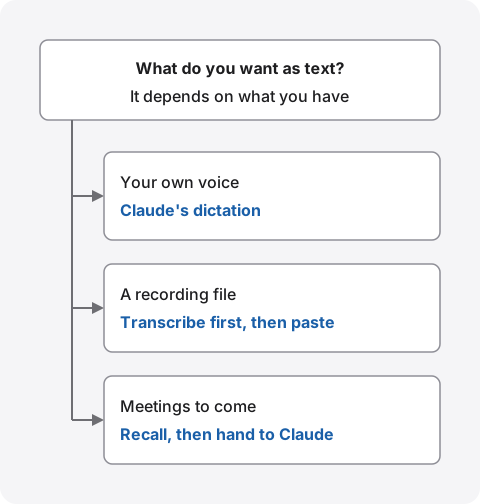
The short answer: audio files aren’t a listed format, so transcribe first
To transcribe a recording with Claude, the reliable way is to turn the recording into text some other way first, then give that text to Claude and ask for meeting notes. The formats listed in Claude’s help article on uploading files are documents and images only. Audio files aren’t among them.
Claude turns speech into text in three places: dictation, which puts what you say into the message box; voice mode, where you talk with Claude out loud; and dictation in Claude Code, the developer tool (/voice). All of them work on what you say in the moment. None of them transcribes a recording or captures a meeting.
If you read that you can load an audio file straight into Claude, check which screen that refers to. A use the help center doesn’t describe may work, but nothing explains the quality of the result or how the file is kept. This article is written by KOROMO K.K., which develops Recall, a transcription app for Mac. We include our own product, so read with that in mind. We checked the Claude details against the original pages of Anthropic’s Help Center and the Claude Code documentation on November 9, 2026.
Three places Claude turns speech into text
Claude turns speech into text in app dictation, voice mode and Claude Code’s dictation, and each one works on what you are saying right now. Here is what the help center and the documentation say.
| Where and which plans | Where the text goes | |
|---|---|---|
| Dictation (phone app) | The Claude app on iOS and Android. All plans | Into the message box; you send it |
| Dictation (Quick entry on Mac) | Claude Desktop on Mac. macOS 14 or later, all plans | You review it, then send |
| Voice mode (beta) | Phone, Claude Desktop and the web. All plans | A text transcript stays in the chat history |
| /voice in Claude Code | Claude Code signed in with a Claude.ai account | Into the prompt input |
Dictation: speech becomes text before you send it
According to the help article on dictation in the mobile apps, you tap the microphone on the right of the message box, speak, and tap the arrow to send. Languages other than English are in beta, and the 12 supported languages include Japanese. The article says the audio is deleted after it becomes text, no copy is kept, and it isn’t used to train generative models.
On a Mac, Quick entry in Claude Desktop turns what you say into text as you speak when you press Caps Lock, and stops when you press it again. Because it takes over Caps Lock, it starts off and you turn it on under Desktop app in Settings. It needs macOS 14 or later and the speech recognition permission.
Voice mode: the transcript of a spoken chat is kept
According to the voice mode help article, voice mode is a full spoken conversation with Claude, offered in beta on all plans. It works on phones, Claude Desktop and the web, and is built to work best on a phone. The text of the conversation stays in your chat history, and voice chats count toward your usual usage limits. Languages other than English are in beta.
What it keeps is your conversation with Claude, not an exchange between meeting participants. It isn’t a way to take meeting notes.
/voice in Claude Code: speak your coding prompts
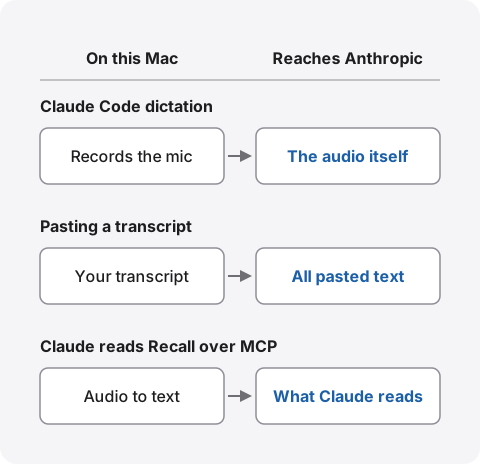
According to the Claude Code voice dictation documentation, you turn it on with /voice, and what you say while holding Space goes into the prompt input. Audio isn’t processed on the Mac; it is streamed to Anthropic’s servers to be transcribed. It needs a sign-in with a Claude.ai account and doesn’t work when you use an API key.
To speak another language such as Japanese, set the language in /config; if the setting is empty, dictation assumes English. In tap mode, recording stops after 15 seconds of silence or two minutes in total. Transcription doesn’t count toward usage limits. It is tuned for coding vocabulary, so it isn’t a tool for transcribing meetings.
When speech doesn’t turn into text well
- Claude Code hears another language as English: with the language setting empty, dictation assumes English. Set your language in
/config, then use/voiceagain - Claude Code can’t use the microphone: allow your terminal app under System Settings › Privacy & Security › Microphone on the Mac. /voice doesn’t appear when you use an API key
- Caps Lock doesn’t start dictation: dictation in Quick entry starts off. Turn it on in Claude Desktop’s settings, and check that you have macOS 14 or later and the speech recognition permission
- Accuracy outside English: in both dictation and voice mode, languages other than English are in beta. Fix names and numbers in the message box before you send
How to transcribe a recording file first
If you have a recording file, transcribe it with a tool that accepts audio files, then paste the text into Claude. Which tool to pick depends on whether the recording may go to an outside service.
| Where audio becomes text | Good for | |
|---|---|---|
| Attaching audio in ChatGPT | OpenAI | People on a paid ChatGPT plan |
| The Gemini app, Google AI Studio | People who want to stay in a Google account | |
| Mac apps such as MacWhisper | This Mac (with a local model) | People who don’t want recordings to leave |
Since October 2026, paid ChatGPT plans can take attached audio files. The conditions are in How to transcribe with ChatGPT, and Gemini’s limits and choices are in How to transcribe audio with Gemini. Both can summarize the text for you as well, so handing it to Claude makes sense when you want a different AI to rework the same text.
If recordings must not leave your company, use an app that transcribes on the Mac. How MacWhisper, Aiko and others compare is in apps that transcribe files. Even if the text is made on your Mac, it goes to Anthropic the moment you paste it into Claude.
Turn a transcript into meeting notes with Claude
Give Claude the transcript and it can write meeting notes listing decisions, next steps and owners. You either paste the text into the message box or attach a text file. Plain text (TXT) is one of the formats you can upload; in chats, a file can be up to 500MB and a chat can hold up to 20 files.
Tidy the transcript before you paste it
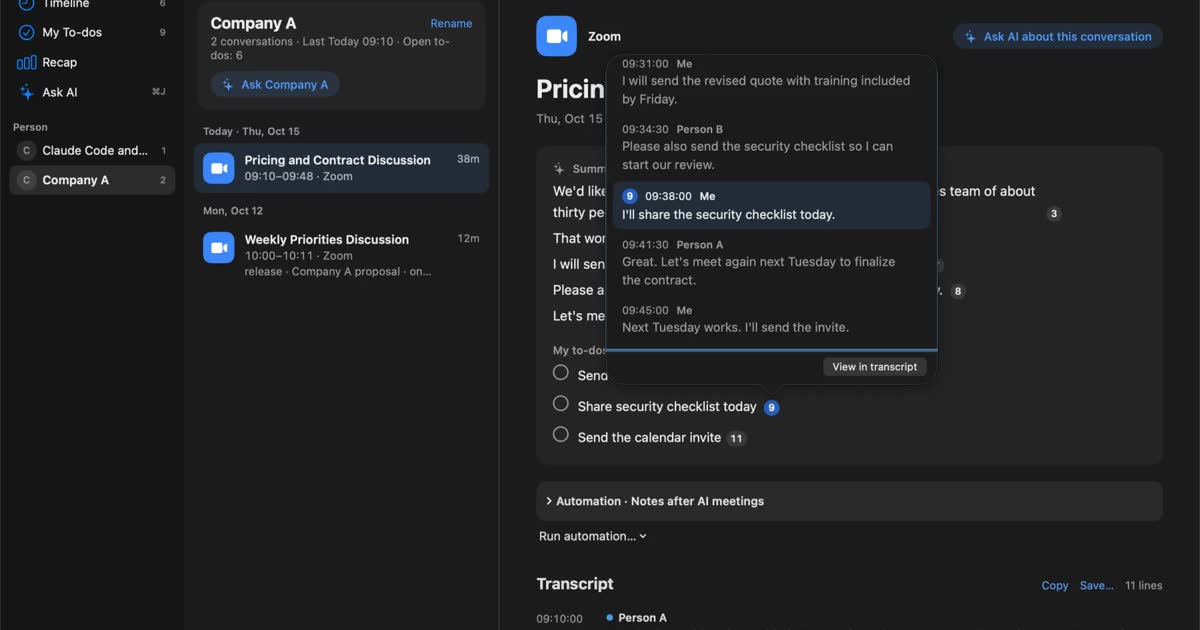
Claude summarizes best from a transcript with a time and a speaker on each line. Without who said what, owners get mixed up easily. When speakers are numbered, such as Speaker 1, rename them where you can before you hand it over, or state who is who in your request. Remove anything you don’t want to share first, such as names of people outside your company or amounts. When you copy or save a transcript in Recall, each line comes out as time, speaker and text, so you can paste it as is.
Example requests
The help center doesn’t give a set way to ask for meeting notes, so these are examples we wrote.
- For meeting notes: “From the transcript below, list the purpose of the meeting, the decisions and the next steps (with owners and deadlines) as bullet points. Don’t add anything that isn’t in the transcript, and write [unclear] where you can’t tell.”
- To check what was said: “For each decision, quote the line it is based on, word for word.”
- To fix the speakers: “Speaker 1 is Tanaka from sales and Speaker 2 is the customer. Replace the labels with these names before you summarize.”
Claude’s summary doesn’t fix errors in the transcript. A misheard name or number can survive as a plausible sentence. Compare amounts, dates and owners with the original transcript before you share the notes.
When the meeting is long
How much you can give at once depends on the model; the help article on context windows in paid plans lists each model, and chats get at least 200K tokens. On paid plans with code execution on, Claude summarizes earlier messages when a chat nears the limit so the conversation can continue. That uses more of your usage limit. For a meeting that runs for hours, giving Claude one agenda item at a time makes it easier to check what was decided where. That split is our suggestion, not the help center’s.
Let Claude Desktop or Claude Code read your meeting records
Instead of copying and pasting a transcript every time, you can let Claude find and read the records itself. That is what MCP is for. MCP’s official introduction describes it as an open standard for connecting AI applications to outside data and tools. Claude Desktop and Claude Code can use tools that follow it.
Recall is an app that sits in the menu bar and transcribes your microphone and your Mac’s audio with on-device AI. There’s nothing to start for each meeting and no file to export. On Pro, Claude Desktop and Claude Code can read these records over MCP, read-only. Recall makes the text on this Mac, and Claude finds and summarizes it.
How to connect
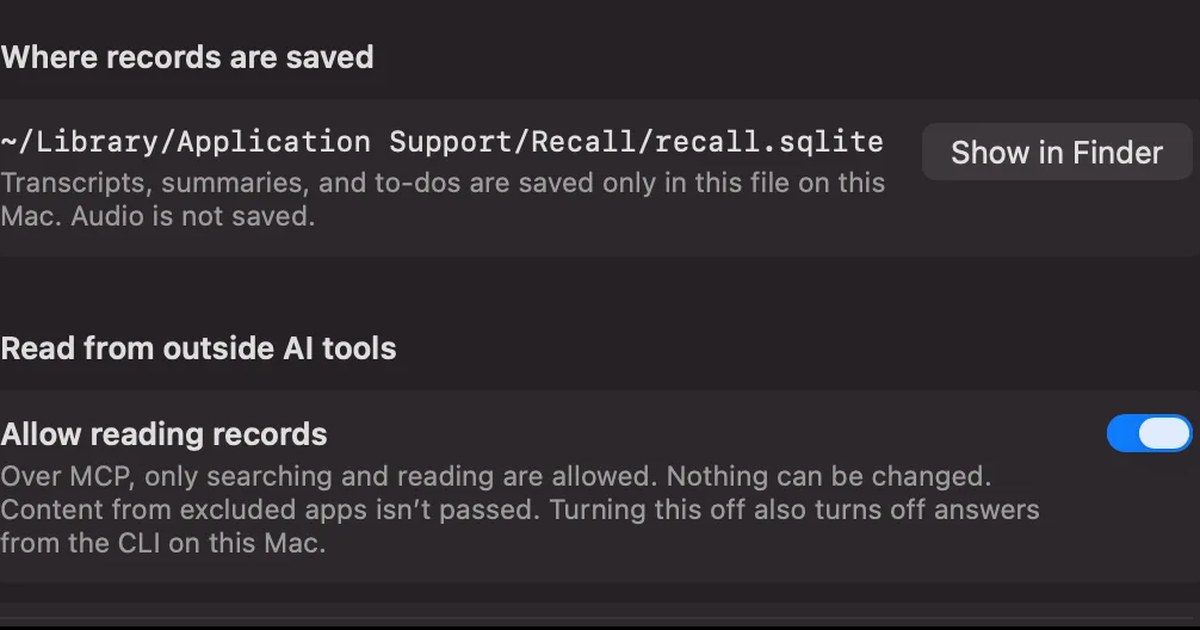
- In Recall, turn on “Allow reading records” under Settings › Connections
- For Claude Code, run the command shown on that screen once in Terminal
- For Claude Desktop, add the setting shown on that screen to claude_desktop_config.json
- Ask Claude something like “Summarize what we decided in last week’s meeting with Company A”
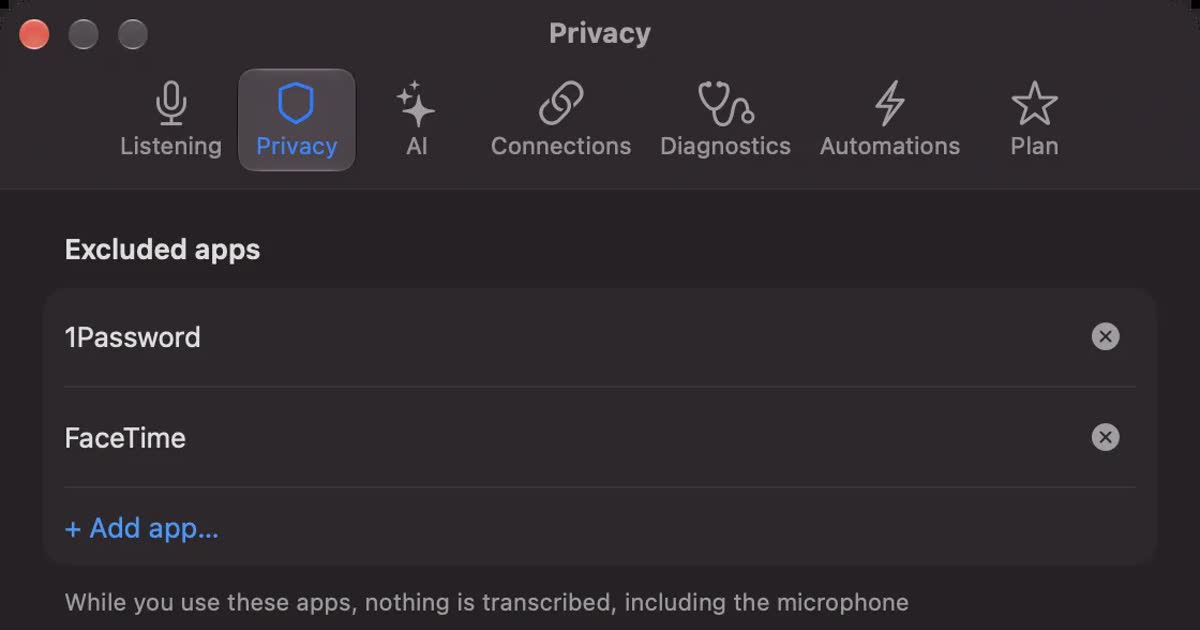
Claude searches the record for your question and reads the lines it needs before it answers. It can’t change the record, and content from apps you chose not to record isn’t passed on. Every read is logged under Settings › Connections, without search words or text. When you turn it off, connected tools are refused from their next read.
What reaches Claude
The record Claude reads is sent to Anthropic. Recall discards the audio as soon as it becomes text, so what is sent is text. Words in the record, such as from a video, can’t be fully prevented from being read as instructions to Claude, so use Claude’s own permission prompts as well.
Ask your own Claude from inside Recall
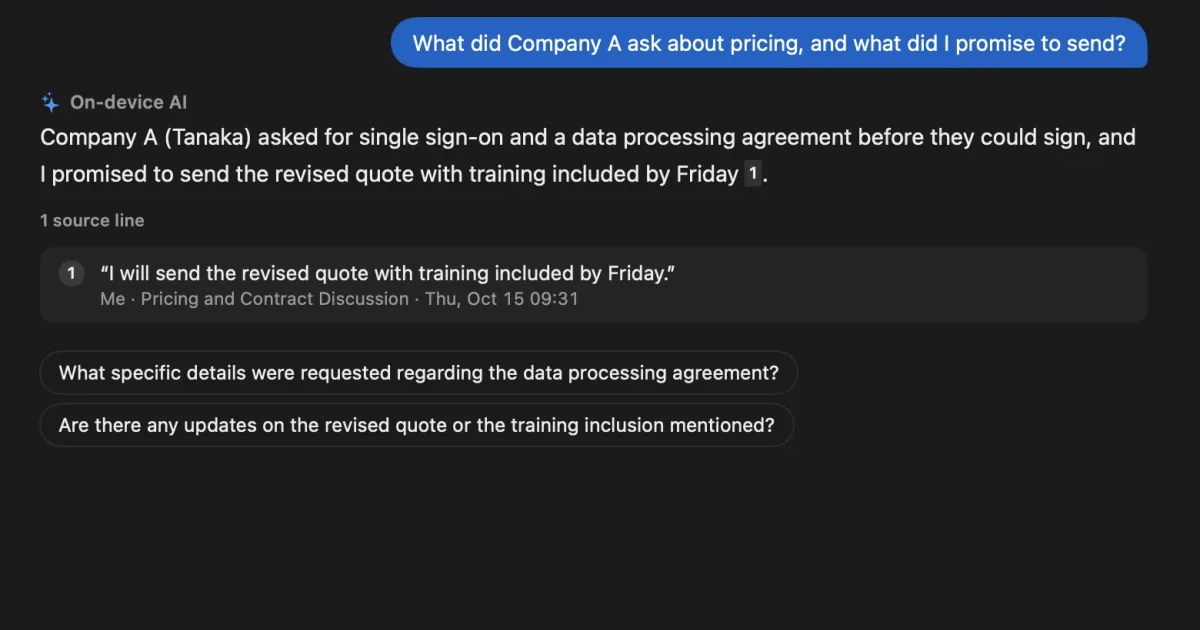
In Recall’s Ask AI, on-device AI answers by default: it searches the record first and numbers the lines it relies on. Neither your question nor the record leaves the Mac. On a Mac with less than 16GB of memory, answering questions needs Apple Intelligence turned on.
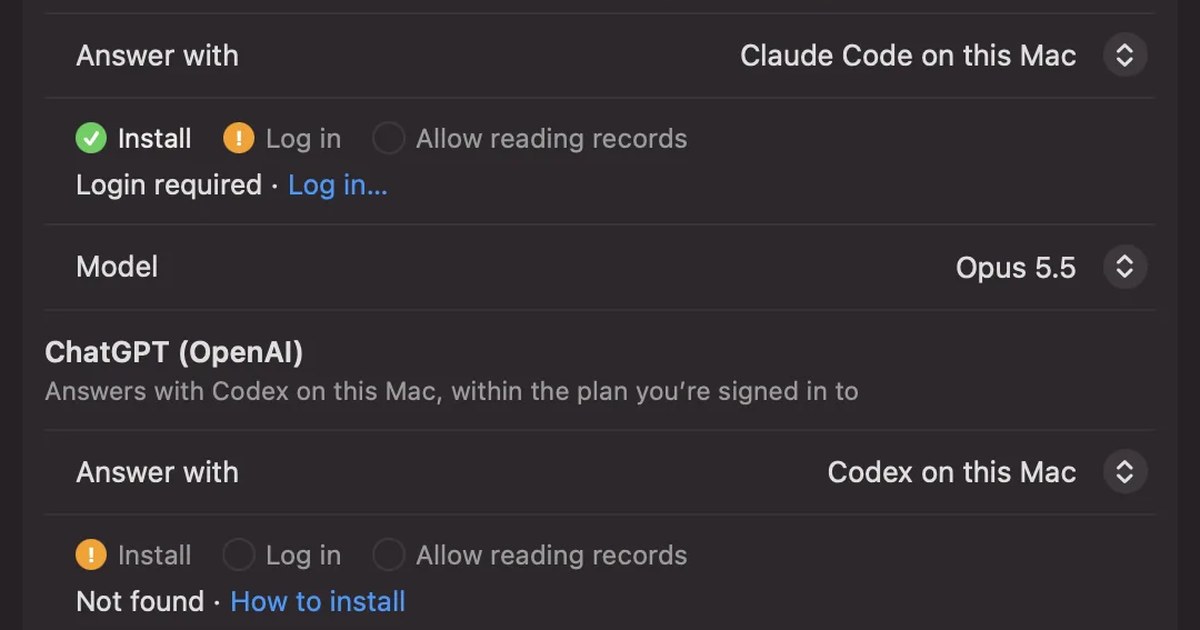
On Pro, add your own Anthropic API key or choose Claude Code on this Mac under Settings › AI to have Claude answer. With an API key, what is sent is your question and the lines the search found. You can also have Claude write the summary and to-dos after each meeting (Organize meetings); then each conversation’s lines, up to 60,000 characters, are sent once. Each time, before anything is sent for the first time, Recall shows what will go and asks. The full list is in When records leave the Mac.
What to check before you give Claude meeting text
Before you give Claude a meeting transcript, check two things: the setting for training, and how long chats are kept. Personal and business plans differ.
| Use for training | Notes | |
|---|---|---|
| Free, Pro, Max (personal) | You choose | Switch “Help improve our AI models” under Settings › Privacy |
| Claude for Work and the API | Not used | Except chats you send as feedback and programs you opt into |
This table is based on the help articles on changing the model improvement setting and on training for commercial products. The same setting applies when you use Claude Code on a personal plan. When it is off, new chats and coding sessions aren’t used for future training. Data already in training that has started isn’t removed.
How long chats are kept
According to the help article on data retention, if you allow training on a personal plan, chats may stay in the training pipeline in a de-identified form for up to five years. When you delete a chat, it leaves your history at once and Anthropic’s back-end storage within 30 days. Incognito chats aren’t used for training even when training is allowed. If you give a response a thumbs up or down, the data tied to that submission is kept for five years.
Telling others, and company rules
A meeting transcript includes what people outside your company said. They haven’t agreed to their words going to Claude. For a work meeting, first check whether your company allows giving meeting records to an AI, and at the start of the meeting say that you’re transcribing it and summarizing it with AI. Stop if anyone objects. This is the same for every product, Recall included. What to check for AI meeting notes in general is in What to check if you worry about leaks from AI meeting notes.
Because Recall stays running, pause it from the menu bar before a conversation you don’t want kept.
Who Recall is and isn’t for
Recall suits people with several meetings a day on a Mac who want to stop transcribing by hand and use Claude to search and summarize when they need to. If you only want one recording file transcribed, another way fits better.
Recall is for you if
- You want to stop starting a recording for each meeting and exporting files
- You want meeting audio transcribed without sending it off your Mac
- You want Claude to look up the record instead of copying and pasting every time
- You want to search days of conversations in one place
- You use a Mac with Apple silicon on macOS 26 or later
Free to use · No account needed · macOS 26 or later · Mac with Apple silicon · By downloading, you agree to the Terms of Service
Recall isn’t for you if
- You want to transcribe recording files (Recall can’t import them)
- You want to keep recordings and listen again (audio isn’t kept after it becomes text)
- You want Claude to read the record on Free (MCP and your own Claude are Pro)
- You want to use it on Windows or iPhone
- Your team needs to share the same record
What’s free, and how long records are kept
Free has no limit on transcription; you can view and search the last 14 days. By default, records are kept 90 days on Free and indefinitely on Pro, and older records are deleted. Pro is ¥980 a month or ¥9,800 a year (tax included), and Pro features stop if the license can’t be checked for 14 days in a row. Even on Free, you can copy a transcript or save it as a text file and paste it into Claude for meeting notes. Recall listens in Japanese or English, and it needs the Screen Recording and System Audio Recording permissions.
FAQ
Can I give Claude an audio file to transcribe?
In the help center we checked on November 9, 2026, the formats you can upload were documents and images only, with no audio files. Transcribe the recording first with ChatGPT, Gemini or a Mac app, then give Claude the text.
Can I turn speech into text on Claude’s free plan?
Yes. The help center says dictation in the phone apps, dictation in Quick entry on Mac, and voice mode are available on all plans. Voice mode is in beta, and so are languages other than English.
Does it work in languages other than English?
Phone dictation supports 12 languages, including Japanese. Claude Code’s /voice supports 20, but you need to set the language in /config or it assumes English. In voice mode, languages other than English are in beta.
How do I make meeting notes with Claude?
Paste the transcript or attach it as a text file, and ask for decisions, next steps, owners and deadlines. Adding that nothing outside the transcript should be written reduces made-up content. Check amounts and names against the original text.
Can Claude transcribe a video?
Video isn’t among the formats the help center lists for upload. Export the audio and transcribe it with another tool, or use the captions if it is a YouTube video, then give Claude the text.
Can Claude Code write meeting notes?
Yes. Have it read a transcript file and summarize it, or let it read your meeting records over MCP with Recall Pro. /voice is for speaking your own prompts; it doesn’t record meetings.
Is the meeting text I give Claude used for training?
On personal Free, Pro and Max plans, you choose with the “Help improve our AI models” setting. Claude for Work and the API aren’t used for training. Incognito chats aren’t used for training on personal plans either.
Can Recall import recording files?
No. Recall transcribes conversations as your Mac hears them. For recording files, use a tool that accepts audio files.
Checked on November 9, 2026. The Claude details are based on Anthropic’s Help Center pages on uploading files, dictation in the mobile apps, Quick entry, voice mode and context windows; the Privacy Center pages on the model improvement setting, training for commercial products and data retention; and the Claude Code voice dictation documentation. The description of MCP is from modelcontextprotocol.io. Features and plans can change, and voice mode is in beta. Check Anthropic’s latest pages before you rely on them. The Recall details are based on our published help and pricing pages.
The differences between Recall Free and Pro are in Plans and license.
Free to use · No account needed · macOS 26 or later · Mac with Apple silicon · By downloading, you agree to the Terms of Service
Get the product overview (PDF) by email →
Related articles
How to transcribe with ChatGPT: audio uploads vs recording meetings
Since October 2026, paid ChatGPT plans can transcribe attached audio files. How uploads, dictation, and Meetings and Record in the Mac app differ, what to do when an upload fails, and which settings to check before sharing meeting audio.
How to transcribe audio with Gemini: file limits, the app vs. AI Studio
Where you transcribe with Gemini depends on how long your audio file is. We compare the Gemini app, Google AI Studio, Gemini Notebook and Google Meet, cover why uploads fail, and list what to check before you share meeting audio.
Is Otter.ai safe? Five checks for any AI meeting notetaker, with official answers
Is Otter.ai safe, and is any AI notetaker? Five checks (audio storage, where processing happens, AI training, sharing, telling participants), how to verify each, and what Otter, Notta, Rimo Voice, Granola and tl;dv officially say (checked November 13, 2026).
How to transcribe locally on a Mac: keeping meetings inside your company
How to transcribe on a Mac without sending audio to the cloud. Compare Notes, MacWhisper, Aiko, whisper.cpp, Recall and more, and check the four places records can still leave.