 Recall
How to transcribe a YouTube video: built-in, AI, and videos with no captions
YouTube’s own transcript is enough if a video has captions. How to open and copy it, why it may be missing, and what works for no-caption or unlisted videos, comparing NotebookLM, Notta and Recall.
The short answer: if a video has captions, YouTube’s own feature is enough
To transcribe a YouTube video, try “Show transcript” in the video description first. If the video has captions, you can read the whole thing for free, search it by word, and click a line to jump to that moment. You need another tool when a video has no captions, when it’s unlisted or live, or when you want to search across everything you’ve watched.
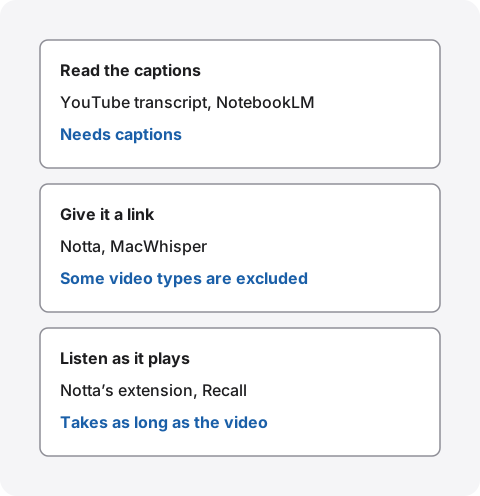
Without captions, you need a tool that makes text from the sound. For public videos you can give a link to Notta or MacWhisper. For videos you can’t pass by link, Notta’s Chrome extension or Recall transcribes as you play. If you only want the main points, you can use NotebookLM, but it only takes public videos with captions.
This article is written by KOROMO K.K., the developer of Recall, a transcription app for Mac. Our own product is among the options, so please read with that in mind. Details of other products were checked on their official pages on November 4, 2026, and YouTube’s screen was checked the same day by opening a video in a desktop browser. We haven’t compared accuracy on the same video, so we don’t rank accuracy.
The type of video decides which methods work
Before accuracy, check whether a method can handle the video at all. This table follows what the official pages say, by type of video.
| No captions | Unlisted or live | |
|---|---|---|
| YouTube transcript | Not available | Depends on whether it has captions |
| NotebookLM | Not available | Public videos only |
| Notta, by link | No caption condition stated | Live, private and unlisted aren’t covered |
| MacWhisper, by link | No caption condition stated | Some live streams can’t be handled. Nothing stated on unlisted |
| Notta’s Chrome extension | Works when played | Described as handling unlisted, private and live |
| Recall (Mac) | Works when played | Works if your Mac can play it |
All of this is about what can be turned into text, not what you’re allowed to turn into text. See the section on terms and copyright.
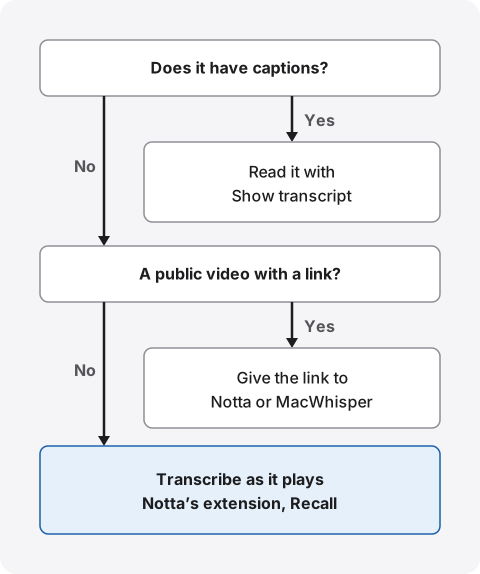
If you’re unsure, checking in this order gets you there quickly.
How to use “Show transcript” on YouTube
According to YouTube Help, videos with captions let you open a full transcript from the description. You don’t need an extra app or an account.
On a computer
- Open the video and expand the description under the title
- Near the bottom of the description, click “Show transcript”
- A list of times and captions appears on the right
On the video we checked, a side panel opened with a switch between chapters and transcript. We checked in the Japanese interface while signed out, so labels may differ. Clicking a line moves the video to that point, and the list follows along as it plays.
Searching by word
On the video we checked, the panel had a search box above the list. To find a passage in a long video, that box or your browser’s find-in-page is enough. It only covers the one video you have open, though. You can’t search across videos.
Copying the text
The screen we checked had no save button and no copy button. To keep the text, select the list with your mouse and copy it. The panel’s “…” menu has a toggle for timestamps, so hide them first if you don’t want them. When we selected with timestamps showing, times such as “0:04” got mixed into the text. Check what you pasted.
On a phone
The help page doesn’t split steps by device. It only says to open the transcript from the description. We did not check the phone app’s screen this time, nor whether the app lets you select and copy. Open the description and look for “Show transcript.”
Your own videos: use YouTube Studio
For a video you uploaded, you can download the caption file from YouTube Studio. Choose the video under Subtitles in the left menu, click Edit next to the language, then choose Download subtitles under Options. This help page gives no way to get captions from other people’s videos.
When “Show transcript” is missing or the text isn’t in your language
The first thing to suspect is that the video has no captions. Look for the captions icon at the bottom right of the player to get an idea. Sometimes the description just hasn’t been expanded.
YouTube’s help on automatic captions gives these reasons they may not appear. Most can only be fixed by the uploader, so as a viewer it’s quicker to move to another method.
- Still processing: just after upload, or when the audio is complex
- Language not supported
- The video is too long
- Hard to hear: poor sound quality or speech it can’t recognize
- A long silence at the start
- Overlapping voices: several people or languages at once
Automatic captions on live streams are English only
The same help page says automatic captions during a live stream support English only. For a stream in another language, assume there’s no transcript to read during the stream unless the streamer adds captions. New captions are made after the stream ends, and they can differ from the live ones. If you can wait, open it once it’s an archive.
Wrong language, or many errors
The transcript shows the captions as they are, so an English video normally gets English automatic captions. If a video has several audio tracks, automatic captions use the default language. On the video we checked, a language menu under the list showed the caption languages that video has. For captions in the player, YouTube Help says to use “Auto-translate” when your language isn’t listed. The language menu under the list had no auto-translate, though, and we didn’t check whether translated captions can be read in the list.
As for errors, YouTube’s help itself says automatic captions are made by machine learning, so quality varies, and pronunciation, accents and noise can make them wrong. Before passing a transcript to anyone, check names, product names and numbers against the video.
Handing the video to AI or other tools
When the built-in feature isn’t enough, the options split into AI you ask, tools you give a link to, and tools that listen as it plays. Choose by whether you need the full text or just the main points.
NotebookLM: ask about public videos with captions
NotebookLM’s help (it also uses the name Gemini Notebook) says you can add YouTube videos as sources. Only the transcript part is imported. The conditions are:
- Only public videos with captions, either uploaded by the creator or automatic
- Videos uploaded less than 72 hours ago may not import
- Videos without speech aren’t supported
- No length limit, as long as the captions don’t exceed 500,000 words
- If a video is deleted or made private, the source is removed from the notebook within 30 days
Asking across several videos at once is the benefit. Because it relies on captions, it doesn’t solve the no-captions case.
Gemini: find a video and ask about it
Gemini Apps Help says it uses public information from YouTube to find videos and help you understand them, with “summarize the first video” as an example request. You need to be signed in with Activity on. This page says nothing about full transcripts, so it’s safest to treat Gemini as a way to ask about the main points. For the full text, use another method.
Pasting the copied text into AI
You can also copy from “Show transcript” and paste into ChatGPT or Claude to summarize it. If there are captions, this is a simple way that works with any AI. Treat the summary as a way in, and check numbers and names against the video. Check your employer’s rules before sending text from confidential videos to an outside service.
Notta: a link for public videos, the extension for the rest
Notta can transcribe from a YouTube link pasted into its web app. It’s on all plans, up to 5 hours per video. Public videos and Shorts are covered. Live streams, private and unlisted videos aren’t. Notes made from a link lose speaker identification, bilingual transcription and custom vocabulary, and audio and video downloads are disabled under YouTube’s policy.
For videos you can’t pass by link, there’s the Chrome extension (help page in Japanese), which transcribes a tab’s sound. The help says it can handle live streams and unlisted or private YouTube videos. You sign in and start it per video, and it takes as long as the video plays. The text stays in Notta’s cloud, so it suits people who want to share it with a team. Free limits and differences from Recall are in our Notta comparison.
MacWhisper: links or files on a Mac
MacWhisper is a Mac app that, by its own description, can transcribe files with local models. It also accepts YouTube links. Age-restricted videos, some live streams and region-limited videos may not work. We couldn’t tell from the text of the official pages whether the link feature is free or Pro, so check in the app. Differences from Recall are in MacWhisper vs Recall.
Telling free link tools and extensions apart
There are many “just paste the URL” tools and extensions, and they change quickly, so we don’t list them here. Before using one, look at these four things.
- Does it read captions or listen to sound? Caption readers don’t work without captions. Try a short video with no captions to find out
- Free limits: videos per day, length per video, and whether you can export, on its pricing page
- Where the text stays: where the history is kept and how to delete it
- Extension permissions: which sites’ data it reads, shown when you install it
YouTube’s Terms of Service prohibit accessing the service by automated means without permission. From the outside, you can’t tell how a tool gets a video. If you use one for work, check the provider’s explanation and your employer’s rules.
Transcribing as it plays on a Mac: Recall
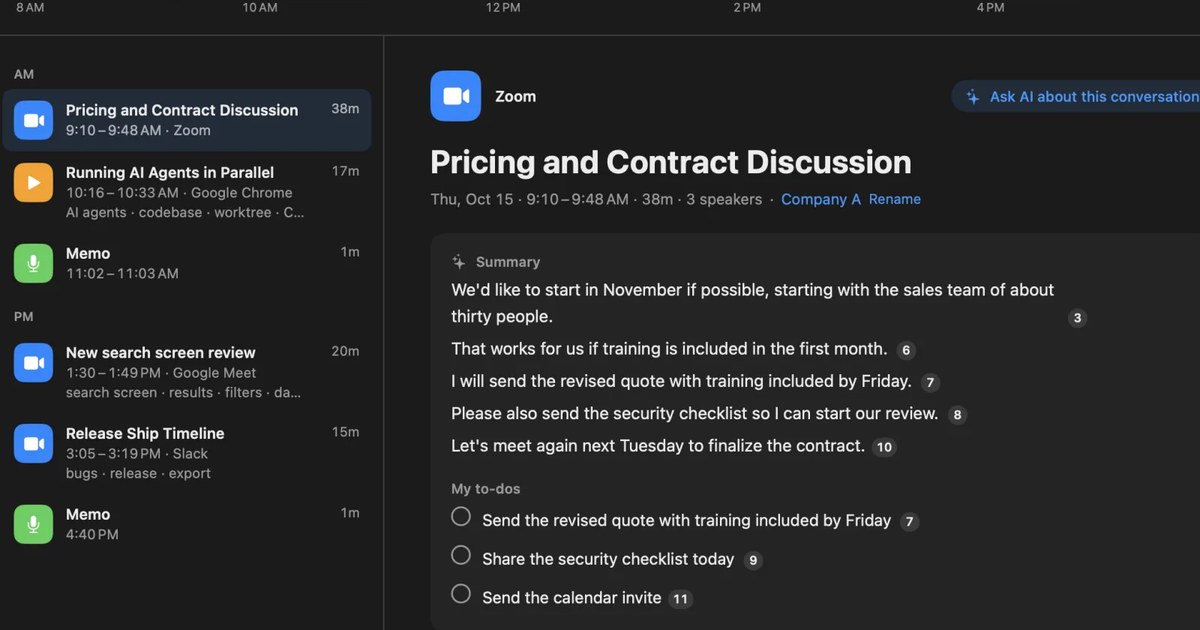
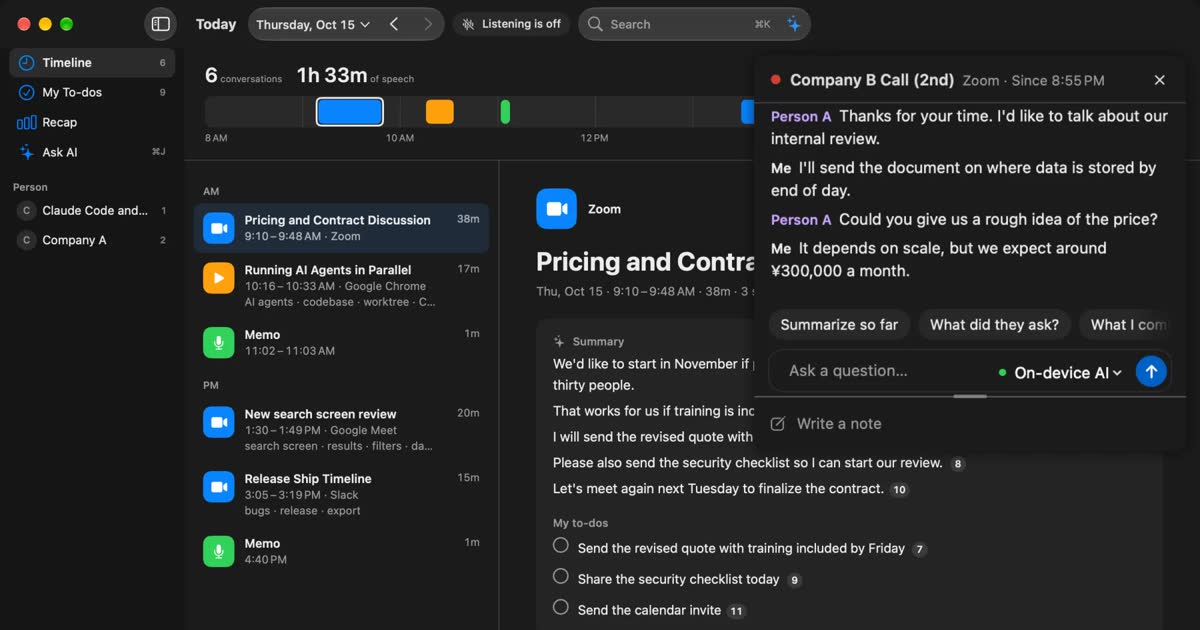
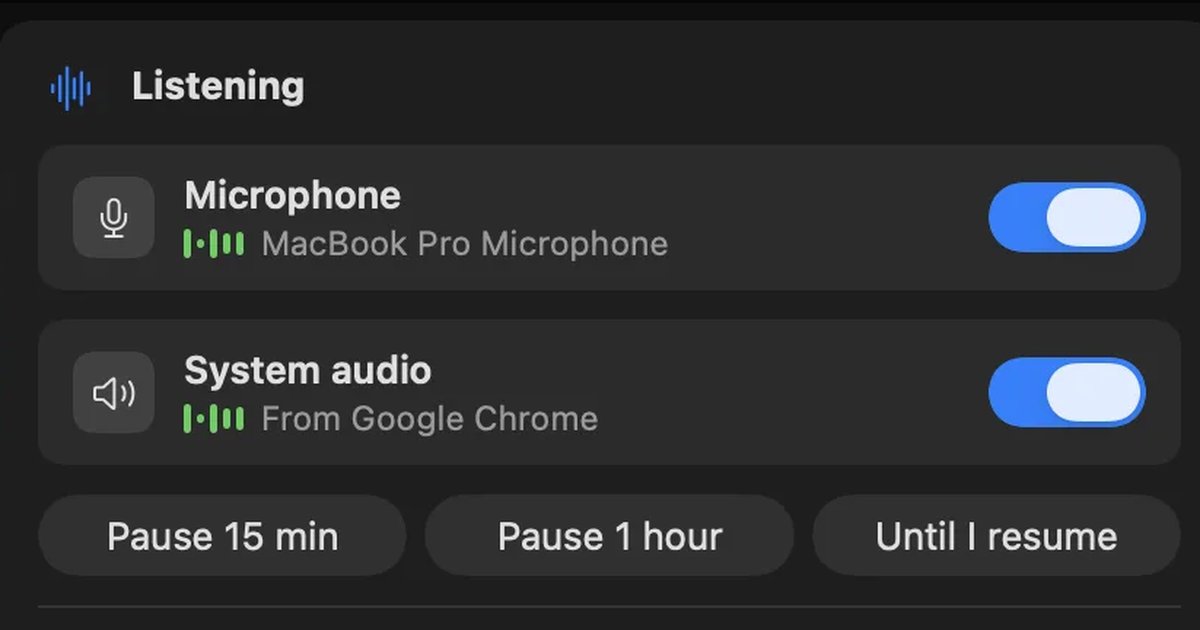
Recall is an app that stays in the menu bar and turns your mic and your Mac’s sound into text. There’s no record button and nothing to do per video. Play a YouTube video and its sound becomes text, whether or not it has captions. Videos where you didn’t speak appear on the timeline in the “watching” color.
It needs a Mac with Apple silicon on macOS 26 or later, and Screen and System Audio Recording permission. It doesn’t record the screen itself, but it saves the title of the front window on this Mac along with what was said.
Limits to know first
- No links, no files: only sound played on the Mac becomes text. A 60-minute video needs 60 minutes of playing
- No audio is kept: it’s discarded once it’s text, so you can’t listen again in Recall. Text shown only on screen isn’t kept either
- We haven’t measured accuracy at higher speeds: watch important videos at normal speed, or play a little and check the text
- You choose the language in settings: Japanese or English, and it doesn’t switch by itself mid-video. There’s no translation
- Times aren’t video positions: a line’s time is when you watched it. Unlike YouTube’s transcript, you can’t click back to that moment in the video
Finding what you watched later
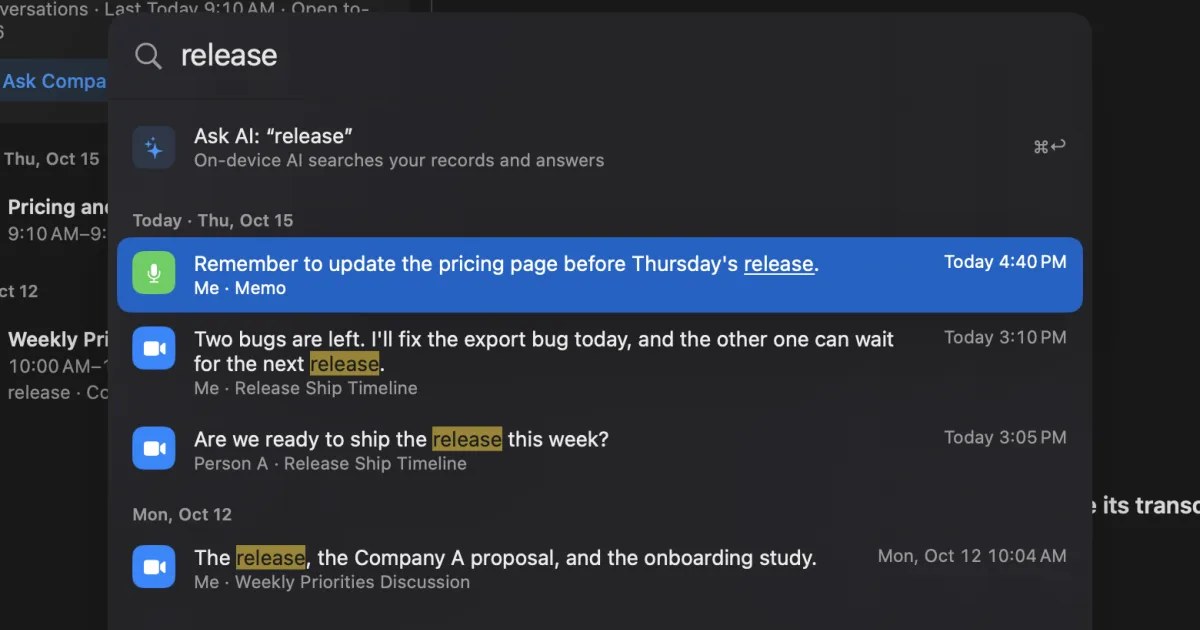
Recall helps when you can’t remember which video it was. Unlike the built-in feature, which is one video at a time, what you watch and your meetings stay in one place and can be searched together.
| How to find it | |
|---|---|
| A word or product name | Type in ⌘K search for matching lines by date. Choosing one goes to that line |
| “Last week,” “on YouTube” | Use “last week” and “YouTube” as filters in ⌘K. The YouTube filter applies to what was said while the video’s window was in front |
| Which video it was | The conversation’s detail header shows the first window title recorded |
| You only remember the content | Ask AI, “What tool did that video last week mention?” |
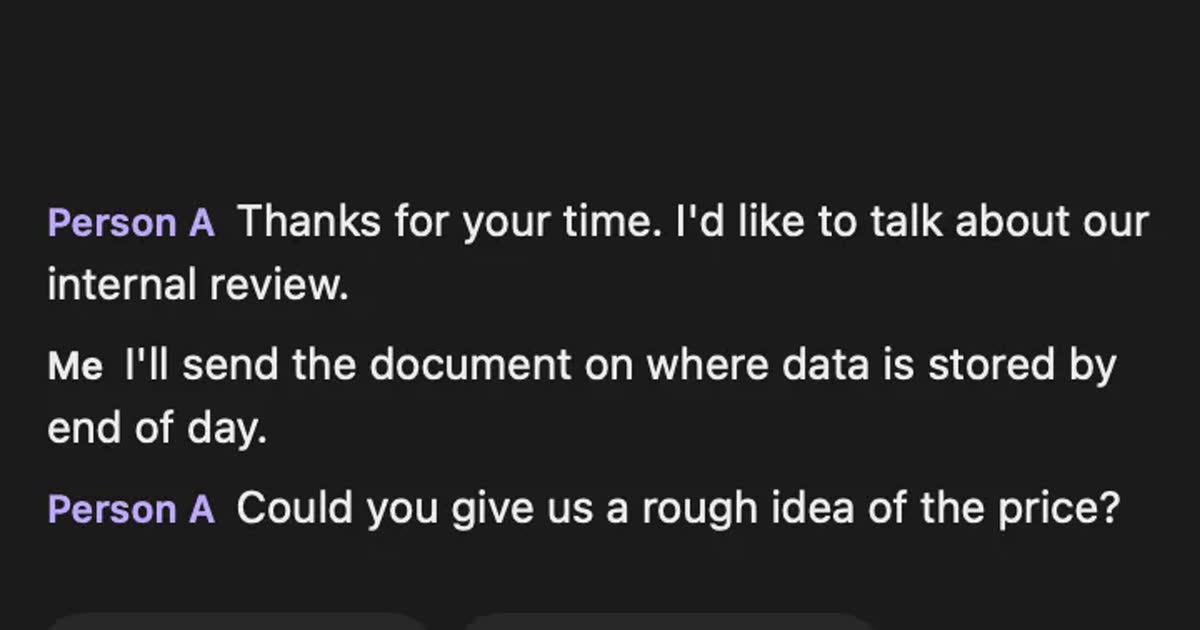
Search doesn’t use AI, so it works while the AI is still getting ready. When you ask AI, it searches your records, then answers with numbered references to what was said. By default the on-device AI answers, and neither your question nor your records leave the Mac. On a Mac with under 16GB of memory, Apple Intelligence must be on to get answers. Summaries and to-dos are made when Apple Intelligence is on, whatever the memory.
Free also lets you copy the text or save it as a text file. It contains lines of “time speaker: text,” without the summary.
What’s free, and how long records stay
Free has no transcription limit, and shows and searches the last 14 days. Older records stay stored during the retention period and become visible with Pro. The default retention is 90 days on Free and unlimited on Pro, and records past it are deleted. Pro is ¥980 a month or ¥9,800 a year, tax included. If the license can’t be confirmed for 14 days, Pro features stop.
Records are kept on this Mac, and we don’t send them to our servers. They leave only when you use a Pro feature you turned on, or when you copy or save them and pass them on yourself. The list is in When records leave the Mac.
Stop it for videos you don’t want kept
Because it stays running, anything you hear becomes text unless you stop it. Before watching something you don’t want transcribed, pause from the menu bar. If you notice afterward, you can remove the last 15 minutes from the same menu. Excluded apps are set per app, so you can’t exclude only certain sites in a browser.
Recall keeps running during meetings too. When others are on a call or in a meeting with you, tell them you’re transcribing. This goes for any product, and we don’t recommend recording people without their knowledge. Example wording is in the FAQ.
Who Recall fits, and who it doesn’t
Recall fits people who watch a lot on a Mac and can’t keep track of where they heard something. If you need one video’s text right now, another method suits you better.
Recall fits you if
- You want to keep text from videos and streams without captions as you watch
- You want to search what you watched and your meetings in one place
- You don’t want to start a recording for every video
- You’d rather keep no audio and keep the text on your own Mac
- You use a Mac with Apple silicon on macOS 26 or later
Free to use · No account needed · macOS 26 or later · Mac with Apple silicon · By downloading, you agree to the Terms of Service
Recall doesn’t fit you if
- You just need to read one video with captions (YouTube’s feature is enough)
- You want to paste a link and skip waiting for playback
- You want to use a phone or Windows
- You want a caption file, or to listen again
- You want a team to share the same records
For choosing across Mac transcription tools, see how to transcribe locally on a Mac.
What you may do with the text
Your own videos raise few issues. With other people’s videos, the wider you use the text, the more you need to check. This is the same whichever tool you use.
YouTube’s Terms of Service (the version depends on your country; we read the Japan version effective June 1, 2023 and the US version effective December 15, 2023) prohibit copying or downloading content and similar acts unless the service expressly allows it, or YouTube and the rights holders give prior written permission. Viewing is described as for personal, non-commercial use. Reading YouTube’s own transcript on screen is the simplest under the terms. The terms don’t spell out how they treat copying that text or transcribing played sound. The prohibition is broadly worded, so don’t take that as meaning it’s fine. We can’t judge whether it applies to you.
On copyright in Japan, a training document from the Agency for Cultural Affairs (in Japanese) treats work use as outside copying for private use. Downloading music or video you know was distributed in breach of copyright is also outside it. Other countries have their own laws. If you put a transcript in an article or document, check the conditions for quotation or get the rights holder’s permission. You can also summarize in your own words and point to the original video. This is a general explanation, not a judgment on any particular use. More detail, including sharing at work and what to ask organizers, is in how to transcribe webinars and videos so you can find them later.
Frequently asked questions
Can I transcribe YouTube for free?
If the video has captions, you can read it for free with “Show transcript” in the description. We didn’t need to sign in. Tools for videos without captions each have different free limits, so check their pricing pages.
Can I download the transcript?
The screen we checked had no save button, so you select and copy. For your own videos, you can download the caption file from YouTube Studio. Before using a tool to pull text from other people’s videos, check the Terms of Service.
How do I transcribe a video with no captions?
Use a method that makes text from the sound. For public videos, give the link to Notta or MacWhisper. NotebookLM needs captions, so it won’t work. For videos you can’t pass by link, use Notta’s extension or Recall as the video plays.
Can I transcribe unlisted videos?
Notta can’t by link, but its help says the extension can. Recall also transcribes if your Mac can play it. Being able to is not the same as being allowed to. Unlisted videos are deliberately limited, so check with the uploader.
Can I do this on a phone?
The help says to open it from the description, but we didn’t check the app’s screen this time. NotebookLM has a mobile app. Recall is a Mac app, so it doesn’t work on phones.
Can I get a Japanese video in English text?
The transcript appears in the captions’ language. If the video has English captions, choose them in the language menu under the list. If not, you could use auto-translate on the player’s captions, or ask an AI such as NotebookLM for the main points in English. Recall can transcribe Japanese as Japanese, and has no translation.
Can I paste a YouTube link into Recall?
No, and it can’t import files either. Recall transcribes the sound coming from your Mac, so the video must play. To transcribe from a link, consider Notta or MacWhisper.
Does Recall work when I watch with earphones?
Yes. It captures the sound coming from the Mac, so earphones work. It tries not to mistake speaker sound picked up by the mic for your own speech, but earphones are the most reliable.
Is it illegal to transcribe someone else’s video?
It can’t be answered in one line. It depends on the purpose, the content and how widely you use it, and the Terms of Service are a separate matter. For work use or passing it to others, check with the rights holder or your employer. Our webinars and videos article covers how to think about it.
Checked on November 4, 2026. YouTube details come from its Terms of Service and help, and the screen from opening a video in a desktop browser (signed out, Japanese interface). Screens can vary by video and over time. NotebookLM and Gemini details come from Google’s help, Notta’s from its help, MacWhisper’s from its site and help, and the notes on quotation and private use from the Agency for Cultural Affairs’ training document for fiscal 2024. Terms and features change, so check each company’s latest pages before use. This article is a general explanation, not legal advice.
The difference between Free and Pro is in Plans and license.
Free to use · No account needed · macOS 26 or later · Mac with Apple silicon · By downloading, you agree to the Terms of Service
Get the product overview (PDF) by email →
Related articles
How to transcribe webinars and videos so you can find them later
Ways to turn webinars and videos into searchable text, comparing source transcripts, Notta, MacWhisper and Recall, plus what to check on copyright and terms.
How to transcribe a podcast: when Spotify or Apple Podcasts shows no transcript
To transcribe a podcast, first check your podcast app. Conditions for Spotify and Apple Podcasts, what to do when no transcript appears, tools that take audio files, and transcribing as it plays on a Mac.
MacWhisper vs Recall: how they differ before you switch
Looking for a MacWhisper alternative? Compare audio files, always-on capture, saved audio, pricing and requirements, and see who each app fits.
How to transcribe lectures and classes on a Mac: online vs. in the classroom, and finding things before exams
How to transcribe university lectures, online classes and seminars on a Mac. We explain how sound reaches the Mac differently online and in a classroom, how to get permission, how to keep and search records across a term, and which tools suit which situations.