 Recall
How to transcribe lectures and classes on a Mac: online vs. in the classroom, and finding things before exams
How to transcribe university lectures, online classes and seminars on a Mac. We explain how sound reaches the Mac differently online and in a classroom, how to get permission, how to keep and search records across a term, and which tools suit which situations.
The short answer: online classes are easy to keep on a Mac; in a classroom, it depends on your seat and microphone
How easily a lecture turns into text on a Mac depends on where the lecturer’s voice comes from. In online classes on Zoom, Teams or video, the lecturer’s voice is sound your Mac plays, so an app that listens to the Mac’s own audio can transcribe it more easily. In a classroom lecture, the lecturer’s voice reaches the Mac’s microphone from a distance, so the quality of the text changes a lot with where you sit and how the room echoes.
Either way, check first whether you may record. Universities and lecturers have their own rules on recording and note-taking.
This article is written by KOROMO K.K., which develops Recall, a transcription app for Mac. We include our own product, so read with that in mind. We don’t have results comparing the products’ accuracy on the same audio, so we don’t rank them on accuracy.
First, check whether you may record
The content of a lecture is the lecturer’s work. Whether recording or transcription is allowed differs by university rules and lecturers’ policies, and it is sometimes explained in the syllabus or the first class. If nothing is said, ask the lecturer: “May I transcribe on my own Mac to review later?”
- Use it only for your own review, and don’t hand the transcript to others or post it online.
- Students’ comments in class also end up in the record. In seminars and small classes, tell the other students too.
- If you need a text record because of difficulty hearing, reading or writing, talking to your university’s student support office may get you support from the class side.
Transcribing online classes
You can transcribe online classes with the class tool’s own feature, or on your own Mac.
| Who decides whether it’s available | Where the text is kept | |
|---|---|---|
| Zoom and Teams transcription | The lecturer hosting and the university’s settings | The class tool. The host decides who it is shared with |
| Captions on recordings, video transcripts | Whoever publishes the video | The video service |
| Apps that transcribe on your own Mac | You (check with the lecturer that you may record) | Your own Mac |
Whether Zoom or Teams transcription is available depends on the host’s plan and settings, and students may not be able to start it themselves. The conditions are in How to transcribe Zoom meetings and How to transcribe Microsoft Teams meetings. For published lecture videos, you can also use the methods in How to transcribe a YouTube video.
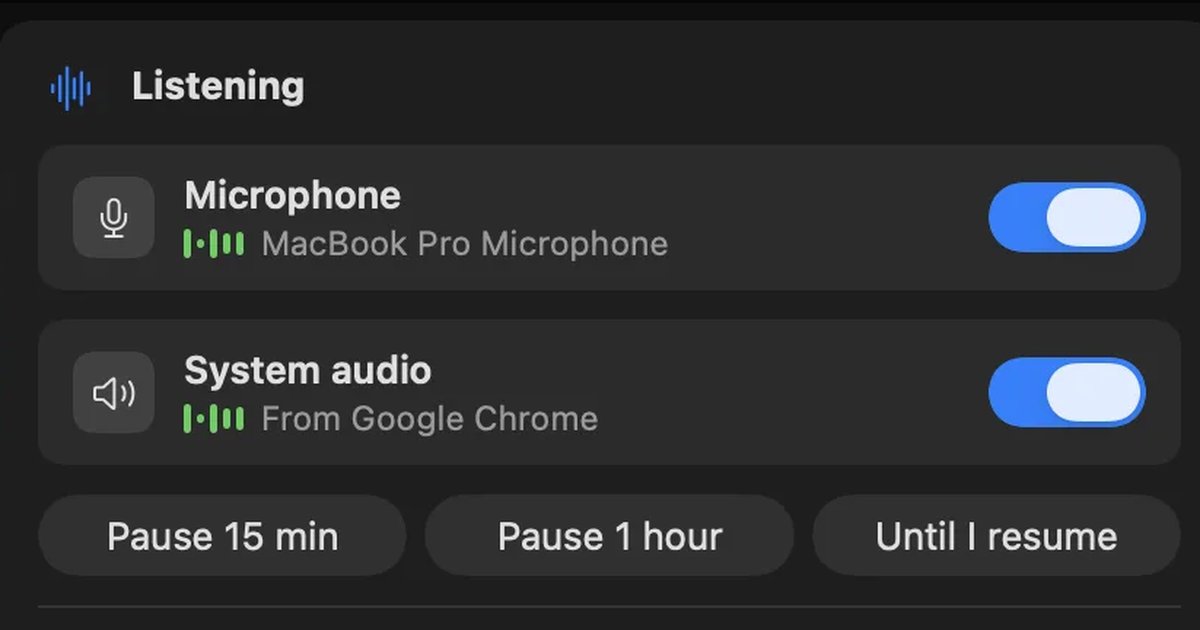
Recall listens to the sound your Mac plays (system audio), so it works whatever class tool or video service you use. No bot joins the meeting. The lecturer’s voice comes in as the sound your Mac plays, and your own questions come in through the microphone. It transcribes even when you listen to the stream through earphones.
Transcribing classroom lectures
In a classroom, the lecturer’s voice reaches the Mac’s microphone from several meters away. The greater the distance, the more surrounding noise and room echo mix in, and the more easily the text breaks down. These points improve the quality of the text.
- Sit near the front: distance from the lecturer matters most. If the classroom has speakers, sitting near one is also an option.
- The Mac’s direction and noise: the microphone also picks up typing and the people next to you talking. If you take notes by hand, leave the Mac to just listen.
- An external microphone: connecting a small microphone placed on the desk can make the sound it picks up steadier. Recall listens with the microphone selected on your Mac, so choose the external microphone under Input in System Settings › Sound.
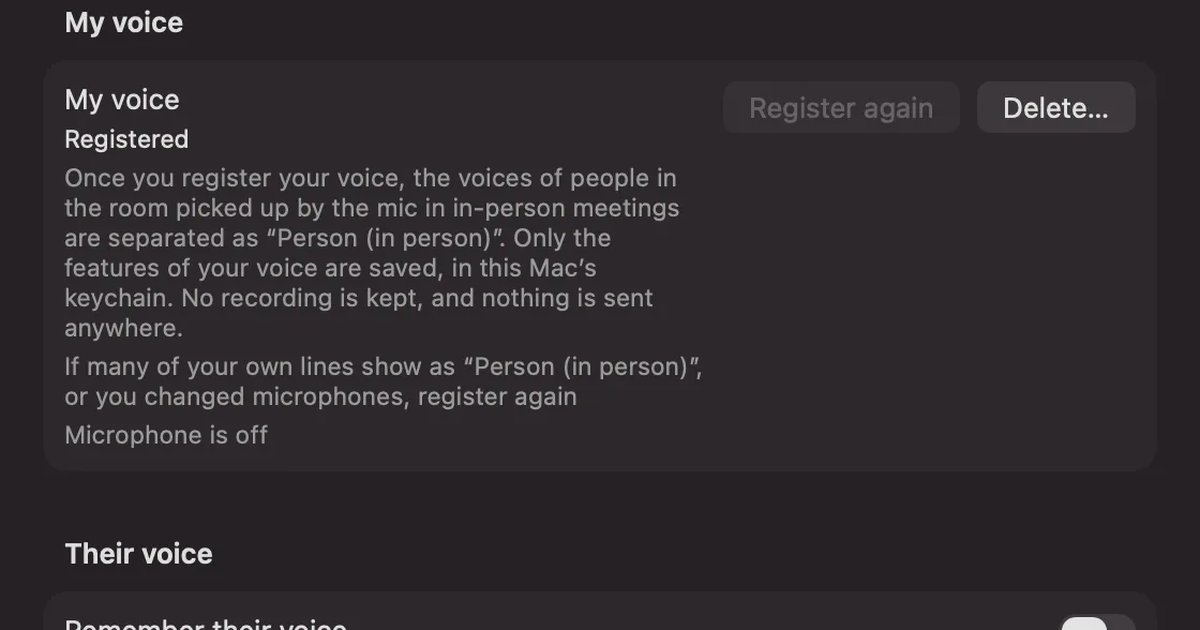
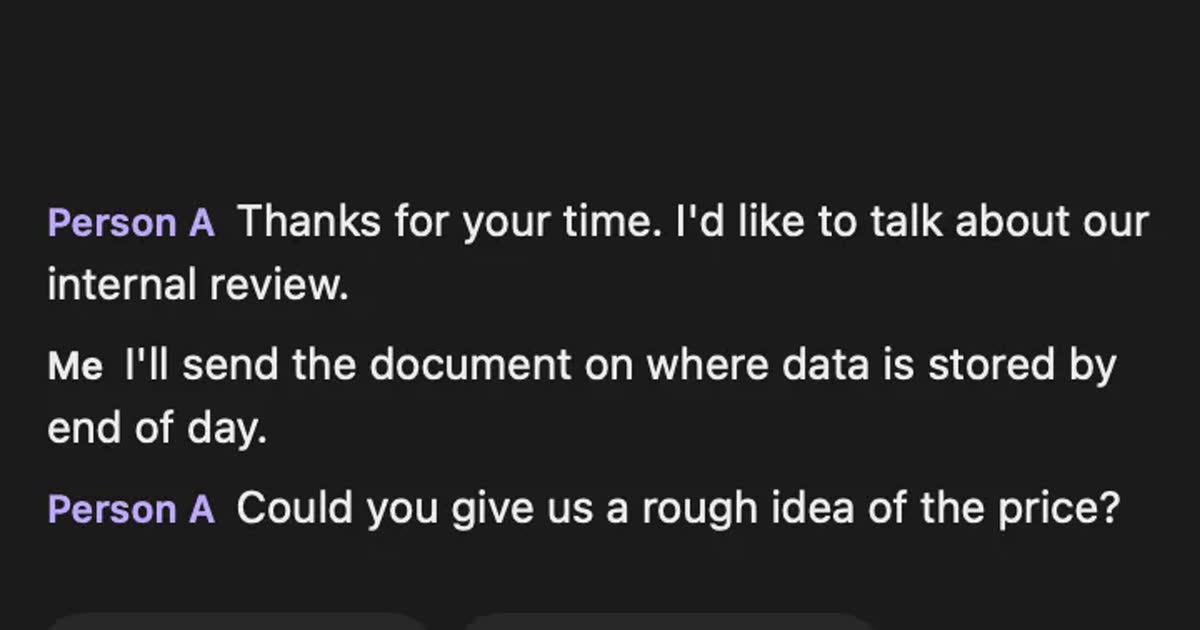
When Recall listens to a classroom lecture, voices picked up by the microphone are recorded as “Me”. If you register your voice in Settings, the lecturer’s and other students’ voices are split off as “Person (in person)”. People in the same room are recorded as one “Person (in person)” however many there are, so the lecturer’s lines and students’ lines aren’t split. Microphone placement and how speakers are split are also covered in How to transcribe in-person meetings on a Mac.
For lectures you want to listen to again, also keep a recording separately from Recall’s text. Recall throws audio away once it is transcribed and doesn’t save it. In classes where recording or transcription isn’t allowed, use neither Recall nor a recording.
Keeping a whole term and searching before exams
Lecture transcripts pay off before exams and papers, when you search for “what was said in that class”. Searching the whole term by words takes less time than rereading one class at a time.
In Recall, you can find kept classes by words with ⌘K. Type a term and the lines containing it line up by date. Ask AI something like “In which class, and how, was the definition of X explained?” and it searches your records before answering, with the numbers of the original lines attached to its answer. It doesn’t answer things that aren’t in your records. By default the on-device AI answers, and neither the question nor the records leave the Mac.
One thing to watch is what Free covers. Free shows and searches the records of the last 14 days. Older records aren’t deleted during the retention period (90 days by default on Free), and you can view and search them with Pro (¥980 a month or ¥9,800 a year, tax included). If you stay on Free for a whole term, another way is to save the transcript as a text file after each class and gather them in your own notes app. Pricing details are on the Pricing page.
How to keep lectures with Recall
Recall runs on Macs with Apple silicon on macOS 26 or later.
- Install and open Recall, and allow the microphone and screen recording and system audio recording (steps for the permissions).
- In Settings, choose Japanese or English as the language to listen in. It doesn’t switch automatically partway through, so switch to English before an English class.
- During class, do nothing. If the menu bar icon shows “Listening”, it is being transcribed. For breaks or anything you don’t want recorded, pause from the popover.
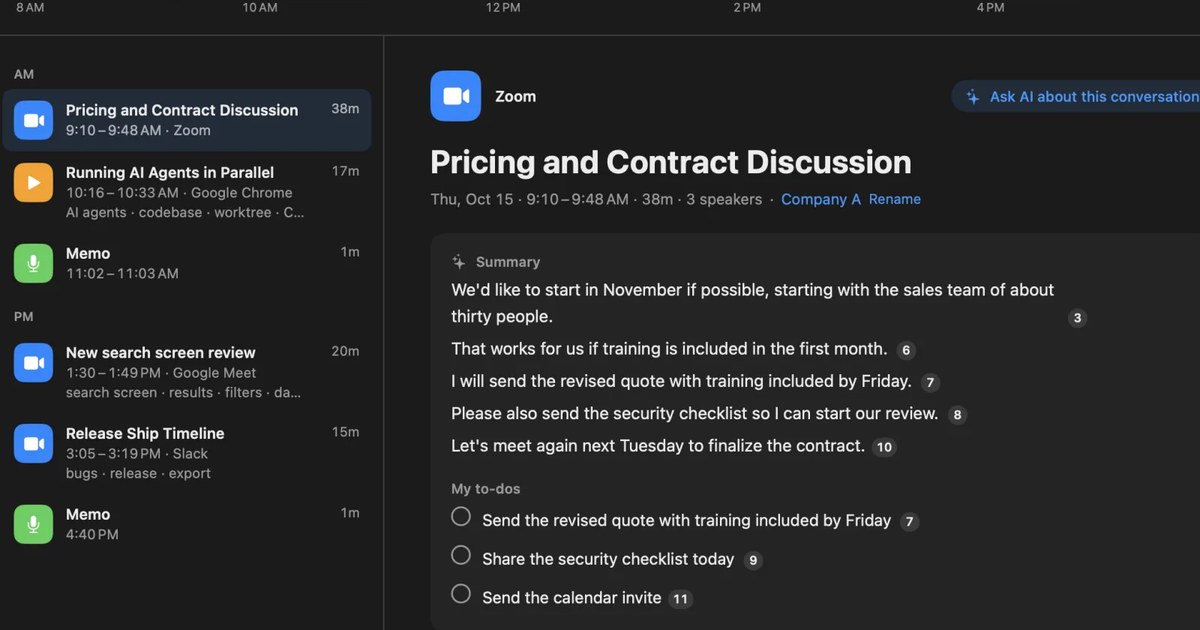
- When the class ends, the on-device AI writes a summary and topics. The summary is made when Apple Intelligence is on.
- Before exams, search for terms with ⌘K, or ask AI.
On days with back-to-back 90-minute classes, keep an eye on the battery too. Recall runs transcription while people talk, so the battery drains faster. If your seat has power, plugging in is the safe choice.
Who it is and isn’t for
Recall is for you if
- You want to transcribe online classes and lecture videos on your Mac, whatever the tool.
- You want to search a term’s classes before exams, by words or with AI.
- You don’t want your class records in the cloud, and want them on your own Mac.
Free to use · No account needed · macOS 26 or later · Mac with Apple silicon · By downloading, you agree to the Terms of Service
Recall isn’t for you if
- You want to capture the lecturer’s voice accurately from the back of a large lecture hall (consider a recording-based product, or note-taking support from your university’s student support services).
- You want to keep recordings and listen again, or to transcribe recorded class files.
- You want to use it on an iPad, Windows, an Intel Mac, or a Mac older than macOS 26.
- You want to transcribe classes in languages other than Japanese and English.
FAQ
Is it OK to transcribe lectures?
It depends on your university’s and lecturer’s rules. Check the syllabus or what was said in the first class, and if there is nothing, ask the lecturer. Even with permission, use it only for your own review and don’t hand it to others.
Can a student transcribe a class on Zoom?
Whether Zoom’s transcription is available is decided by the lecturer hosting and the university’s settings. An app like Recall that transcribes the sound your own Mac hears works regardless of the class tool’s settings, but check with the lecturer that you may record.
Does it work from the back of the classroom?
It produces text, but the farther you are from the lecturer, the more easily it breaks down. Sitting near the front or using an external microphone may help. If you need an accurate record, talk to your university’s student support office.
Can I search every class of the term for free?
Recall Free shows and searches the records of the last 14 days. Older records are kept for the retention period, and you can view and search them with Pro. If you stay on Free, you can save the transcript as a text file after each class.
Can I listen to a class again later?
Not in Recall. Audio is thrown away once it is transcribed and isn’t saved. If you want to listen again to a class where recording is allowed, record it separately.
Checked November 14, 2026. Recall’s pricing and features are as shown on the Pricing and Features pages on that date. Rules on recording and note-taking differ by university and lecturer, so check before you use it. This article is a general explanation, not legal advice.
Free to use · No account needed · macOS 26 or later · Mac with Apple silicon · By downloading, you agree to the Terms of Service
Get the product overview (PDF) by email →
Related articles
How to transcribe in-person meetings on a Mac: placement, telling speakers apart, and mixed online meetings
How to transcribe meeting-room discussions and one-on-ones with the Mac on the table. We compare Voice Memos, Zoom’s My Notes, phones and recorders, and Recall, and cover where to put the microphone, how speakers are split, and meetings where online participants join in.
How to transcribe a YouTube video: built-in, AI, and videos with no captions
YouTube’s own transcript is enough if a video has captions. How to open and copy it, why it may be missing, and what works for no-caption or unlisted videos, comparing NotebookLM, Notta and Recall.
How to transcribe webinars and videos so you can find them later
Ways to turn webinars and videos into searchable text, comparing source transcripts, Notta, MacWhisper and Recall, plus what to check on copyright and terms.