 Recall
How to record a meeting: online, in person and on your phone, and choosing a recording app
How you record a meeting depends on whether you can use the meeting tool’s recording, and whether the meeting is online or in person. Who can record and how to keep audio only in Teams, Zoom and Google Meet, Mac screen recording, Voice Memos on iPhone and Mac, how to choose a recording app or recorder, and how to tell people and store the file.
The short answer: use the meeting tool’s recording if you can, and record on your own device if you can’t
There are three main ways to record a meeting. For an online meeting where you are the host or can be given permission to record, use the recording built into Teams, Zoom or Google Meet. Everyone is told the meeting is being recorded, and Teams and Zoom can also keep an audio-only file.
For an online meeting where you can’t record in the tool, record on your own Mac. On macOS 27 or later, built-in screen recording can capture the sound your Mac plays. For an in-person meeting, put your phone’s Voice Memos, your Mac’s Voice Memos or a recorder in the middle of the table.
Whatever you use, tell the other people before you record. Unlike the meeting tool’s recording, nothing appears on their screens when you record on a Mac or a phone. It also helps to decide first whether you need to listen again, or just need to check what was said in text, because that changes which tool fits.
This article is written by KOROMO K.K., which makes Recall, a transcription app for Mac. Recall turns meeting speech into text and keeps no audio file, so it does not fit people who need a recording; we cover the other ways first. We checked each company’s details on their official help pages and websites on November 23, 2026.
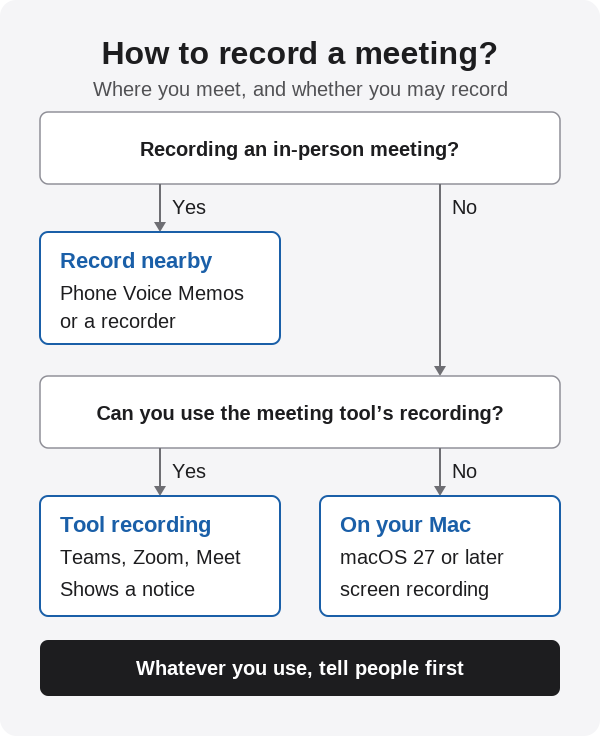
Ways to record a meeting, compared
The main ways, compared by what they record, whether others are notified, and where the file goes and what you need. Everything here was checked on each company’s official pages on November 23, 2026.
| What it records | Notice to others | Where it saves, what you need | |
|---|---|---|---|
| Teams recording | Video and audio of the meeting. “Audio only” is available | Everyone is notified | Organizer’s OneDrive and similar. An eligible license and admin permission |
| Zoom local recording | Video (MP4) and an audio-only file (M4A) | A recording notice is shown | The recording folder on your computer. The desktop app and the host’s permission |
| Google Meet recording | Video and audio of the meeting | Everyone is notified | Organizer’s Google Drive. An eligible Workspace edition or similar |
| Mac screen recording | Mac sound (macOS 27 or later) and the microphone | None | A video (.mov). Export it to get audio only |
| Voice Memos (iPhone, Mac) | Microphone sound | None | The device, and your other devices if iCloud is on |
| Recorder (PLAUD and others) | The recorder’s microphone | None | The recorder, and the maker’s app or cloud |
| Recall | Turns the microphone and Mac sound into text (no audio is kept) | None | Text on this Mac. A Mac with Apple silicon on macOS 26 or later |
A meeting tool’s recording only works inside that meeting, and who can record depends on the organizer’s organization and plan. In return, others are notified, so everyone knows. Recording on your own device works with any meeting tool, but nobody is notified, so you have to tell people yourself and decide how to handle the file.
Recording online meetings: Teams, Zoom and Google Meet
To record an online meeting, first check whether you can use the meeting tool’s recording. You need no extra app, and both your voice and the other side come through clearly.
Teams: keep audio only with “Audio only”
According to Microsoft Support, you start by choosing Record from More actions in the meeting, picking the spoken language and what to record, and confirming. Choose “Audio only” as what to record to keep just the audio.
- Who can record: people who have an eligible license (such as Office 365 E1, E3 or E5, or Microsoft 365 Business Premium) and whose admin has allowed recording. Guests, people from other organizations and anonymous participants can’t start or stop recording
- Notice: when recording starts, everyone is notified in Teams on desktop, web and mobile. Microsoft also notes that in some regions you may need everyone’s consent before recording
- Where it saves: most meetings save to the organizer’s OneDrive, and channel meetings to the channel’s SharePoint site
How to keep a transcript along with the recording is in How to transcribe Microsoft Teams meetings.
Zoom: local recording makes an M4A audio file
Zoom’s local recording saves the recording to your computer. Zoom Support says it works with a free Basic account or above, from the desktop app for Windows, macOS or Linux. It creates a video MP4 and an audio-only M4A file (named starting with “audio”) in Zoom’s recording folder on your computer.
- Who can record: the host, or a participant the host has allowed to record from the participants list. If you are a participant, ask the host
- Where it saves: you can change the default folder under Recording in settings. Zoom recommends a folder on your computer over cloud-synced or external drives
- Notice: while recording, participants see a recording indicator at the top left of their screen. The recording announcement for people who joined by phone can be turned off by the host
Cloud recording and transcripts are covered in How to transcribe Zoom meetings.
Google Meet: recordings go to the organizer’s Drive
Google Meet Help on recording (in Japanese) lists eligible editions such as Google Workspace Business Standard, Business Plus and Enterprise, Workspace Individual, and Google One plans with 2 TB or more of storage. The organizer, people from outside the organization promoted to co-host, and participants with recording permission from the organizer, among others, can record, and recording can only be controlled from a computer or an Android device.
- Where it saves: the “Google Meet” folder in the organizer’s Google Drive
- Notice: participants are notified when recording starts and stops
- Audio only: the recording is a video file. The help page doesn’t describe an audio-only option
Free personal Google accounts are not on the eligible list, so to record such a meeting, record on your Mac as below or keep text instead. What you need for Meet transcripts is in How to transcribe Google Meet.
When you can’t record in the tool: record on your Mac
In a meeting hosted by a client, or on a free plan, the record button may not be available to you. Then record the meeting sound on your own Mac.
Apple’s instructions say that on macOS 27 Golden Gate or later, you press Shift-Command-5 to open the screen recording tools, click Options and choose to include system audio, and the sound your Mac plays is recorded too. Select a microphone as well to include your own voice. Recordings save to the desktop by default. The result is a video with sound, so to keep audio only, open it in QuickTime Player and use Export, then Audio Only.
Including system audio is a feature of macOS 27 and later, so built-in screen recording on earlier macOS can’t capture your Mac’s sound directly. A microphone can pick up the other side from your speakers, but room sound and echo come with it. Steps for BlackHole and OBS Studio, and what to check when there is no sound, are in How to record internal audio on a Mac.
Nothing appears on the other people’s screens with this method. Tell them in your own words before you record (how to tell them).
Recording in-person meetings: phone, Mac or a recorder
For a meeting room or a one-on-one, put a device you have on the table and record. It costs nothing extra and you can start right away.
Voice Memos on iPhone
The iPhone User Guide says you open Voice Memos and tap the record button to start, and you can pause and resume. With Voice Memos turned on in iCloud, recordings also appear on your iPad and Mac signed in with the same Apple Account. For meetings, check these settings too:
- Recording mode: in Settings › Apps › Voice Memos, choose Mono, Stereo or Spatial Audio (Spatial Audio is on some models only)
- Voice Isolation: in Voice Memos in Control Center, Voice Isolation reduces background sound. Wide Spectrum keeps the surrounding sound (some models only)
How to transcribe Voice Memos is in How to transcribe Voice Memos on iPhone and Mac.
Voice Memos and QuickTime Player on Mac
On a Mac, use Voice Memos or New Audio Recording in QuickTime Player. Apple’s guide says Voice Memos records from the built-in microphone, a supported headset or an external microphone. Both record microphone sound, so they can’t directly record the other side of an online meeting.
Recorders and AI voice recorders
For meetings with many seats, or when you want to record with your computer closed, a recorder fits. Some AI voice recorders, such as PLAUD NOTE, also transcribe and summarize in their app. Plaud’s pricing page (in Japanese) says that buying a Plaud device lets you use the Starter plan, with 300 minutes of transcription a month, at no extra charge. Recorders and apps are compared in PLAUD NOTE alternatives.
Where to put the device, how speakers are told apart, and how to record when room and online participants mix are covered in How to transcribe in-person meetings on a Mac.
How to choose a meeting recording app
Search for a meeting recording app and you get a mix of apps that only record and apps that record, transcribe and summarize. These four questions narrow it down.
- Does it hear the other side? A phone recording app can only pick up the other side of an online meeting from the speaker. To keep online participants clearly, use the meeting tool’s recording or a tool that can record your computer’s sound
- Does a bot join the meeting? Some transcription services record by sending a bot into the meeting as a participant. Its name shows on everyone’s screen, so ask first in meetings with clients
- Where does the recording go? Cloud services upload the recording to their servers to transcribe it. Check first whether the meeting may leave your company. How to check is in Is Otter.ai safe? Five checks for any AI meeting notetaker
- How much is free? For example, Notta’s pricing page says the free plan transcribes 120 minutes a month, up to 3 minutes per conversation. If you record long meetings every time, plan on a paid plan. Other free plans are compared in Free AI note takers compared
If you only want the audio, your device’s built-in recording is enough. Add an app or service only when you also want transcripts or summaries, and you avoid paying for things you don’t use.
Before you record: telling people, and workplace rules
Being able to record and being allowed to record are different things. What follows is general information, not a judgment on whether you may record in a particular situation. If in doubt, ask the person responsible at your workplace or a professional such as a lawyer.
- Say it at the start: add a line such as “I’m recording this to write the minutes. It won’t leave our company,” giving the purpose and how it will be handled. Stop if someone objects. Example wording is in telling the other side in sales call notes
- Don’t rely only on the tool’s notice: Teams and Meet announce recordings, but nothing is shown when you record on a Mac or phone. Telling people in your own words works with every method
- Follow your workplace’s and the other side’s rules: don’t record meetings where recording is not allowed, or where your company’s rules don’t permit it. Clients may have their own rules too
The more you hesitate over recording without asking, the more it pays to ask first; it also avoids disputes when you use the recording later.
Tips for a clear recording
- Put the device near the speakers: in person, place it in the middle of the table, not behind documents or a laptop
- Use earphones online: if the other side plays through speakers, the microphone picks it up with the room’s echo, and their voice can be recorded twice
- Silence notifications: Mac screen recording can pick up notification sounds. Turn on Do Not Disturb or similar before you start
- Test for a few seconds first: record briefly at the start and play it back to check the other side is coming through
- Check storage and battery: for long meetings, plug in the charger so recording doesn’t stop halfway
Tips for fewer transcription errors are in How to improve transcription accuracy.
After recording: transcribe it, store it, delete it
Listening back to a recording takes as long as the meeting. If you want to find things later, transcribing helps. Tools for an m4a or mp3 file are in How to transcribe an audio file on a Mac, and turning a transcript into minutes is in How to turn a transcript into meeting minutes.
A recording holds what the other people said, word for word. Decide where to keep it, who may receive it, and when to delete it. If your Zoom recording folder or Mac desktop syncs to iCloud or similar, the recording syncs too. Once the minutes are done and you no longer need it, you can delete the recording.
If you don’t need audio: keep text only with Recall
If you want to record so you can check what was said later, or to write minutes, you can keep text instead of audio. Recall is a Mac app that sits in the menu bar and transcribes your microphone and the sound your Mac plays. The other side of a Zoom, Teams or Google Meet call is transcribed as sound your Mac plays, and your voice from the microphone. There is no record button.
- What is kept: text only. Audio is discarded once transcribed, so you can’t listen again in Recall
- After the conversation: this Mac’s AI writes a summary and your to-dos (when Apple Intelligence is on). You can also copy the transcript or save it as a text file
- Where records are kept: on this Mac. We don’t send them to our servers. They leave your Mac only when you use a Pro feature you turned on, or when you copy or save and share them yourself (When records leave your Mac)
- Price: Free has no transcription limit, and shows and searches the last 14 days. Pro is ¥980 a month or ¥9,800 a year, tax included
- What you need: a Mac with Apple silicon on macOS 26 or later, a microphone, and permission for screen and system audio recording
Recall fits you if
- You don’t need the meeting audio, and checking what was said in text is enough
- You want meetings kept the same way in Zoom, Teams or Meet, whatever the host’s recording permissions
- You don’t want meeting content to go to an outside service
Recall is not for you if
- You want to keep the audio itself to listen again or give to others (the meeting tool’s recording or Voice Memos fit)
- You want to record in-person meetings with only a phone (Voice Memos or a recorder fit)
- You want to share records with a team
- You use an Intel Mac or a Windows PC
As with recording, tell the other people at the start when you transcribe. Examples are in the FAQ.
Free to use · No account needed · macOS 26 or later · Mac with Apple silicon · By downloading, you agree to the Terms of Service
FAQ
Can I record a meeting if I’m not the host?
A meeting tool’s recording is only for the host or people given permission. In Zoom, ask the host to allow you to record. Without permission you can record on your own Mac or phone, but nobody is notified, so always tell people first.
Can I keep only the audio, without video?
In Teams, choose “Audio only” as what to record. Zoom’s local recording creates an audio-only M4A file alongside the video. Mac screen recording makes a video, so use QuickTime Player’s Audio Only export to get the audio.
Can I record a meeting for free?
Yes. Voice Memos on iPhone and Mac, and screen recording on macOS 27 or later, cost nothing extra. Zoom’s local recording also works with a free Basic account. Google Meet recording needs an eligible Google Workspace edition or a Google One plan with 2 TB or more.
Will the others know I’m recording?
With Teams, Zoom and Google Meet recording, participants see a notice or recording indicator. When you record with Mac screen recording, Voice Memos on a phone or a recorder, nothing is shown to them. That is why you should tell them yourself before recording.
Can I record an online meeting on my phone?
Google Meet recording can be controlled from a computer or an Android device; the help page doesn’t list iPhone or iPad. Recording with your phone’s Voice Memos picks up the other side from the speaker and sounds muffled. For online meetings, the meeting tool’s recording on a computer gives a cleaner result.
Where are meeting recordings saved?
Teams saves to the organizer’s OneDrive (channel meetings to SharePoint), Google Meet to the “Google Meet” folder in the organizer’s Google Drive, Zoom local recording to the recording folder on your computer, and Mac screen recording to the desktop by default.
Can Recall record meetings?
No. Recall turns meeting speech into text and discards the audio once transcribed. If you want to keep audio, use the meeting tool’s recording or Voice Memos.
Checked on November 23, 2026. Teams details come from Microsoft Support’s “Record a meeting in Microsoft Teams”; Zoom from Zoom Support’s pages on local recording and cloud recording settings; Google Meet from Google Meet Help on recording a meeting; Mac screen recording from Apple Support; Voice Memos from the iPhone User Guide and the Voice Memos User Guide for Mac; Plaud and Notta from their pricing pages. Conditions and prices can change, so check each company’s latest pages before you use them.
Get the product overview (PDF) by email →
Related articles
How to transcribe a meeting: built-in transcripts in Zoom, Teams and Meet, what’s free, and choosing an app
How you transcribe a meeting depends on whether it is in person or online, and whether the host’s side can start a transcript. Who can start built-in transcripts in Zoom, Teams and Google Meet and where they are kept, how captions differ, bot services, transcribing on your own computer, in-person meetings, and what you can do for free.
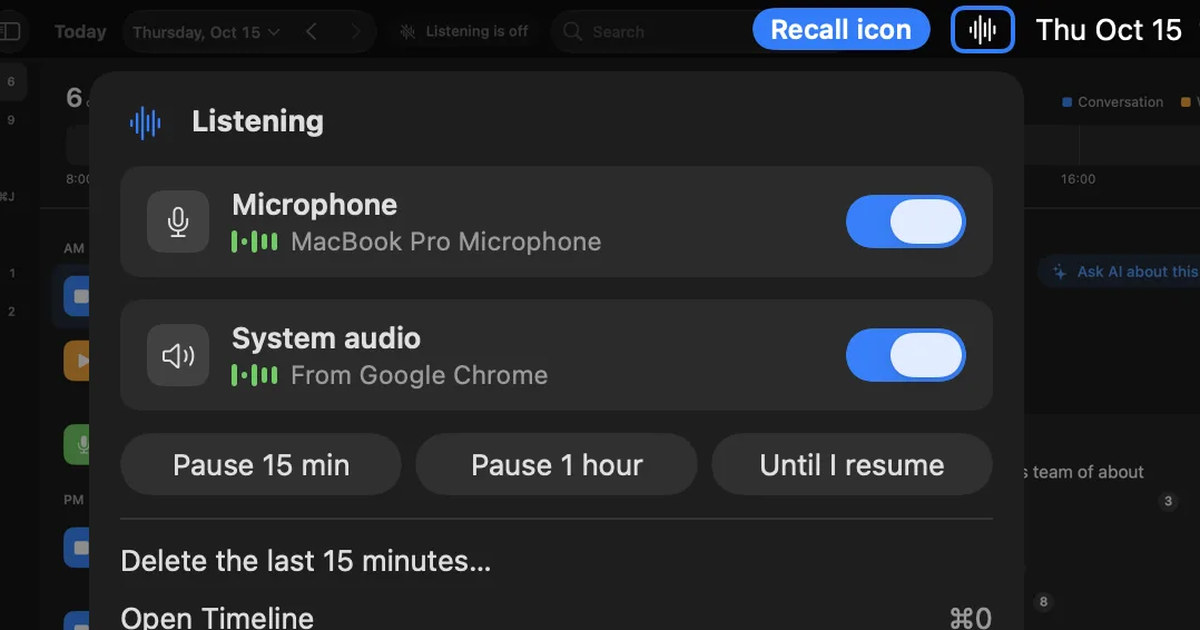
How to record internal audio on a Mac: macOS 27’s built-in option, BlackHole and OBS
On macOS 27 or later, a Mac can record internal audio with built-in screen recording. Steps for BlackHole and OBS on earlier Macs, what to check when there is no sound, and an option if you don’t need audio.
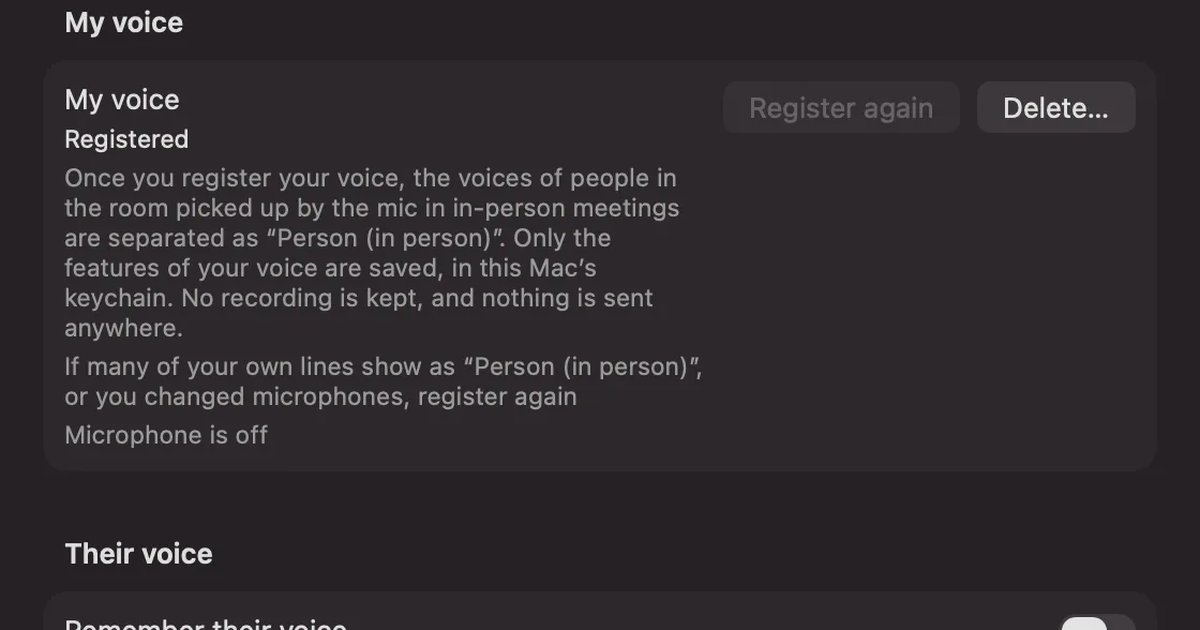
How to transcribe in-person meetings on a Mac: placement, telling speakers apart, and mixed online meetings
How to transcribe meeting-room discussions and one-on-ones with the Mac on the table. We compare Voice Memos, Zoom’s My Notes, phones and recorders, and Recall, and cover where to put the microphone, how speakers are split, and meetings where online participants join in.
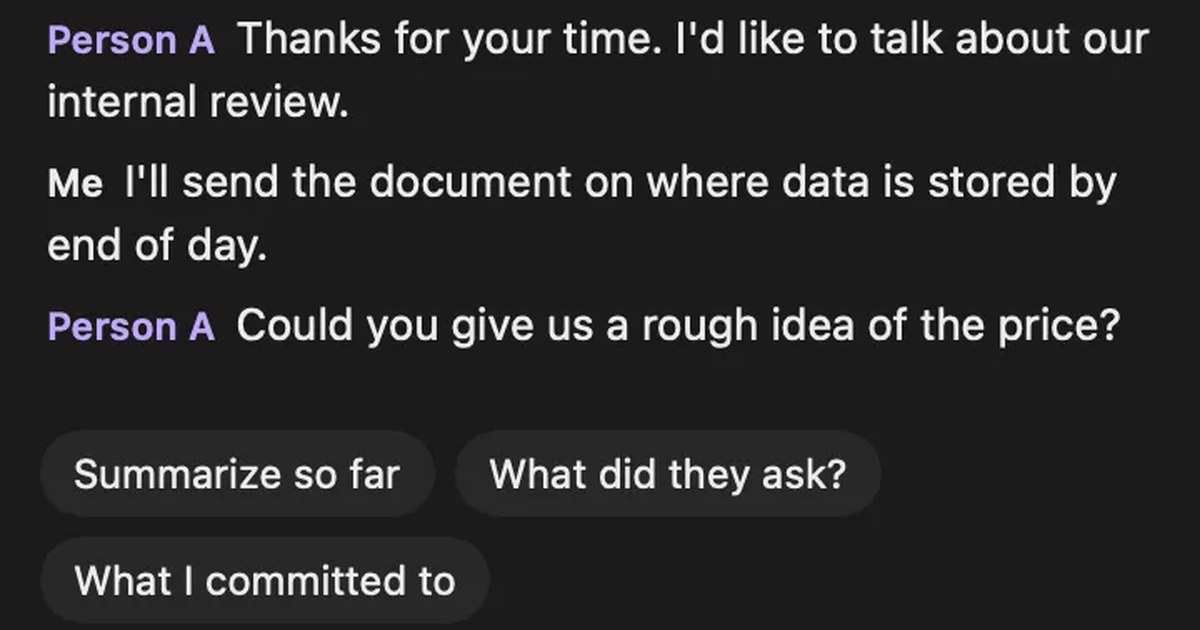
How to transcribe Voice Memos on iPhone and Mac, and what to check when it doesn’t work
Voice Memos on iPhone and Mac can transcribe recordings so you can view, copy and search them. The steps, the device, OS and language conditions to check when no transcript appears, how to keep the text, and what to use for meetings and calls.
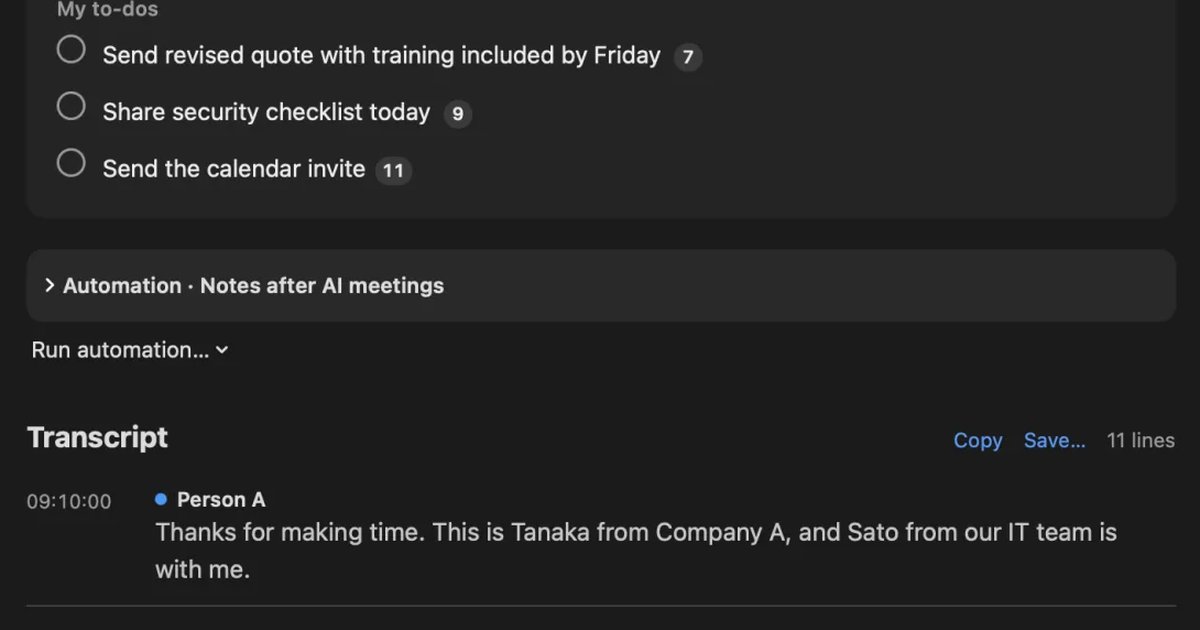
How to transcribe an audio file on a Mac: m4a and mp3 options compared
To turn an m4a or mp3 file into text on a Mac, the first question is whether the audio may leave your Mac. MacWhisper, Transcribe in Word for the web, Gemini and ChatGPT compared by format, length limit and what you pay, plus whether Notes and Voice Memos can read files and what to check when it fails.