 Recall
How to remove Read AI, Otter and other AI notetakers from Teams, Zoom and Google Meet
How to remove Read AI, Otter, Fireflies and other AI notetaker bots from a Teams, Zoom or Google Meet meeting: the chat commands that make them leave now, where to turn off auto-join, host settings that keep bots out, and what to say when the bot is someone else’s.

The short answer: remove it from the participant list now, then turn off auto-join
A host can remove an AI notetaker bot from the participant list like anyone else. You can also make some of them leave from the meeting chat: type “Opt out” or “Read stop” for Read AI, “stop otter” for Otter, and “/ff leave” for Fireflies. Read AI’s “Opt out” also deletes what it has recorded so far.
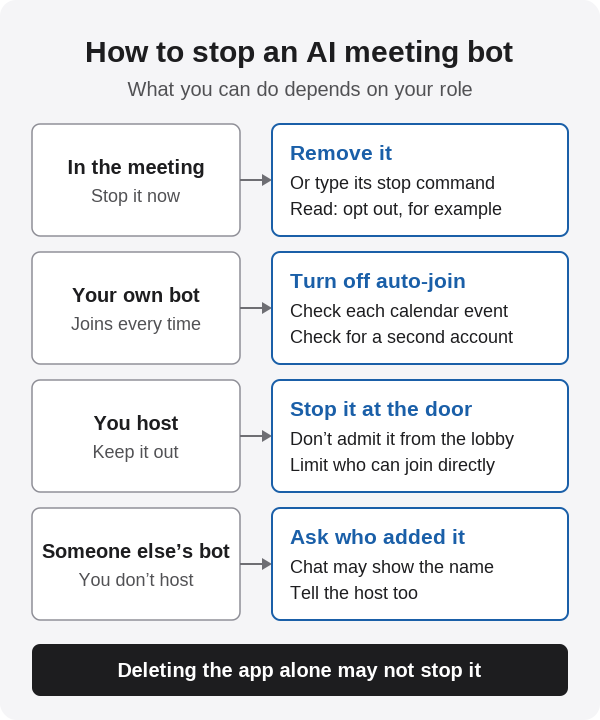
If your own bot joins every time, the cause is usually auto-join linked to your calendar. Deleting the app from Teams or Zoom may not be enough, because your account and its settings remain with the service. Turn off auto-join there, check each calendar event, and look for a second account under another email address.
You can’t switch off someone else’s bot in your own settings. Ask the person who added it, or ask the host to keep it out. This article is written by KOROMO K.K., which makes Recall, a Mac app that transcribes without a bot. We checked each company’s official help on November 24, 2026. Where we couldn’t open the page itself (Read AI’s, Otter’s and Notta’s help centers), we used the text shown in searches limited to their official sites.
Remove a bot that is in the meeting now
If the meeting is under way, remove it first. Open the participant list and look for names such as Read, Otter Notetaker, Fireflies Notetaker or Notta Bot.
From the participant list
- Teams: open the … menu next to the bot in the participant list and choose Remove from meeting. Microsoft Support says organizers, co-organizers and presenters can do this, and attendees can’t. A removed participant may be able to rejoin with the invitation, so don’t admit it from the lobby again
- Zoom: choose More next to the bot, then Remove. Zoom Support says removed participants can’t rejoin the same session with the same email address by default
- Google Meet: open the ⋮ menu next to the bot and choose Remove from the call. Meet Help says choosing Block as well keeps it from rejoining the same meeting
Who can remove someone depends on the tool and settings. Meet Help says that with Host Management on, only hosts and co-hosts can remove someone. If you don’t see the option, ask the host or use a chat command.
From the meeting chat
| Bot | Type this | What happens |
|---|---|---|
| Read AI | Opt out | It leaves and deletes the recording. No report is made |
| Read AI | Read stop | It leaves and makes a report of the meeting so far |
| Otter | stop otter | All Otter bots in the meeting leave. People without an Otter account can use it |
| Fireflies | /ff leave | It leaves the meeting |
The two Read AI commands have different results. If you don’t want a record, use “Opt out”. If an opt-out link is posted in the chat, use the link, because the command won’t work. Fireflies’ help pages disagree on where “/ff leave” works: one says Google Meet only, another also lists Teams and Zoom. If it has no effect, remove it from the participant list. Fireflies says no transcript or notes are created if it is removed before 3 minutes. After that, the person who added it still receives notes for the part recorded, so ask the person who added it to delete it.
For tl;dv, its help page says to deny it access or remove it like any other participant. For Fathom, stop the recording or remove it from the room. For Notta, remove Notta Bot from the participant list while the meeting continues.
When your own bot keeps joining: turn off auto-join
If a bot joins without being invited, it may be following a calendar you connected earlier. Each service has its own switch.
| Service | Where to turn off auto-join | To skip one meeting |
|---|---|---|
| Read AI | Account Settings > Meeting Recording > Auto-Join Preferences | Turn off “Add Read?” in your Read calendar, at least 15 minutes before |
| Otter | Integrations > Meetings > Default auto-join settings: “Meetings I manually select” | Turn off the switch for that calendar event |
| Fireflies | Settings > Recording & Privacy: turn off Auto-record meetings (or choose “Only when I invite”) | Remove fred@fireflies.ai from the guests, or turn it off under Upcoming |
| Fathom | Auto-Record on the settings page: “No Meetings” | Cancel the recording as it starts |
| tl;dv | Turn off auto-recording in personal Preferences | Deny it access |
| Notta | Auto-join for calendar events in advanced settings | Turn off auto-join for that event in the list of scheduled meetings |
Menu names change. If you can’t find these, look for calendar, meetings, recording or auto-join in the settings.
If it still joins
- Settings on single events: Otter says events you changed by hand keep their own setting even after you change the default. Check upcoming events one by one
- A second account: an account under another email address, such as work and personal, can keep joining. Search your inbox for the service’s name
- Separate rules: Fireflies’ Recording Rules take priority over auto-join, so it may join meetings that match a rule
- The bot’s address on the event: remove guests such as fred@fireflies.ai
- Someone else’s bot: if another participant added it, your settings won’t stop it
If you’ve decided not to use the service, disconnect your calendar and deactivate or delete your account. With Read AI these differ. Deactivating stops it from joining, but the account remains and you can view past reports. Deleting also removes reports you own. You must sign in and delete it yourself; Read AI says its support team can’t do it for you.
A Read AI account you don’t remember making
Read AI says that if you have an account you don’t remember, you most likely signed up to receive someone else’s meeting report. The University of Wisconsin–Madison also warns that opening an invitation or link to a report can create an account, which then starts joining your meetings. Open an email from Read in your inbox, sign in, and turn off auto-join or delete the account. The next time a report arrives, pause at any screen that asks you to sign up or connect a calendar.
Host settings that keep bots out
For meetings you host, the surest place to stop a bot is at the door. Each meeting tool can ask for approval first.
Teams: detected bots wait in the lobby
Microsoft’s admin guide, Manage external bots, says that by default Teams puts detected external bots in the lobby, whatever the meeting’s lobby settings, until an organizer explicitly admits them. Admins can change this to not detecting bots, or have detected external bots blocked automatically (announced in Microsoft’s Teams release notes on September 23, 2026).
- Don’t admit it: if you don’t recognize a name in the lobby, ask in the meeting first
- Limit who can admit: in Meeting options, let only organizers and co-organizers admit from the lobby. By default presenters can too
- Limit who can skip the lobby: set “Who can bypass the lobby” to invited people or organizers, not everyone
Detection isn’t perfect. Microsoft says some bots may not be detected and that people are occasionally mistaken for bots. Check the participant list once the meeting starts.
Zoom: waiting room and required sign-in
Zoom Support, in Blocking bots from joining meetings and webinars, lists options including a waiting room for people who aren’t signed in, requiring sign-in, limiting email domains, and a list of apps allowed or blocked from meetings. Requiring sign-in can keep out customers too, so the waiting room is a safer start for meetings with outside guests.
Google Meet: don’t accept requests to join
Google’s Tips to control meeting access and participation says that if you set access to Trusted or Restricted, turn off asking to join, and turn on “Host must join before anyone else,” anonymous users and bots that ask to join are denied automatically. Change this in the Calendar event’s meeting settings or in Host controls during the meeting. Restricted isn’t available for consumer accounts.
Say so in the invitation
Don’t rely on settings alone. A line such as “Please check with the host before bringing a recording or notetaker bot” saves an awkward removal on the day. For a company policy, also write down which meetings may be recorded, who holds the record, and when it is deleted. What to check is in meeting AI and data safety.
Stopping someone else’s bot, or asking for deletion
You can’t turn off a client’s or colleague’s bot. Find out who added it and ask. Read AI posts the name of the person who added it in the meeting chat. If the bot’s name and the chat don’t tell you, ask in the meeting.
A reason and an alternative make the request easier to accept.
- Before the meeting: “We’ll cover unreleased plans next time. Could you leave the notetaker out? We’ll write the minutes and send them to you.”
- During the meeting: “There seems to be a recording bot here. I’d like to keep this part off the record. Is it OK to remove it for now?”
- After the meeting: “Could you tell me where today’s recording and transcript are kept and who can see them? They include unreleased figures, so please delete them once you’ve checked.”
Removing a bot doesn’t always delete what it recorded. Read AI says it can’t disable or delete someone’s account at a third party’s request, and only a report’s owner can delete it. It has a form that sends a deletion request to the owner. With other services too, ask the person who holds the record. If you have a confidentiality agreement with them, involve your own legal contact too.
When there is no bot but a summary arrives anyway
A meeting can be recorded with no bot in the participant list.
- The meeting tool’s own feature: transcripts and AI summaries in Teams, Zoom and Meet don’t appear as a bot. Look for the recording or transcription indicator and ask the host to stop it (Teams, Zoom, Meet)
- An add-on: Read AI can use Google Meet’s own recording and not join as a participant. Chat commands don’t work there. Open Meeting tools > Add-ons > Read AI and stop the recording. Choose Delete recording to remove it with no report
- Someone’s own computer: Fireflies, tl;dv and others can also record a computer’s sound with no bot. You can’t see that on screen, so ask at the start whether anyone is recording or transcribing
Keeping your own record with no bot: Recall
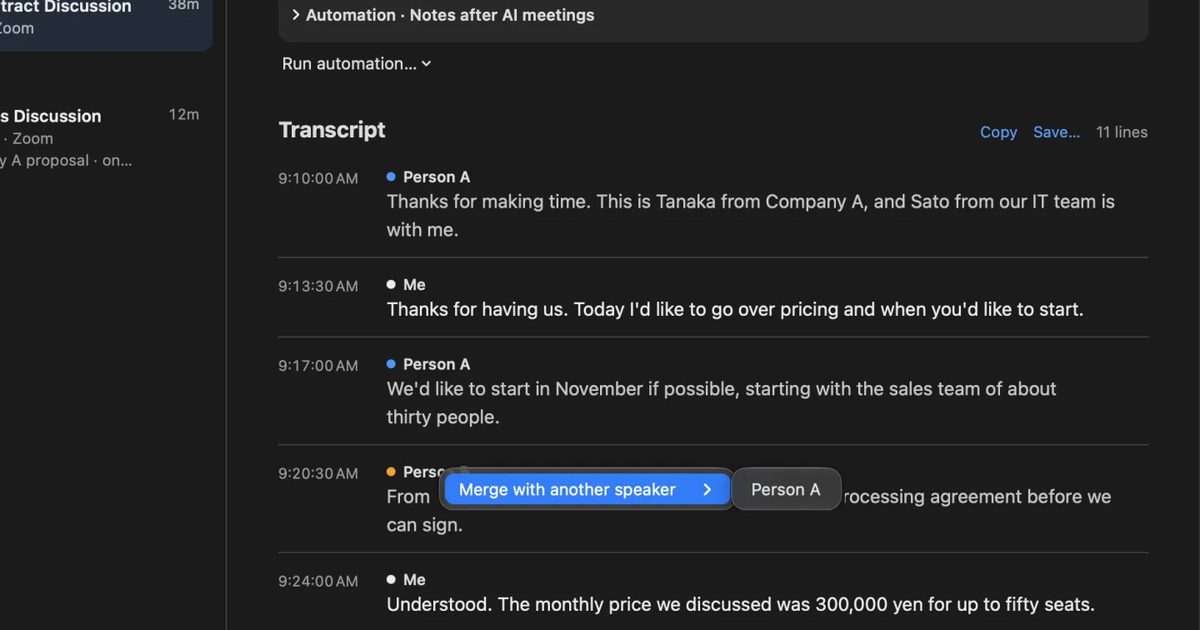
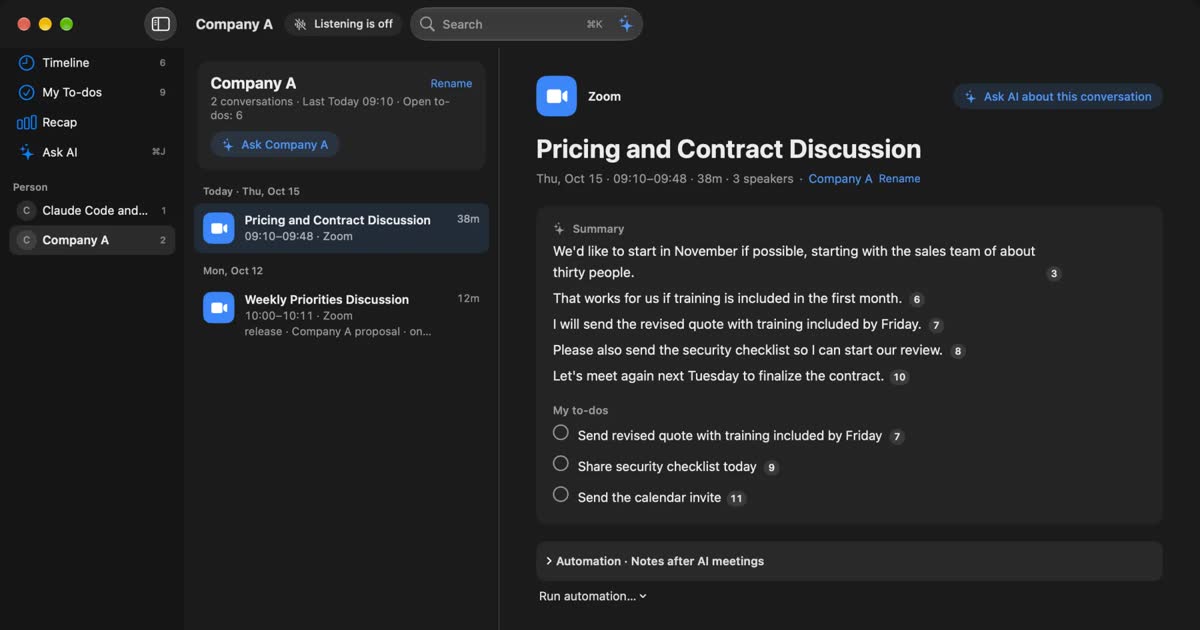
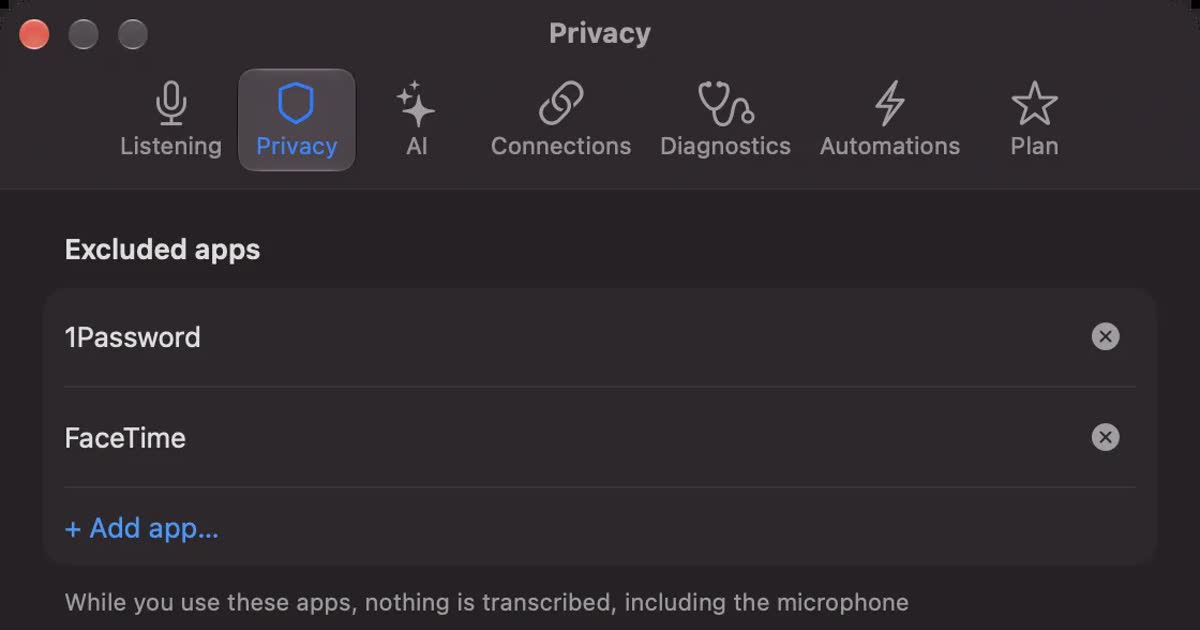
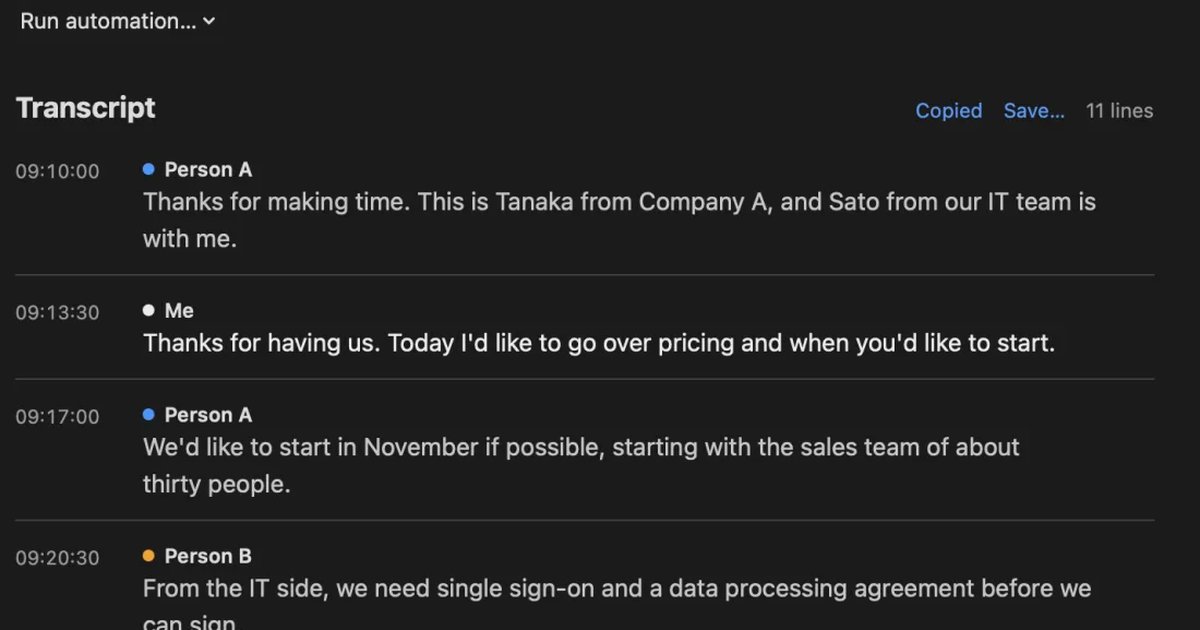
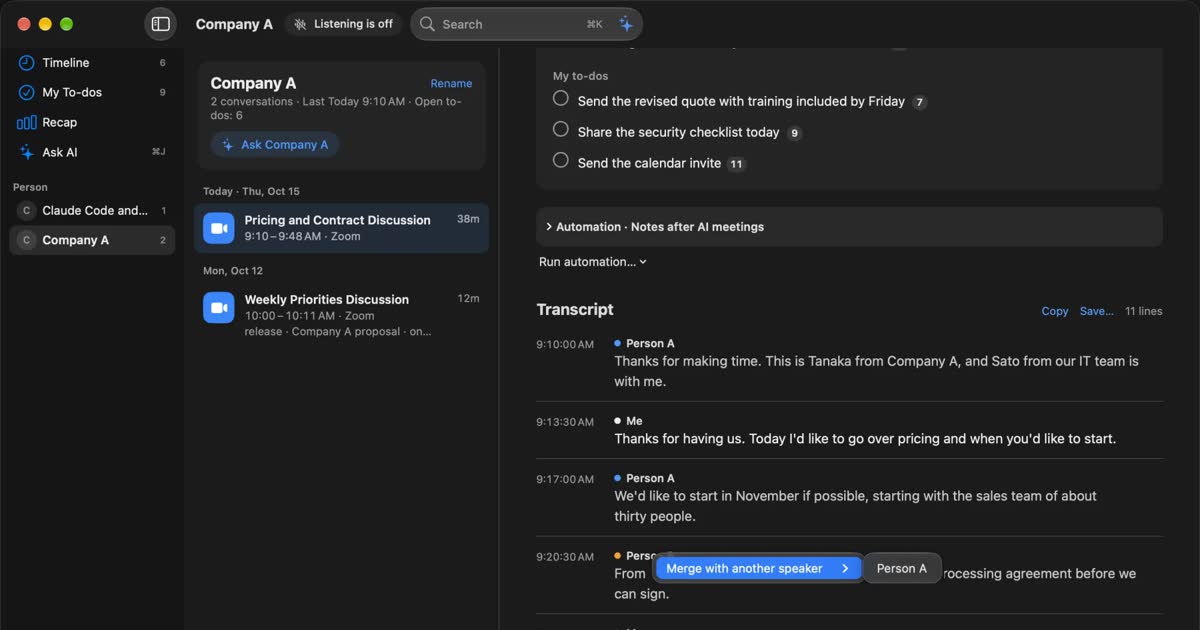
If people don’t like your bot but you still want a record, you can transcribe on your own computer with nothing joining the meeting. Recall is a Mac app that sits in the menu bar and transcribes your microphone and the sound your Mac plays. No bot joins, and it doesn’t join meetings from your calendar.
No bot doesn’t mean it is fine to record quietly. Nothing appears on other people’s screens, so tell them at the start that you are transcribing. Pause Recall and don’t use it if they object or where recording isn’t allowed.
- What is kept: text only. Audio is discarded once transcribed, so you can’t listen again in Recall
- After the conversation: this Mac’s AI writes a summary and your to-dos (when Apple Intelligence is on). You can also copy the transcript or save it as a text file
- Where records are kept: on this Mac. We don’t send them to our servers. They leave your Mac only when you use a Pro feature you turned on, or when you copy or save and share them yourself (When records leave your Mac)
- Price: Free has no transcription limit, and shows and searches the last 14 days. Pro is ¥980 a month or ¥9,800 a year, tax included
- What you need: a Mac with Apple silicon on macOS 26 or later, a microphone, and permission for screen and system audio recording
Recall fits you if
- You want your own record without a bot in the participant list
- You want text on your own Mac, with no meeting audio kept
- You want Zoom, Teams and Meet kept the same way
Recall is not for you if
- You want meetings recorded when you aren’t there (a bot service fits)
- You want audio or video kept, or records shared with a team
- You use an Intel Mac or a Windows PC
Examples of what to say are in the FAQ. Other bot-free options are compared in Fireflies and Fathom alternatives.
Free to use · No account needed · macOS 26 or later · Mac with Apple silicon · By downloading, you agree to the Terms of Service
FAQ
How do I remove Read AI from Teams?
During a meeting, the host opens the … menu next to Read in the participant list and removes it, or a participant types “Opt out” or “Read stop” in the chat. If it joins every time, turn off auto-join under Auto-Join Preferences in your Read account settings.
Will deleting the app from Teams or Zoom stop it?
Not always. Auto-join runs on the service’s account and calendar connection. Turn it off in the service’s settings, and deactivate or delete the account if you don’t use it.
What is the difference between “Read stop” and “Opt out”?
Both make Read AI leave. “Read stop” makes a report of the meeting so far. “Opt out” deletes the recording and makes no report.
How do I stop Otter from joining my meetings?
In Otter, go to Integrations, Meetings, and set the default auto-join to “Meetings I manually select.” Events you changed by hand keep their setting, so check those too. During a meeting, type “stop otter” in the chat.
Can I remove a bot if I’m not the host?
It depends on the tool. In Teams, organizers, co-organizers and presenters can remove it; in Meet with Host Management on, hosts and co-hosts can. With Read AI and Otter, other participants can also make the bot leave from the chat. If it stays, ask the host.
Does removing a bot delete the recording?
Not always. Read AI’s “Opt out” deletes it, but with other methods a record up to that point may remain. Ask the person who added the bot where it is kept and to delete it.
Can an admin block bots for the whole company?
Teams admins can have detected external bots wait for approval (the default) or block them automatically. Zoom has options such as a list of allowed and blocked apps. Neither is certain to stop every bot.
Does Recall join meetings as a bot?
No. Recall transcribes your Mac’s microphone and the sound your Mac plays. Nothing appears on other people’s screens, so tell them that you are transcribing.
Checked on November 24, 2026. Read AI details come from read.ai’s “How to Stop Read AI from Joining My Meetings” and the support.read.ai help pages on removing Read, auto-join, deactivating and deleting accounts, and unknown accounts; Otter from help.otter.ai pages on removing Notetaker and stopping auto-join; Fireflies from guide.fireflies.ai pages on removing Fireflies and turning off auto-join; Fathom from help.fathom.video pages on settings and removing Fathom; tl;dv from “How to stop tl;dv”; Notta from support.notta.ai pages on calendar integration and web meetings. Meeting tools: Microsoft Learn’s “Manage external bots and their access to meetings hosted in your organization” and “Manage lobby options,” the Teams admin release notes (September 23, 2026) and “Set-CsTeamsMeetingPolicy,” Microsoft Support’s pages on meeting roles and removing people; Zoom Support KB0088381 and KB0066980; Google’s pages on meeting access and removing people; the University of Wisconsin–Madison page is kb.wisc.edu/138719. Steps and menu names change, so check the latest pages too.
Get the product overview (PDF) by email →
Related articles
Fireflies.ai and Fathom alternatives: bot-free options compared
For people looking for a Fireflies or Fathom alternative. We compare bot and bot-free recording, the participant list, where records are kept, free limits and pricing against Recall, and who each one suits.
Otter.ai alternatives compared: 8 options for English meetings, and when to stay on Otter
Looking for an Otter.ai alternative? We compare Recall, Fireflies, Fathom, Granola, Notta, MacWhisper, tl;dv and Tactiq on bots, where data lives, languages and free limits, and say when Otter is still the better choice.
Is Otter.ai safe? Five checks for any AI meeting notetaker, with official answers
Is Otter.ai safe, and is any AI notetaker? Five checks (audio storage, where processing happens, AI training, sharing, telling participants), how to verify each, and what Otter, Notta, Rimo Voice, Granola and tl;dv officially say (checked November 13, 2026).
Free AI note takers compared: 8 tools, what the free plans really cover
Free AI note takers stop in one of four places: monthly minutes, counts, how long you can see notes, or features. We checked the free plans of Notta, Otter, AiNote, tl;dv, Fireflies, Fathom, Granola, and Recall on their official pages on November 13, 2026, and worked out which can handle five meetings a week.
tl;dv alternatives compared: when you do not want a bot in the meeting
For people looking for a tl;dv alternative. We compare the bot and bot-free recording, where the record goes, free limits and pricing, and who should stay on tl;dv and who fits Recall.