 Recall
How to transcribe on iPhone: five built-in options and what to check when it doesn’t work
Which iPhone feature to use depends on what you want in text. We compare Voice Memos, Notes, phone call recording, Live Captions and Dictation by what they transcribe, what they keep and which iPhones support them, and cover videos, meetings, fixes and choosing an app.
The short answer: Voice Memos for people in the room, call recording for phone calls, Live Captions for video
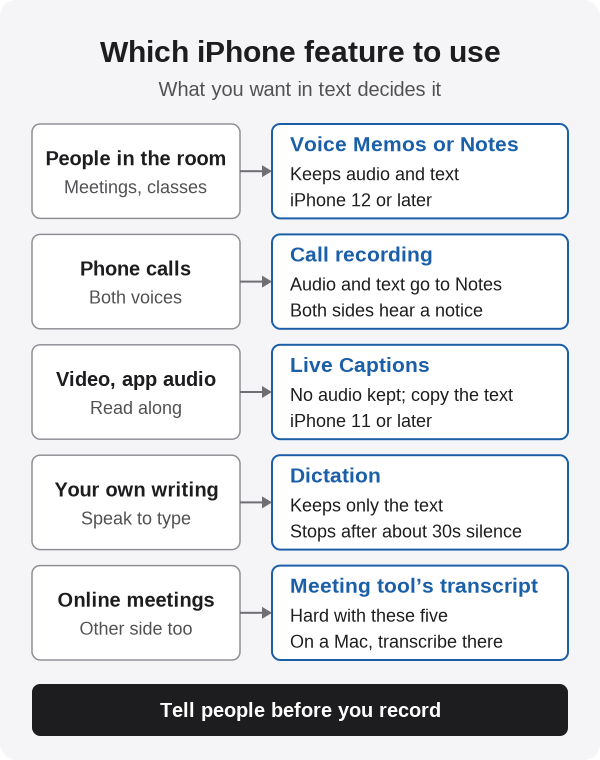
An iPhone has five built-in ways to turn speech into text. To record people in the room or yourself and keep it, use Voice Memos. To keep it inside a note you are writing, use Notes. For phone calls, use call recording. To read along with video or audio playing in an app, use Live Captions. To type by speaking, use Dictation.
All five work in English, but the models they need differ. According to Apple, transcription in Voice Memos and Notes needs iPhone 12 or later, and Live Captions needs iPhone 11 or later. Voice Memos, Notes and call recording keep both audio and text. Live Captions and Dictation don’t keep audio.
Audio files you already have, and the other side of a meeting open on your Mac, are harder to handle with these five. We cover those further down. This article is written by KOROMO K.K., which makes Recall, a transcription app for Mac. Recall does not run on iPhone, so we cover the built-in features first. We checked Apple’s details in the iPhone User Guide (iOS 27) and Apple’s feature availability page on November 24, 2026.
The five iPhone transcription features, compared
What each one transcribes, what it keeps, and what it needs. If you’re unsure, start with the first column.
| What it transcribes | What is kept | Conditions in Apple’s guide | |
|---|---|---|---|
| Voice Memos | Sound from the microphone | Audio and text | iPhone 12 or later; 10 languages including English |
| Notes (Record Audio) | Sound from the microphone | Audio and text inside a note | iPhone 12 or later; device language is one of the 10 |
| Phone call recording | Both sides of a phone call (and one-to-one FaceTime audio) | Audio and text in Notes | iOS 18.1 or later; not in some countries or regions; both sides hear a notice |
| Live Captions | Audio in apps, or voices nearby | Text on screen (you can copy it) | iPhone 11 or later; not in all languages |
| Dictation | What you say | The text you enter | Enable Dictation in the Keyboard settings |
They all come with the iPhone at no extra cost. Summaries of a transcript are a separate matter: they are an Apple Intelligence feature. The iPhone User Guide lists iPhone 15 Pro, iPhone 15 Pro Max, and iPhone 16 models or later, on iOS 27 or later. If you see a transcript but no summary button, your model may not be supported.
People in the room, or yourself: Voice Memos
For a conversation, a class, an interview or a thought to yourself, Voice Memos is the simplest. Apple’s page on Voice Memos transcriptions says you can read the text both while recording and afterward.
- Open Voice Memos and tap the record button
- To read while recording, swipe up above the waveform and tap the transcript button
- To read afterward, tap a recording, then choose View Transcript from the More button
- To use the text, choose Copy Transcript and paste it into a note or an email
Search in the list finds words inside transcripts as well as titles. Recordings made in iOS 17 or earlier are transcribed automatically if they contain speech.
One thing to watch: playing other audio on the iPhone stops the recording. Apple’s recording page says you can use other apps while recording, but that recording stops when audio starts playing. It is not a way to record a video you are watching. Syncing with a Mac, why a transcript may not appear, and iCloud encryption are in How to transcribe Voice Memos.
Recording while you write: Notes
If you want to type points while recording the talk, use Notes. Open a note, tap the attachment button, and choose Record Audio. The recording and its transcript go into that note. Swipe down from the top of the screen while recording to keep writing.
- Add the text to the note: open the recording and add the whole transcript to the note, copy it, or search it
- Jump to a moment: tap words in the transcript to play from there
- Deleting removes both: deleting the recording deletes the transcript. Add or copy the text first if you want to keep it
Use Voice Memos if you want recordings in one list, and Notes if you want a recording attached to a project or an agenda. The steps are in How to record and transcribe in Apple Notes.
Phone calls: call recording in the Phone app
For a phone call, use call recording rather than Voice Memos. Apple’s page on call recording says to tap the More button during a call, then Call Recording. When you stop or hang up, the recording is saved in the Call Recordings folder in Notes. Speech in a supported language is transcribed automatically, with the speaker identified for each part.
- The other person is told: both sides hear an audio notice that the call is being recorded. Apple asks you to make sure the other person agrees first
- No button? Check that Audio Call Recording is on in Settings > Apps > Phone (it is on by default)
- Where it isn’t available: the European Union and a number of other countries and regions listed on Apple’s page
LINE calls are not covered by this feature. See LINE calls, FaceTime, or, if phone recording fails, How to record and transcribe phone calls on iPhone. Laws on recording calls differ by place, so check the rules where you and the other person are.
Video and app audio: Live Captions
Live Captions shows text for video or podcasts playing in apps, or for people near you. The steps on Apple’s Live Captions page:
- Turn on Live Captions in Settings > Accessibility > Live Captions
- In the small window, choose iPhone Audio for sound in apps, or Microphone for an in-person conversation
- To keep the text, choose Copy Captions from More Options and paste it into a note
If you only need text of a video, try this before adding an app. It takes as long as the video does, and no audio is kept. Apple’s page doesn’t describe saving captions to a file automatically, so copy often during a long video. Apple says accuracy can vary and that you shouldn’t rely on captions in high-risk or emergency situations.
Live Captions during calls
Under Keep Call Captions, choose how long captions stay. With 1 Minute, they are cleared when the call ends and can’t be copied or captured. With 1 Hour, they stay for up to an hour after the call and can be copied, but participants hear “This call is being transcribed.” Apple’s page describes no setting that keeps them after the call without telling the others.
Speaking instead of typing: Dictation
To draft notes or an email by voice, use Dictation instead of recording. Turn on Enable Dictation in Settings > General > Keyboard, tap where you want text, then tap the microphone on the keyboard and speak. Apple’s Dictation page says dictation in many languages is processed on the iPhone and needs no internet connection (words dictated into a search box may be sent to the search provider).
It doesn’t replace recording a meeting. It stops after about 30 seconds without speech, doesn’t separate speakers, and keeps no audio. In supported languages punctuation is added automatically; you can turn off Auto-Punctuation.
What to check when transcription doesn’t work
If a button is missing or no text appears, check these in order, starting with the model, iOS and the language.
| Check | Where |
|---|---|
| Is the model supported? (iPhone 12 or later for Voice Memos and Notes, iPhone 11 or later for Live Captions) | Settings > General > About |
| Is iOS recent enough? (iOS 18 or later for Voice Memos transcripts, iOS 18.1 or later for call recording) | Settings > General > Software Update |
| Is the language supported? (English, Spanish, French, German, Japanese and five others for Voice Memos and Notes) | Settings > General > Language & Region. For Notes, the device language matters |
| Is it available in your country or region? | Apple’s feature availability page and each feature’s page |
| Is the speech clear? | Listen back. If voices are faint, far away or overlapping, record again |
Apple’s guide doesn’t say how a conversation that mixes languages is handled, so test a short recording first. Putting the iPhone near the speaker, and not under papers, helps. More tips are in How to improve transcription accuracy.
When the built-in features aren’t enough: files, meetings and apps
You have an audio file
Apple’s pages, as we checked them in November 2026, give no steps for putting an m4a or mp3 from elsewhere into Voice Memos or Notes to transcribe it. If you have a computer, a tool that takes files is quicker. Formats, length limits and where the audio goes are compared in How to transcribe an audio file.
You’re in an online meeting on your iPhone
Voice Memos records from the microphone, so it won’t capture the other side through earphones. The captions and transcripts built into Zoom, Teams and Google Meet are the reliable option. Apple’s page doesn’t say whether Live Captions works with meeting apps, so test it before you depend on it.
You’re thinking of adding an app
If you want speakers named, sharing with a team, or summaries, add a transcription app or service. Check three things first.
- How much is free: for example, Notta’s pricing page (checked November 24, 2026) gives 120 minutes of transcription a month on the free plan, up to 3 minutes each time. A one-hour meeting doesn’t fit. Others are compared in Free AI note takers
- Where the audio goes: cloud services send recordings to their servers. For work, check your company’s rules and whether the audio is used for training (what to check)
- Whether recording continues: apps differ in what happens when a call comes in or the screen locks. Do a full test before something important
Tell people before you record
When others are in the conversation, say at the start: “I’m recording and transcribing this so I can look back at it.” Call recording plays a notice, but nothing appears to others when you record in Voice Memos or Notes. Stop if someone objects, and don’t record where your company, your school or the other party doesn’t allow it. Recordings and transcripts contain names and plans, so read them before sharing and delete them when you’re done.
If your meetings are on a Mac: Recall, with no record button
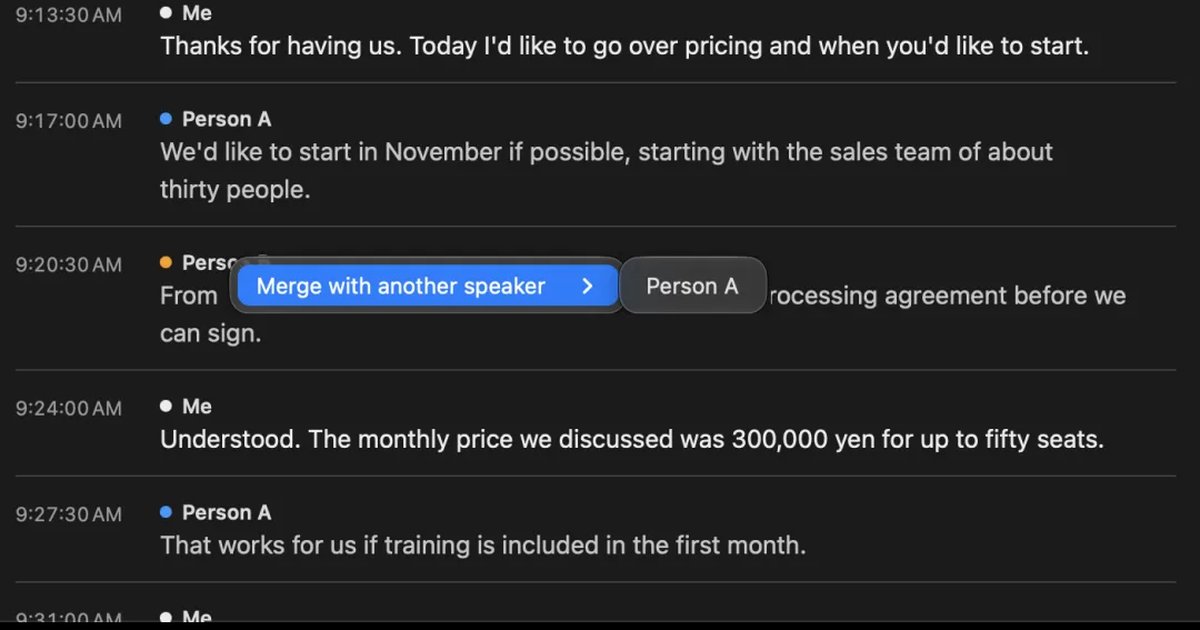
If the reason you reach for your iPhone is to keep a record of meetings on your computer, it is easier to transcribe on the Mac. Recall is a Mac app that sits in the menu bar and transcribes your microphone and the sound your Mac plays. The other side of a Zoom, Teams or Google Meet call is transcribed as sound your Mac plays, and your voice from the microphone. There is no record button, and no bot joins the meeting.
- What is kept: text only. Audio is discarded once transcribed, so you can’t listen again in Recall
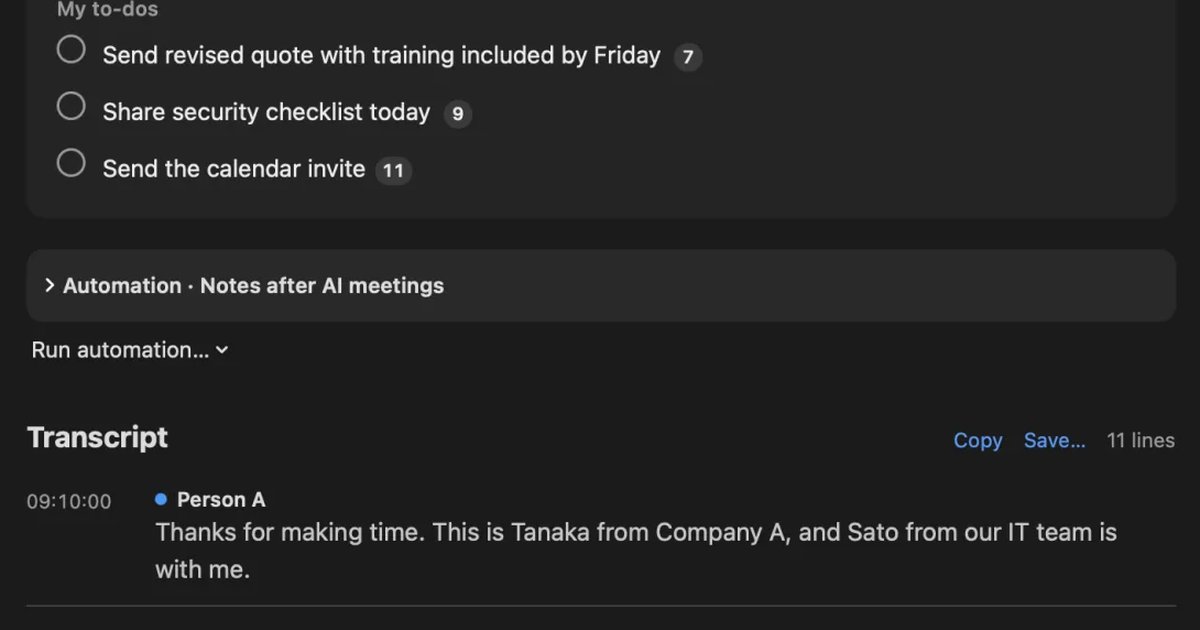
- After the conversation: this Mac’s AI writes a summary and your to-dos (when Apple Intelligence is on). You can also copy the transcript or save it as a text file
- Where records are kept: on this Mac. We don’t send them to our servers. They leave your Mac only when you use a Pro feature you turned on, or when you copy or save and share them yourself (When records leave your Mac)
- Price: Free has no transcription limit, and shows and searches the last 14 days. Pro is ¥980 a month or ¥9,800 a year, tax included
- What you need: a Mac with Apple silicon on macOS 26 or later, a microphone, and permission for screen and system audio recording
Recall fits you if
- Most of your meetings are on a Mac and you want the other side in text too
- You keep forgetting to start recording on the iPhone on your desk
- You want records kept on your own Mac
Recall is not for you if
- You want to record and transcribe on an iPhone alone (Recall is a Mac app; Voice Memos or Notes fit)
- You want text of phone calls (iPhone call recording fits)
- You want to keep audio to listen again, or transcribe audio files you already have
- You use an Intel Mac or a Windows PC
With Recall too, tell the other people that you are transcribing. Examples are in the FAQ.
Free to use · No account needed · macOS 26 or later · Mac with Apple silicon · By downloading, you agree to the Terms of Service
FAQ
Is transcription on iPhone free?
Yes. Voice Memos, Notes, call recording, Live Captions and Dictation come with the iPhone at no extra cost. Model and language conditions apply.
Which iPhones support transcription?
According to Apple, Voice Memos and Notes transcription needs iPhone 12 or later, and Live Captions needs iPhone 11 or later. Call recording works on iOS 18.1 or later.
Can I transcribe without Apple Intelligence?
Yes. Apple Intelligence is for summaries and Writing Tools. Transcription itself works in Voice Memos and Notes on iPhone 12 or later.
Can I transcribe a video on my iPhone?
Turn on Live Captions, choose iPhone Audio, and play the video. You can copy the captions and paste them elsewhere. It doesn’t save a recording or a text file for you.
Can I transcribe LINE or WhatsApp calls?
The Phone app’s call recording is for phone calls and FaceTime audio. For calls in other apps, check what that app offers, and tell the other person.
Can I transcribe a call without the other person knowing?
Call recording and Live Captions set to 1 Hour both play a notice to the other person. We don’t recommend recording people without telling them. Tell them first.
Can I transcribe an audio file on my iPhone?
Apple’s pages give no steps for transcribing files from elsewhere in Voice Memos or Notes. Use a transcription tool that takes files.
Does Recall work on iPhone?
No. Recall is an app for Macs with Apple silicon on macOS 26 or later. Use Voice Memos or Notes for what you record on iPhone, and Recall for meetings on a Mac.
Checked on November 24, 2026. Apple details come from the iPhone User Guide (iOS 27) pages on Voice Memos transcriptions and recording, recording and transcribing audio in Notes, recording and transcribing calls, Live Captions and Dictation, and from Apple’s iOS and iPadOS feature availability page. Notta details come from its pricing page. Conditions change with OS updates and company changes, so check the latest pages before you rely on them.
Get the product overview (PDF) by email →
Related articles
How to transcribe Voice Memos on iPhone and Mac, and what to check when it doesn’t work
Voice Memos on iPhone and Mac can transcribe recordings so you can view, copy and search them. The steps, the device, OS and language conditions to check when no transcript appears, how to keep the text, and what to use for meetings and calls.
How to record and transcribe audio in Apple Notes on iPhone and Mac, and what to check when it doesn’t work
Apple Notes on iPhone and Mac can record audio inside a note, show a live transcript, add the transcript to the note and summarize it. The steps, the device and language conditions to check when no transcript appears, Notes versus Voice Memos, and what to use for calls and meetings.
How to record and transcribe phone calls on iPhone: the notice, where calls are saved, and fixes when it doesn’t work
The iPhone Phone app can record a call from the More button during the call, and saves the audio and a transcript by speaker to the Call Recordings folder in Notes. The steps, the notice the other person hears, reading and summarizing the transcript, the settings and regions to check when it doesn’t work, and what to use for LINE, FaceTime and Mac meetings.
How to transcribe an audio file on a Mac: m4a and mp3 options compared
To turn an m4a or mp3 file into text on a Mac, the first question is whether the audio may leave your Mac. MacWhisper, Transcribe in Word for the web, Gemini and ChatGPT compared by format, length limit and what you pay, plus whether Notes and Voice Memos can read files and what to check when it fails.
Real-time transcription: free ways on your computer, phone, and in meetings
Free ways to get real-time transcription: live captions on Mac, Windows, iPhone and Android, Zoom, Teams and Google Meet captions, and apps, compared by whether the text is kept and whose voice they hear.