 Recall
How to record and transcribe phone calls on iPhone: the notice, where calls are saved, and fixes when it doesn’t work
The iPhone Phone app can record a call from the More button during the call, and saves the audio and a transcript by speaker to the Call Recordings folder in Notes. The steps, the notice the other person hears, reading and summarizing the transcript, the settings and regions to check when it doesn’t work, and what to use for LINE, FaceTime and Mac meetings.
The short answer: during a call, tap More, then Call Recording. The other person hears a notice too
You can record phone calls on iPhone without any extra app. During a call, tap the More button, then tap Call Recording. When you stop or hang up, the recording is saved automatically to the Call Recordings folder in the Notes app. In supported languages, what was said is transcribed, with each speaker identified.
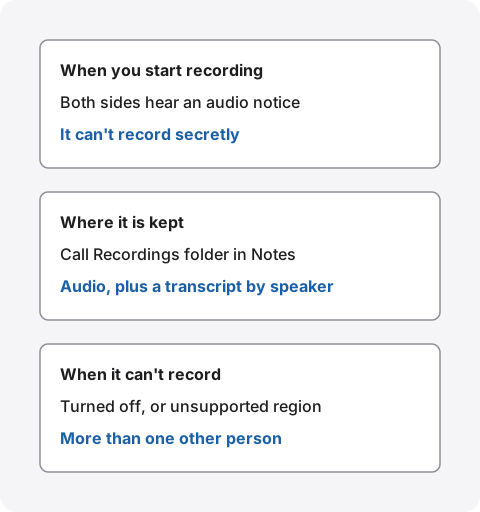
When recording starts, both people on the call hear an audio notice that the call is being recorded. It isn’t a way to record secretly. Call Recording isn’t available in every country or region, and transcripts are available only in some regions and languages; check Apple’s iOS feature availability page.
If the button doesn’t appear, check whether Audio Call Recording is turned off in Settings and whether iOS is up to date (what to check). This article is written by KOROMO K.K., which makes Recall, a transcription app for Mac. Recall can’t record iPhone phone calls, so this guide assumes you use iPhone’s own feature for calls. We checked Apple’s details on Apple’s official pages on November 21, 2026.
How to record a call on iPhone
These steps follow the iPhone User Guide page on recording and transcribing a call. Apple’s Notes guide for iPhone says call recording needs iOS 18.1 or later.
- Make or answer a call in the Phone app
- During the call, tap the More button, then tap Call Recording. Both people hear an audio notice that the call is being recorded
- To finish, tap the Stop button or hang up
- The recording is saved automatically to the Call Recordings folder in Notes. You can also open it from View Saved Call on the call screen
Reading, searching and summarizing the transcript
Saved calls open as notes in the Call Recordings folder in Notes. Apple’s guide says speech in supported languages is transcribed automatically, and the speaker of each statement is identified.
- Read the transcript: Open the recording in the note to see the transcript. Tap any text to play from that point
- Search and copy: From the recording’s More button, search inside the transcript or copy it
- Read a summary: On an iPhone with Apple Intelligence, you can read a summary of the call. The iPhone guide says Apple Intelligence on iOS 27 or later works on iPhone 15 Pro, iPhone 15 Pro Max, and iPhone 16 models or later
- Save or share the audio: You can save or share the recording’s audio itself
Apple’s guide says transcripts might not perfectly represent the conversation, so check them before relying on them. Listen again to confirm important numbers such as prices and dates. For messages that confirm key points with the other person after a call, see Avoiding “he said, she said” after meetings and calls.
The notice, and telling the other person first
When you start Call Recording, both people on the call hear an audio notice. It isn’t only shown on your screen; the other person hears it too.
Apple’s guide says to make sure the other person is willing to be recorded before you record. Even with the notice, a quick “Is it OK if I record this so I can listen back later?” before you start avoids surprising them. For work calls, check your workplace’s rules too. We don’t recommend recording people without their knowledge.
When Call Recording or the transcript doesn’t work
If the Call Recording button is missing, or the call records but no transcript appears, check these in order.
| What to check | How to fix it | |
|---|---|---|
| Settings | Is Audio Call Recording turned off? | Go to Settings, Apps, Phone, Audio Call Recording and turn it on (it is on by default) |
| iOS | Is it older than iOS 18.1? | Update in Settings, General, Software Update |
| Region | Are you in a country or region where it isn’t available? | Check the list in Apple’s guide |
| Callers | Is more than one other person on the call? | Apple’s guide says recording works when you are talking to one other person |
Apple’s guide says Call Recording isn’t currently available in a list of countries and regions, including the European Union, Turkey, Saudi Arabia and South Africa. When traveling, check the list in the guide.
The call recorded but there is no transcript
Apple’s guide says no transcript appears when the iPhone doesn’t meet the minimum requirements or doesn’t detect a supported language. The call recording page doesn’t list the device requirements, but audio transcription in Notes, which uses the same Apple transcription, needs iPhone 12 or later. Apple doesn’t say how calls that mix languages are handled.
Keeping and deleting recordings and transcripts
Call recordings stay in Notes as notes. If you sync Notes with iCloud, you can open them on a Mac signed in to the same Apple Account. Apple’s iCloud data security overview says that with standard data protection Apple holds the encryption keys for Notes, and turning on Advanced Data Protection makes them end-to-end encrypted. If you record calls with clients, check your iCloud settings and your workplace’s rules.
Apple’s guide says deleting a recording also deletes its transcript. If you only want the text, copy the transcript into another note or document first, then delete the recording.
LINE, FaceTime and Mac meetings
Call Recording in the Phone app is for iPhone phone calls. Other calls and meetings each need a different method.
- FaceTime: One-to-one FaceTime audio calls can be recorded with the same Call Recording. For video and group calls, see Can you record a FaceTime call?
- LINE: LINE calls use Call Recording in LINE Labs. The conditions are in How to transcribe LINE calls
- In person: For talks that aren’t calls, record and transcribe with Voice Memos
- Zoom or Teams meetings on Mac: These aren’t covered by iPhone Call Recording. Use the meeting tool’s transcripts, or an app that transcribes the Mac’s sound (next section)
Keeping Mac meetings as text: Recall
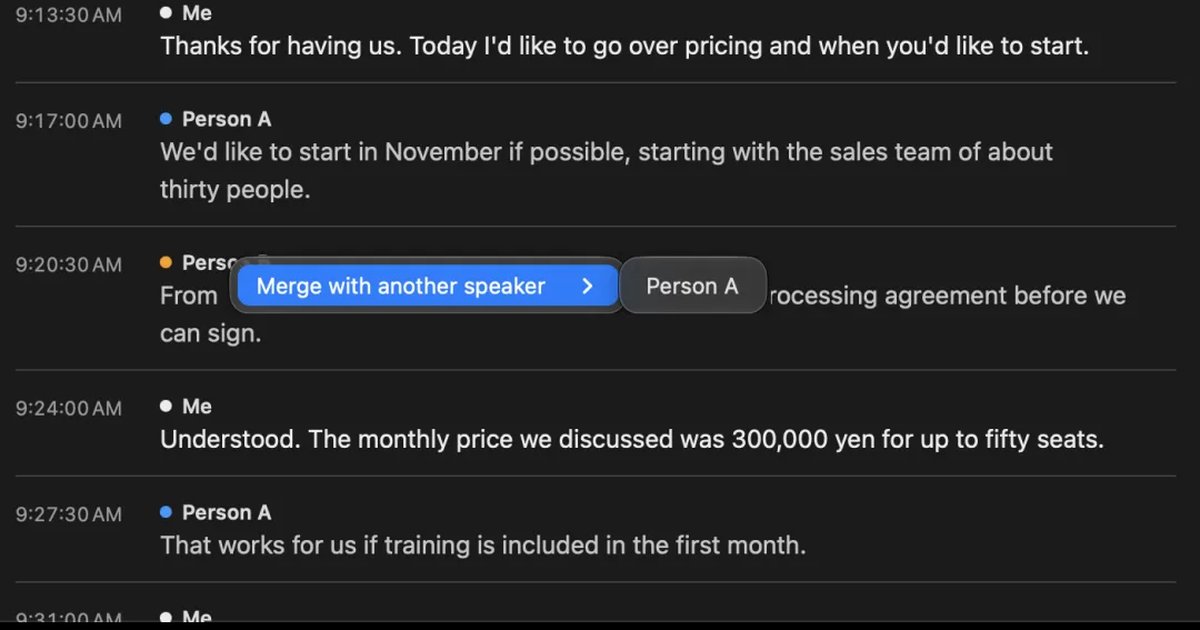
Recall is a Mac app that stays in the menu bar and turns your microphone and your Mac’s audio into text. It can’t record iPhone phone calls. It is for keeping Zoom, Teams and Google Meet meetings and video audio on your Mac as text, without pressing record. What you say comes from the microphone, and the other side of a meeting comes from what the Mac plays.
It needs a Mac with Apple silicon on macOS 26 or later, plus permission for the microphone and for screen and system audio recording. It doesn’t record your screen, but it saves the front window’s title on this Mac along with what was said. You choose English or Japanese in settings, and it doesn’t switch automatically partway through.
How it differs from iPhone Call Recording
| iPhone Call Recording | Recall | |
|---|---|---|
| What it records | iPhone phone calls (and one-to-one FaceTime audio calls) | The Mac’s microphone and what the Mac plays |
| Telling the other side | Both people hear an audio notice | Nothing appears on their side. You tell them |
| What is kept | Audio and transcript | Text only. Audio is discarded once transcribed |
Limits to know first
- Not on iPhone: Recall is a Mac app. For iPhone calls, use Call Recording as described here
- No audio file import: It can’t transcribe audio files you saved from Call Recording
- No audio kept: It discards audio right after transcribing, so you can’t listen again in Recall
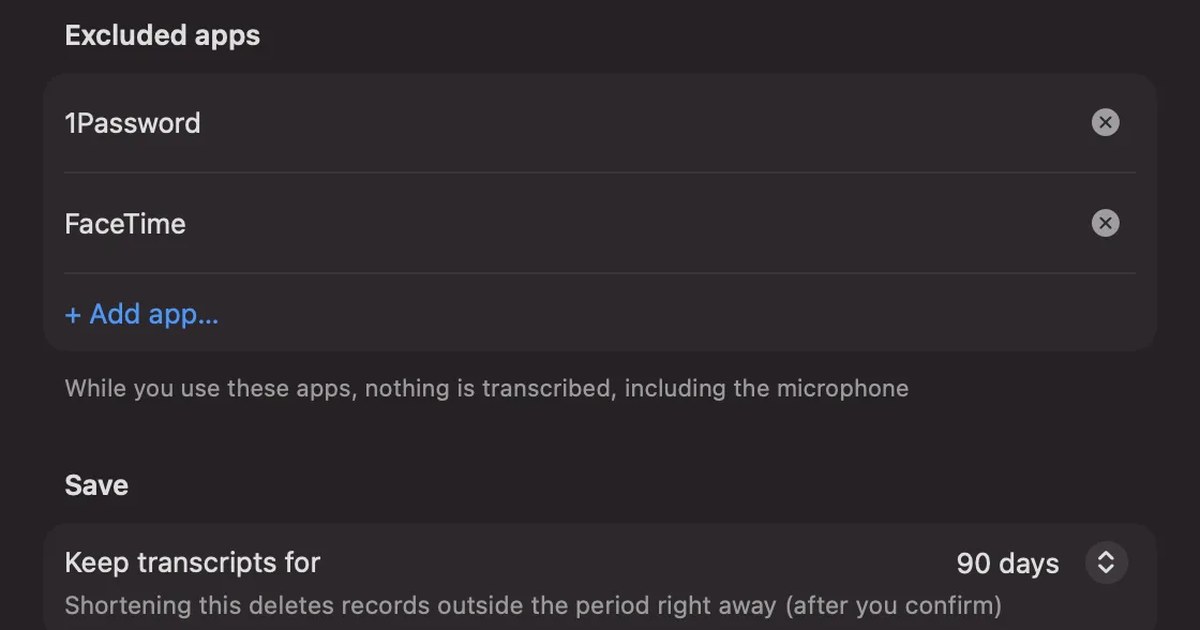
- Other sounds become text too: Because it keeps running, a video you play is transcribed too. Pause from the menu bar for times you don’t want kept, and add apps you never want transcribed to Excluded apps. If you notice afterward, you can remove it with “Delete the last 15 minutes…”
Reading back after a meeting
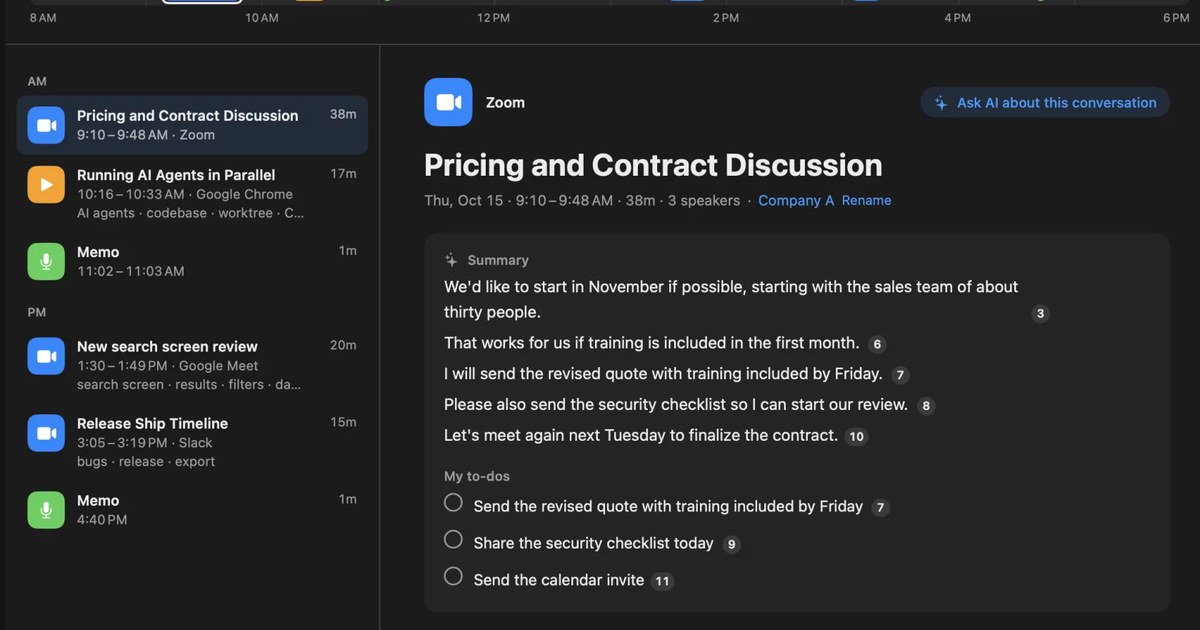
When a conversation ends, the on-device AI writes a summary, topics, decisions and your to-dos. Summaries and to-dos are made when Apple Intelligence is on. You can also copy a conversation’s transcript or save it as a text file, including on Free. To find something later, search with ⌘K or ask the AI. By default, the on-device AI answers, and neither your question nor your records leave the Mac. On a Mac with less than 16GB of memory, Apple Intelligence must be on for it to answer questions.
What Free covers, and where records stay
Free has no transcription limit, and shows and searches the last 14 days. Older records are kept for the retention period, and Pro shows them. Retention defaults to 90 days on Free and unlimited on Pro, and records past it are deleted. Pro is ¥980 a month or ¥9,800 a year, tax included. If the license can’t be checked for 14 days in a row, Pro features stop.
Records are kept on this Mac, and we don’t send them to our servers. They leave the Mac only when you use a Pro feature you turned on, or when you copy or save and hand them over yourself. The list is in When records leave the Mac.
Tell people in the conversation
Recall runs inside your Mac, so unlike iPhone Call Recording, the other side isn’t notified. At the start of a meeting, say something like “I’m transcribing this so I can look back at it later.” Example wording is in the FAQ. Don’t use it if they object or if your workplace’s rules don’t allow it. For what to check when choosing a meeting AI, see What to check if you worry about leaks from AI meeting notes.
Who Recall is for, and who it isn’t
Recall suits people who have more Mac meetings than phone calls and want to keep them as text, including the other side’s voices. If you only want to record iPhone calls, iPhone Call Recording is enough.
Recall fits you if you
- Want text of Zoom, Teams and Google Meet meetings on your Mac, including the other side
- Want to stop forgetting to press record
- Want to search notes after calls and talks you heard in meetings and videos in one place on your Mac
- Want to keep text, not audio, on your own Mac
- Use a Mac with Apple silicon on macOS 26 or later
Free to use · No account needed · macOS 26 or later · Mac with Apple silicon · By downloading, you agree to the Terms of Service
Recall isn’t for you if you
- Mostly want to keep iPhone phone calls (iPhone Call Recording fits)
- Want to keep audio and listen again
- Want to transcribe recording files you already have
- Use a Mac with an Intel processor or a Windows PC
- Speak languages other than English and Japanese
Frequently asked questions
Does the other person know when I record a call on iPhone?
Yes. When recording starts, both people hear an audio notice that the call is being recorded. It isn’t a way to record secretly, so tell them before you start.
Is iPhone call recording free?
Yes. It is part of the iPhone Phone app, with no extra app or subscription. It needs iOS 18.1 or later, in a country or region where Call Recording is available.
Where are recorded calls saved?
They are saved automatically to the Call Recordings folder in the Notes app. The audio and transcript are in one note, and you can also open it from View Saved Call on the call screen.
Which languages get a transcript?
Transcripts are available only in some regions and languages, and Apple lists them on its iOS feature availability page. Each statement is labeled with its speaker.
What happens to the transcript if I delete the recording?
It is deleted too. To keep the text, copy the transcript into another note or document first, then delete the recording.
Can Call Recording keep Zoom or Teams meetings on my Mac?
No. iPhone Call Recording covers phone calls and one-to-one FaceTime audio calls. For Mac meetings, use the meeting tool’s transcripts or an app such as Recall that turns what your Mac hears into text.
Checked on November 21, 2026. Call Recording details come from Apple’s iPhone User Guide pages on recording and transcribing a call and on recording and transcribing audio in Notes, the iOS feature availability page, and the iCloud data security overview. Available countries, regions and languages can change, so check Apple’s latest pages before relying on them.
The difference between Recall Free and Pro is in Plans and license.
Free to use · No account needed · macOS 26 or later · Mac with Apple silicon · By downloading, you agree to the Terms of Service
Get the product overview (PDF) by email →
Related articles
Can you record a FaceTime call? iPhone, Mac, audio, and keeping a transcript
Yes. Call Recording records one-to-one FaceTime audio calls on iPhone and Mac, and both people hear a notice. Steps, where it saves, and options for video calls.
How to transcribe LINE calls: Call Recording’s conditions and keeping calls on a Mac
LINE’s 1:1 calls can be recorded and transcribed with Call Recording in LINE Labs. We cover which calls it works for, what the other person sees, and where files are saved, plus ways to transcribe video calls, group calls, and calls on LINE for Mac.
Avoiding “he said, she said” after meetings and calls: follow-up messages, and checking your own records
Most “he said, she said” disputes at work can be prevented by putting decisions into words on the spot and sharing them in writing. Why they happen, what to do during a meeting or call, example follow-up messages, how to keep records, how to check when one happens, and how recordings differ from written records.
How to transcribe Voice Memos on iPhone and Mac, and what to check when it doesn’t work
Voice Memos on iPhone and Mac can transcribe recordings so you can view, copy and search them. The steps, the device, OS and language conditions to check when no transcript appears, how to keep the text, and what to use for meetings and calls.