 Recall
Can you record a FaceTime call? iPhone, Mac, audio, and keeping a transcript
Yes. Call Recording records one-to-one FaceTime audio calls on iPhone and Mac, and both people hear a notice. Steps, where it saves, and options for video calls.
The short answer: a one-to-one FaceTime audio call can be recorded, and both people hear a notice
FaceTime has a built-in Call Recording button for one-to-one audio calls. Apple’s support page says you can record a FaceTime audio call on iPhone “starting in iOS 18”, and Apple’s FaceTime guides for macOS Tahoe 26 and macOS 27 Golden Gate describe the same button on a Mac. Both people hear a notice that the call is being recorded, and the recording is saved with a transcript in the Notes app. It works only in some countries, regions and languages, and Apple asks you to make sure the other person is willing to be recorded.
Apple’s guides describe Call Recording only for one-to-one audio calls. For FaceTime video calls and Group FaceTime, the built-in options are screen recording, FaceTime Live Photos and Local Capture on iPhone, and each keeps something different. Apple’s screen recording guides do not say whether FaceTime’s call audio ends up in the recording, so try it once with someone who has agreed before you rely on it.
This article was written by KOROMO K.K., which develops Recall, a Mac app that turns conversations into text. Recall does not make audio files, so if you need a recording, use Apple’s features below. We checked Apple’s support pages for iOS 27, macOS Tahoe 26 and macOS 27 Golden Gate on November 16, 2026.
| Your situation | Where to read next |
|---|---|
| You want an audio file of a FaceTime audio call on iPhone | Call Recording on iPhone |
| The Call Recording button does not appear | When there is no Call Recording button |
| It is a video call or Group FaceTime | Video calls and Group FaceTime |
| You take the call on a Mac | Recording FaceTime on a Mac |
| You only need to look up what was said later | When you only need the words |
Ways to record FaceTime, and what each keeps
Choose by what you need afterwards: the voice, a video, or only the words. Whether the other person is told also differs by method.
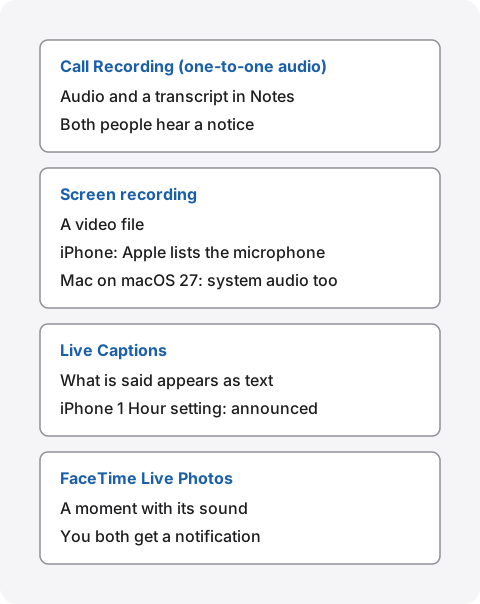
| What you get | Is the other person told? | |
|---|---|---|
| Call Recording (iPhone, Mac) | Audio and a transcript in Notes. One-to-one audio calls only | Yes. Both people hear a notice |
| Screen recording on iPhone | A video in Photos. Apple’s guide names the microphone as the way to add sound | Apple’s guide does not say |
| Screen recording on a Mac | A .mov video. On macOS 27 Golden Gate or later, system audio can be included | Apple’s guide does not say |
| Live Captions on iPhone | What is said, as text. With “1 Hour”, call captions can be copied for up to an hour | With “1 Hour”, everyone hears an announcement |
| FaceTime Live Photos | A Live Photo with the sound from just before and after the moment | Yes. You both get a notification |
Recording a FaceTime audio call on iPhone
On iPhone, use Call Recording during a one-to-one FaceTime audio call. These steps follow Apple’s iPhone User Guide.
- Check first: make sure call recording is available in your language and region on the iOS and iPadOS Feature Availability page, and that the other person is willing to be recorded
- Start: during a one-to-one audio call in the FaceTime app, tap the More button, then tap Call Recording. Both people hear a notice that the call is being recorded
- Stop: tap the stop button. If you do not see it, open the call controls and tap Stop next to Call Recording. Recording also stops when you end the call
- Find it: the recording is saved automatically to the Call Recordings folder in the Notes app
Reading the transcript, and taking the audio out
In select regions and languages, open the note in the Call Recordings folder to see the transcript. It may take a moment to appear, and each statement is labelled with its speaker. From the transcript you can play the audio from a selected line, use Find in Transcript, choose Copy Transcript or Add Transcript to Note, and choose Save Audio to Files to keep the audio file elsewhere. Apple notes that deleting the audio recording also deletes the transcript, so copy the transcript first if you only want to keep the words. With Apple Intelligence, you can also read a summary of the call.
Apple also says to “Verify the accuracy of a transcription before relying on it.” Check names and numbers against what you remember, or against a follow-up message, before you pass them on.
When there is no Call Recording button
- Your region: Apple’s FaceTime guide says only that it works in some countries and regions. Apple’s page on recording phone calls says call recording “isn’t currently available” in some places, including the European Union. The iOS Feature Availability page lists the languages that support it
- The type of call: Apple describes the button for one-to-one audio calls. In a video call or Group FaceTime, use one of the methods in the next section
- The setting: Apple says Call Recording is on by default, but it can be turned off in Settings > Apps > Phone > Audio Call Recording. Check that it is on
FaceTime video calls and Group FaceTime
Apple’s Call Recording steps cover one-to-one audio calls. For video calls, there are three built-in options, and none of them is a full call recorder with a transcript.
Screen recording on iPhone
Open Control Center, touch and hold the Screen Recording button, turn on Microphone, then tap Start Recording. After the three-second countdown, the screen is recorded and the video is saved to Photos. These are the steps in Apple’s guide, which says “Some apps might not allow you to record their content.”
The guide describes the microphone as the way to add sound. It does not say whether the other person’s voice in a FaceTime call is included.
FaceTime Live Photos
During a FaceTime video call, you can take a Live Photo that keeps what happens just before and after, including the audio. Turn on FaceTime Live Photos in Settings > Apps > FaceTime first. According to Apple’s guide, “You both receive a notification that the photo was taken,” and it is not available in all countries or regions. It keeps a moment, not the whole conversation.
Local Capture for interviews and podcasts
Local Capture records high-quality audio and video directly to your iPhone from a videoconferencing app. Start it from its Control Center button and choose Audio Only if you do not want video. The file goes to the Downloads folder in Files by default. Apple’s guide says it “can be combined with other participants’ recordings” in an app such as Logic Pro or Final Cut Pro, which fits interviews and podcasts where each person records on their own side.
Recording FaceTime on a Mac
On a Mac, use Call Recording for one-to-one audio calls and screen recording for video calls. Apple’s FaceTime User Guide for Mac gives the same Call Recording steps for macOS Tahoe 26 and macOS 27 Golden Gate.
- Call Recording: during a one-to-one FaceTime audio call, click the More button, then click Call Recording. Both people hear a notice. To stop, click the More button, then Stop. The recording and transcript are in the Call Recordings folder in Notes
- Screen recording: press Shift-Command-5 and choose Record Entire Screen, Record Selected Window or Record Selected Portion. Under Options, choose a microphone for your voice. Apple’s guide says that on macOS 27 Golden Gate or later you can choose Include System Audio to record the Mac’s sound. The recording is saved as a .mov file on the desktop by default
- Live Captions: on Mac computers with Apple silicon, Live Captions shows a real-time transcription of the Mac’s audio or the microphone, and Apple says “Audio is processed on device.” Apple names FaceTime as an example of an app it works with
Apple’s screen recording guide notes that some apps, such as the Apple TV app, might not let you record their windows. It does not mention FaceTime either way. Include System Audio is a macOS 27 Golden Gate feature, so on earlier versions the guide lists only a microphone; other ways to record the sound inside a Mac are in How to record internal audio on a Mac.
When you only need the words, not the audio
If you only need to look up later what was agreed, a transcript is easier to search than an hour of audio. There are two ways to keep the words of a FaceTime call.
- The Call Recording transcript: in Notes, choose Copy Transcript and paste it where you keep notes. Deleting the audio also deletes the transcript in Notes, so copy it before you delete
- Live Captions on iPhone: in Settings > Accessibility > Live Captions, set Keep Call Captions to “1 Hour”. Captions from calls are kept for up to an hour after the call, and you can copy them. Apple’s guide says that with “1 Hour”, everyone on the call hears “This call is being transcribed.” With “1 Minute”, captions are cleared after the call and cannot be copied. It needs iPhone 11 or later, and not every language is supported
To turn a recording you already have into text, see How to transcribe Voice Memos. For LINE calls, see How to transcribe LINE calls.
What Recall records, and adding FaceTime to its excluded apps
Recall is a Mac app that sits in the menu bar and transcribes your microphone and the sound that apps on your Mac play. It does not make audio files: the audio is thrown away as soon as it is transcribed, and what stays on the Mac is the transcript, a summary and your to-dos. It is not a way to record a FaceTime call.
FaceTime and excluded apps
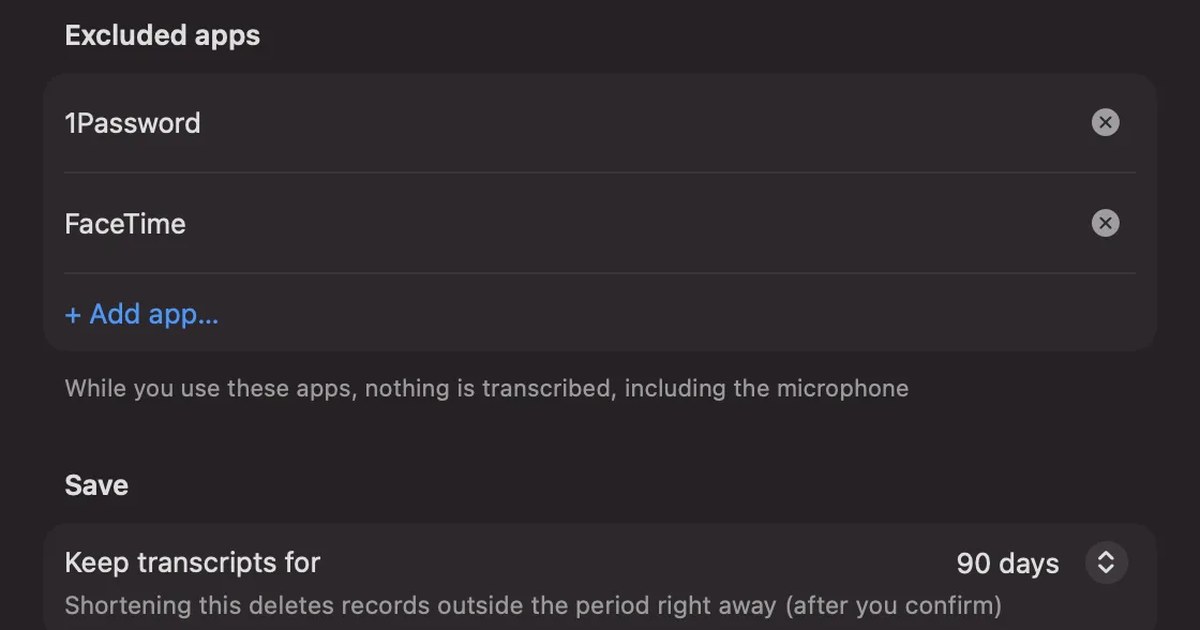
- FaceTime is not on the list at first: the list of apps Recall does not record starts empty, so FaceTime is on it only if you add it
- To keep FaceTime out: add FaceTime to Excluded apps in Settings › Privacy. While you use it, or while it plays sound, nothing is transcribed, including the microphone. You can remove it from the list at any time
Limits to know first
- No audio: you cannot play the call back, and it does not replace a recording. What remains is a machine-made written record that can contain mishearings
- No notice to the other person: Recall does not play an announcement or join the call, so tell the other person yourself
- Mac only: it runs on a Mac with Apple silicon and macOS 26 or later. FaceTime calls you take on an iPhone are not transcribed
- What Free covers: Free has no limit on transcription, and shows and searches the last 14 days. Records are kept for 90 days by default on Free and indefinitely on Pro. Pro is ¥980 a month or ¥9,800 a year (tax included), and Pro features stop if the license cannot be checked for 14 days in a row. Summaries are made by the on-device AI when Apple Intelligence is on
Your records are kept on this Mac, and we do not send them to our servers. Records leave the Mac only when you use a Pro feature you turned on, or when you copy or save something and pass it on yourself. The full list is in When records leave the Mac.
Who Recall suits
- You take calls and meetings on a Mac and want to search later for what was said
- You would rather not keep audio, but want the words on your own Mac
- You want some apps, such as FaceTime for personal calls, never to be transcribed
- You use a Mac with Apple silicon and macOS 26 or later
Free to use · No account needed · macOS 26 or later · Mac with Apple silicon · By downloading, you agree to the Terms of Service
Who Recall does not suit
- You need an audio or video file of the call
- You take FaceTime calls on an iPhone
- You want the other person to be told automatically, as Call Recording does
- Your employer’s rules allow only apps the company has approved
Tell the other person before you record
Whichever method you use, tell the other person first. Apple’s Call Recording steps start with making sure “the other call participant is willing to be recorded.” Call Recording, Live Photos and Live Captions with “1 Hour” tell the other side for you; with screen recording and with Recall, say it yourself. For example:
I would like to keep a record of this call so I can check the details later. Is that all right with you?
If the other person says no, do not record or transcribe. Rules on recording calls differ by country and region, so if you are unsure, check the rules where you and the other person are, or ask a professional. This article is not legal advice. If the reason you want a record is to avoid “he said, she said” later, a short follow-up message after the call often works without any recording; see Avoiding “he said, she said” after meetings and calls.
FAQ
Does FaceTime tell the other person if I screen record?
Apple’s screen recording guides for iPhone and Mac do not mention a notice for FaceTime. Call Recording, FaceTime Live Photos and Live Captions set to “1 Hour” do tell the other side. Whichever you use, tell the other person yourself before you start.
Can I record a FaceTime video call with Call Recording?
Apple describes Call Recording for one-to-one FaceTime audio calls. For a video call, the built-in options are screen recording, FaceTime Live Photos for a moment, or Local Capture on iPhone for your own high-quality audio and video.
Where are FaceTime call recordings saved?
In the Call Recordings folder in the Notes app, on both iPhone and Mac. On iPhone, Save Audio to Files keeps a copy of the audio elsewhere. Deleting the audio in Notes also deletes its transcript.
Does Call Recording work in Japanese?
Apple’s iOS Feature Availability page lists Japanese among the languages for call recording, and Japanese (Japan) for call transcription. Check that page for your language before an important call.
Does Recall record FaceTime calls?
No. Recall does not make audio files, so it cannot record a FaceTime call. FaceTime is not on Recall’s Excluded apps list by default. To stop Recall from transcribing anything while you use FaceTime, add it under Settings › Privacy.
Checked on November 16, 2026. Apple’s features are based on Apple Support pages: the iPhone User Guide for iOS 27 (FaceTime audio call tools, screen recording, Live Captions, FaceTime Live Photos, improving audio and recording video calls), the FaceTime User Guide for Mac (macOS Tahoe 26 and macOS 27 Golden Gate), “How to record the screen on Mac”, Mac Live Captions, and the iOS and iPadOS Feature Availability page. Recall’s features are based on its published help pages (Listening and pausing, Privacy and data, ⌘K search, Plans and licenses). The note on recording rules is general guidance, not legal advice.
The differences between Recall Free and Pro are in Plans and licenses.
Free to use · No account needed · macOS 26 or later · Mac with Apple silicon · By downloading, you agree to the Terms of Service
Get the product overview (PDF) by email →
Related articles
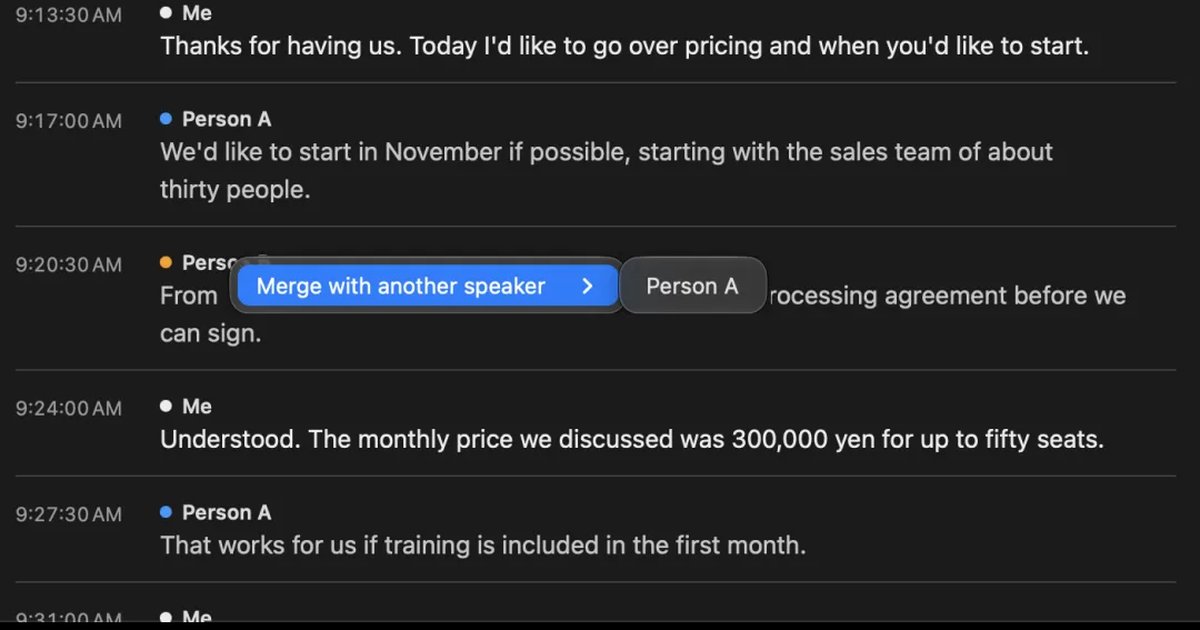
How to record and transcribe phone calls on iPhone: the notice, where calls are saved, and fixes when it doesn’t work
The iPhone Phone app can record a call from the More button during the call, and saves the audio and a transcript by speaker to the Call Recordings folder in Notes. The steps, the notice the other person hears, reading and summarizing the transcript, the settings and regions to check when it doesn’t work, and what to use for LINE, FaceTime and Mac meetings.
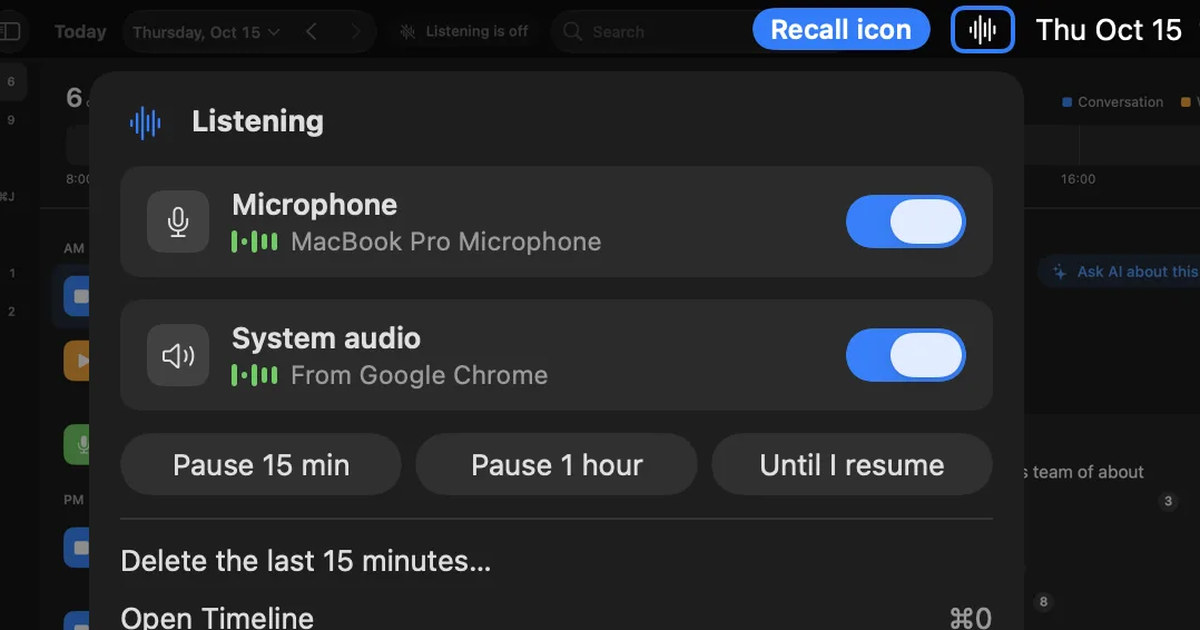
How to record internal audio on a Mac: macOS 27’s built-in option, BlackHole and OBS
On macOS 27 or later, a Mac can record internal audio with built-in screen recording. Steps for BlackHole and OBS on earlier Macs, what to check when there is no sound, and an option if you don’t need audio.
How to transcribe Voice Memos on iPhone and Mac, and what to check when it doesn’t work
Voice Memos on iPhone and Mac can transcribe recordings so you can view, copy and search them. The steps, the device, OS and language conditions to check when no transcript appears, how to keep the text, and what to use for meetings and calls.
How to transcribe LINE calls: Call Recording’s conditions and keeping calls on a Mac
LINE’s 1:1 calls can be recorded and transcribed with Call Recording in LINE Labs. We cover which calls it works for, what the other person sees, and where files are saved, plus ways to transcribe video calls, group calls, and calls on LINE for Mac.
Avoiding “he said, she said” after meetings and calls: follow-up messages, and checking your own records
Most “he said, she said” disputes at work can be prevented by putting decisions into words on the spot and sharing them in writing. Why they happen, what to do during a meeting or call, example follow-up messages, how to keep records, how to check when one happens, and how recordings differ from written records.