 Recall
How to transcribe English audio: meetings, audio files and videos, and which tool to use
The right tool to transcribe English depends on whether it is a meeting happening now, a recorded file, or a conversation or video in front of you. Teams and Google Meet captions and transcripts, Word for the web, MacWhisper, Gemini, iPhone Live Captions and Otter compared by how you pick English, limits and what you pay, with tips for accuracy and getting a translation.
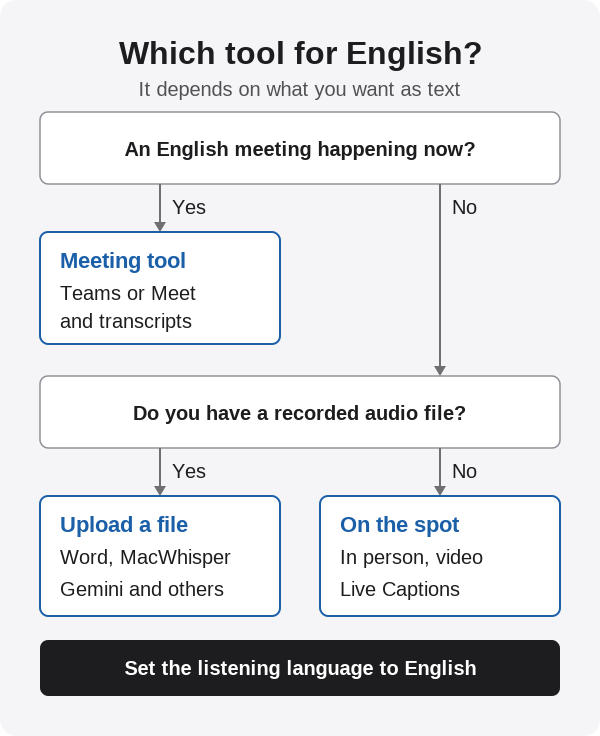
The short answer: choose by what you are transcribing, and set the language to English
Tools for turning English speech into text fall into three groups. For an English meeting happening now, use the captions and transcription built into Teams, Google Meet or Zoom. For a recorded English audio file, use Transcribe in Word for the web, MacWhisper, which works on your Mac, or the Gemini app for short recordings. For a conversation in person or English audio playing on your phone, an on-the-spot caption feature such as iPhone Live Captions is the easiest.
Whatever you use, the most important step is to set the listening language to English. Most tools hear sound in the language you chose beforehand, so English heard with a Japanese setting does not come out as English text. English also comes in variants such as US, UK and Australian; where you can choose, pick the one closest to the speakers.
This article is written by KOROMO K.K., which makes Recall, a transcription app for Mac. Recall can transcribe English meetings too, but it does not fit every case, so we compare it on the same terms as the other tools and introduce it at the end. We checked each company’s details on their official help pages and websites on November 23, 2026. We have not compared these tools on the same audio, so we don’t say which is more accurate.
Tools for transcribing English, compared
The main tools, by what they can transcribe, how you pick English, limits and what you need. Everything was checked on each company’s official pages on November 23, 2026.
| What it transcribes | How you pick English | Limits and what you need | |
|---|---|---|---|
| Teams transcription | Teams meetings | Choose English (US, UK, Canada, India and more) as the language spoken in the meeting | Your organization’s Teams. Translated transcripts need Teams Premium |
| Google Meet captions | Meet meetings (captions on screen) | Choose English, English (UK) and others as the caption language | English captions are available to everyone. Saving a transcript depends on the host’s plan |
| Transcribe in Word for the web | Audio files (.wav, .mp4, .m4a, .mp3) and live recordings | Choose English (US, UK, Australia, Canada, India and more) from over 80 locales | With Microsoft 365, up to 300 minutes of uploaded audio a month. Chrome or Edge |
| MacWhisper | Audio and video files | Supports over 100 languages | Free (€0) and a one-time Pro license (€64). Can process on your Mac |
| Gemini app | Audio files (attached) | Ask it to transcribe the full text in English | Free: up to 10 minutes of audio in total. Google AI Pro or Ultra: 3 hours |
| iPhone Live Captions | Audio playing on the iPhone and conversations around you | Not available in some languages and regions | iPhone 11 or later. Captions, not a record |
| Recall | Your Mac’s microphone and the sound your Mac plays (including the other side of a meeting) | Set Listening language to English in Settings › Listening | Free has no transcription limit and shows and searches the last 14 days. macOS 26 or later on a Mac with Apple silicon |
Meeting features work only inside that meeting, and whether you can use them depends on the host’s organization and plan. File tools work with any meeting tool as long as you have a recording, but you need to make the recording and decide where it may go.
English meetings: Teams, Google Meet and Zoom
To transcribe an English meeting as it happens, first check what your meeting tool already has. It needs no extra app, and everyone sees the same text.
Teams: set the spoken language to English
Teams transcribes in the language spoken in the meeting. Microsoft’s help says to open More actions, show the transcript, and choose the spoken language in the language settings, then select Update. English variants include US, Canada, India and UK.
- Changing the spoken language changes the transcript and caption language for everyone
- People in the organizer’s organization can start and stop it. People from other organizations and anonymous participants can’t start it
- Recording the meeting starts the transcript automatically
Where transcripts are saved and what to check when the button is missing are in How to transcribe Microsoft Teams meetings.
Google Meet: set the caption language to English
Google Meet captions turn speech into text on screen as people talk. Google’s help lists English captions (English, English (UK) and others) as available to all users. Captions are a display feature, so to keep text, use Meet’s transcripts (available depending on the host’s plan) or another tool. The differences are in How to transcribe Google Meet.
Zoom: captions and transcript settings
Zoom also has captions and transcripts, and whether you can use them depends on the account’s plan and the admin’s settings. Built-in features, cloud services and on-Mac options are compared in How to transcribe Zoom meetings.
English audio files: Word, MacWhisper and Gemini
If you have a recording of an English interview, lecture or podcast, give the file to a tool. Choose by whether the recording may go to an outside service, and by its length.
If you have Microsoft 365: Word for the web
Transcribe in Word turns an audio file into text with timestamps and speakers. Microsoft’s help says it works in over 80 locales, with English variants including US, UK, Australia, Canada and India. Supported formats are .wav, .mp4, .m4a and .mp3, and a Microsoft 365 subscription covers up to 300 minutes of uploaded audio a month. It works only in the new Microsoft Edge and Chrome. Steps are in How to transcribe in Microsoft Word.
If the audio should stay on your Mac: MacWhisper
MacWhisper transcribes audio and video files on your Mac. Its official website says it supports over 100 languages and, with models that run on your Mac, can process files without them leaving your Mac. Supported formats are MP3, WAV, M4A, OGG and Opus, plus MOV and MP4 video. Free is €0 and Pro is a one-time €64. Check the official pricing table before buying to see which features the free version includes. It also suits making English subtitle files (.srt, .vtt).
Short recordings without a subscription: the Gemini app
You can attach an audio file to the Gemini app and ask for a transcript. Gemini Apps Help says attached audio can total up to 10 minutes, or up to 3 hours with Google AI Pro or Google AI Ultra. To keep it in English, ask: “Transcribe the full text in English, word for word, without summarizing.” If you don’t say so, you may get a summary or a translation instead.
The file tools are compared in How to transcribe an audio file on a Mac, and transcribing on your Mac in How to transcribe locally on a Mac.
English in front of you or in a video: Live Captions
To read an English conversation in person, or an English video playing on your phone, without recording it, your device’s caption feature is the easiest. iPhone Live Captions turns audio such as FaceTime and podcasts, and conversations around you, into text on the spot, on iPhone 11 or later. Turn it on in Settings › Accessibility › Live Captions, then choose the microphone for conversations in person or iPhone audio for sound from the phone.
Apple says it is not available in some languages, countries and regions, and that accuracy may vary, so don’t rely on it in high-risk situations. Captions are not a record, so to keep the text, record and use a file tool, or use your meeting tool’s features. Captions on Mac, Windows and Android are in Real-time transcription, and English YouTube videos in How to transcribe a YouTube video.
An app built for English meetings: Otter
If you have many English meetings, also use a phone or Windows, and want to share records with coworkers, Otter is worth a look. Otter is widely used to transcribe English conversations, with a bot that joins meetings to take notes and desktop apps for Mac and Windows. Transcripts are kept in the cloud. You choose the language before recording, and it can’t switch between Japanese and English automatically within one meeting. Languages, plan limits and how it differs from Recall are in Otter.ai alternatives compared.
Tips for more accurate English transcripts
- Set the listening language to English: the most common mistake is letting a tool set to Japanese hear English. Where you can pick a variant, choose the one closest to the speakers’ accent
- Plan for meetings that mix Japanese and English: neither Otter nor Recall switches between Japanese and English automatically within one meeting. Set the main language, and expect more errors in the parts spoken in the other one
- Get clear sound in: keep the microphone near your mouth and talk somewhere quiet. If the other side of a meeting plays through your speakers and the microphone picks it up, room echo and noise come in too. Use earphones, and pick a tool that can transcribe the other side as the sound your Mac plays
- Fix names and terms afterwards: names, product names and abbreviations are easy to mishear. Search for them in the transcript and correct them
- Ask AI for the full text: AI tools such as Gemini may return a summary depending on how you ask. Say “the full text, in English” in words
Fixes by cause are in How to improve transcription accuracy.
When you also want a translation
To follow an English meeting in another language, treat transcription and translation as two steps.
- Teams: Microsoft’s help says translated transcripts are part of Teams Premium. Only the original-language transcript is saved, not the translation
- For a recorded file: transcribe it in English first, then give that text to a translation tool or AI. Because the English original stays, you can check doubtful parts of the translation against it
Keeping the English original first lets you notice translation errors. If you only make a translation, you lose the way to check what was actually said.
Using transcripts to learn English
When practicing English listening, a transcript works as an answer key. Listen and write down what you hear first, then compare it with the tool’s transcript to see which words you missed. Tool transcripts have errors too, so if your study material has a script, treat that as correct. Live Captions and meeting captions also help you check a sentence you didn’t catch.
Keep every English meeting on your Mac: Recall
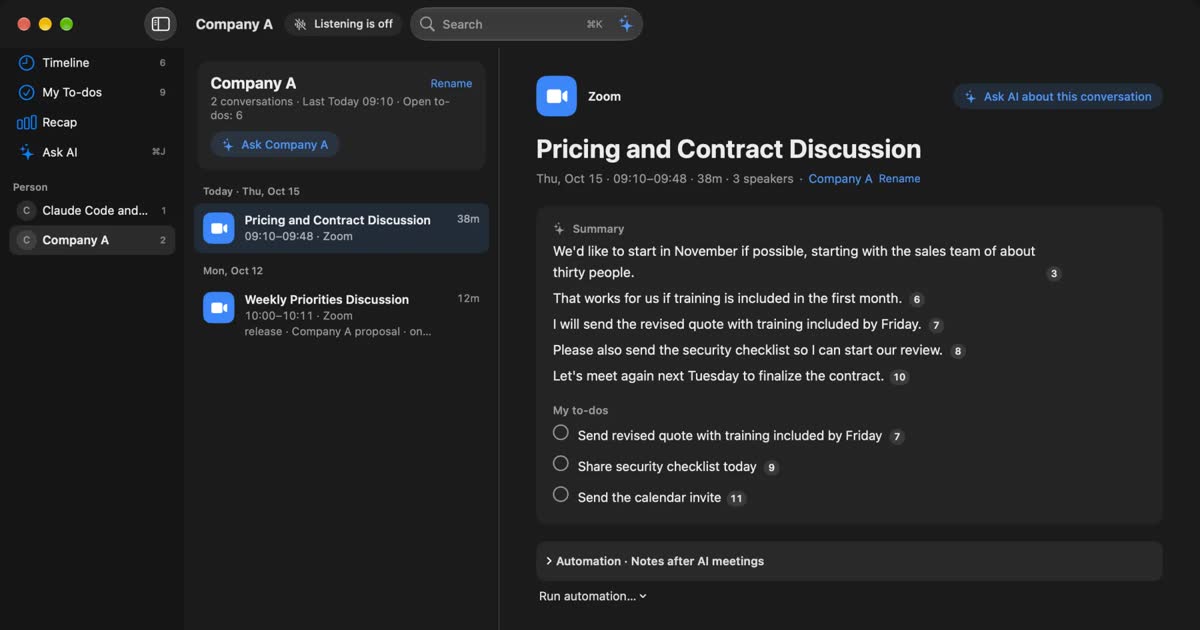
If you have English meetings several times a week and want text from every one on your Mac, whatever the meeting tool, Recall is another option. Recall sits in the menu bar and transcribes your microphone and the sound your Mac plays. The other side of a Zoom, Teams or Google Meet call is transcribed as sound your Mac plays, and your voice from the microphone. There is no record button.
- Choosing English: go to Settings › Listening and set Listening language to Japanese or English. New speech is heard in the new language, and earlier records stay as they are. Recall supports no other languages
- What is kept: text only. Audio is discarded once transcribed, so you can’t listen again in Recall
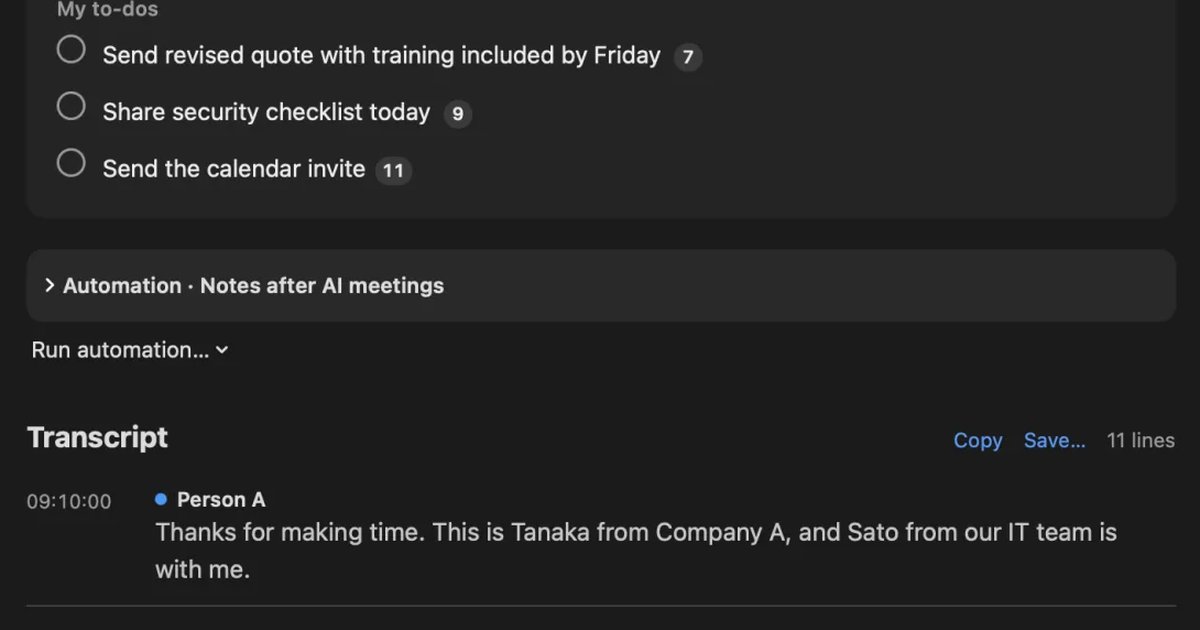
- After the conversation: this Mac’s AI writes a summary and your to-dos (when Apple Intelligence is on). You can also copy the transcript or save it as a text file
- Where records are kept: on this Mac. We don’t send them to our servers. They leave your Mac only when you use a Pro feature you turned on, or when you copy or save and share them yourself (When records leave your Mac)
- Price: Free has no transcription limit, and shows and searches the last 14 days. Pro is ¥980 a month or ¥9,800 a year, tax included
- What you need: a Mac with Apple silicon on macOS 26 or later, a microphone, and permission for screen and system audio recording
Recall fits you if
- You want English meetings kept the same way in Zoom, Teams or Meet
- You want text on your own Mac regardless of the host’s plan or settings
- You don’t want meeting audio to go to an outside service
Recall is not for you if
- You want to transcribe an English recording you already have (Word, MacWhisper or Gemini fit)
- You also have meetings in languages other than Japanese and English
- You want to keep audio to listen again, or share records with a team (Otter fits)
- You use an Intel Mac or a Windows PC
Whatever you use, tell the other people at the start when you transcribe a conversation. Examples are in the FAQ.
Free to use · No account needed · macOS 26 or later · Mac with Apple silicon · By downloading, you agree to the Terms of Service
FAQ
Can I transcribe English for free?
Yes. Google Meet’s English captions are available to everyone, and the Gemini app lets you try up to 10 minutes of attached audio in total for free. MacWhisper has a free version (€0), and Recall’s Free plan has no transcription limit. Transcribe in Word for the web needs a Microsoft 365 subscription.
Can a tool set to another language transcribe English?
In most tools, not well. Teams, Word, Recall and others hear sound in the language you chose first, so change the listening language to English before transcribing English.
What about meetings that mix Japanese and English?
Neither Otter nor Recall switches between Japanese and English automatically within one meeting. Set the language most people speak, and check and fix the parts in the other language afterwards.
Can I transcribe British or Indian English?
Teams and Word for the web let you pick English variants such as US, UK, Canada and India (Word also has Australia). Picking the variant closest to the speakers may reduce mishearing.
Can I translate an English transcript?
In Teams, translated transcripts are a Teams Premium feature, and translations are not saved. For a recorded file, transcribe it in English first and then give it to a translation tool or AI, so you can compare it with the original.
How do I transcribe an English video?
A YouTube video with captions can show its transcript with built-in features. For a video file on your Mac, MacWhisper reads MOV and MP4. Details are in our guide to transcribing YouTube videos.
Can Recall transcribe English meetings?
Yes. Set Listening language to English in Settings › Listening. English product names and people’s names can be misheard, so try it on your own meetings. It can’t import audio files.
Checked on November 23, 2026. Teams details come from Microsoft Support’s “Start, stop, and download live transcripts in Microsoft Teams meetings”; Word from Microsoft Support’s “Transcribe your recordings”; Google Meet from Google Meet Help on caption languages; MacWhisper from its official website (www.macwhisper.com); Gemini from Gemini Apps Help on attaching and analyzing files; Live Captions from the iPhone User Guide. Limits and prices can change, so check each company’s latest pages before you use them.
Get the product overview (PDF) by email →
Related articles
Otter.ai alternatives compared: 8 options for English meetings, and when to stay on Otter
Looking for an Otter.ai alternative? We compare Recall, Fireflies, Fathom, Granola, Notta, MacWhisper, tl;dv and Tactiq on bots, where data lives, languages and free limits, and say when Otter is still the better choice.
How to transcribe an audio file on a Mac: m4a and mp3 options compared
To turn an m4a or mp3 file into text on a Mac, the first question is whether the audio may leave your Mac. MacWhisper, Transcribe in Word for the web, Gemini and ChatGPT compared by format, length limit and what you pay, plus whether Notes and Voice Memos can read files and what to check when it fails.
Real-time transcription: free ways on your computer, phone, and in meetings
Free ways to get real-time transcription: live captions on Mac, Windows, iPhone and Android, Zoom, Teams and Google Meet captions, and apps, compared by whether the text is kept and whose voice they hear.
How to improve transcription accuracy: why errors happen, and what to do before, during and after
Transcription accuracy depends on how the sound reaches the microphone before it depends on the tool. Why wrong words, wrong speakers and missing words happen, what to do before and during a meeting and when fixing it afterwards, and how to compare tools.