 Recall
What are action items? How to write them in meetings, with examples, and follow them through
An action item is a task agreed in a meeting, with who does what by when. How it differs from next steps and decisions, how to write one with examples, how not to miss them during the meeting, how to see them through afterwards, and what to watch when Zoom, Teams or Google Meet AI picks them up.
The short answer: an action item is the next piece of work from a meeting, with who, what and by when
An action item is one task that puts a meeting’s decision into practice. A line such as “Send the quote to Company A (Tanaka, by November 20)” has an owner’s name, a task that starts with a verb, and a due date. Only with all three does it become something a person can act on. When one is missing, the task often sits untouched until the date has passed.
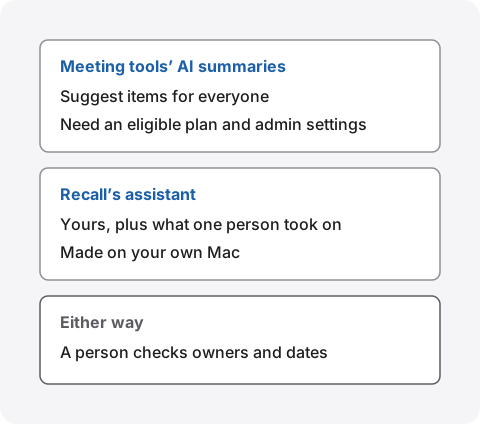
What matters more than wording is reading the items back at the end of the meeting and seeing each one through afterwards. AI summaries in Zoom, Teams and Google Meet suggest items, but they have conditions and can mix up owners or dates, so a person checks them before they are sent.
This article is written by KOROMO K.K., which develops Recall, a transcription app for Mac. We introduce our own product later, so please read with that in mind. We checked the meeting tools’ AI features against the official help from Zoom, Microsoft and Google on November 15, 2026.
| If this is you | Read next |
|---|---|
| You want to know how it differs from to-dos and decisions | What action items are |
| You want the shape of one line, with examples | How to write them |
| Agreed tasks keep getting left undone | Seeing them through |
| You want your meeting tool’s AI to pick them up | Meeting tools’ AI |
| You want to know how to write the minutes themselves | How to turn a transcript into meeting minutes |
What action items are, and how they differ from next steps, to-dos and decisions
An action item is a specific task that someone does as a result of a meeting. Teams also call them follow-ups, takeaways or homework. Side by side with similar words, the differences are these.
| Meaning | Example | |
|---|---|---|
| Decision | A conclusion the meeting reached. Not a task in itself | The launch date is December 1 |
| Action item | A task that puts a decision into practice, with an owner and a date | Tell partners the launch date (Sato, by November 18) |
| Next step | The next move, common in sales and personal task lists | Send times for next week’s call |
| To-do | A list of things to do, including work unrelated to meetings | Submit expenses |
Company names, people and dates in the examples are made up for illustration.
In meetings, action items and next steps mean almost the same thing. If anything, an action item is recorded in the meeting with an owner decided, while a next step is more often the next move for you or the other side. If your team agrees on one word, either is fine.
In minutes, keep decisions and action items under separate headings. Mixed together, it is hard to tell whether something was “decided for December 1” or “to be done by December 1.” Everything minutes should contain is in what to keep in minutes, with examples.
How to write action items, with examples
Write each action item with who, what and by when. For tasks where people might disagree about whether they are finished, add what done looks like.
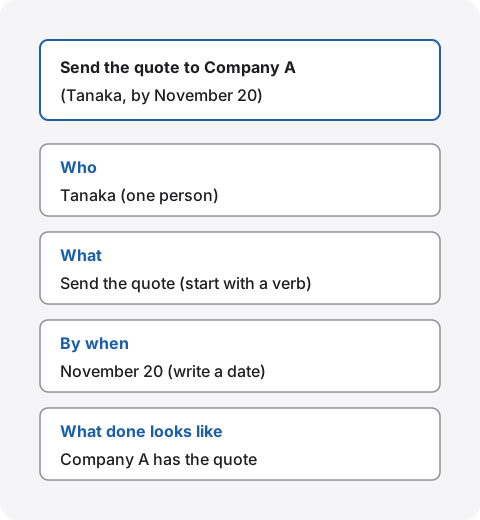
Four tips for writing them
- One person’s name as owner: with “Sales” or “everyone,” nobody feels the task is theirs. Even for shared work, name the one person who pulls it together
- Start with a verb: not “the quote” but “send the quote.” Without a verb, nobody knows what finishes it
- Write a date: turn “next week,” “ASAP” or “by next time” into a date such as “November 20,” counted from the meeting day
- One task per line: split “fix the slides, send them and set a date” into two or three lines, especially when the owners differ
Vague lines and lines people can act on
| Vague | Can act on | |
|---|---|---|
| No owner | Review the price list | Draft the new price list (Suzuki, by November 19) |
| No verb | The Company B thing | Ask Company B when they want to start (Tanaka, by November 17) |
| Vague date | Share the design (Sato, next week) | Share the design (Sato, by November 20) |
| No clear end | Tidy up the manual | Update steps 3 and 4 of the manual to the new screens (Suzuki, by November 27) |
| Several owners | Sales to think about marketing | Bring three marketing ideas to the next weekly meeting (lead: Tanaka) |
Company names, people and dates in the examples are made up for illustration. When the date is “the next weekly meeting,” as in the last example, write that meeting’s date at the top of the minutes so it can be turned into a date.
When no owner or date was agreed
If a task left the meeting without an owner or a date, put it under open questions rather than writing “owner TBD” among the action items, and agree only on who will decide. With a person and a date, such as “the manager names an owner by November 17,” it can move forward.
Not missing them during the meeting
Most missed action items are tasks someone offered in passing, such as “I’ll take care of that.” They come up mid-conversation, so trying to remember them after the meeting rarely works.
- Mark the telltale phrases: when you hear “I’ll do it,” “I’ll check,” “I’ll look into it,” “I’ll send it” or “could you…,” note it on the spot. Write the name of the person who took it on, so you do not swap who asked and who agreed
- Read them back in the last five minutes: at the end, the note-taker or chair says “There are three tasks. Send the quote, Tanaka, by November 20…” and gets a yes from each owner. This is where mismatched owners and dates are found most often
- Ask when no date is given: a quick “When do you think you can do it?” gets an answer in a date
- Name a note-taker: when the chair also takes notes, running the meeting takes all their attention and items are missed
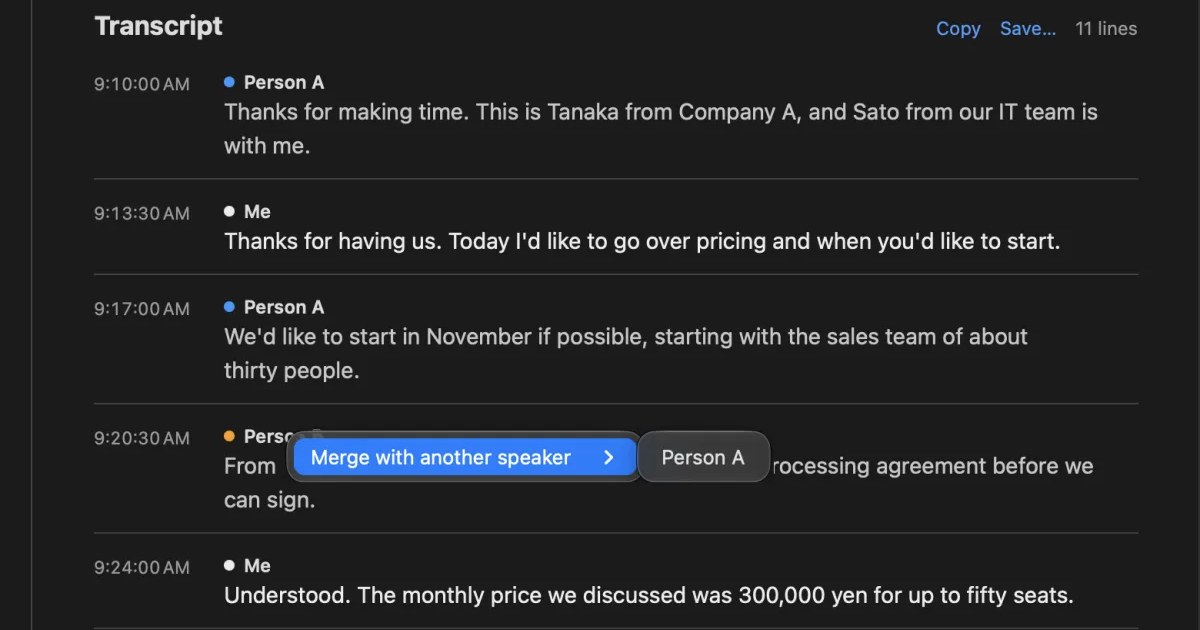
If you transcribe the meeting, you can look for missed items in the transcript later. But an “I’ll do it” in a transcript only gives you an owner when the speaker’s name is right. How to fix speaker names is in What is speaker diarization?.
Seeing them through after the meeting
Writing action items down is not the end. Unless you decide where they live and who checks them when, the next meeting starts with “So, what happened with that?”
Share them in one place the same day
Send the list of action items to attendees on the day of the meeting. Putting the owner’s name at the start of each line helps each person find their own. The minutes, a team chat or a task tool all work, but pick one. When the same list lives in the minutes and a task tool, only one gets updated and they drift apart.
Check the last meeting’s items at the start of the next
For a regular meeting, spend the first few minutes on the previous action items, one by one: done, in progress or stuck. For stuck ones, agree on the reason and a new date there and then. Just knowing this check is coming makes more people start before the date.
Handling overdue items
- If it moves, set a new date: do not stop at “give me a bit longer.” Agree on a date and update the list
- If it is no longer needed, remove it: mark tasks that things have overtaken as “no longer needed” and take them off the list. Stale items make people stop trusting the list
- If the owner changes, talk to them first: before moving a task to someone else, get the new owner to take it on, then update the list
Picking up action items with meeting tools’ AI
Zoom, Teams and Google Meet can have AI write a summary of the meeting that includes suggested next steps. Each needs an eligible plan or settings, and what comes out are suggestions, so a person checks them before they are sent.
| How action items appear | What it needs | |
|---|---|---|
| Zoom AI Companion | Under Next Steps in the meeting summary. In Zoom Tasks, accepting a suggestion makes it a task | An eligible paid plan, and settings by an admin or the user |
| Teams intelligent recap | As follow-up tasks in the recap’s AI notes | A Teams Premium or Microsoft Copilot license, and a transcript |
| Google Meet notes by Gemini | Action items and assigned tasks under “Next steps” in the notes | The organizer on an eligible Workspace edition or Google AI plan |
Zoom’s help page on meeting summary templates describes the General template as a way to “capture a quick recap of any meeting with next steps.” Its help page on AI task creation in Zoom Tasks says tasks recommended from a meeting summary appear under Next Steps and are added when you click Accept under Recommended in Tasks. Both require an eligible Zoom Workplace plan.
Microsoft’s help page on recap in Teams says AI-generated notes and follow-up tasks are shown in the recap, that intelligent recap comes with Teams Premium and with a Microsoft Copilot license, and that the meeting must at least be transcribed. Google’s help page on notes by Gemini says “Next steps” lists action items and assigned tasks, that the notes are saved to the organizer’s Drive, and that the organizer or a co-organizer chooses who they are shared with.
What to check in AI suggestions
- Owner: is the person who asked listed as the owner? If speaker names are wrong, owners come out wrong too
- Date: has “next week” become the right date? Has a date been added to a task that never had one?
- Undecided talk: has “shall we look into it?” become a task?
- Who receives it: is the summary set to reach external attendees? Internal homework can end up with a client as it is
How to start transcription in each tool, and the plans it needs, are in How to transcribe Zoom, How to transcribe Teams and How to transcribe Google Meet.
Collecting what you took on with Recall
Recall sits in the menu bar and transcribes your microphone and the sound your Mac plays. You do not invite a bot to the meeting or press a record button. Transcription happens on the Mac, and the audio is thrown away as soon as it has been turned into text. Of all the action items, Recall collects the ones you took on yourself, and the ones a single other person said they would do.
How they are collected
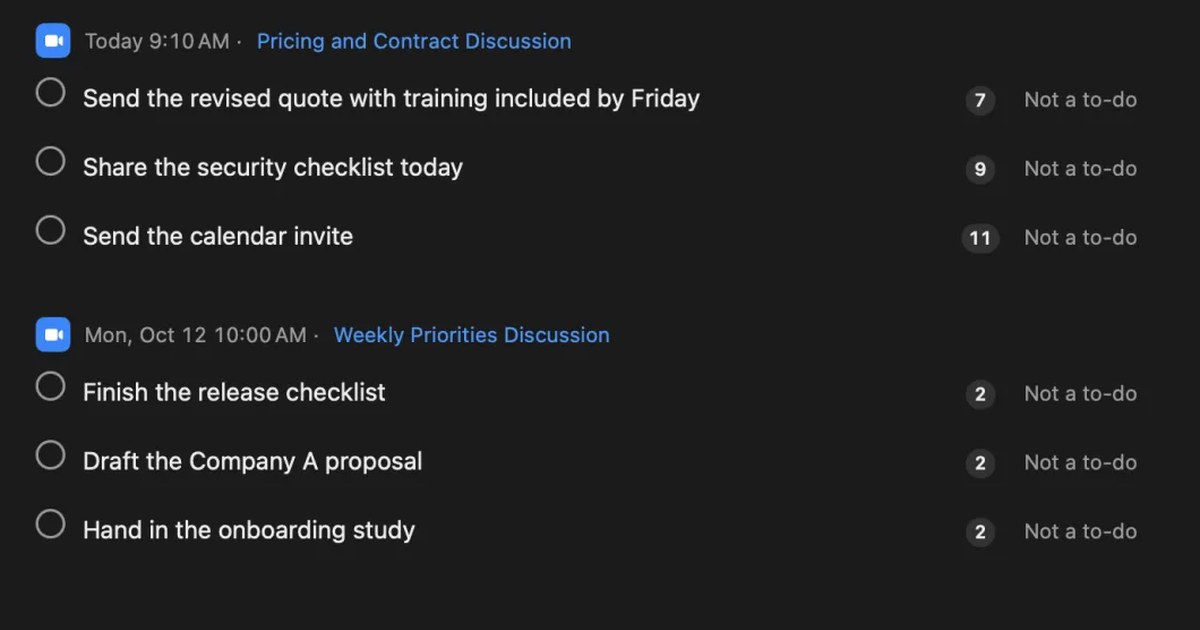
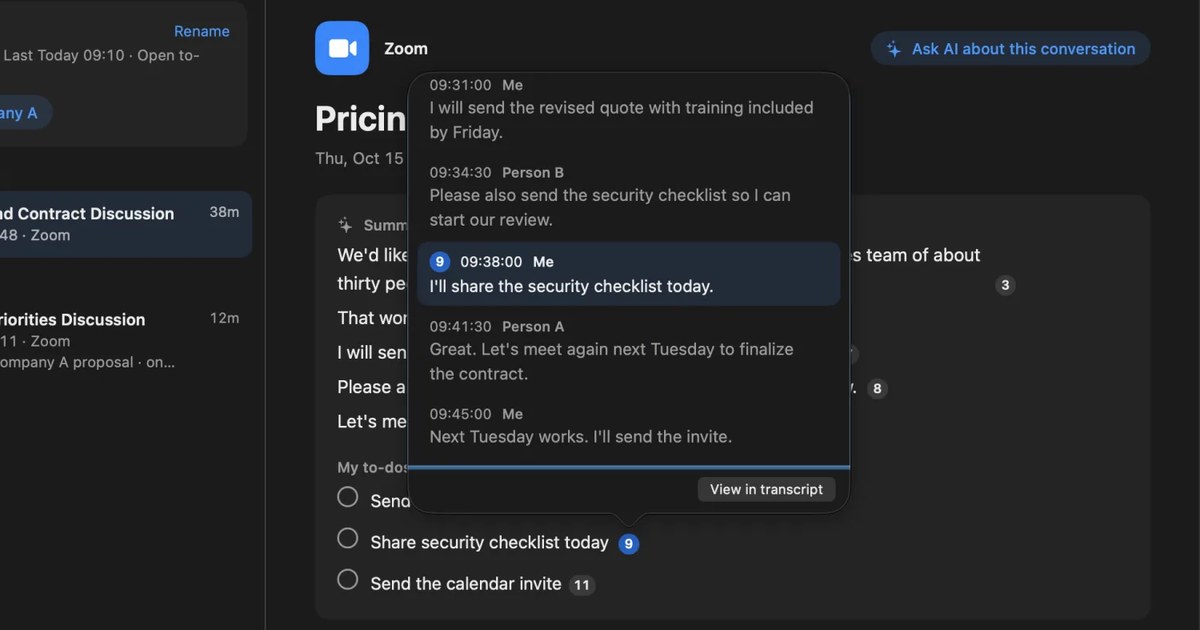
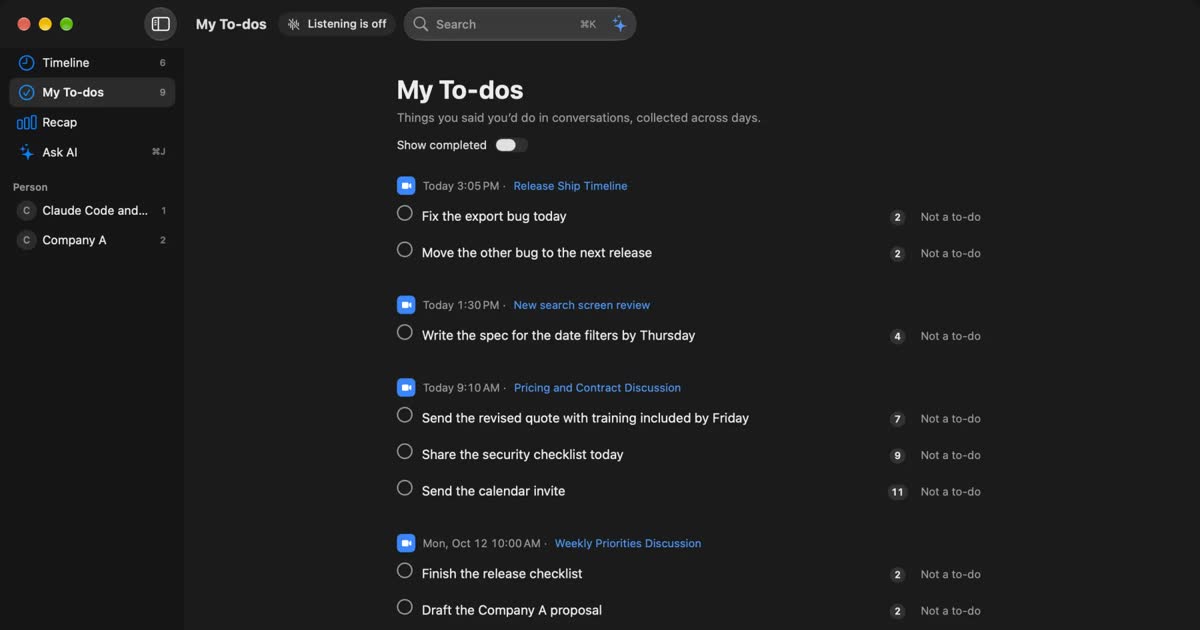
- “My to-dos” for each conversation: when a conversation ends, the on-device AI writes a summary, topics, decisions and “My to-dos” (what you took on in that conversation) and “Their to-dos” (what the other side took on)
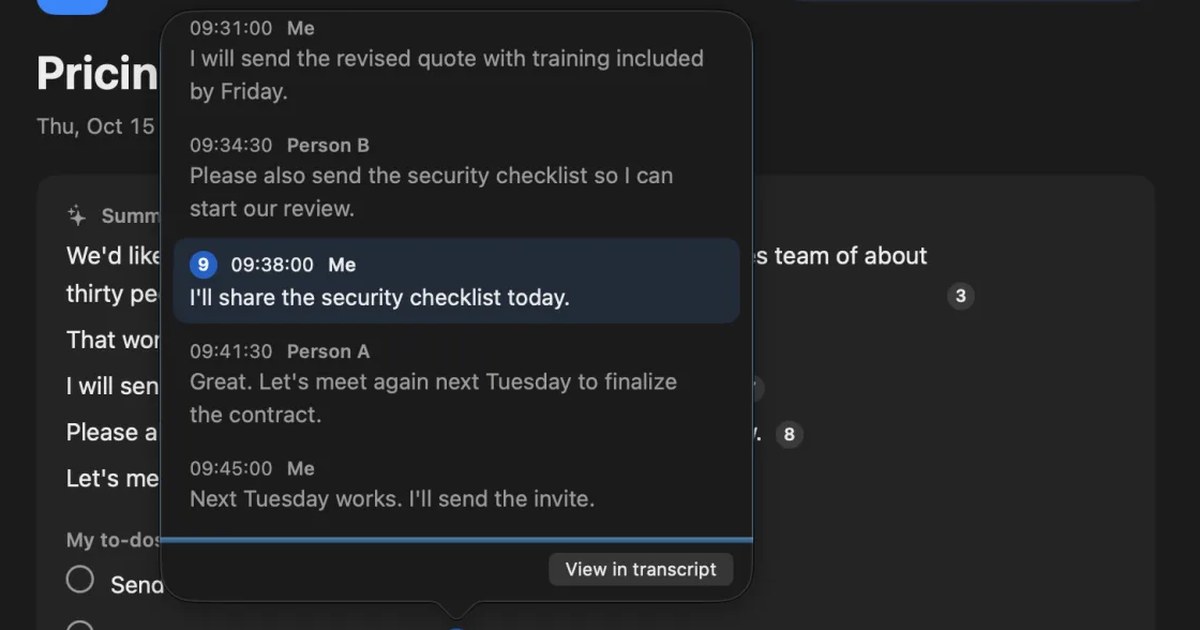
- Numbers for the source lines: click the number after a line to see the original line and five lines either side, with times and speakers. You can check on the spot whether you really took it on and what date was said
- “Assistant” in the sidebar: your commitments and the other side’s are listed across days, with who owns each and a due date (from words such as “by Friday”). Clear them with “Done” or “Snooze…”, and remove a wrongly picked item with “Not a to-do.” When you turn it on, a notice of your commitment counts comes every morning at 9:00 (morning summary). Even on Free, open commitments older than 14 days are still shown
- During the meeting: the “What I committed to” button in the live panel (⌥⌘L) answers from the last 15 minutes. Use it to check your own items before the read-back in the last five minutes
Summaries and to-dos are made when Apple Intelligence is on, whatever the memory (except when you choose an outside AI for organizing meetings on Pro). Due dates come from how the date was said, so check them against the source line. Commitments with no date said are listed without one.
Limits to know first
- It does not collect everyone’s items: it collects your commitments and those that one other person’s lines alone show they took on. Write the action items in the minutes from the transcript
- It sends nothing to anyone: it cannot send the list to attendees or notify owners. Sharing is up to you
- Mac only: it runs on a Mac with Apple silicon and macOS 26 or later. It does not run on Windows or phones
- Only what you heard: only the sound your Mac heard is transcribed. The audio is not kept, so you cannot play it back
- What Free covers: Free has no limit on transcription, and shows and searches the last 14 days. Records are kept for 90 days by default on Free and indefinitely on Pro. Pro is ¥980 a month or ¥9,800 a year (tax included), and Pro features stop if the license cannot be checked for 14 days in a row
Your records are kept on this Mac, and we do not send them to our servers. Records leave the Mac only when you use a Pro feature you turned on, or when you copy or save something and pass it on yourself. The full list is in When records leave the Mac.
Who Recall suits
- On days full of meetings, you want everything you said you would do in one place across meetings
- Your meeting tool’s AI summary is sometimes unavailable because of the plan or the organizer’s settings
- When you are unsure whether you took something on, you want to check the original words right away
- You use a Mac with Apple silicon and macOS 26 or later, and your employer’s rules allow it
Free to use · No account needed · macOS 26 or later · Mac with Apple silicon · By downloading, you agree to the Terms of Service
Who Recall does not suit
- You want one list of everyone’s action items (a meeting tool’s AI summary or a task tool fits better)
- You want owners notified of their action items automatically
- You join meetings on Windows or a phone
- You want to keep the audio and play it back
- Your employer’s rules allow only apps the company has approved
Telling attendees you are transcribing
Whether you use a meeting tool’s AI or Recall, tell attendees that you are transcribing the meeting. Recall has no way to notify others and cannot be seen by them, so telling them is your responsibility. The Recall site gives this as an example.
I am transcribing this on my Mac so I can check the details later. The audio is not saved, but the transcript stays on my Mac. Let me know if you would rather I stop.
If someone declines, or your employer’s rules do not allow it, do not transcribe. Reading the action items back at the end of the meeting still works without it. We do not recommend recording people without their knowledge with any product. This article is not legal advice. What to check before using AI in meetings about confidential matters is in Is Otter.ai safe? Five checks for any AI meeting notetaker.
FAQ
Are there other names for action items?
Teams call them follow-ups, takeaways, homework or next steps. Whatever the name, the content is the same: a task agreed in a meeting, with an owner and a date.
Are action items and next steps different?
In meetings they mean almost the same thing. If anything, an action item is recorded in the meeting with an owner decided, while a next step is more often simply the next move.
Can decisions and action items go under the same heading?
Keeping them apart is better. A decision is a conclusion; an action item is the work that carries it out. Mixed together, it is hard to tell what was decided from who does what.
How do I write a task that has no owner yet?
Put it under open questions and agree only on who will name an owner, and by when. A task with no owner among the action items tends to stay untouched.
Can I send the action items a meeting tool’s AI wrote as they are?
Treat them as suggestions and have a person check them before sending. Compare them with the original lines for swapped owners, wrong dates and undecided talk turned into tasks. Check who the summary goes to as well.
Does Recall collect other attendees’ action items?
Only partly. Besides your own, it collects as “their commitments” what one other person’s lines alone show they took on. It does not gather everyone’s, so write the minutes from the transcript.
Can I use the assistant’s commitments in Recall on Free?
Yes. Even on Free, open commitments older than 14 days are still shown. Summaries and commitments are made by the on-device AI when Apple Intelligence is on.
Checked on November 15, 2026. The meeting tools’ AI features come from Zoom Support’s pages on meeting summary templates and on AI task creation, Microsoft Support’s page on recap in Teams, and the Google Meet Help page on notes by Gemini. Screen and item names follow each company’s help pages and may differ from what you see. Plans and features change, so check the official pages before use. How to write and follow up action items is general guidance for everyday meetings.
The differences between Recall Free and Pro are in Plans and licenses.
Free to use · No account needed · macOS 26 or later · Mac with Apple silicon · By downloading, you agree to the Terms of Service
Get the product overview (PDF) by email →
Related articles
How to turn a transcript into meeting minutes: what to keep, examples, and asking AI
Pasting a transcript is not the same as writing minutes. The difference between verbatim, clean transcripts, summaries and minutes, what to keep with example lines, how to pick out decisions and action items, and how to ask AI for a draft and what a person should check.
How to automate sales call notes: what to keep, what to say, and your CRM
A guide for sales and customer success. What to keep in call notes, phrases for telling the other side, how notes relate to your CRM, and how to choose among tools such as Notta and amptalk.
What is speaker diarization? Splitting a transcript by who spoke, and fixing it when it goes wrong
Speaker diarization splits audio by who spoke when and labels each speaker with a number such as Speaker 1 or Person A. How it differs from speaker identification, how Teams, Zoom, Word and do-it-yourself tools split speakers, why in-person meetings split badly, and how to rename and merge speakers.
Is Otter.ai safe? Five checks for any AI meeting notetaker, with official answers
Is Otter.ai safe, and is any AI notetaker? Five checks (audio storage, where processing happens, AI training, sharing, telling participants), how to verify each, and what Otter, Notta, Rimo Voice, Granola and tl;dv officially say (checked November 13, 2026).
Avoiding “he said, she said” after meetings and calls: follow-up messages, and checking your own records
Most “he said, she said” disputes at work can be prevented by putting decisions into words on the spot and sharing them in writing. Why they happen, what to do during a meeting or call, example follow-up messages, how to keep records, how to check when one happens, and how recordings differ from written records.